How to Build Out a Successful Campaign
Last updated: September 23, 2026
Every campaign is different — your goals, audience, and approach will all vary depending on your unique situation. While we can’t offer one-size-fits-all strategies or tailor-made advice in this article, we can share a few tried-and-true practices that have consistently helped our clients build successful outreach campaigns.
Below are some of our top recommendations to help you get the most out of your Buzz experience:
📌 Put "Send Connection Request" Before Any Actions
If your search includes leads who aren’t first-degree connections, we recommend starting with Send Connection Request before adding other steps like Perform Action. Performing actions before connecting can come off as pushy or confusing to the prospect and may reduce your chances of engagement.
Important: You cannot send direct messages to prospects who aren't already 1st-degree connections due to LinkedIn's platform rules. If you configure Send Message as a step before establishing a connection, those prospects will be moved to Pending status with the error "Can not send message to prospect. Please send inmail or connect first." The only ways to message non-connections are to either send a connection request first (and wait for acceptance if that setting is enabled), or use InMail if you have LinkedIn Premium or Sales Navigator with available credits.
When Connection Request Booster and InMail Booster are turned off, the system uses your Views of Profiles limit when sending connection requests or InMails. If your profile views limit is exhausted, the system cannot perform tasks that require visiting a profile page, which will cause prospects to remain pending and your campaign to stall.
Note: In some cases, LinkedIn may prompt for the prospect's email address when attempting to send a connection request. This typically happens when the prospect has restricted incoming connection requests, the account is relatively new with few mutual connections, or a high number of requests were sent in a short period. When this occurs, prospects will move to Pending status with the message "Active Connection Booster required to send CR." To proceed with these prospects, you'll need to enable the Connection Request Booster.
To avoid this issue, enable Connection Request Booster and/or InMail Booster in your settings — when these boosters are active, they do not consume profile views during outreach activities.
To ensure you can still send connection requests, keep an eye on your Connection Request daily limits in your account settings and make sure you have enough remaining for outreach.
Important: If you're adding prospects who may have already had a Perform Action step executed in a previous campaign, you'll need to reverse this order. The system will skip any steps that come before an already-completed Perform Action step. In this case, place Perform Action first, followed by Send Connection Request. The system will skip the already-completed Perform Action and proceed with the connection request. If you keep Send Connection Request first, it will be skipped because the system detects the later Perform Action was already done.
Manual Approval: If Manual Approval is enabled in the Send Connection Request step, prospects will not receive connection requests automatically. They will remain in NEW status with an “Awaiting approval” label until you approve them.
To approve prospects, open the Prospects tab, filter by NEW, hover over Awaiting approval, and click Approve.
If you want connection requests to send automatically, disable Manual Approval in the Send Connection Request step.
⏳ Use "Wait Between Steps" to Give Your Prospects Breathing Room
Be mindful of your timing. Buzz allows you to set custom wait times between steps, and we highly recommend using this feature. A delay of 3 to 5 days between steps is a good rule of thumb to avoid overwhelming your audience and to create a more natural flow of communication.
Important: The wait time you set represents the earliest point at which the next step can execute, not the exact time. Actual execution may occur later depending on several factors:
LinkedIn or proxy-related issues
Low profile view limits or daily message limits
Connection status with the prospect
Paused prospects or campaigns
Sequential processing when many prospects reach the same step simultaneously; messages are sent one at a time based on your daily limits, not all at once
For example, if 200 prospects complete a step on the same day and your daily message limit is 20, some may receive the next message on day 4, while others may receive it on day 14 (4 days plus 10 days of sequential processing).
Note: If a prospect is already a first-degree connection when they enter your campaign, any configured delays after the Send Connection Request step will not apply. The system considers the connection period already passed and will proceed to the next step according to your campaign schedule. This is expected behavior for existing connections.
Critical: Configure all delay steps before launching your campaign. If you add or modify delays after a campaign is already running, those changes will not apply retroactively to tasks that were already queued. If you need to change timing after launch, duplicate the campaign and restart it with the updated delays to ensure they apply correctly.
✨ Keep It Simple
Some of the most effective campaigns are also the simplest. In fact, our most popular campaign format is still the classic combo of:
Sending a Connection Request
Following up with a combination of Social Messages and emails
There’s no need to overcomplicate things. A clear and concise sequence often performs better than a complex one.
👍 Don’t Skip "Perform Action"
Taking a moment to endorse skills or leave a thoughtful comment on a prospect’s page can go a long way. These small gestures help you stand out and make your outreach feel more personal and genuine.
But everything is best in moderation. The more Perform Action steps you add (especially if each includes multiple actions), the longer your campaign will take to complete. Currently, Perform Action steps take more time than any other step in the sequence.
Additionally, keep an eye on your Views of Profiles limit. These actions consume that limit, and if it runs out, your campaign may stall.
🎥 Leverage Buzz Video for Maximum Impact
Our Buzz Video feature is a powerful way to personalize your campaigns at scale. By recording just one video, you can reach thousands of prospects, with each one feeling like you made that video just for them. It's simple, customizable, and a proven way to boost engagement.
Keep in mind that every video recorded for a prospect uses 1 profile view. So this step also contributes to your Views of Profile limit — and it's important to monitor that to avoid your campaign getting stuck.
✍🏻 How Many Follow-Ups Are Too Many?
A good rule of thumb is three emails total—your initial message plus two follow-ups. This strikes the right balance between persistence and professionalism. On the Social Platform, experts recommend no more than 2–3 follow-up messages per connection.
Timing matters: Wait 3–5 business days between messages, gradually increasing the interval with each follow-up. While SalesBlink data shows 50% of sales happen after the fifth follow-up, pushing too hard can hurt your sender reputation and lead to spam reports.
📩 What to Say in a Follow-Up
The best follow-ups add value without applying pressure. Keep it short and relevant -- Social users spend an average of just 17 minutes per month on the platform.
Example:
“Hi [Name], hope you’re doing well! I know things can get busy, but I’d still love to chat about [previous topic]. I recently came across [relevant insight or stat] and thought of you. Let me know if there's a better time to connect.”
Avoid sounding impatient or accusatory. Messages like “Did you see my last message?” tend to irritate rather than engage.
What Else Should You Keep an Eye On?
When building your campaigns, it's a good idea to double-check your settings and understand how they work. Here are a few things to pay special attention to:
Social + Email campaigns: All configured steps will execute, including Send Connection Request steps. Connection requests will therefore be sent even if your primary goal is email outreach.
Email Only campaigns: Select this campaign type during setup if you want to avoid sending connection requests. Changing the campaign type affects only profiles added afterward; existing social profiles remain social, and existing email profiles remain email.
🔁 Add Prospects from Existing Campaigns
When this setting is enabled, the system checks whether any prospects from your current search already exist in other campaigns. If they do, those prospects will be moved to your current campaign automatically.
Important: When prospects are moved from one campaign to another, the system tracks which steps they’ve already completed. If a prospect has already completed a specific step, such as Post AI Comment, in a previous campaign, the system will skip all prior steps in the new campaign up to that point to avoid duplicating actions. This is expected behavior designed to prevent redundant outreach.
When this setting is enabled, the system checks if you’ve already had a conversation with a prospect from your search, and if the conversation exists, the prospect will not be paused and will continue through the campaign.
Tip: To prevent unexpected step skipping when moving prospects between campaigns, create a new campaign with the Recontact Prospects toggle enabled. Place steps that prospects may have already completed, such as Post AI Comment, at the beginning of the sequence or omit them entirely. Avoid reordering steps in active campaigns, as changing the sequence order can cause the system to skip steps for prospects who completed those steps in their original position.
Important: The "Recontact Prospects" setting only applies to prospects added to the campaign after the toggle is enabled. If you enable this setting after prospects have already been added to your campaign, those existing prospects will not be affected and may remain in a paused status. To resolve this, you’ll need to manually activate those prospects in bulk from the campaign view. To avoid this issue, configure this setting before adding prospects to your campaign.
If this setting is disabled, and there is a conversation, the prospect will be paused, and you will decide whether to interact with them from this campaign or not.
⏳ Wait for Connection Request to Be Accepted
When enabled: The workflow stops at the Send Connection Request step and will not progress to any subsequent steps, including conditional steps such as If Connected, until the connection request is manually accepted. If you use If Connected logic with delays to check acceptance status, disable this setting so the workflow can reach the conditional check.
If Connected timing: Add a wait time of 5–7 days before the If Connected step executes. This gives the system time to detect that the connection has been accepted and helps prevent prospects from getting stuck because the status has not updated yet.
🚫 Connection Request Limit (for Social + Email campaigns)
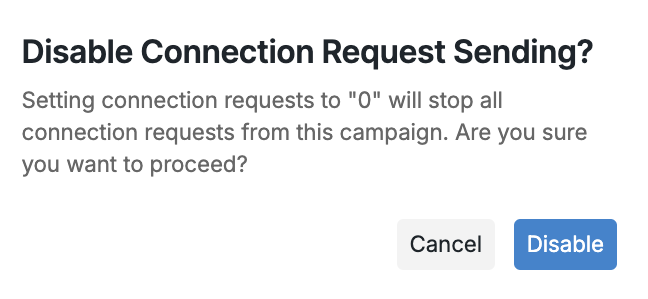
This setting controls how many connection requests Buzz will send per day. You can adjust this limit in Settings > Account Limits > Connection requests to increase or decrease your daily quota based on your outreach needs. If your campaign includes a Send Connection Request step, but your Connection Request Limit is enabled and set to 0, no requests will be sent. Even when set to low values (such as 5 or fewer), this limit can significantly reduce the volume of connection requests your campaign sends out. If you're noticing fewer CRs going out than expected, check this setting and adjust it to match your outreach goals. For guidance on setting appropriate limits, see Managing Connection Limits: Best Practices.
🔓 Allow Use My Sales Navigator Credits (for InMail steps): If your campaign includes a Send InMail step, make sure the "Allow use my Sales Navigator credits" toggle is enabled. When this setting is disabled, InMails will only be sent to open profiles. Closed profiles will remain stuck in Pending with a "profile is closed" notification, preventing your campaign from progressing. Enable this toggle to allow the system to use your Sales Navigator InMail credits for reaching closed profiles.
Don’t Ignore The Notifications — They Matter!
As you build your campaigns and select searches, be sure to pay attention to system notifications. They often explain why your campaign may (or may not) run as expected.


🔔 Notifications on the Campaigns Page
If you see an Error label next to a campaign on the main Campaigns page, hover over it to view the message.
For example:
If you see a Sales Navigator Issue/Error, it means there’s a step in the campaign that requires an active Sales Navigator subscription on the Social Platform. If the system detects that your profile has a Basic plan, you will see a notification.
Sales Navigator Technical Requirements
When working with Sales Navigator searches in your campaigns, specific technical requirements must be met for proper functionality.
Two-Factor Authentication Requirement: Sales Navigator accounts require two-factor authentication (2FA) to be enabled on LinkedIn. If 2FA is disabled, the system may not detect your Sales Navigator subscription and will show your account as having a Basic plan. Enable 2FA in your LinkedIn settings to allow the system to automatically update your subscription status.
Account Ownership Requirement: Sales Navigator searches must be created from your own account that has an active Sales Navigator subscription. Search links shared from other Sales Navigator accounts are not supported and will not populate leads into your campaign.
These requirements are essential for ensuring your Sales Navigator searches function correctly and populate leads as expected in your campaigns.
📥 CSV Upload Tips
When uploading a CSV file as your search type, make sure to map the fields correctly. Buzz will only use the data that you’ve mapped — nothing more.
For example:
If your campaign includes a Send Email step and you've selected Work email as the recipient type, but the Work email field wasn’t properly mapped during CSV import, Buzz won’t be able to find the correct email. That prospect will be moved to Pending, and you’ll see a notification explaining why.
Additionally, if you're working in a shared workspace, be aware of the Deduplicate new profiles within workspace setting. When this setting is enabled at the workspace level, prospects who already exist in another team member's campaign cannot be added to your campaign—even if you upload them via CSV with all fields correctly mapped. If your CSV prospects aren't appearing in your campaign, check whether they might already be part of another user's campaign in your workspace. Note that changes to this workspace setting do not apply retroactively to prospects already added to campaigns. For more details, see Deduplicating New Profiles Within a Workspace.
CSV Upload Advanced Tips and Troubleshooting
While the basics of CSV upload and field mapping are covered in this guide, the following considerations can help ensure smooth CSV processing.
Verify Mapping Before Starting Your Campaign: After uploading your CSV, verify that each field is mapped to the correct column. For example, make sure the First Name field is mapped to the column containing first names rather than company names or other data. Incorrect mapping can cause personalization tokens to display incorrect information in your messages.
Consider using the sample CSV template provided by the system to help avoid mapping errors.
Understanding Prospect Status Distribution After Upload: Prospects uploaded via CSV may not all appear in New status. The system distributes them across statuses based on their prior contact history with your account. Prospects that have not been contacted before appear in New status, while others may appear as Contacted, Connected, Replied, or another status based on their existing interaction history. As a result, your campaign totals may show prospects distributed across multiple statuses immediately after upload.
Important: The Add Prospects from Existing Campaigns setting only works for prospects added via CSV upload or search. If you're using a CSV file as your search type, enable Add Prospects from Existing Campaigns before uploading the CSV file. If you enable it after the upload, very few or no prospects may be added because the system will have already filtered them out.
Understanding Processing Time: After uploading and mapping your CSV, the system may need time to process all prospects and fetch LinkedIn data, especially for larger files. If prospects do not appear immediately, wait for processing to complete; they may be added as the system finishes processing the file.
Manual Move Limitations: If your CSV contains prospects that were previously manually moved between campaigns, they will not be added automatically even when Add Prospects from Existing Campaigns is enabled. You must manually move these prospects again to include them in the new campaign.
To better understand why a prospect might be marked as Pending or Waiting (such as attempting to send messages before connecting, LinkedIn prompting for email addresses during connection requests, missing email mappings, or other configuration issues), check out this guide: 👉 Stuck and Waiting Reasons
Building a successful campaign takes time and experimentation, but following these best practices will set you on the right track. If you ever need help fine-tuning your strategy, our support team is just a message away!