Understanding the 'Wait for Connection Request to Be Accepted' Setting
Last updated: September 23, 2026
Managing your campaign settings effectively can make a big difference in how smoothly your outreach runs.
This guide will help you understand how the Wait for connection request to be accepted setting works and how it impacts your campaign's progress.
How to Find the Setting
The setting is available at the Send Connection Request step of the campaign:
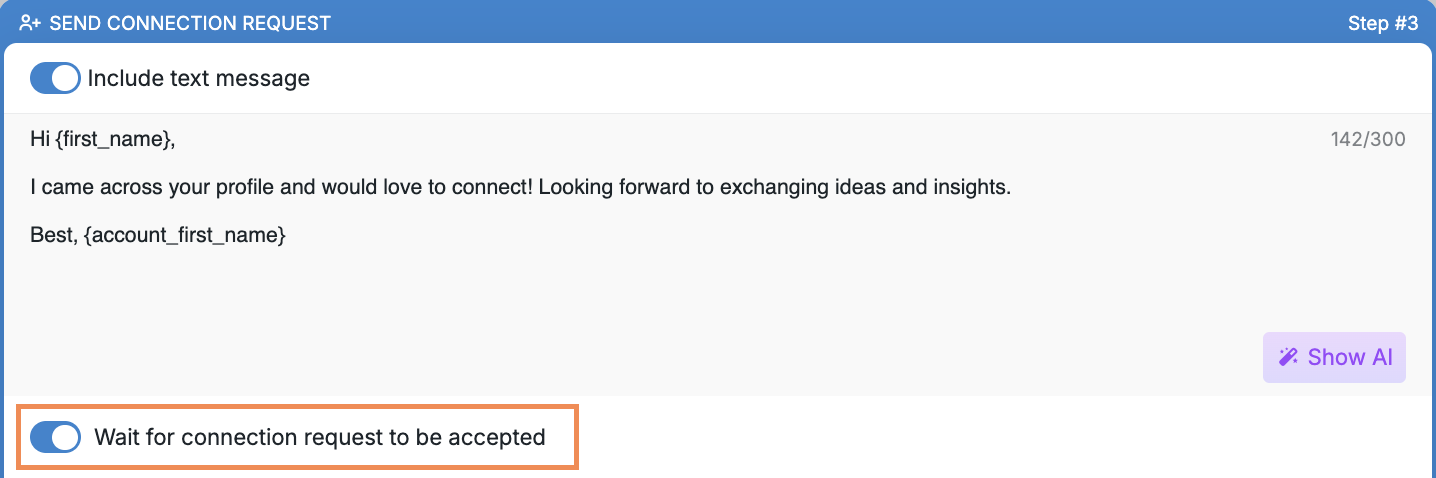
Here’s how it works:
If the toggle is ENABLED: When the next step in the campaign is, for example, Perform Action, it will not be executed until the connection request is accepted. This ensures that no further actions are taken until the connection is confirmed.
If the toggle is DISABLED: The system will continue the campaign steps until it encounters an action that cannot be performed without an accepted connection. For example, it may proceed up to the point of sending a message. At this stage, the campaign will enter the waiting status "Waiting for prospect to accept connection request."
Important: If a prospect is already connected to your account before being added to the campaign, the system will treat the connection as pre-existing. In this case, any configured delay after the "Send Connection Request" step will not apply, as the system considers the delay period already passed. The campaign will proceed immediately to the next step.
Why this matters:
Enabling the setting provides a more controlled and seamless campaign flow, preventing premature actions.
Disabling the setting allows the campaign to progress faster but may result in temporary holds if actions require an accepted connection.
How to Avoid Issues with the 'Wait for Connection Request to Be Accepted' Setting in a Smart Campaign
When setting up a Smart Campaign, it's important to use the Wait for Connection Request to Be Accepted toggle correctly to prevent workflow bottlenecks.
If your campaign follows this structure:
Send Connection Request (with Wait for CR to Be Accepted toggled on)
If Connected condition immediately after,
Your prospects may get stuck between these two steps, preventing them from proceeding to the negative scenario of the If Connected condition.
To ensure smooth campaign performance, turn off the 'Wait for Connection Request to Be Accepted' setting when configuring the Send Connection Request step.
This adjustment will prevent delays and significantly improve the efficiency of your campaign.
Alternative solution: Keep the 'Wait for Connection Request to Be Accepted' setting enabled, but increase the delay before the If Connected step. This gives the system more time to detect that the connection has been accepted before checking the connection status.
Important timing behavior: When you use an If Connected condition with a delay, such as three days, the condition will be executed no earlier than the specified delay, but not necessarily exactly at that time. Some additional delay is expected depending on system load and task processing.
If you ever need assistance or have questions about optimizing your campaign settings, our Customer Support team is always happy to help!