Account Settings: Best Practices for Smooth and Safe Outreach
Last updated: September 23, 2026
Setting up your account correctly is the first and most important step to successful outreach on Buzz.
Whether you're a seasoned user or just getting started, this guide will walk you through all the essential settings — from optimizing your Social performance to configuring safe daily limits.
Let’s dive in, step by step.
📈 Social Selling Index: Why It Matters
Your Social Selling Index, or SSI, is the Social Platform's way of rating how well you're using the platform. And here's the thing: The Social Platform actually rewards higher SSI scores with more generous limits and less scrutiny on your activity.
If your SSI is low — don’t worry. It just means you need to warm things up a bit. That includes building your network, engaging with posts, writing your own updates, and being an active (but human!) Social user.
You can always check your SSI without leaving Buzz by going to the Settings tab > Account Settings:
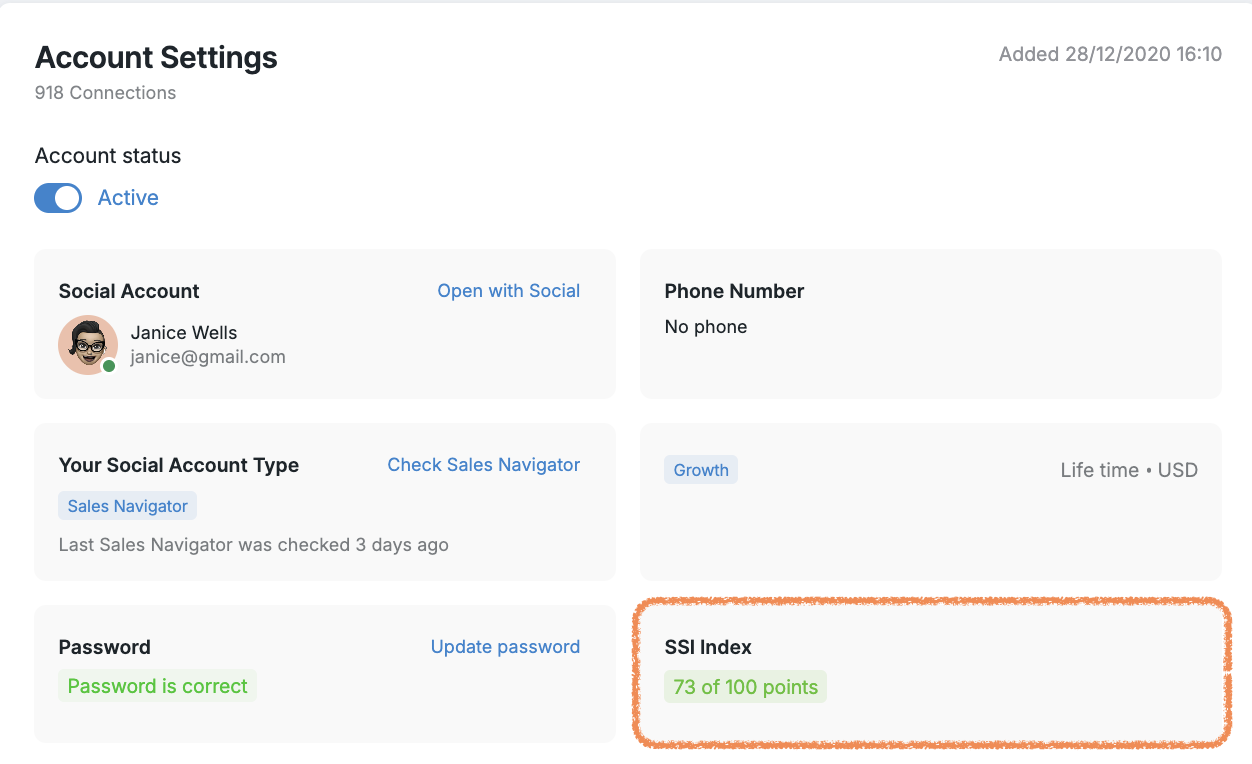
How to improve your SSI? Here are a few helpful tips to get you started:
Polish Your Professional Brand
Fully complete your profile with a strong headline, banner image, detailed experience, and listed skills.
Publish thoughtful Social posts/articles and gain endorsements to grow visibility and credibility.
Strategically Find & Connect with the Right People
Use Sales Navigator’s advanced lead builder to prospect efficiently.
Send connection requests to relevant prospects—and aim for a high acceptance rate.
Engage, Share Insights & Build Trust
Actively post, comment, and share valuable content to drive engagement.
Follow up with viewers of your profile, use warm introductions, and nurture relationships by periodically adding value.
What Should You Aim For?
If you're starting out: above 40 puts you ahead of inactive users.
For consistent engagement: 60–70 means you're utilizing the Social Platform well.
To stand out: aim for 70–80, or stronger yet, 75+ to claim thought leader status.
To join the elite: 80+ places you among the platform’s most active and visible professionals.
💼 Understanding Your Social Account Type
Not all Social accounts enjoy the same set of functions, and Buzz treats them accordingly.
We currently support:
Basic (Free)
Sales Navigator
Recruiter
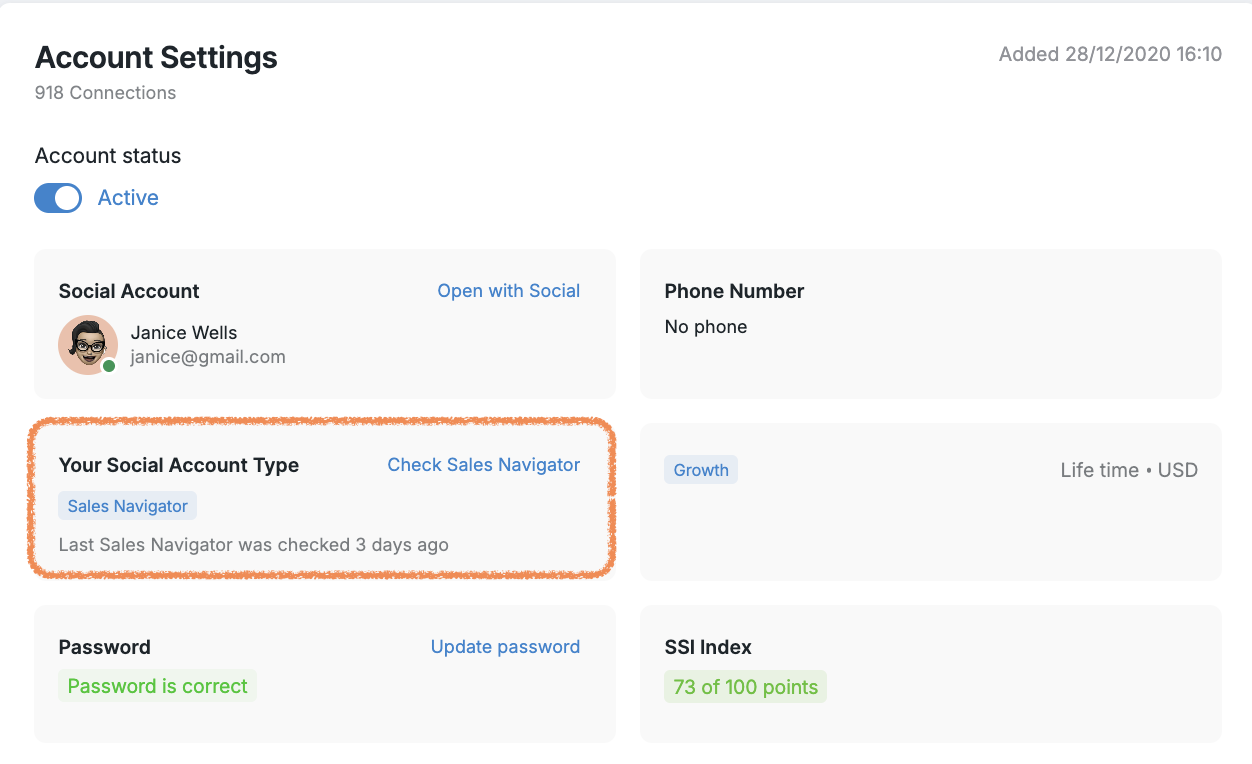
Free (basic) accounts come with more restrictions, especially around daily limits and search access. On the other hand, Sales Navigator and Recruiter accounts have extended capabilities and are much better suited for outreach campaigns.
If you’re planning to run serious campaigns, we recommend upgrading to one of the premium options — it’ll give you more flexibility and reduce the chances of hitting annoying blockers.
Go to the Settings tab > Account Settings to check your account type in Buzz:
Managing Your Account Status
Your social account can be either active or inactive in Buzz. When inactive, the account will not perform any LinkedIn-related tasks.
You can activate or deactivate your social account by going to Settings → Account Settings → Account Status.
What happens when your account is inactive:
Only email-related activities will execute.
LinkedIn steps in campaigns will be paused.
You'll see a warning notification: “Social account is not active. Use email-only mode or activate the account for stable performance.”
Your options when the account is inactive:
Reactivate the account to resume both LinkedIn and email activities in default multichannel campaigns.
Use email-only mode in your campaigns to continue outreach via email only.
Note: Accounts may become inactive due to password changes, platform restrictions, or manual deactivation. For troubleshooting inactive accounts, see Why Your Account May Be Inactive.
🔁 Inbox Sync Settings: What’s Safe?
One of the most overlooked but important settings is how often Buzz checks your Social inbox.
To keep your activity looking natural:
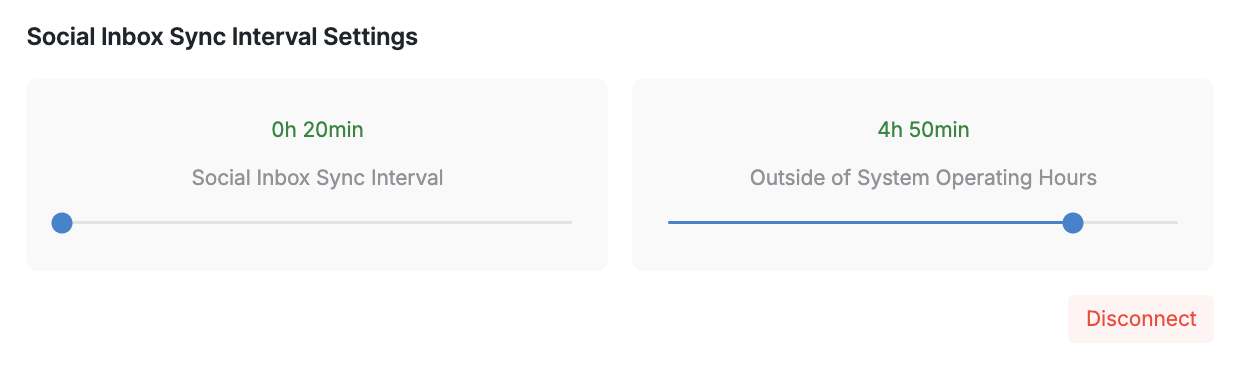
During system hours: we recommend a 20-minute sync interval.
Outside working hours: keep it no more frequent than once every 4 hours.
Why? Because the Social Platform pays attention to patterns. If Buzz is pinging your inbox every 20 minutes while you’re “asleep” — that’s a bit suspicious.
So, play it safe and stick to the defaults unless you really know what you're doing.
To set your inbox sync intervals, go to Account Settings and move the toggles around to fit your preferences:
🎯 Setting Limits That Work With You (Not Against You)
Let’s talk limits — they keep your account safe and campaigns flowing.
When you first connect your Social Account, Buzz sets some sensible defaults for you. But don’t ignore them! Take a moment to go in, review what’s there, and adjust based on your account’s age, activity, and overall health.
Here’s a good rule of thumb:
New Social accounts? Start slow. Focus on warming up and gradually scale your outreach.
Tip: Turn on the Warm-up mode to ensure smooth activity ramp up (Settings > Account Limits)

High-SSI, older accounts? You’ve got more flexibility, but pushing everything into the red zone is still risky.
📘 Related read: Connection Request Limits & What to Do If You Hit the Cap
🧠 A Few Nuances About Limits
Let’s clear up some common misunderstandings:
Connection Requests (CRs) go out first in your campaign flow. Messages only follow after your connection has been accepted. So if you send 30 requests today, don’t expect 30 messages to be sent immediately.
The Views of Profiles limit is essential — not just for profile views, but also for sending CRs and messages. If you’re not using CR Booster, you’ll want to keep an eye on this one especially.
When Instant Search is enabled, the “Pages Searched” limit gets temporarily hidden. Just FYI!
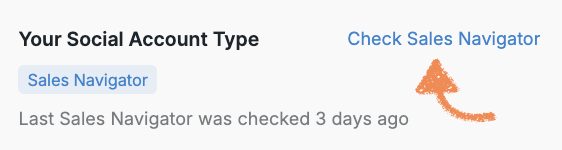
Sales Navigator users can control how many InMail credits Buzz is allowed to use (Settings > Account Limits). If you run out, we’ll stop trying — but you can always press the Check Sales Navigator button to refresh and verify. Additionally, each campaign has its own "Allow to use my InMail credits" setting in the Send InMail step — if this is disabled, the system cannot send InMail messages and prospects will move to Pending status. Note that InMail cannot be sent to closed profiles regardless of your settings.
📘 Learn more: InMail Outreach
🚀 Boosters: Powerful, But Use with Care
Buzz includes several optional “boosters” to supercharge your outreach — but they should be used wisely.
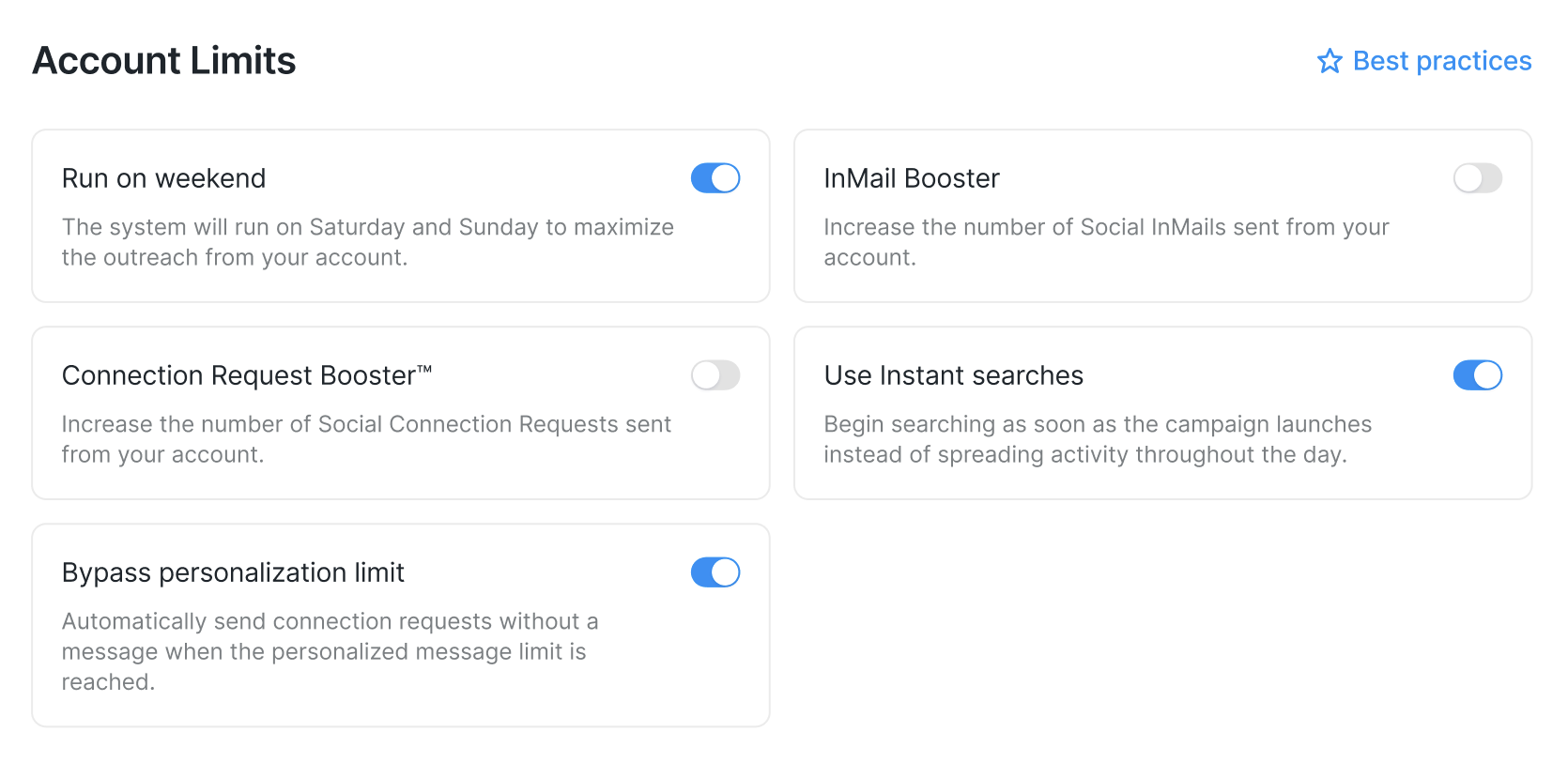
Connection Requests Booster
Helps you send more connection requests by mimicking natural behavior.
✅ Recommended: turn it on occasionally, not 24/7.
Learn more: Connection Request Booster: Maximize Your Outreach
InMail Booster
Lets you message people you're not connected with — as long as you have credits.
✅ Use it in moderation to avoid draining credits too quickly.
Instant Searches
Fetches prospects the moment you launch a search.
✅ Great feature — but turn it off when you’re done with the search to avoid unnecessary Social actions.
Learn more: Instant Searches
Account Location, Timezone & Proxies
Buzz sets your proxy location and timezone when you connect a Social account — and they need to match.
For example:
✅ America/New York + US Residential Proxy = Safe
❌ Europe/Riga + Brazil Proxy = Risky
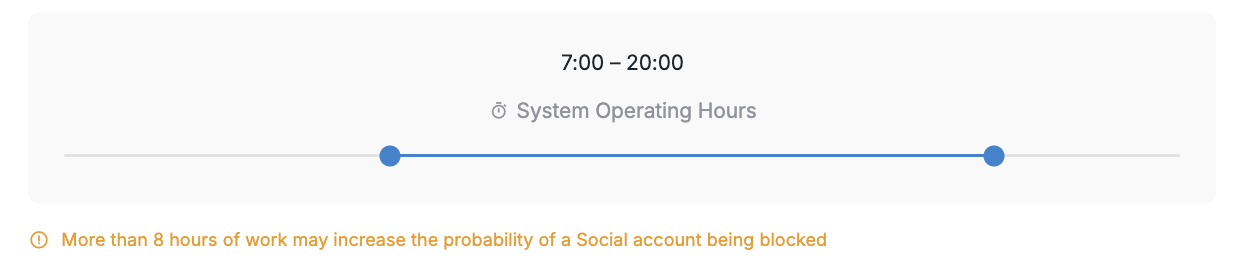
System Operating Hours
Keep your campaign hours within 8 hours per day. Longer activity windows can raise the Social Platform’s suspicion. We’ll warn you if you try to exceed that.
Choosing the Right Proxy
When connecting a Social Account, you have two options:
Use a Buzz-managed proxy (recommended)
Use your own custom proxy provider
For best results, use Residential proxies if available for your country. They’re more stable and less likely to get flagged.
⚠ Important:
Buzz-managed proxies can only be refreshed twice per day during your working hours. You can refresh it by going to the Settings tab > Account Location:
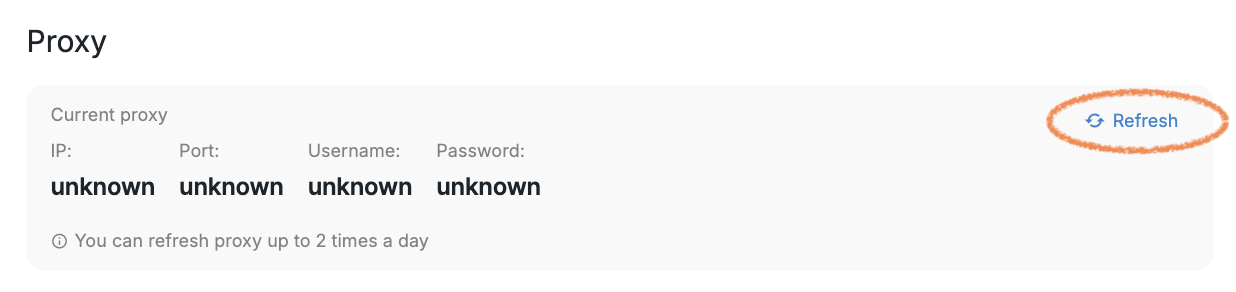
Frequent proxy switching may look suspicious to the Social Platform.
Social Login Tips
After you connect your Social Account, it’s best to manage it using Buzz’s built-in browser (to download it, please contact our Customer Support team). This creates fewer sessions and keeps everything in sync — avoiding “multiple device login” alerts from the Social Platform.
PIN Verification During Connection
When connecting your LinkedIn account to Buzz, you may be prompted to enter a PIN code sent by LinkedIn. This is a standard security verification step. Important: PIN codes expire within 15 minutes, so enter the code immediately after receiving it. If your PIN expires before you can enter it, click Resend the code from the account connection page and enter the new PIN right away.
If your LinkedIn account becomes disconnected (often indicated by a notification email), the most common cause is a password change on LinkedIn that hasn't been updated in Buzz. To reconnect, go to Settings > Account Settings > Update password and enter your current LinkedIn password (not your Buzz platform password). This keeps your account synchronized and prevents campaign interruptions.
Don’t Forget These
🔒 Blacklist
Need to make sure certain people or companies don’t get outreach? Use the Blacklist.
📘 Blacklist: How to Manage and Exclude Prospects
⏳ Pending Connections
Wondering what happens to your unaccepted invites? We’ve got a guide on that too.
Important: When you enable the Delete oldest pending invitations feature (found in Settings > Account Limits), withdrawn connections have their status changed from Contacted back to New. However, there is a mandatory 3-week waiting period before Buzz can send a new connection request to these prospects. During this time, they may appear in your campaign as new prospects, but no connection requests will be sent until the waiting period expires.
📘 How to Manage Pending Connections
Troubleshooting Connection Request Delivery Issues
While the guide covers essential account settings, specific delivery issues may require additional troubleshooting. Use the strategies below to improve connection-request volume while maintaining account safety.
When Operating Hours Are Too Short
Operating hours that are too short can prevent the system from reaching your daily connection-request targets. If you are not reaching your expected volume, consider extending your operating hours to 6–8 hours per day while staying within the recommended maximum of 8 hours. You can also increase delivery velocity by disabling the connection-request limit at the campaign level in the individual campaign settings or by enabling the Connection Request Booster; these controls work alongside your operating hours to optimize outreach.
LinkedIn’s Weekly Limits for Basic Accounts
Basic (Free) accounts are subject to a limit of 100 connection requests per week, so plan campaigns accordingly. Non-premium accounts also have a monthly limit for personalized connection requests, which include a message. After reaching that limit, enable the Bypass Personalization Limits toggle in Account Limits to continue sending requests without personalized messages.
Understanding Daily Limit Settings and Safety Indicators
To view or adjust daily limits, go to Settings > Account Limits and scroll to the Daily Limits section. The color indicators show the relative safety of your settings: green means they are in a safe range, yellow indicates moderate risk, and red signals that limits may be too aggressive and could put your account at risk. You can adjust both Views of Profiles and Connection Requests in Account Settings to manage daily outreach volume.
Specific Daily Limits by Account Type
These ranges provide concrete guidance to complement the general principles above. Start conservatively and adjust your settings based on your account’s age, verification status, activity, and overall health.
Basic (Free) accounts
Connection requests: 15–25 per day
Messages to 1st connections: 30–50 per day
Profile views: 80–120 per day
Follows: 20–40 per day
Start at the lower end and gradually increase as your account warms up.
Sales Navigator accounts
Connection requests: 25–40 per day
Messages to 1st connections and InMails: 50–80 per day
Profile views: 150–250 per day
InMails: follow your monthly quota, typically 50–150 per month depending on your plan.
Recruiter and Recruiter Lite accounts
Connection requests: 30–50 per day
Messages: 60–100 per day
Profile views: 200–300 per day
InMails: follow your subscription quota.
Additional Safety Practices
Maintain a healthy acceptance rate; aim for 30% or higher to demonstrate quality outreach.
Spread activity throughout the day instead of sending in bulk.
Avoid sudden spikes in activity that could trigger platform scrutiny.
Always use the warm-up feature for new or recently reactivated accounts.
Ensure your account is verified, not just a premium account type.
Log in consistently from the same region where your automation runs, because inconsistent login locations can increase the risk of security checks and restrictions.
Avoid spam-like messaging patterns that are too aggressive, too generic, or too high-volume.
Ensure your automations run smoothly without errors, loops, or unnatural activity patterns.
Note: The platform periodically runs broader enforcement waves that affect automation tools across the industry. Following the safety practices in this guide—including account verification, consistent login locations, natural activity patterns, and appropriate limits—helps minimize your risk during these enforcement periods.
Note: If connection requests are being delivered more slowly than expected, temporarily disabling the connection-request limit at the campaign level can increase velocity. This works alongside account-level limits and is especially useful when a large queue of prospects is waiting. Find this setting in the individual campaign settings.
How Campaign Actions Share LinkedIn Limits
Campaign actions such as liking posts, following profiles, viewing profiles, and sending connection requests draw from the same LinkedIn limit pool. Earlier actions consume available limits first, which can reduce the number of connection requests sent even when the connection-request limit appears properly configured. For example, a Like 3 posts step uses three actions per prospect, while Follow profile or Profile view uses one. With large prospect databases, earlier actions can create a queue before prospects reach the connection-request step. If connection volume is the priority, use single-action steps or remove preceding actions from the workflow.
Why Your Daily Sends May Be Lower Than Your Limits
Campaign actions compete for the same limits: Earlier multi-action steps can consume limits before connection requests are processed. Simplify those steps or remove them to increase connection-request volume.
Withdrawn connection requests: After a prospect’s request is withdrawn, you must wait three weeks before sending another request to that prospect.
Campaign-level timing delays: Timers such as “send connection requests no earlier than 2 days” can reduce daily volume even when account limits are higher.
Personalized connection-request limits: Basic accounts that reach the monthly personalized-request limit can enable Bypass Personalization Limits in Account Limits to continue sending without messages.
Prospect availability: Some prospects may not be ready for connection requests because of previous interactions, blacklist status, or their position in the campaign flow.
Advanced Optimization Tips
Monitor your Views of Profiles limit: This limit affects profile checking and connection-request volume. For optimal throughput, set the minimum Profile Views value to match the maximum Connection Requests value. The best range varies by account type and age, but keeping the limit properly configured supports consistent delivery.
Use campaign-level controls strategically: Disabling connection-request limits at the campaign level can increase velocity when a backlog of prospects is waiting.
Review your campaign workflow: Multi-action steps consume more daily limits than single actions. Streamline the workflow when maximizing connection volume is more important than completing additional actions.
Final Checklist
Before launching your next campaign, ask yourself:
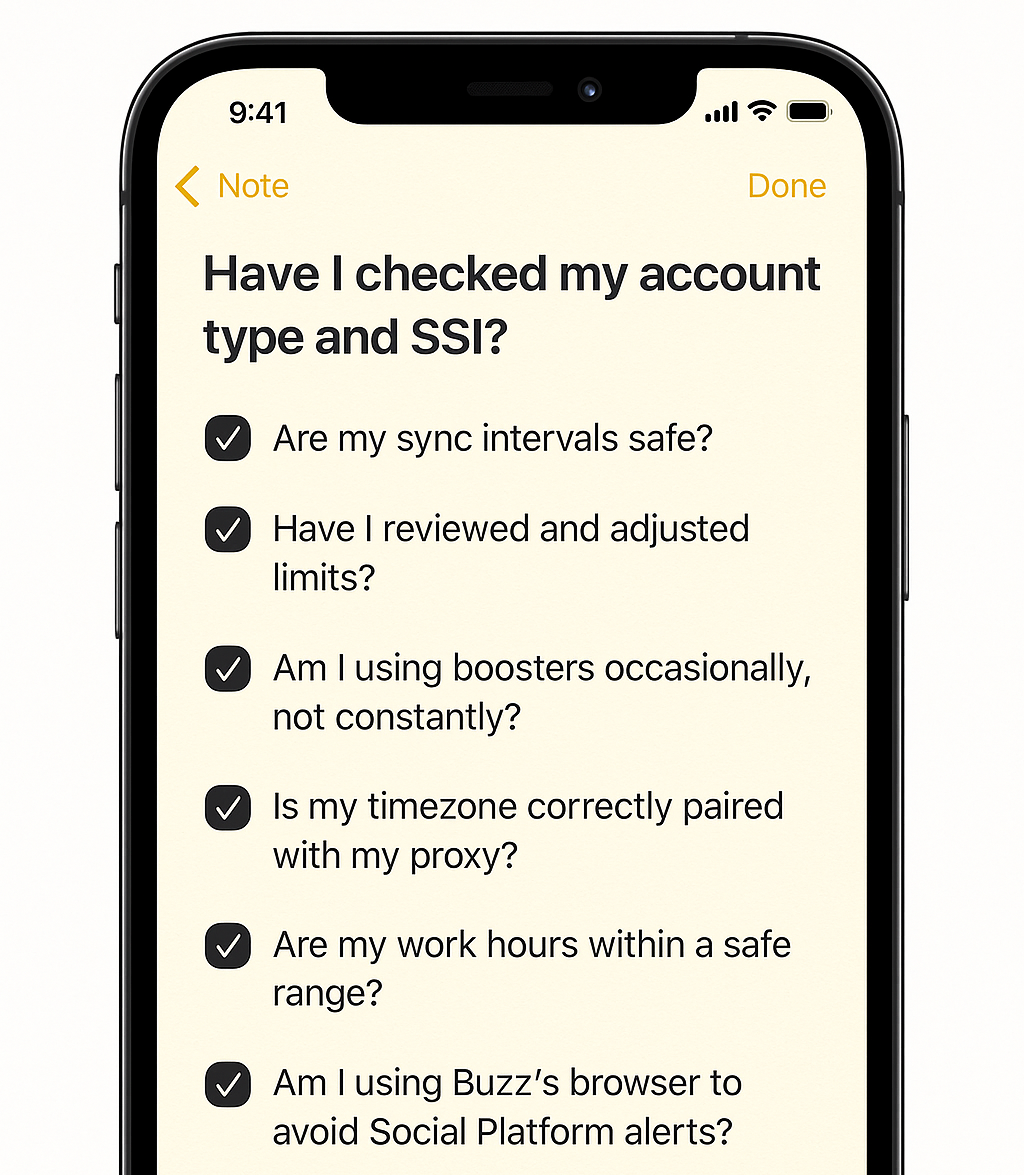
If the answer is “yes” to all of the above — you’re good to go 🚀