Why Your Account May Be Inactive
Last updated: September 23, 2026
If you're seeing that your account is inactive, there could be a few reasons behind it. Below are the most common causes and how to resolve them:
Account Status Is Set to Inactive
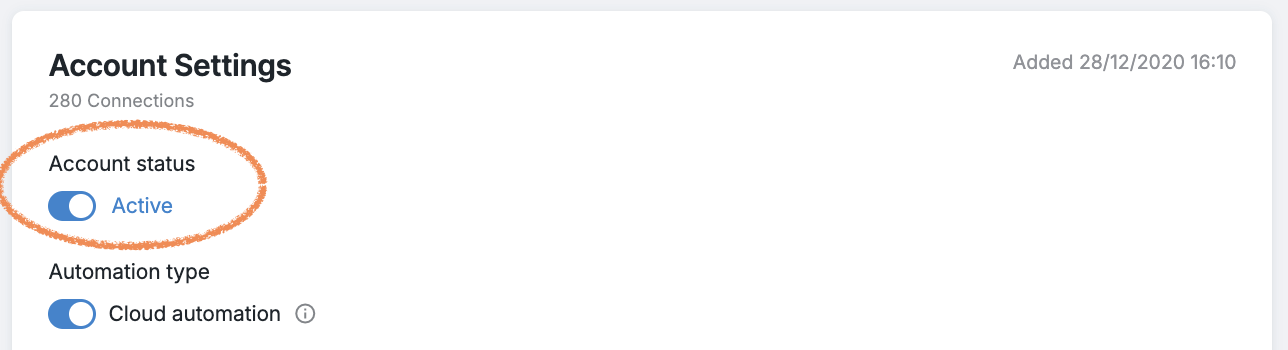
The account may be manually toggled off in your settings.
To check, go to Settings > Account Settings > Account Status and make sure the status is set to Active. If you see an Account suspended toggle, you can activate the account by toggling it on if:
Your email and credentials remain the same — the platform will access the account successfully.
Your email has changed — contact our Customer Support team to update it on our side.
Incorrect Password Entered During Connection
If you entered the wrong password or email address when connecting your account, or recently changed your password on the Social Platform but didn’t update it in Buzz, the system won’t be able to finish the authorization process on the platform. When this happens, you’ll see a “Wrong password” notification the next time the system tries to log in.
To fix this:
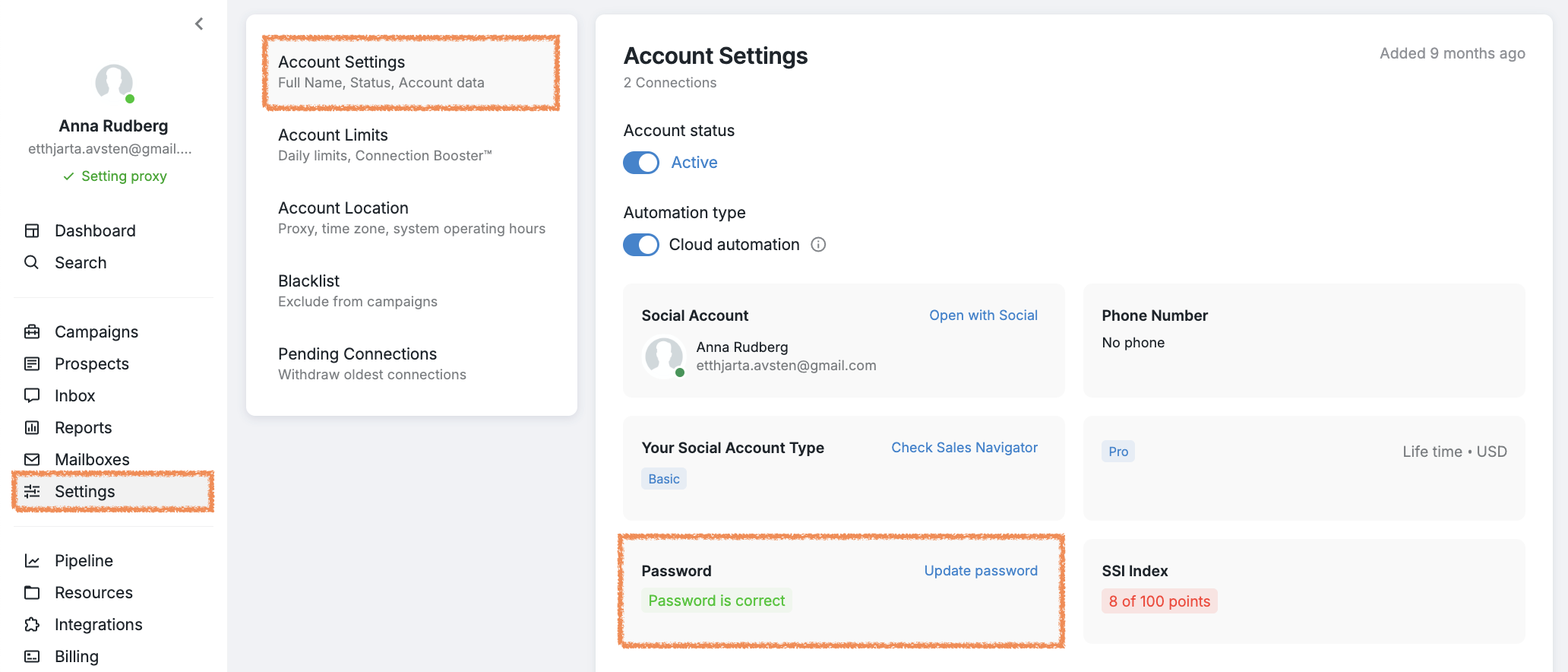
Go to the Settings tab in Buzz;
Select Account Settings;
Scroll to the Password section;
Verify that the email address matches your current Social Platform email exactly;
Enter your current password (the same one you actively use on the Social Platform) and click Update.
Note: If you've changed the email address associated with your social media account, not just the password, do not delete or remove the account from Buzz. Instead, contact Customer Support with your new email address, and they will update it on the backend for you.
Once updated, your account should reconnect successfully.
Important: Make sure both your email address and password exactly match the credentials you use to log into the social media platform. Using a different email address during setup can cause connection failures even if the password is correct.
Authentication Challenge or PIN Verification Required
Your account may show as paused or inactive if the social platform, such as LinkedIn, has issued an authentication challenge that requires verification. This typically happens when the platform needs to confirm it's you accessing the account.
When this occurs, you'll need to enter a verification PIN code to reactivate your account.
To resolve this:
Navigate to your account page in Buzz.
Look for a prompt requesting PIN verification.
Click Resend the code if needed to receive a new PIN.
Enter the PIN code immediately—it expires within 15 minutes.
If the code expires before you can enter it, click Resend the code again to receive a fresh PIN.
Note: PIN codes expire quickly, so make sure you're ready to enter the code as soon as you request it.
Temporary Suspension by the Social Platform
If your connected account has been temporarily suspended or restricted by the social media platform itself (e.g., for violating terms of service), it will also show as inactive in Buzz.
In this case, contact our Customer Support team or your Success Manager to resolve the issue.
Payment or Subscription Issue
If your Buzz subscription has expired or a recent payment failed, your account may be deactivated until the issue is resolved.
To continue using the platform, renew your subscription or contact your Success Manager if you need assistance.
If there doesn't seem to be any problems with your subscription or you can't determine what caused your account's inactivity status, contact our Customer Support team and we’ll be happy to assist you.