Stuck and Waiting Reasons
Last updated: September 23, 2026
In any campaign, understanding why prospects stall or delay is crucial for maintaining momentum.
This guide breaks down the key reasons behind stalled progress, offering insight into both permanent obstacles and temporary pauses in communication.
Wait reasons clarify why a prospect struggles to advance through the steps of a campaign.
These reasons fall into two categories:
Stuck – Progress is halted, making it impossible for the prospect to proceed through the campaign. This aligns with the Pending status in a campaign.
Waiting – The profile is awaiting an automated action that does not need user involvement. This is tied to specific campaign steps, such as sending a connection request or email.
Stuck reasons (Pending)
Stuck reasons explain the barriers preventing a specific action from being taken for a prospect, leading to the Pending status.
Here are some common causes:
Unable to send an InMail due to the prospect’s privacy settings.
Missing information or invalid email address for sending emails.
Sales Navigator subscription is required to send an InMail.
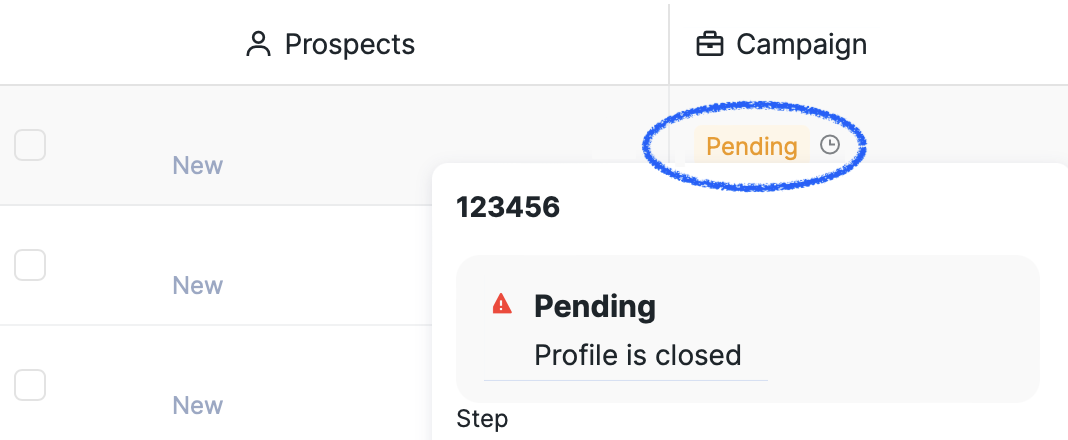
When such issues arise, the prospect is shifted to the Pending category with a notification. You can view this notification by navigating to the Pending section and hovering over the Pending status in the Campaign column.
Waiting reasons
For waiting reasons, the prospect remains in their current status. For instance, if a connection request has been sent, the prospect gains the Contacted status. They will remain in this state with a Waiting for prospect to accept connection request notification until the request is accepted.
To identify the specific waiting reason, navigate to the relevant tab (for instance, Contacted) and hover over Waiting in the Campaign column.
When prospects have withdrawn connection requests, either manually or automatically via the Delete oldest pending invitations feature, their status changes from Contacted back to New. They remain in the NEW folder during the mandatory 3-week waiting period before a new connection request can be sent. During this period, they cannot trigger new connection request sending, even though they appear queued. This can make campaigns appear inactive despite having prospects available.
To maintain campaign activity during this period, add new prospects who have not had previous connection attempts.
Below is a comprehensive list of stuck and waiting reasons:
Profile is in a blacklist - The profile has been excluded or blacklisted and will show an "Excluded" status. Blacklisting can result from manually excluding the prospect through the Inbox or Prospects tab, matching a blacklist rule, or importing a blacklist entry through CSV. To find blacklisted prospects, go to Prospects > Status > Excluded. To reactivate a prospect, clear the matching blacklist entry in Workspace settings > Blacklist. Blacklisted prospects remain excluded even if they are moved between campaigns or imported through CSV, so an import may add fewer prospects than expected. Blacklist matching uses exact criteria only, such as full name, company name, email, website, job title, or profile URL, and blacklists are maintained per social account.
Profile action was previously executed in another campaign - The prospect becomes stuck in Pending status when a "perform action" step, such as "view profile," was previously executed for them in another campaign. When this occurs, the campaign skips all prior steps and pauses at that step. The system cannot move these prospects back to New status once they are in this state.
Profile is closed - The profile is closed and can only be contacted via Sales Navigator InMails. If prospects are stuck in Pending with this reason, ensure the InMail credits setting is enabled in your campaign: navigate to the campaign settings, open the "Send InMail" step, and enable the option "Allow to use my InMail credits".
Invalid email integration - Your email integration may have disconnected, showing a "Check your integrations" error notification. Reconnect the integration by going to the Mailboxes section.
Connect with this profile was withdrawn - A connection request has been withdrawn. A new request can be sent no earlier than three weeks from the withdrawal date (a rule of the social platform). Once the 3-week period has passed, you can re-engage the prospect by adding them back to a campaign via CSV upload (Campaign → Add Search → CSV File) or by rerunning existing searches if they originated from one (Campaign ⋯ menu → Rerun Searches).
LinkedIn Platform InMail Limits
Beyond the InMail forbidden reason mentioned above, LinkedIn may impose sending limits on Basic InMails based on your account activity and reputation. These platform limits are independent of the system and cannot be changed from our side.
If you encounter a Sending basic InMails is limited message:
Adjust your daily InMail limits in Account Limits to align with what LinkedIn currently allows.
Maintain steady activity patterns and strong acceptance rates.
Consider upgrading to a Sales Navigator subscription for higher limits.
Sales Navigator Booster Credit Consumption
When using Sales Navigator InMails Booster, if the Booster becomes disabled, your Views of profiles limit will be consumed instead. InMail sending will stop once that limit is reached. This is distinct from the general Run out of credits reason described above.
At times, you may come across certain notifications while the prospect is in a specific campaign status. Others will surface when the prospect transitions to Pending.
If you have any questions, please feel free to contact our Customer Support team for assistance.
Wait Timer Mechanics
Wait timers, such as Wait 2 days after previous step, indicate the earliest time a step can execute, not the exact execution time. Actual execution may occur later because of LinkedIn errors, proxy issues, daily message limits, low profile view limits, connection requirements, or paused campaigns or prospects.
For example, if 200 prospects complete a step simultaneously with a 4-day wait and a daily message limit of 20, some prospects may receive messages on day 4 while others may receive them on day 14, or 4 + 10 days later.
Understanding this timing behavior helps explain why prospects may remain in waiting status longer than the specified wait time, even when no technical issues are present. This is normal campaign behavior, not a system malfunction.
Factors Affecting Wait Timer Execution
Multiple factors can cause steps to execute later than the specified wait time:
Daily sending limits being reached
LinkedIn platform errors or restrictions
Low profile view limits
Connection acceptance requirements
Paused campaigns or individual prospects
Proxy or integration issues
When planning campaign sequences, account for these potential delays to set realistic timeline expectations for your outreach efforts.