Campaign Navigation & Workspace Tips
Last updated: September 23, 2026
Whether you're building campaigns, managing prospects, or connecting tools like Calendly, Buzz gives you powerful options to personalize and streamline your outreach.
This guide walks you through some of the things you should mind, so nothing gets missed along the way.
🧭 Navigating Campaign Statuses
When managing your campaigns, it's important to understand how different statuses work so you can keep track of your prospects more effectively. Each status gives you insight into where a prospect is in the outreach process.

🔴 About “Pending”
If you see prospects in the Pending status when reviewing a campaign, it means that the campaign cannot continue for the prospect for some reason. You can click on the status to see a full list of those prospects with the appropriate notification.
Common cause: One of the most frequent reasons for LinkedIn account disconnections is changing your LinkedIn password without updating it in Buzz. If you see a disconnection notification, go to Settings > Account Settings > Update password and enter your current LinkedIn password (not your Buzz platform password).
👉🏻 Hover over “Pending” to view a tooltip that may offer more context.
Common Pending Reason Example:
One of the most frequent causes of pending status is attempting to send a message to someone you're not connected with. If you see an error like “Cannot send message to prospect. Please send InMail or connect first,” it means your campaign is trying to send a direct message before establishing a connection.
Platform-imposed limits (such as LinkedIn's weekly connection request caps or automation detection) can also cause campaigns to appear inactive or show 0% progress for several days. These limits are temporary restrictions placed by the social platform itself, not Buzz, and will typically be lifted automatically after a cooldown period. If you suspect platform limits are affecting your campaign, check your Notifications for any limit messages or contact Support for confirmation.
Common cause: Prospects are automatically paused if you send a message manually outside of the campaign workflow. If you find a paused prospect who hasn't responded to any campaign messages, check whether any manual messages were sent. You can simply unpause the prospect to resume the campaign.
Common example: If the pending reason is “No required email type”, the campaign step is configured to send to a specific email type, such as a work email, but the prospect only has another type available, such as a personal email. Adjust the campaign step to use the available email type, or add the required email type to the prospect if you know it.
Common cause to check: If your campaign is stuck sending messages, verify that your daily sending limit is not set to zero. Go to Settings > Account Settings > Account Limits and confirm that the number of messages per day is set to your desired amount. When the limit is zero, the system cannot send messages and prospects remain stuck.
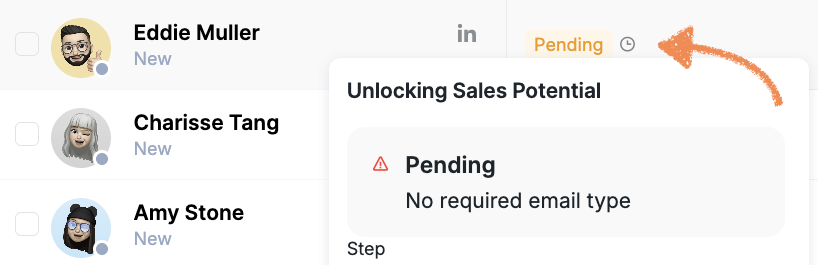
Want to dig deeper? You can find the full list of Pending and Waiting reasons here.
🔍 How to Find Prospects in Campaigns
Sometimes it can be tricky to locate a specific prospect, especially if they’re not showing up where you expect.
When using the Prospects tab, keep in mind:
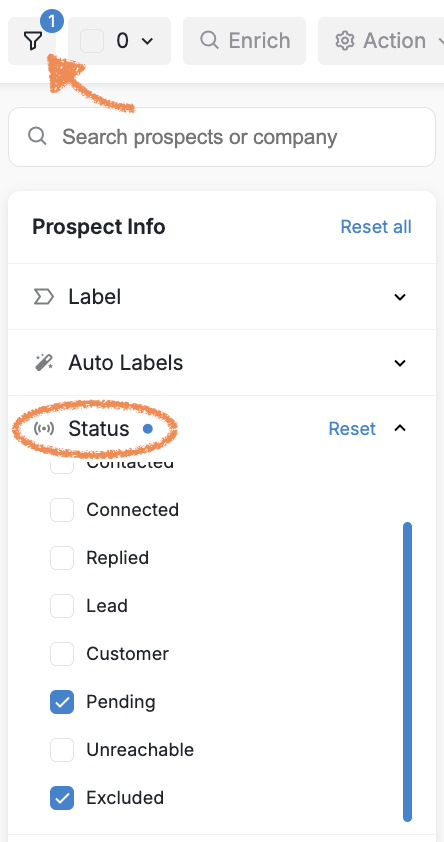
Prospects in Pending or Excluded statuses are not visible by default in the main Prospects view. Be sure to check those statuses separately if you’re searching for someone.
Why prospects might not be added to a campaign:
By default, Buzz prevents prospects from being enrolled in multiple campaigns simultaneously to avoid duplicate outreach. If a prospect is already active in another campaign, they won't be added to a new one unless you configure the campaign settings differently. When creating a campaign, you can enable a setting that automatically moves prospects from older campaigns to newer ones. Additionally, prospects may be excluded if they match a blacklist rule configured in your workspace.
Understanding the Excluded Status: When a prospect shows as Excluded, it means they're on the Blacklist for that social account, preventing the campaign from messaging them. Prospects can be added to the blacklist through direct actions (Inbox/Prospects → Exclude from Campaigns) or by matching blacklist rules for exact names, companies, emails, job titles, or profile URLs. To resolve this, go to Prospects → Filters → Status = Excluded, select the prospect, then choose Actions → Remove from Blacklist. Next, check Settings → Blacklist for that specific social account to identify and remove any matching rules. Remember that blacklist entries are tied to individual social accounts, and matching uses exact criteria—for example, “Apple” won't match “Apple Inc.”
Use the respective filters in the Prospects tab to quickly see all prospects in those statuses:
Tracking Prospect Progress Through Campaign Steps
If you're wondering why a specific campaign action, like sending an InMail or email, hasn't happened yet, it's likely because prospects haven't reached that step in your sequence.
To check where prospects are in your campaign workflow:
Go to Prospects → Select your active campaign
Apply the "Next Step" filter
Choose the specific step you want to review
This shows you exactly which prospects are queued for each step and helps you identify if:
Prospects are still progressing through earlier steps in the sequence
There are enough active prospects to continue outreach
Any prospects are stuck at a particular stage
Note: If important actions, like InMails, are positioned at the end of long sequences with multiple conditions, it may take time for prospects to reach those steps. Consider moving critical steps earlier in your sequence if you need them to execute sooner.
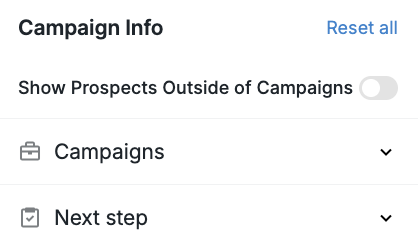
Also, some contacts might fall outside of any campaign. If your workspace has an “Outside Campaigns” filter, use it. If not, just message our Customer Support team and we’ll help you find them.
💌 AI Mailboxes and How They Work
AI mailboxes help streamline your email outreach, but it's important to understand how they're structured within your workspace.
Here’s how it works:
Domains are shared across the entire workspace;
Mailboxes, however, are tied to an individual Social Account.
So if your workspace has three connected Social Accounts, but you created all your mailboxes under one, you won’t be able to move them to another account on your own. Only our Support team can help with that.
Tip: Always double-check which Social Account you're using before creating a new mailbox.
✅ Email Verification Setting
Email deliverability matters. If your workspace has the "Verify prospect's emails before sending" setting enabled, Buzz will automatically check that each email address is valid before sending.
You can find out more about how this works and how it affects sending here.
📥 Inbox View & Filters
Your Buzz Inbox helps you keep track of conversations with prospects, but the default order might not show you everything at first glance.
By default, you’ll see:
Social + Email campaign threads first;
Email-only conversations appearing further down
If it seems like a conversation is missing, it’s likely just buried. Use the "Email Only" filter to bring those threads to the top and find them quickly.
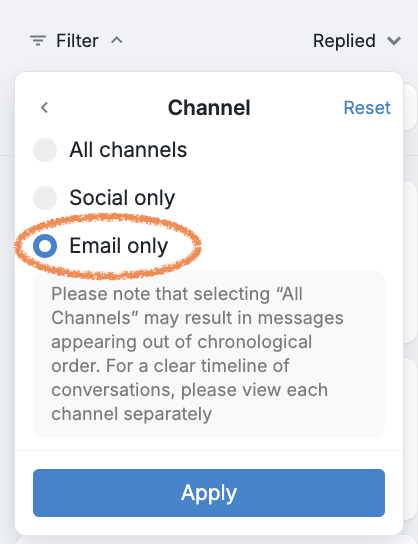
Finding prospects who have replied: If you're looking for a specific prospect who has responded to your campaign, use the "Replied" filter from the inbox dropdown menu. You can then use the search bar to quickly locate their conversation.
🔗 Workspace Integrations (Calendly & More)
Unlike most integrations in Buzz, Calendly is a user-level integration, not workspace-wide. This means Calendly connects to the specific Buzz user who completes the connection, not to the entire workspace or other user accounts.
That’s why it’s important to follow setup instructions carefully when connecting Calendly (or any other tool). A misstep during setup can cause issues later.
Because Calendly is user-specific, each person who needs to use Calendly links in campaigns must connect their own Calendly account while logged into their own Buzz user account. If you're viewing a workspace where another user has connected Calendly, you won't see it as connected under your login unless you also connect a Calendly account to your own user.
📖 You’ll find the full Calendly setup guide here.
👥 Connecting AI Employees with Calendly
If you’re assigning Calendly to an AI Employee, the order of operations matters. We’ve created a detailed walkthrough for this use case to make sure everything connects smoothly.
Take a moment to follow the steps here before assigning any Calendly links.
🖼 Why Isn’t My Profile Picture Loading?
If your Social Account’s profile photo isn’t showing up, it’s usually for one of two reasons:
The account hasn’t fully synced with Buzz yet;
The Social Account you're using simply doesn’t have an avatar.
If it’s a sync issue, just reach out to our Customer Support team — we’ll help you sort it out quickly!
Need help or have questions about something not covered here? Our Support team is always just a message away and happy to assist. Happy prospecting!