Understanding Your Campaign Metrics
Last updated: September 23, 2026
Being able to track how well your campaign is performing is key. Metrics not only help you measure success, but they also give you the opportunity to course-correct and fine-tune your campaign flow.
In this article, we’ll walk you through the meaning of each campaign metric, explain how they’re calculated, and show you how to interpret them.
Prospect Statuses
When you first open the Campaigns tab, for each campaign you’ll see a panel that shows how many prospects are currently in each status.

Each status represents:
Which stage of the campaign a prospect has reached,
What label they’ve been assigned, or
Whether they’ve encountered any obstacles along the way.
👉 We won’t go into full detail on statuses here. If you’d like a deeper breakdown, check out this article.
Clicking on any status will open a list of all prospects in that category for the selected campaign.
Campaign Metrics
When you click on a campaign, it will expand to show performance metrics. Let’s go through them one by one.

Acceptance Rate
Requests Sent → The total number of connection requests sent to prospects from the campaign through the Social Platform.
Note: If a prospect you added to the campaign was already connected to you, Buzz will still count them here as a “Request Sent.”
Factors that can affect Requests Sent:
Withdrawn connection requests: If a connection request has been withdrawn, the social platform requires a 3-week waiting period before a new connection request can be sent to that same prospect.
Connection request limit: Check your campaign settings for the connection request limit. If this is set to 0, no connection requests will be sent from that campaign.
Requests Accepted → The total number of prospects who accepted your connection request.
Note: As with “Requests Sent,” existing connections are also counted here because of how Buzz tracks campaign logic.
Campaigns will contact existing LinkedIn connections if there is no prior conversation history with them in Buzz. Outreach is automatically paused only for prospects who have previously received messages through the platform.
If you want to exclude existing connections from receiving messages entirely, filter them out when setting up your campaign search criteria.
Understanding the Three Ways Prospects Become “Connected”
Prospects can appear as connected in your campaign metrics for three different reasons:
Active Campaign Acceptance: They accepted a connection request sent through the current campaign.
Concurrent Acceptance: They accepted a connection request while enrolled in the campaign, but the request may have been sent from elsewhere.
Pre-existing Connection Sync: They were already connected before the campaign started and were fetched from LinkedIn’s connection list during synchronization.
Why inactive campaigns may show acceptances: You may notice accepted invites appearing in campaigns that have not been active for weeks or months. When Buzz syncs your LinkedIn connection list, it can retroactively categorize pre-existing connections as accepted within any campaign they were part of.
How to interpret acceptance rates: A high acceptance rate may include many pre-existing connections, while a low rate on a new campaign with fresh prospects can provide more accurate feedback on your outreach approach.
Pro tip: To get the most accurate view of new connection acceptances, focus on campaigns with prospects you know were not previously connected to you, or track acceptance timing relative to when requests were sent.
Acceptance Rate → Calculated as: Accepted Requests÷Requests Sent
Reply Rate
Total Contacted → All prospects in the statuses Contacted, Connected, Replied, Lead, and Customer, combined.
Replies → All prospects in the statuses Replied, Lead, or Customer.
Reply Rate → Calculated as: Replies÷Total Contacted
A prospect is considered “Replied” once they send their first response to any of your messages. Even if they’re later moved to another campaign, they’ll still count in the Replied category in that new campaign.
Message Click Rate
Message Links Sent → Number of links sent inside text steps in a campaign (excluding Send Email steps).
Links Clicked → Number of unique clicks on links from those steps (excluding Send Email).
⚡ Important: Clicks are tied to the campaign event history, not the individual prospect. If a prospect clicks a link after being moved to a new campaign, the click will still be recorded under the original campaign.
Email Open Rate
Emails Sent → Total number of emails sent from campaign steps.
Emails Opened → Total number of unique opens of those emails.
⚡ Important: Opens are also tied to the campaign event history. If a prospect opens an email while already in another campaign, the open will still be counted for the original campaign.
Email Click Rate
Email Links Sent → Number of links sent specifically in Send Email steps.
Links Clicked → Number of unique clicks on those links.
⚡ Again, clicks are tied to the campaign event history. If a prospect clicks a link after you move them to another campaign, the click will still count under the original campaign.
You can check who clicked your email links by going to the Dashboard tab → Activity → select a relevant Social Account from the filters and set Activity Type to "Email Link Clicked" → click Apply.
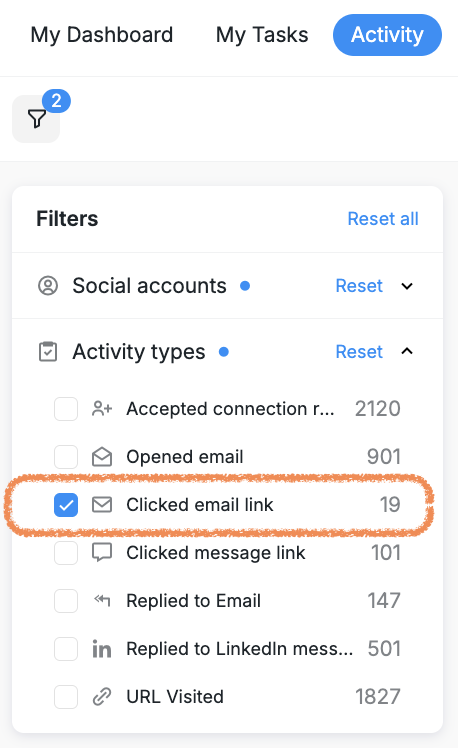
Similarly, you can use the same filters to explore other activity types and see who engaged with your campaign and when.
Email Bounce Rate
Emails Sent → Total number of emails sent from campaign steps.
Emails Bounced → Number of those emails that failed to deliver (bounced).
Activity Start Rate
Activity Start Rate represents the percentage of prospects who have engaged at any stage — whether they’ve been contacted, connected, replied, or otherwise interacted — even if the campaign is still ongoing for them.

We calculate it using the following universal formula:
Calculate Total Contacted:
Total Contacted = Contacted + Connected + Replied + Lead + Customer + Pending
Calculate Total Progress:
Total Progress = Contacted + Connected + Replied + Lead + Customer + Pending + Unreachable
Calculate Profiles Sum:
Profiles Sum = New + Contacted + Connected + Replied + Lead + Customer + Pending + Unreachable (All)
Final Activity Start Rate Calculation:
Success Rate = Total Progress / Profiles Sum ≈ ***
Result: ***%
With these metrics, you’ll always know where your prospects stand and how your campaign is performing. Use this data to make adjustments, experiment with new approaches, and keep improving your results!