How to Customize Your User Settings in Buzz
Last updated: September 23, 2026
Your user settings are essential for personalizing your Buzz experience. It's important to remember that a User is not the same as a Social Account — they serve different purposes, with your Social Account settings configured on the Social Platform.
In this article, we’ll guide you through locating your user settings and show you how to tailor the platform to your needs.
Accessing User Settings
To open your user settings:
Click the dropdown arrow in the top-right corner of the screen.
Select User Settings from the menu.
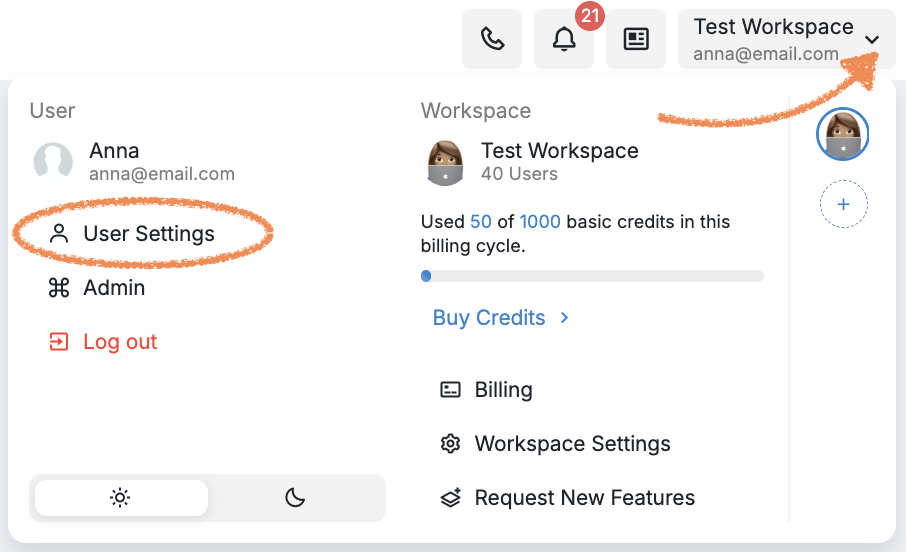
You’ll be taken to a page where you can manage your personal and account details.
Basic Information
Here, you’ll see a summary of your basic information. You can:
Upload a profile picture;
Update your name and contact information;
Set your industry, location, and address.
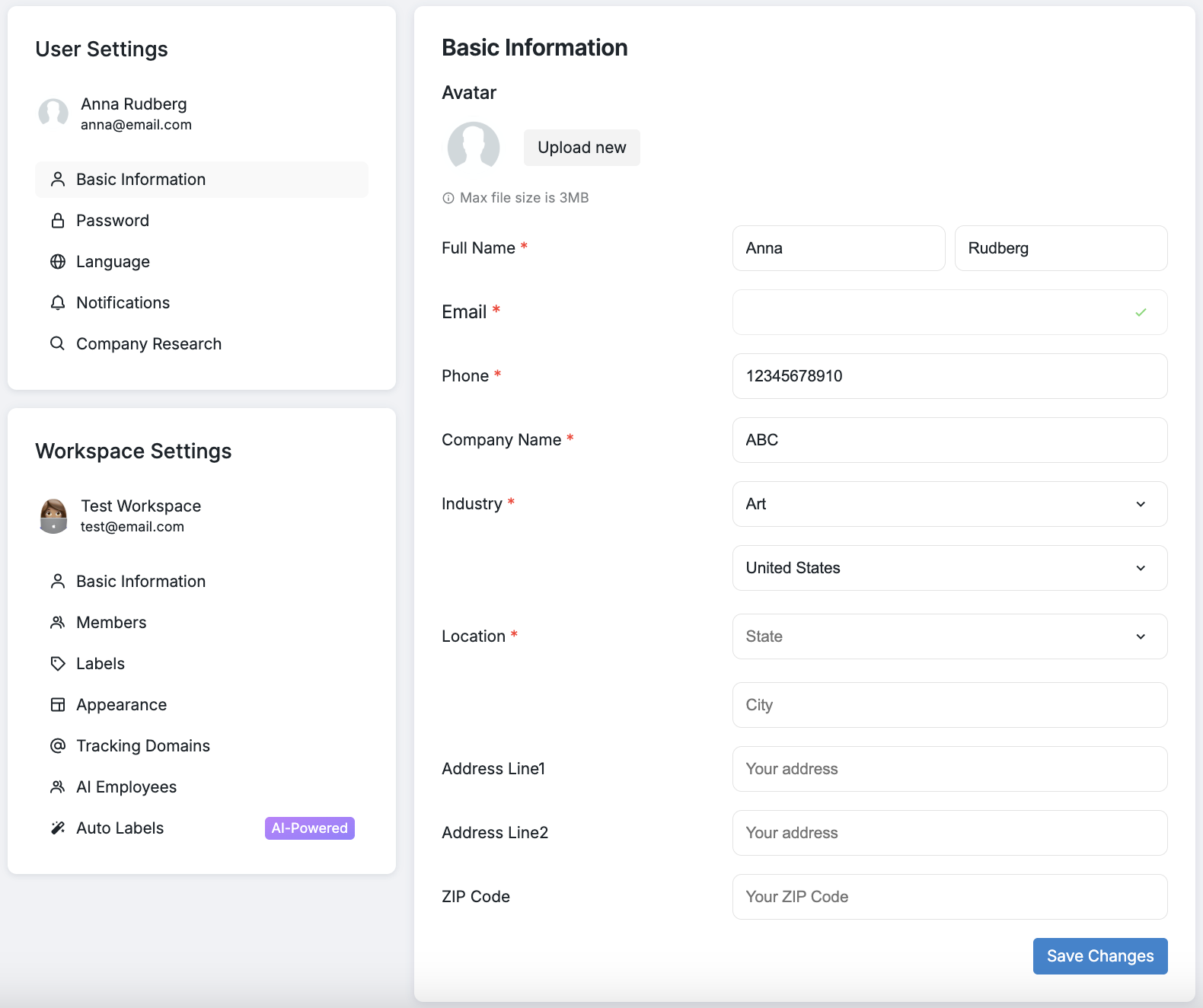
✅ Don't forget to click Save changes to apply any updates!
Password
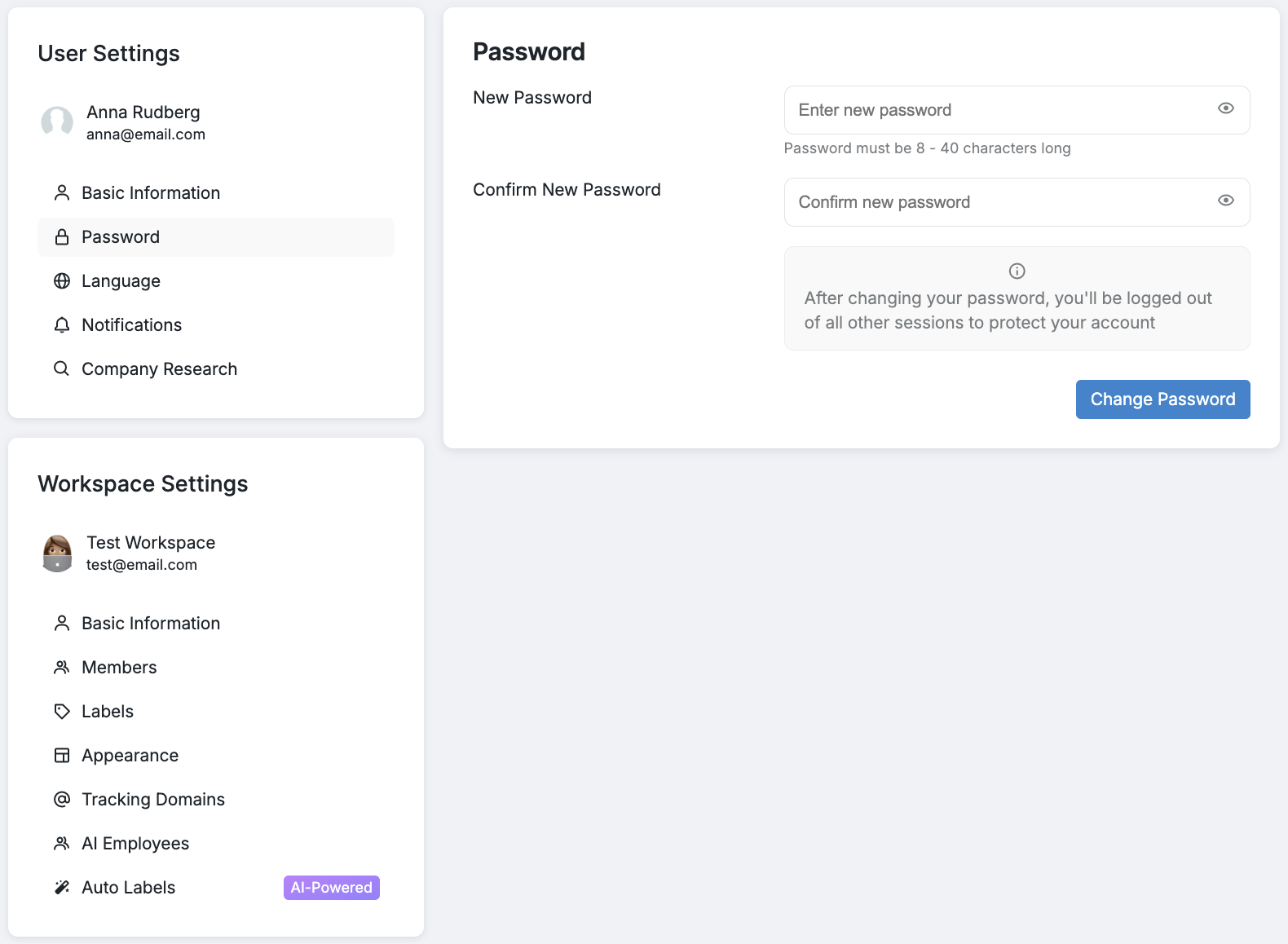
In the Password section, you can change your login password.
Simply enter your new password twice and click Change Password to confirm the update.
If you don't remember you current password, please refer to this article for further instructions.
Language
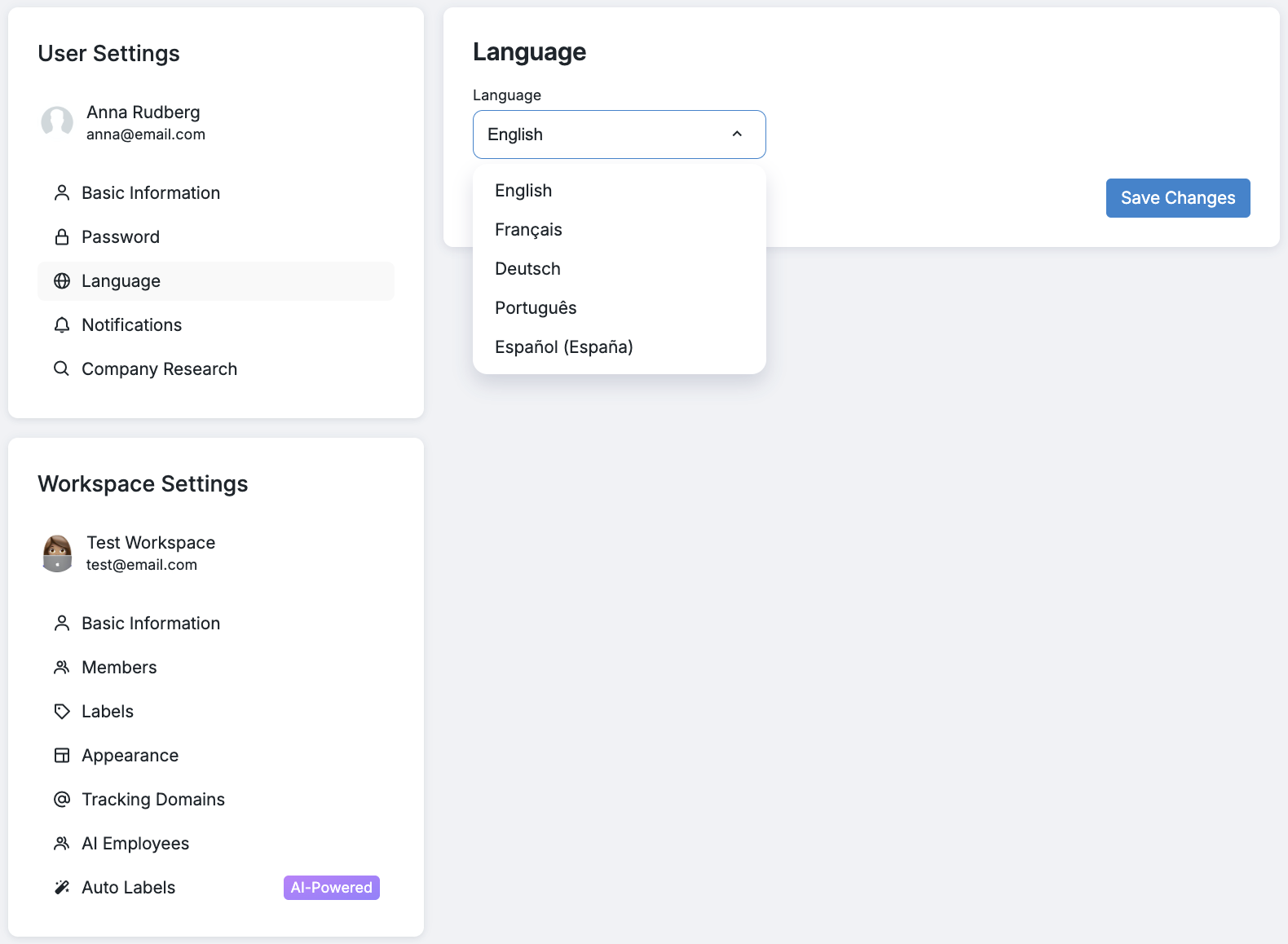
Buzz supports multiple interface languages.
Go to the Language section and select your preferred language from the dropdown menu.
Notifications
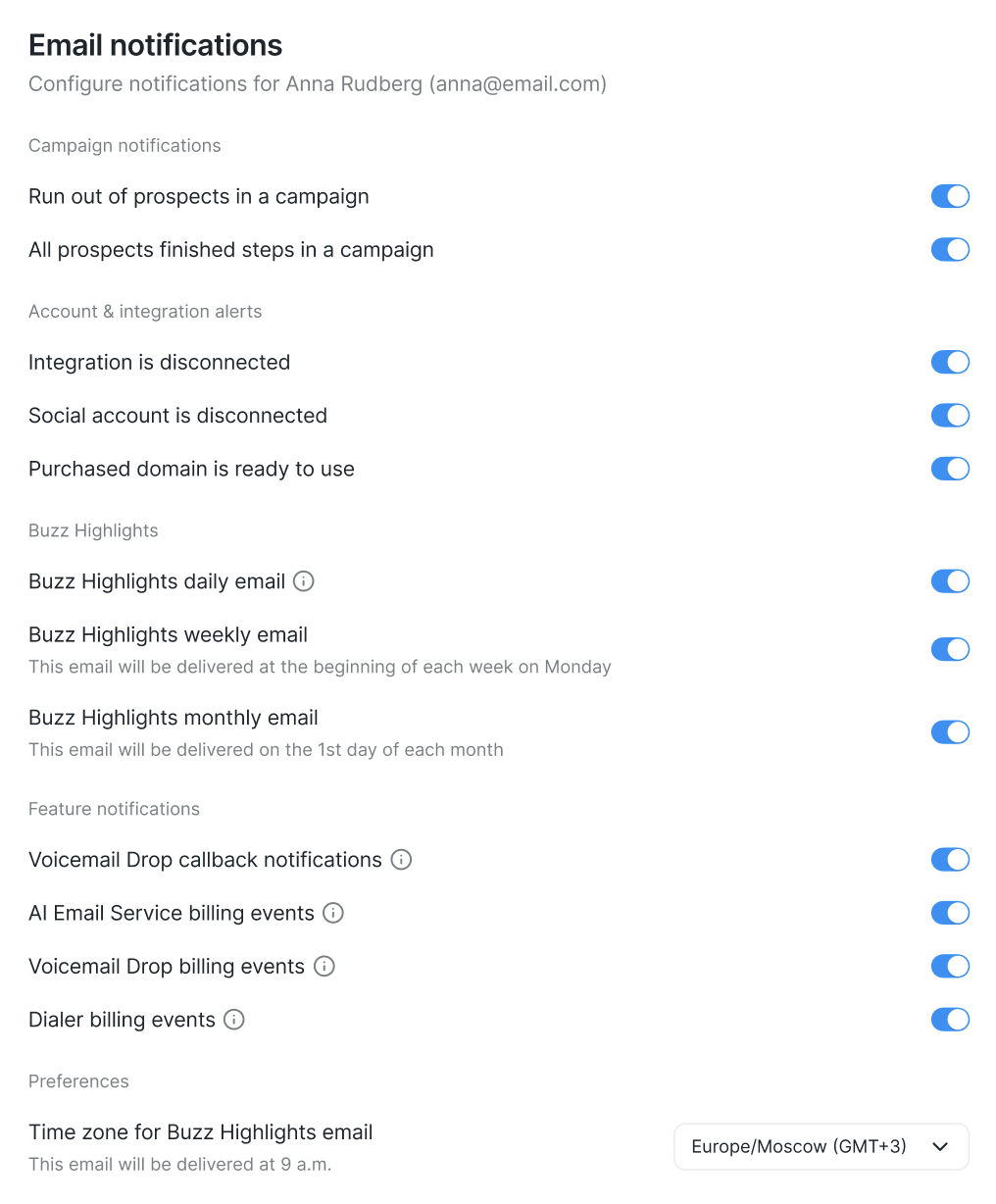
Customize how and when you receive updates from Buzz. Every user can set the notifications according to their preferences: Each user who wants to receive notifications must enable them individually in their own User Settings — multiple users can receive the same notifications by each enabling the relevant toggles in their settings.
You'll receive email notifications for all workspaces you're a member of, including daily highlights and statistics for Social Accounts you can access. Admins see overall statistics; Members see only the accounts they have access to. If you're receiving notifications from a workspace you don't actively manage, you can disable specific notification types, like daily highlights, in your notification settings.
Choose which email notifications you'd like to receive;
Set your preferred time zone to ensure timely delivery.
Note: You can only manage notification settings for your own account. To change notification settings for another user, that user must log in and adjust their own settings, or an admin can make changes on their behalf by contacting Customer Support.
For more details on access levels, see: Managing User Roles and Permissions.
Note: To receive any notifications for a workspace, you must first be a member of that workspace. Once you’ve joined, simply enable the notifications you want to receive for that workspace.
Company Research
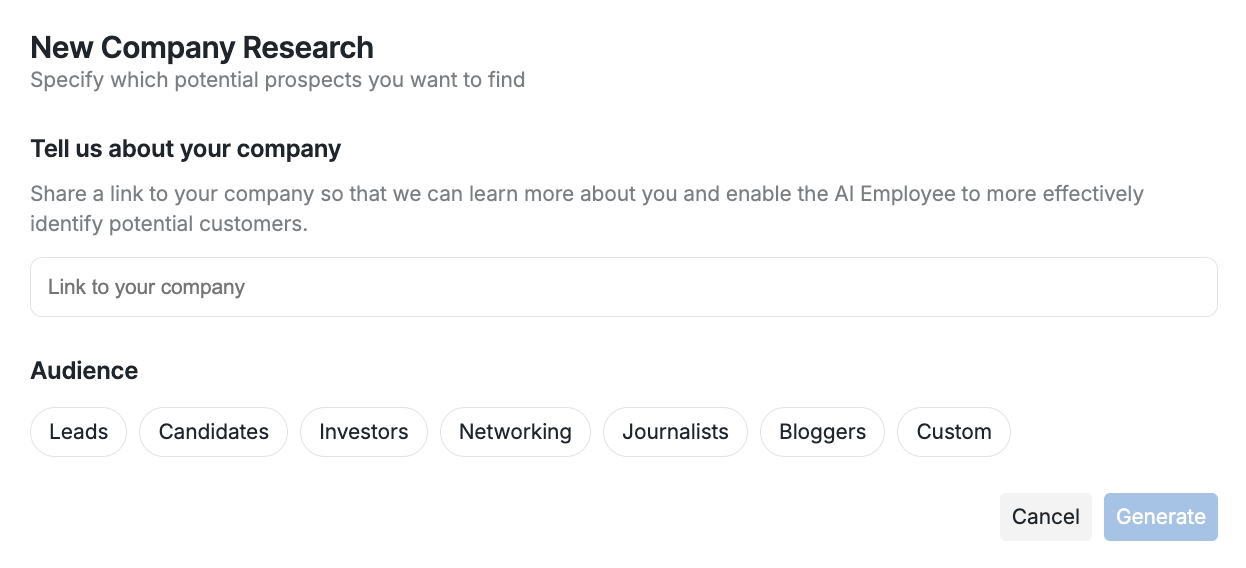
This feature allows you to run and save research about your company or prospects — especially useful for AI Employee workflows.
Click New Research;
Fill out the fields with your company and target prospect details;
Click Generate to begin.
📚 Read more about Company Research here →
If you have any questions or need further assistance, our Customer Support & Success teams are here for you.