Low Connection Request Outreach
Last updated: September 23, 2026
There are moments when you might find yourself puzzled as to why your campaign has sent out few or no connection requests. In this article, we will explore the most frequent reasons for this issue.
Missing Connection Request Step in Your Campaign
While not a common problem, a good first step is to verify whether the Send Connection request step is included in your campaign sequence.
Limitations Imposed by the Social Platform
The Social Platform may impose restrictions that limit your connection requests. If this happens, you will see a notification message in your Notifications panel.
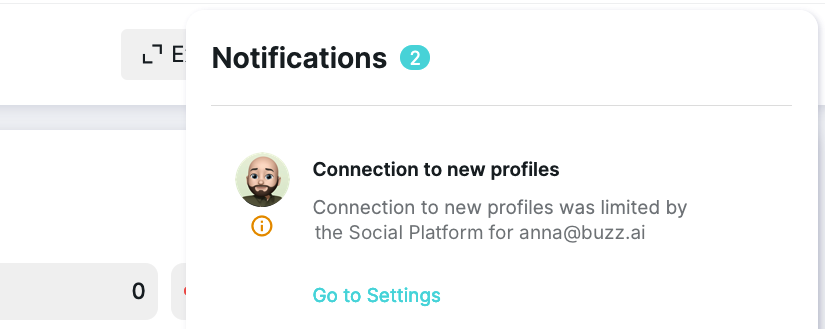
Typically, this limitation is reset every Monday.
LinkedIn Account Disconnected
If you change your LinkedIn password, your account will become disconnected from the platform, which will stop all connection requests from being sent.
You will receive a notification email with the subject “Oops! Your LinkedIn account is disconnected” when this occurs.
Solution: To reconnect your account:
Navigate to Settings > Account Settings.
Select Update password.
Enter your current LinkedIn password, not your platform password.
Once updated, your account will reconnect and connection requests will resume.
Insufficient Profile Views Limit
The Views of Profiles limit you have configured might be too low to allow the Send Connection request step to proceed.
Recommended configuration: For new customers, set profile views between 30-35 to support adequate connection request volume.
Review your limits in the Account Settings. Keep in mind that this limitation applies only when the Connection Request Booster is disabled, as the profile view limit is not used when the booster is enabled.
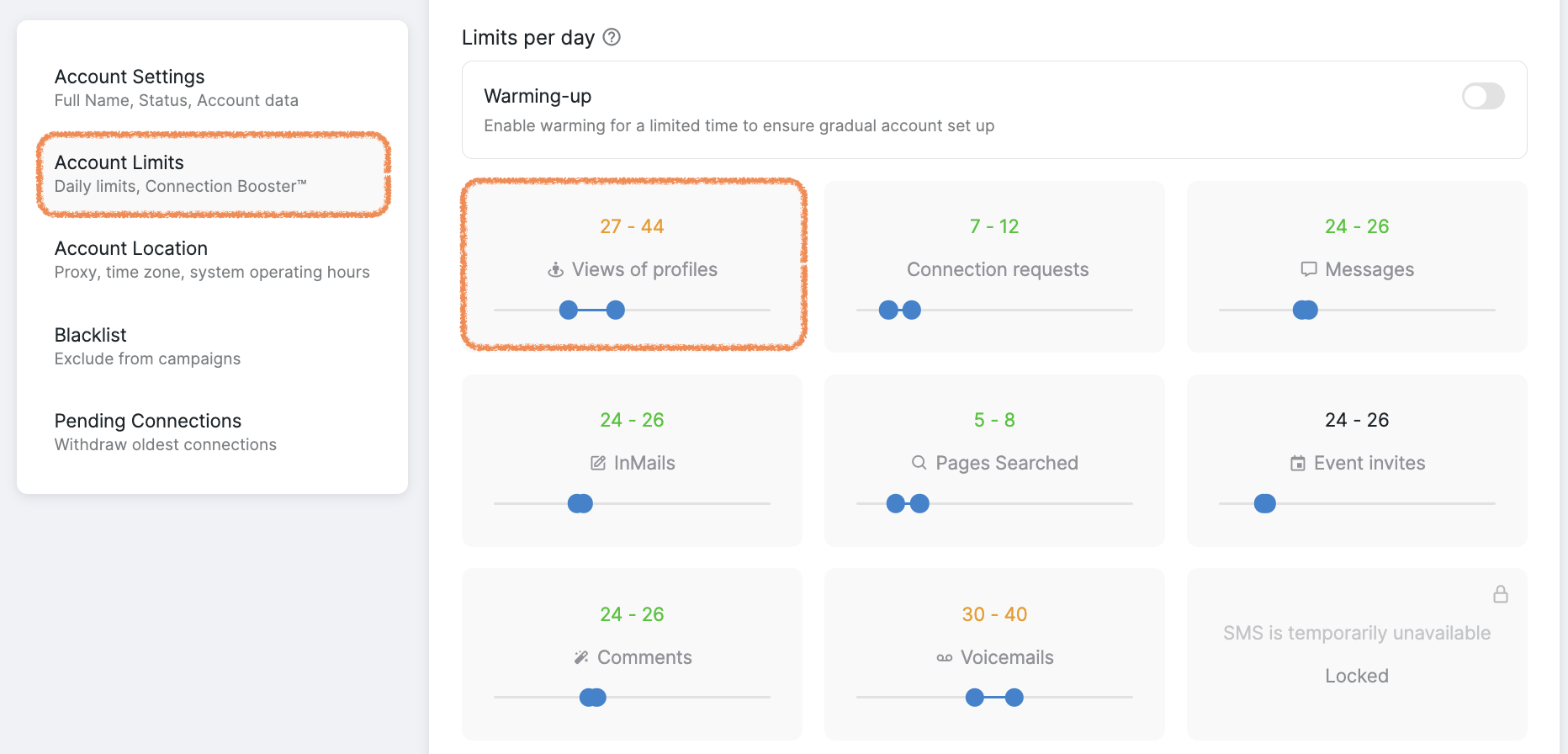
For more details, refer to the article on Views of Profiles.
Restricted System Operating Hours
When your account is outside of its configured operating hours, no outreach activity occurs, regardless of how many profiles are in your lists or what type of outreach you are attempting. This affects connection requests, messages, InMails, and profile views.
To verify whether this is the issue, check your account status in Account Settings. If you see Outside of Operating Hours, all outreach is paused until the next operating window begins.
Solution: Review and adjust your operating hours in Account Settings to provide adequate time for your daily outreach volume across all campaign activities.
No New Profiles Available
Your search might not yield new profiles. You can verify the number of available profiles on the Campaign page.
Additionally, even if new profiles are available, connection requests may be sent below your configured limits if there are not enough prospects ready for the 'Send Connection Request' step. This can occur when earlier steps in the campaign sequence (such as 'Perform action' steps) consume the available prospect pool or daily activity limits before prospects reach the connection request step. Review your campaign sequence to ensure prospects are progressing efficiently through earlier steps and reaching the connection request stage.
If InMail steps are positioned late in your campaign sequence, they may not execute until earlier steps, such as connection requests or other actions, are completed. To have InMails execute sooner, review the sequence positioning and ensure earlier steps are progressing as expected.
If you have a CVS search activated, it means all profiles from the list have already received connection requests. To continue sending requests, you need to add a new search for adding new profiles to the campaign.
With URL Search, the system may have completed the task by reaching the last page of the search results. In this case, the search process is finished. However, due to the Social Platform's dynamic search functionality, new profiles may appear even after the campaign ends. To add these potential profiles, it is necessary to rerun the search. This can be done in one of two ways:
Rerunning all searches:
click on the three-dot button next to the campaign
select Rerun Searches
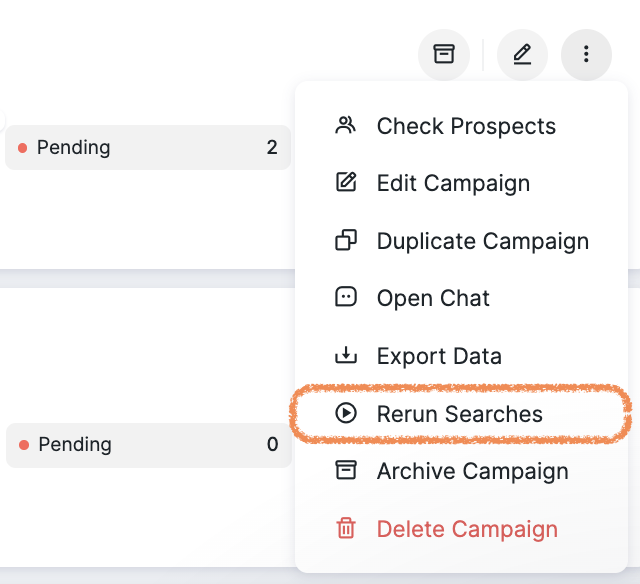
2. Rerunning a specific search:
press the Edit button next to the campaign
find the search you wish to rerun
click on the three-dot button
choose Rerun
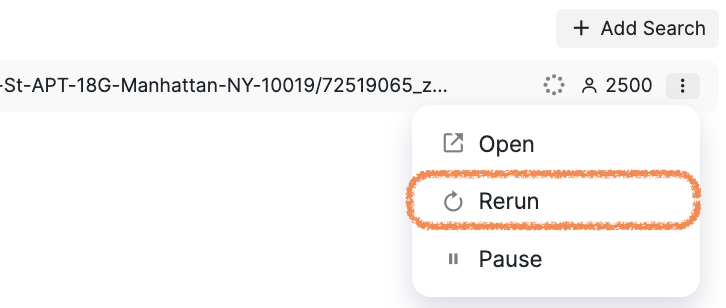
The search will start from the first page. If it returns any new profiles, those will be incorporated into the campaign.
Connection Request Withdrawal
Occasionally, the status of sent connection requests may change to withdrawn.
This can happen if you have activated the Pending Connections setting in your Account Settings, allowing automatic withdrawals. Alternatively, you can manually withdraw requests by navigating to the profile’s Social Account, selecting My Network > Invitations > See all > Sent.
To configure automated withdrawal of pending connections in Buzz:
Navigate to Settings → Pending Connections.
Toggle on Delete oldest pending invitations.
Configure the following settings:
Number of Connections to Be Deleted Per Day: Set how many pending requests to withdraw daily.
Maximum Pending Connections: Set the threshold that, when exceeded, triggers Buzz to automatically withdraw the oldest requests.
Note: Buzz withdraws only the oldest requests from the last three pages that are older than two weeks. Daily withdrawal limits may not always be reached because of this age requirement.
Once a connection request is sent, the prospect moves to the CONTACTED status, awaiting acceptance. If the request is withdrawn, you’ll receive a notification saying Connect with this profile was withdrawn.
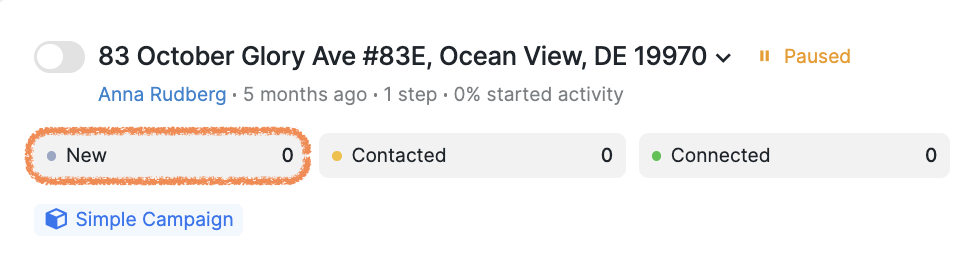
To verify this, navigate to the New status in your campaign and hover over the text in the Campaign column.
For more details on configuring bulk withdrawals, see How to Manage Pending Connections.
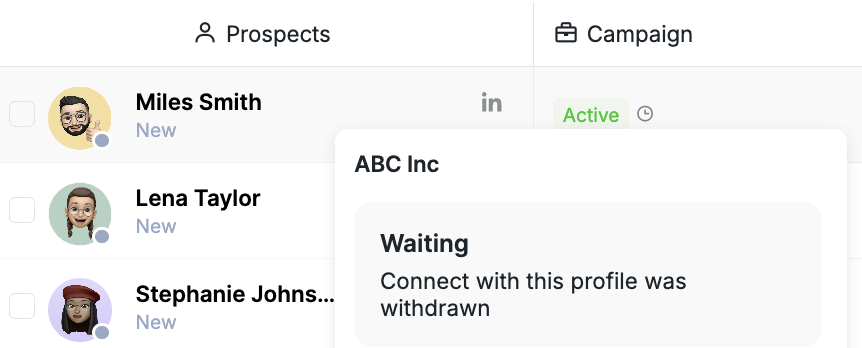
You can resend a connection request to the same profile 3 weeks after the previous one was withdrawn, according to the Social Platform's policy. During this 3-week waiting period, the system will not attempt to send connection requests to these prospects. If a significant portion of your campaign prospects have withdrawn requests, this can result in very low or no daily outreach until the waiting period expires.
Important: If withdrawn prospects are re-added to a campaign before the 3-week period expires, they will appear in NEW status, but the system will not send connection requests until the mandatory 3-week window has passed. This is a Social Platform rule, not a system limitation. The prospects will remain in NEW status until they become eligible for outreach again.
After the 3-week waiting period has passed, you can re-add the prospect using one of these methods:
Option 1: Add via CSV Upload
Navigate to your campaign.
Click Add Search → CSV File → Add CSV File.
Map the required fields and save.
Option 2: Rerun Existing Searches
If the prospect originated from a previous search, rerun that search to potentially re-add the prospect, as described in the No New Profiles Available section above.
Once re-added, the system will treat the prospect as new and can send a fresh connection request.
Diagnosing zero activity due to withdrawn requests: If you're experiencing zero connection activity, check whether all prospects in your NEW status have previously had withdrawn connection requests. When this occurs, the system is waiting for the mandatory 3-week cooldown period before attempting a second connection request. You can verify this by checking the campaign's new folders and reviewing your notifications to see the scheduled second attempt dates.
Connection Request Limit Set Too Low
If the Connection Request Limit feature is enabled, ensure that the limit is not set to zero or to a low value (such as 5 or fewer), which would prevent requests from being sent or significantly restrict your outreach volume. This is a common cause of low connection request activity across campaigns.
To check this setting, go to your campaign, find the Connection Request Limit toggle under Campaign Settings, and verify or adjust the value to suit your requirements.
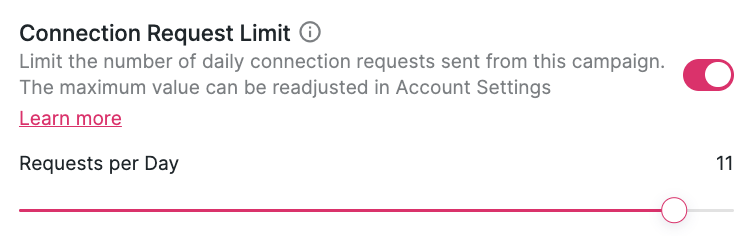
If the connection request number isn’t zero but falls below your Account Limit, the outreach will adhere to the number you specified in this feature. For example, if you configure the maximum number of connection requests to 10 while your account limit stands at 40-45, the total number of connection requests sent per day will be capped at 10. If you're experiencing low outreach, check all active campaigns to ensure none have unexpectedly low Connection Request Limit values that are restricting your overall activity.
Personalized Connection Request Limit Reached
Basic LinkedIn accounts have a monthly limit on the number of personalized connection requests, which are requests sent with a message. When this limit is exhausted, you may see an error message stating “no personalized connection requests left,” preventing the campaign from sending further connection requests with messages.
Solution: Enable the Bypass Personalization Limit setting in your Account Settings. This allows the system to continue sending connection requests without personalized messages once your monthly allocation of personalized requests is reached. Connection requests will resume automatically without messages until your personalized message limit refreshes.
Note: With this setting enabled, connection requests will be sent without your custom message once the personalized limit is reached, but outreach will continue rather than stopping completely.
New Prospects Paused
This typically happens when prospects have had prior interactions through Buzz but were added to a campaign where the Recontact Prospects flag is turned off. As a result, these prospects are put on pause once they enter the campaign.
Prospects who have previously responded to messages will be placed in the Replied folder and will not receive further outreach unless you enable the Recontact Prospects feature or manually resume them. This is default behavior to prevent sending duplicate messages to prospects you've already engaged with.
Solution:
Check the Pending status tab, where paused prospects may appear.
Move these prospects back to the Connected tab.
Mass-select the prospects you want to resume.
Resume the campaign for them.
Campaign Has Completed All Prospects
If your campaign appears inactive with no messages being sent, check whether the campaign has finished processing all available prospects.
How to identify a completed campaign:
Navigate to the Prospects section and check the status distribution.
If there are no prospects in NEW or CONTACTED statuses, and all prospects are in FINISHED, REPLIED, or other completion statuses, the campaign has completed its outreach.
The number of prospects processed may be lower than your total connections if the search only found a subset of profiles or if prospects with prior conversations were excluded.
Manual Approval Enabled
If Manual Approval is turned on at the campaign step level or workspace level, prospects in the NEW status will remain on hold, waiting for approval before the connection requests are sent.
Solution: Approve the step for these prospects to start sending connection requests.
For more details on Manual Approval, check out this guide: Manual Approval.
Campaign Sequence Configuration Issues
If connection requests are being accepted but prospects are not progressing through your campaign sequence, particularly when using conditional steps like If Connected, check your Send Connection step configuration.
Issue: When Wait for connection request to be accepted is enabled in the Send Connection step, it can block subsequent conditional steps, such as If Connected, from executing properly. This creates a bottleneck where prospects remain stuck at the conditional step even after accepting your connection request.
Solution: If your campaign sequence includes an If Connected conditional step after the Send Connection step, disable the Wait for connection request to be accepted option in the Send Connection step settings. The If Connected step will check the connection status, making the wait setting unnecessary and preventing execution conflicts.
To verify whether prospects are stuck at this step, check your campaign's prospect list for profiles showing Connected status but with If Connected as their Next Step.
Exhausted Enrichment Credits
If your campaign includes an Enrich Profile step before the Send Connection Request step, the campaign will get stuck when your workspace has exhausted its available enrichment credits.
Prospects will be moved to pending status, and connection requests will not be sent.
Solution: Increase your workspace enrichment credits to resume campaign activity.
Account Sync and Campaign Status Issues
If your social account is not properly synced or your campaigns are turned off, no outreach will occur even when lists are loaded. These are fundamental requirements for all campaign functionality.
To check:
Verify your account sync status in Account Settings.
Confirm that your campaigns show as Active on the Campaign page.
If you see authorization errors, request auto-authorization from Support.
Solution: Re-sync your account or turn on your campaigns to resume outreach activities.
InMail Credit Depletion Impact
When Sales Navigator InMail credits are exhausted, campaigns with InMail steps may appear to have low activity, especially when InMail is a primary outreach method in the sequence.
To check: Review your available InMail credits in your LinkedIn Sales Navigator account.
Solutions:
Wait until your monthly InMail credits refresh.
Send InMails to open profiles, which do not consume credits.
Adjust your campaign to focus on connection requests while credits are unavailable.
Ensure prospects whose next step is to send a connection request are not paused.
Warm-up Mode Activity Reduction
During warm-up mode, actual daily sends may be lower than your configured limits as the system gradually increases activity to build account trust. This affects all types of outreach, not just connection requests.
Understanding: Reduced activity during warm-up is intentional and helps protect your account reputation. Activity should increase over time as the warm-up period progresses.
If the above suggestions do not resolve your issue, please reach out to our Customer Support team for further assistance.