Why Connection Requests / InMails Outreach Get Limited (and How to Reduce Them)
Last updated: September 23, 2026
Even when you’re running your outreach through our platform, it’s important to remember that the Social Platform still enforces its own internal sending limits.
These limits are applied dynamically by Social and are not fully predictable or transparent. Even accounts with similar activity may experience different outcomes.
💌 If You See “Sending Basic InMails Was Limited”
For instance, regardless of whether your plan includes up to 800 InMails per month, your actual sending capacity may depend on several factors, such as your account’s engagement level, acceptance rate, and recent activity patterns.
Additionally, even if you have available InMail credits and haven’t hit platform limits, InMails will not be sent if the “Allow to use my InMail credits” option is disabled in your campaign settings. When this setting is off, prospects who require InMails, such as those with closed profiles, will move to Pending status with the result “Profile is closed” instead of receiving messages. To enable InMail sending, navigate to your campaign’s Send InMail step and ensure this option is turned on.
If you hit your personal limit, you will see these notifications on Buzz:
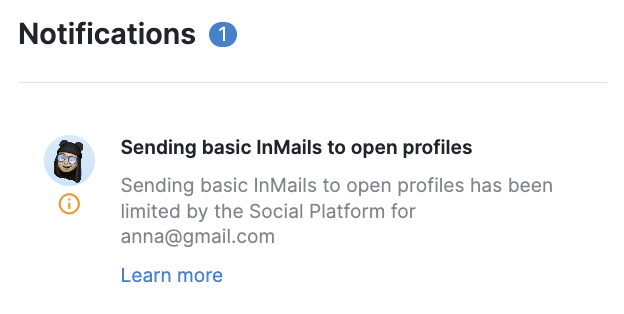
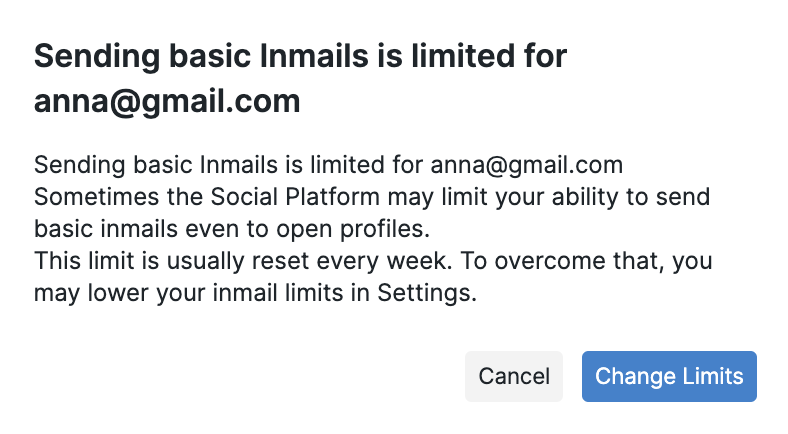
These limits are fully managed by the Social Platform and can’t be changed from our side.
🛠 How to Fix It
To gradually increase your sending capacity, we recommend:
Keeping a consistent and natural daily activity pattern
Maintaining a strong connection or message acceptance rate
(Optional) Verifying your account or upgrading your Social subscription
⚠ If You See “Connection to New Profiles Was Limited”
If you see this message appear among your Buzz notifications, it means the Social Platform has temporarily restricted your ability to send new connection requests.
LinkedIn enforces two separate types of connection request limits: (1) a limit on connection requests with personalized messages, and (2) a general limit on all connection requests regardless of personalization. These restrictions can be triggered independently and are both imposed and lifted automatically by LinkedIn's system.
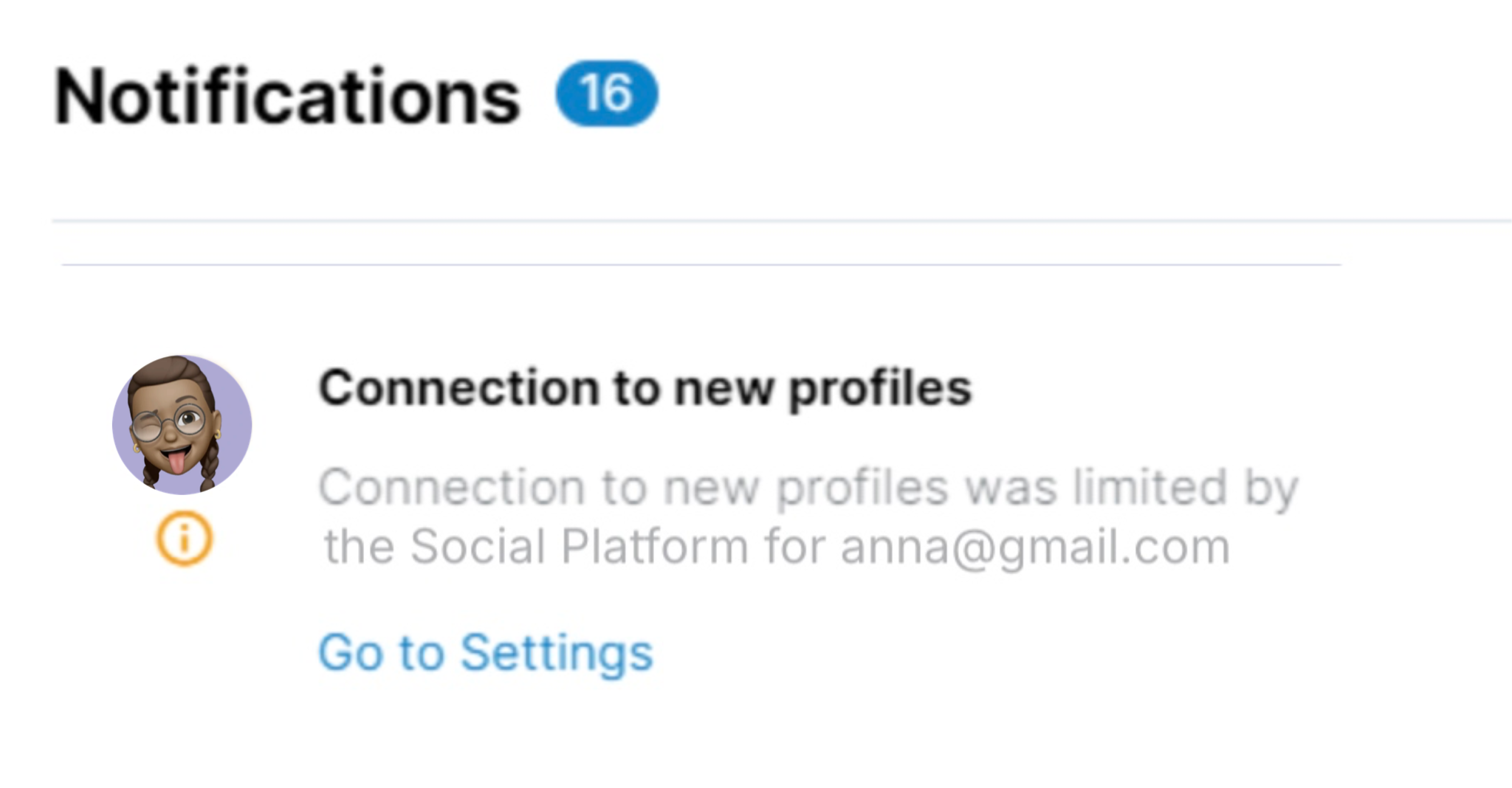
It usually happens for one of the following reasons:
You’ve reached the weekly connection limit (typically around 100 invites per week)
You have too many unanswered connection requests
Your acceptance rate for sent invitations is low
Some recipients reported “I don’t know this person”
You've reached the undisclosed limit for personalized connection requests on Basic accounts (this limit cannot be increased without upgrading your LinkedIn subscription)
Profile View Dependency
Each connection request consumes one profile view from your daily limit. If you reach your daily profile-view limit, connection requests cannot be sent even when you have not reached your connection-request limit.
Campaign Perform Action steps, such as Like last 3 posts, also consume shared profile-view capacity that could otherwise be used for connection requests. This can cause lower sending volumes than expected.
Personalized Connection Request Limits
Non-premium Social Platform users have a monthly cap on personalized connection requests, meaning requests sent with a message. After reaching this cap, the platform may block additional requests with personalized notes even if the weekly connection limit has not been reached.
If you have exhausted your personalized connection-request quota, enable Bypass Personalization Limits in Account Limits. Buzz can then send connection requests without a message once the monthly personalized-request limit is reached.
Note: Connection requests sent without personalized messages may have lower acceptance rates. Consider this trade-off before enabling the bypass option.
Preventive Solutions
Review your account limits and campaign configuration to preserve profile-view capacity for connection requests.
Optimize your account settings:
Adjust your Profile Views limit to match your Connection Requests limit in Account Settings.
Increase both Views of Profiles and Connection Requests limits together because these settings are interconnected.
Enable Connection Request Booster to help manage profile-view consumption more efficiently.
Optimize Your Campaign Configuration
If you are experiencing lower sending volumes than expected, review the campaign’s Perform Action steps.
Remove Perform Action steps entirely to maximize connection-request capacity.
Disable post likes while keeping only View Profile.
Replace multi-action steps with single actions such as Follow profile or Profile view.
Move warming actions into a separate campaign.
Pro Tip: Go to Settings → Account Limits and ensure your Profile Views minimum and maximum range matches your Connection Requests limit. This helps reduce the chances of restrictions.
🛠 How to Fix It
You can usually resolve the issue by:
Pausing new connection requests for a few days until the restriction lifts
Withdrawing old pending requests to improve your connection ratio
A high number of pending invitations is one of the most common reasons for limits, even if your current sending volume is low.
LinkedIn’s 3-Week Waiting Period for Withdrawn Connection Requests
When withdrawing old pending connection requests to improve your connection ratio, be aware that the Social Platform enforces a mandatory 3-week waiting period before the system can resend a connection request to the same profile. After withdrawal, those specific profiles will be temporarily unavailable for new connection attempts, which may reduce your immediate outreach capacity even after the connection limits are lifted.
This waiting period affects outreach planning and expectations:
Plan ahead: If you are considering withdrawing requests to specific high-value prospects, factor in the 3-week delay before re-engaging.
Prioritize strategically: Focus withdrawal efforts on lower-priority connections first, keeping important prospects for last.
Track withdrawn requests: Maintain a record of withdrawal dates so you know when you can safely re-engage with those profiles.
This limitation makes the withdrawal strategy most effective for general connection-ratio improvement rather than immediate re-engagement with specific prospects.
In Buzz: Go to Account Settings → Pending Connections → Delete oldest pending invitations to configure or automate this process.
3. Engaging with your current network through comments and interactions
4. Personalizing your connection messages to increase acceptance rates
LinkedIn Connection Message Character Limit
When creating connection request campaigns, remember that LinkedIn enforces a 300-character limit for connection messages. This limit applies to the final message after all placeholders and personalization are filled in.
Why This Matters
If your message template with personalized content exceeds 300 characters, LinkedIn will reject the connection request, which can cause campaign errors.
How to Avoid This Issue
Test your templates with realistic placeholder values to ensure the final message stays under 300 characters.
Account for variable-length personalization such as company names, job titles, or other dynamic content that could make some messages longer than others.
Keep templates concise and focus on the most essential information to leave room for personalization.
This character limit is a permanent LinkedIn platform restriction and cannot be changed or bypassed.
NOTE: Even when limits are set low in Buzz, the Social Platform may apply additional internal caps based on account-specific signals (recent activity patterns, network growth velocity, acceptance ratios, session behavior, IP patterns, account verification, etc.) Connection request limits are based on your account's overall LinkedIn activity, not just activity within Buzz — manual connections made directly on LinkedIn are also counted toward these limits.
Unfortunately, the Social Platform does not expose the exact trigger behind a specific limitation, which is why the explanation can sound generic, but the restriction itself is real and applied upstream.
These limits are often temporary because they are based on short-term activity evaluation. Once the system detects more “normal” behavior, restrictions are usually lifted automatically.
What to expect:
Limits may appear even if no clear issue is visible
They may resolve without any action
They may reoccur
If the issue continues, check your Social Account settings for updates or reach out to the Social Platform’s support team directly.