How to Integrate Clay in Your Buzz Workflow
Last updated: September 23, 2026
In this guide, we’ll walk you through how to connect Clay with your Buzz campaigns.
Clay is a powerful sales prospecting tool that lets you source prospects from various platforms, enrich the data, and export it to tools like Buzz.
There are several ways to connect Clay to Buzz. Let’s start with the most straightforward one.
Note: All Buzz campaigns require a search source (CSV file, API integration, or search link) to pull prospects and generate activity. Without a search source, your campaign will not run. The methods below show you how to use Clay as your search source.
Export Your Clay Table as a CSV
Let’s say you’ve built a table in Clay with all your prospects and you're ready to bring them into Buzz to be added to a campaign.
Open your table in Clay.
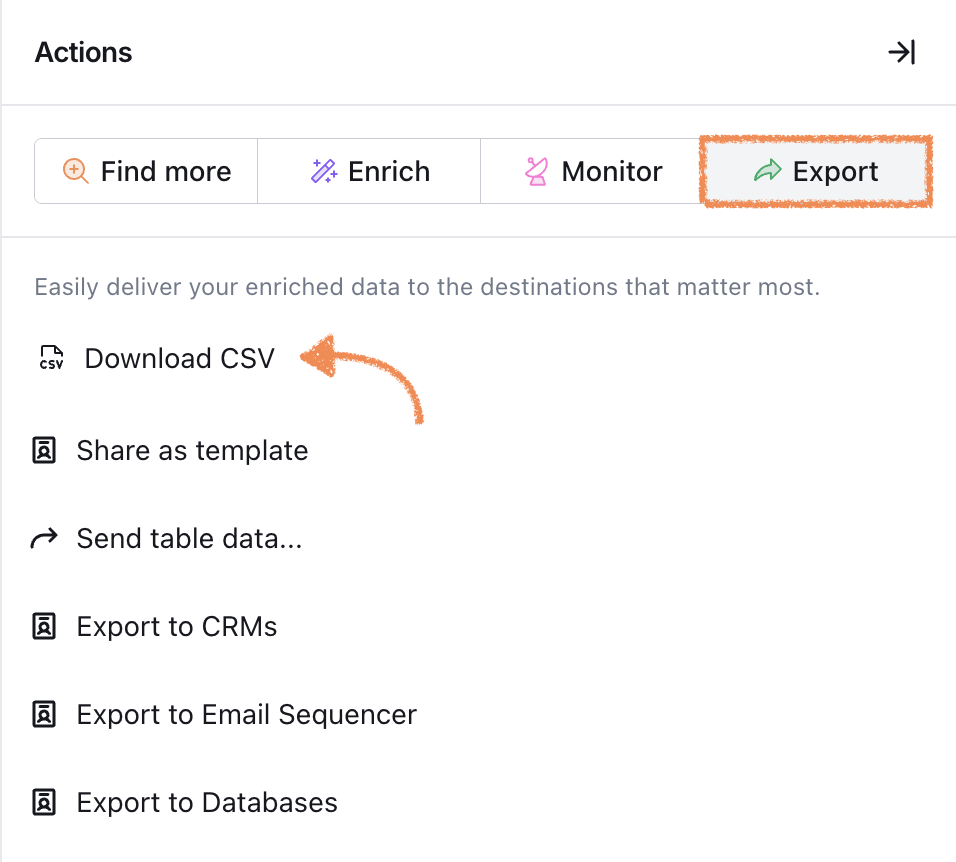
Click the Action button in the top right corner.
Select Export > Download CSV.
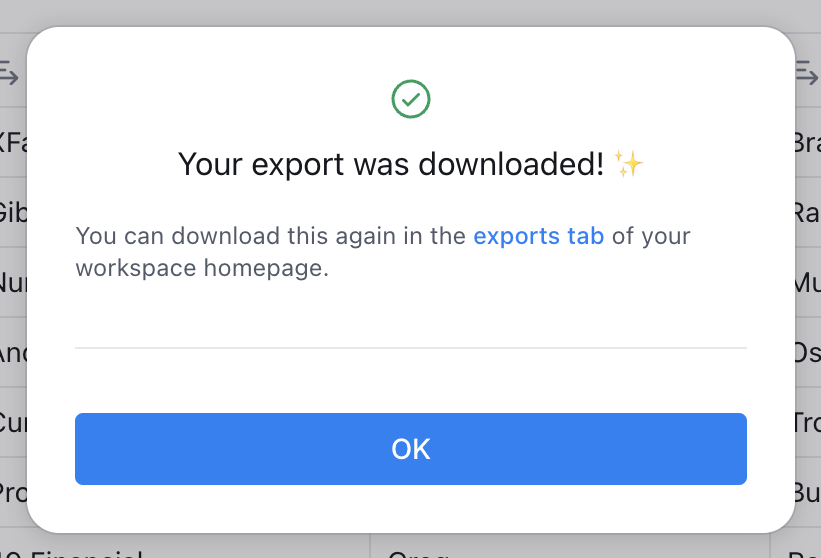
Once your file is downloaded, you’ll see a confirmation message.
Upload the CSV to Buzz
Go to Buzz and create a new campaign.
When prompted to add your search, choose CSV File.
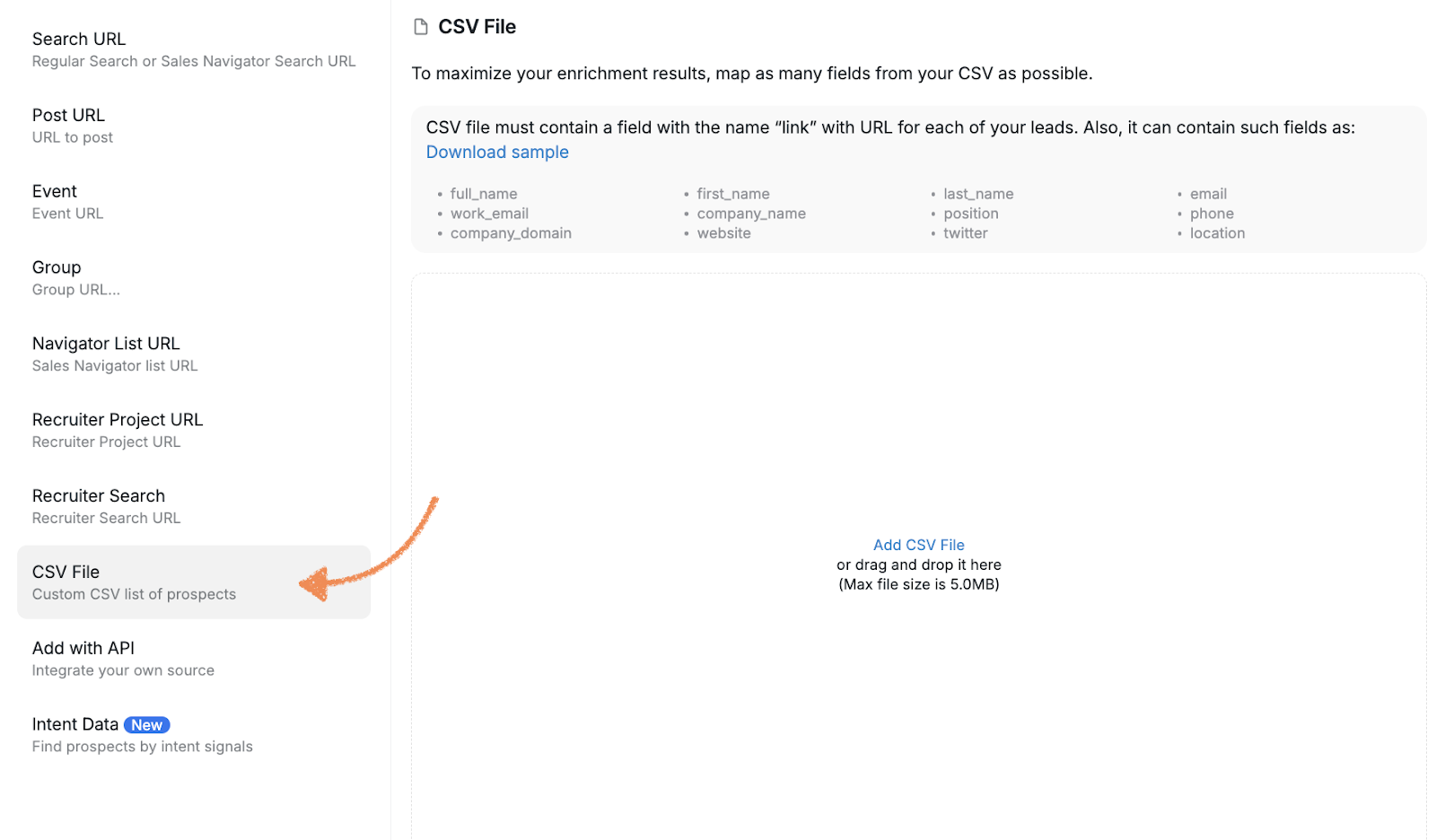
3. Upload the CSV you just downloaded from Clay.
4. Map the fields to match your campaign needs.
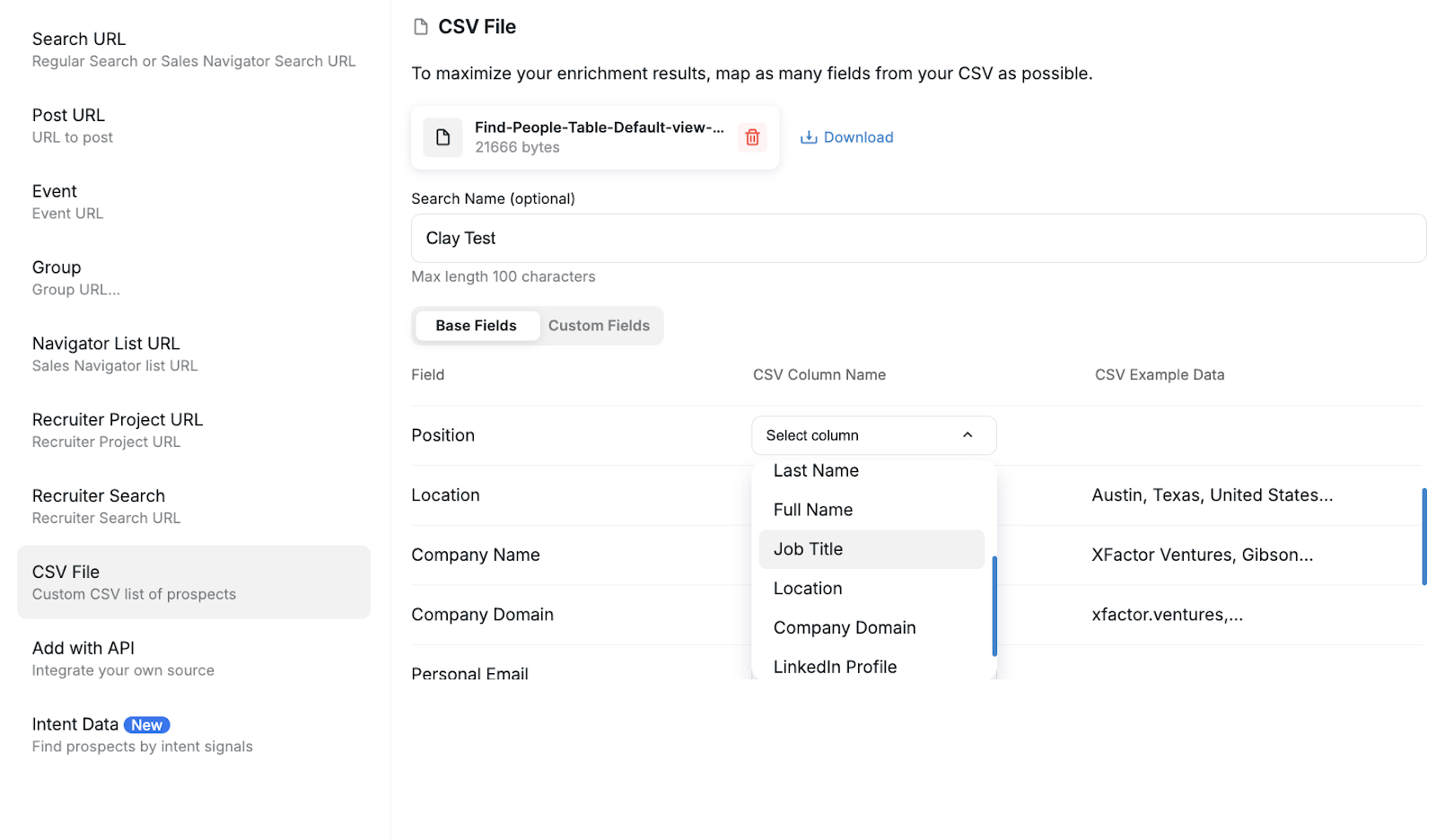
❗ Important: If you're running a Social + Email campaign, make sure to correctly map the Person Social URL field to ensure proper targeting.
5. Click Next, then Save.
That’s it! Your prospects will now be added to your campaign, and you can begin building it out.

Troubleshooting CSV Upload Errors
When uploading CSV files from Clay to Buzz campaigns, you may encounter error messages caused by missing or incorrectly formatted campaign data. Use the checks below to resolve common upload issues.
Required Fields
LinkedIn campaigns: Include valid LinkedIn profile URLs in the
Person LinkedIn URLcolumn for each prospect.Email campaigns: Include valid email addresses in the email column.
Social + Email campaigns: Include both valid LinkedIn profile URLs and email addresses.
Formatting Requirements
Make sure the first row contains clear column headers, such as First Name, Last Name, and Email.
Remove any empty rows from the file.
Save the file in
.csvformat.Keep the data clean and remove unusual symbols or formatting.
Recommended Fields
Include a separate Company column to enable personalization in message templates, such as “Hi [Name], I saw your great work at [Company].”
“Could not upload CSV File” Error
This error typically indicates that your CSV is missing fields required for the selected campaign type. Check the required fields and formatting requirements above before uploading the file again.
For Social + Email campaigns:
Your CSV must include LinkedIn profile URLs in the
Person Social URLfield.If your Clay table does not contain LinkedIn URLs, add a column with those URLs before exporting.
Alternatively, change the campaign type to Email Only under Outreach Type in the Buzz campaign settings. This removes the LinkedIn URL requirement and allows email-only outreach.
Preventing Field Mapping Errors
When preparing your CSV file, leave columns blank if you do not have data for certain fields. Do not delete columns entirely, because missing columns can cause field mapping errors and may result in the wrong data, such as company names instead of first names, appearing in your automation.
Key Considerations
Maintain a consistent column structure across your CSV files.
Verify field mapping before finalizing your campaign setup.
Test with a small batch first if you are unsure about your CSV formatting.
Keep backup copies of your original Clay exports for reference.
Adding Prospects to Your Campaign via HTTP API
Now, let's go through how to connect your Clay database to a Buzz campaign using the HTTP API. This method allows for seamless, real-time prospect transfer between platforms.
Set Up HTTP API in Clay
Open the Clay table you want to export from.
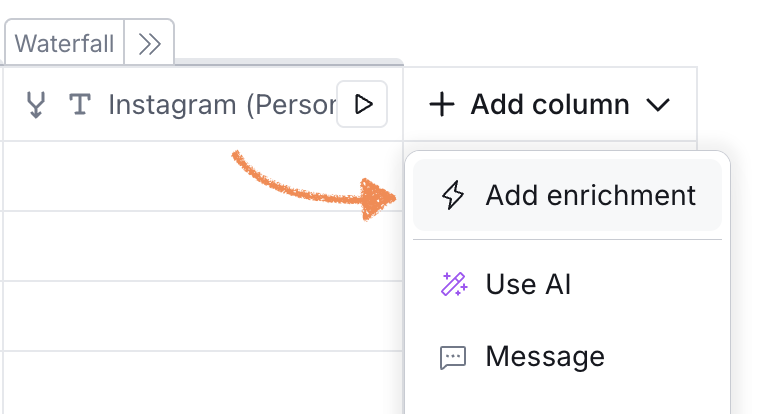
Scroll to the far right of your table and click Add Column > Add Enrichment.
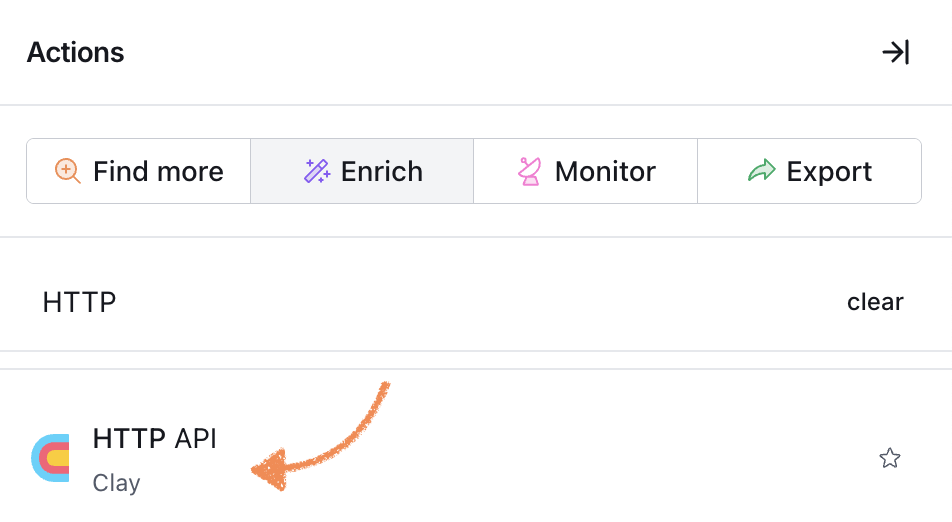
3. In the search field, type HTTP API and select the corresponding option.
Configure the Request Method and Endpoint
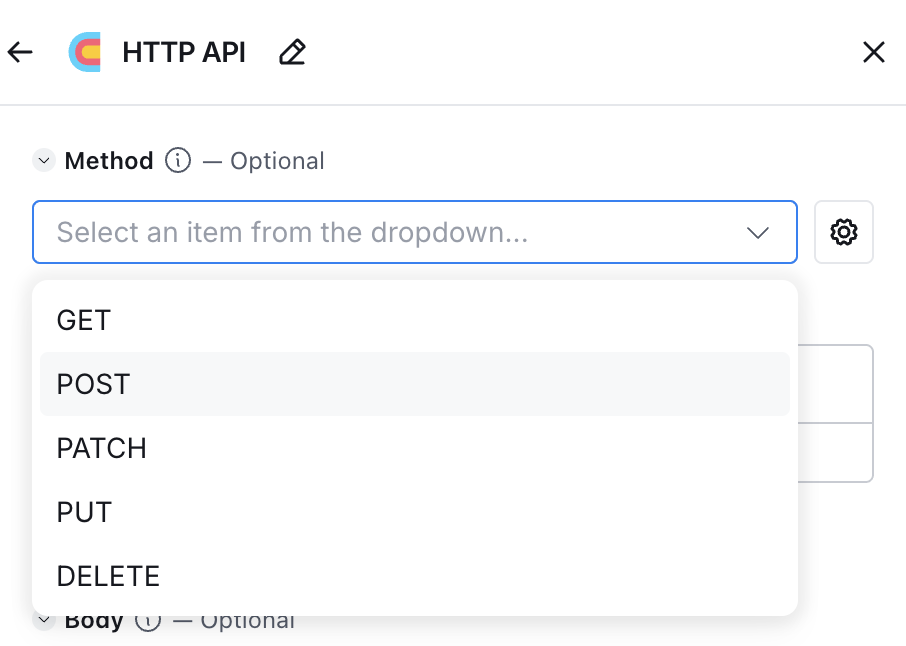
Under Method, select POST.
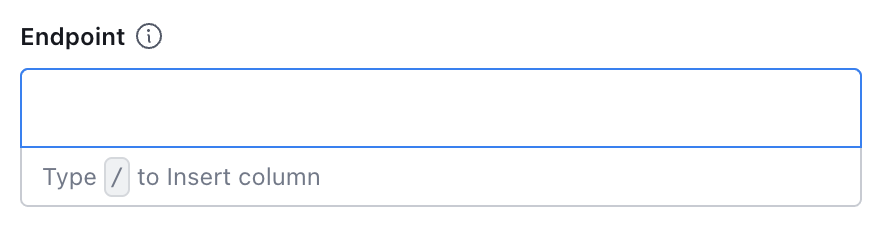
2. Next, you'll need to paste your Buzz campaign API endpoint.
To find this:
Go to your Buzz account.
Open the campaign you want to add prospects to (or create a new one).
Click Add Search and choose Add with API.
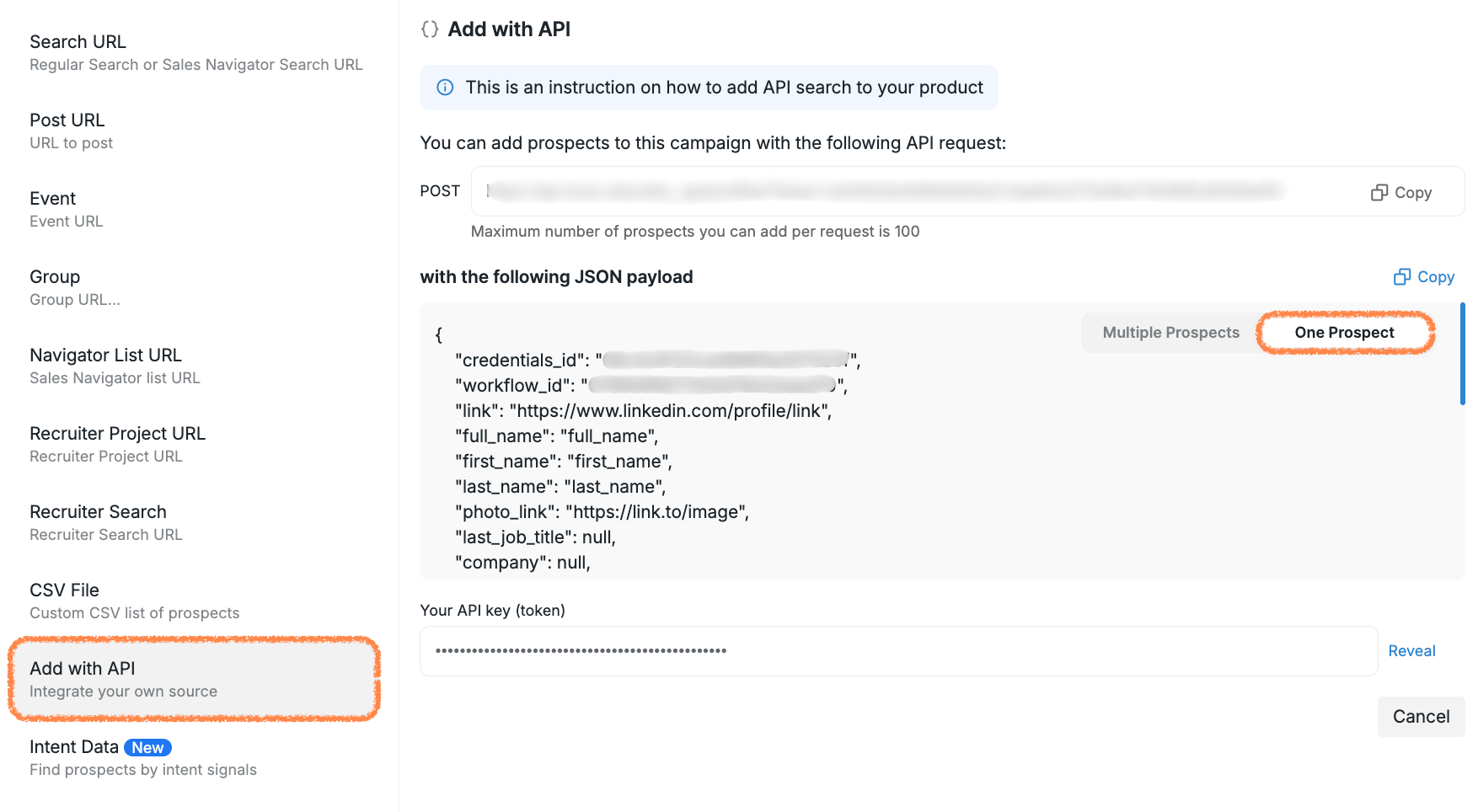
3. Copy the endpoint shown in the POST field.
4. Return to Clay and paste this into the Endpoint field.
Add the JSON Payload
In Buzz, copy the JSON Payload from the same API setup page.

2. Paste it into the Body field in Clay.
Map the Fields
To ensure accurate data transfer, you need to map each relevant field in the payload to the corresponding column in your Clay table.
Example: Mapping Social Profile Links
Find the row containing the profile link value.
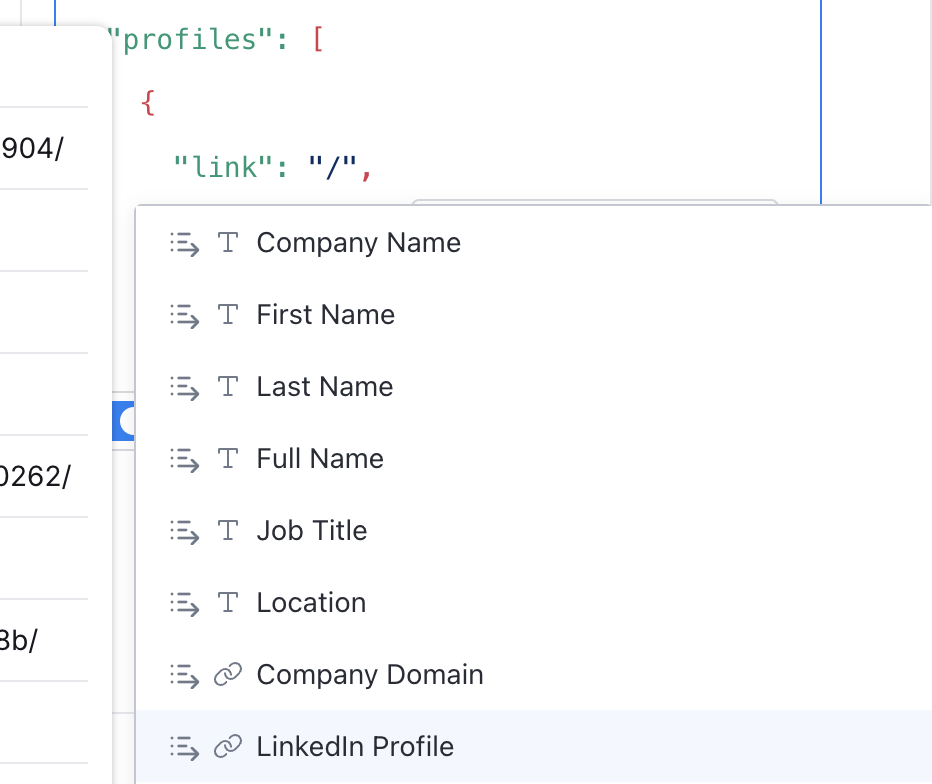
Select the text and press “/” to access mapping options.
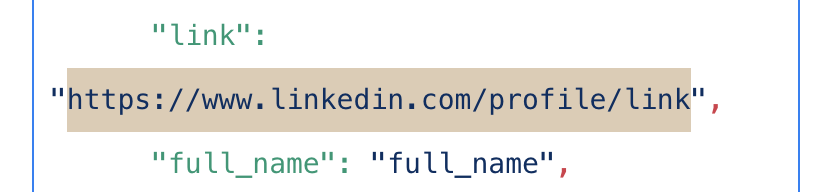
3. Choose the appropriate column from the dropdown.
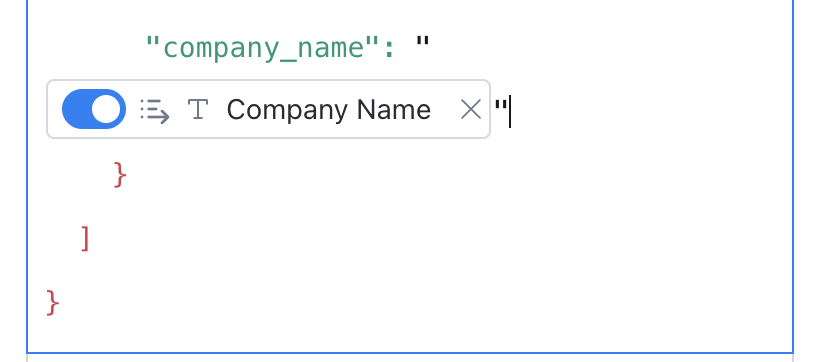
4. The mapping should now display in your code block:
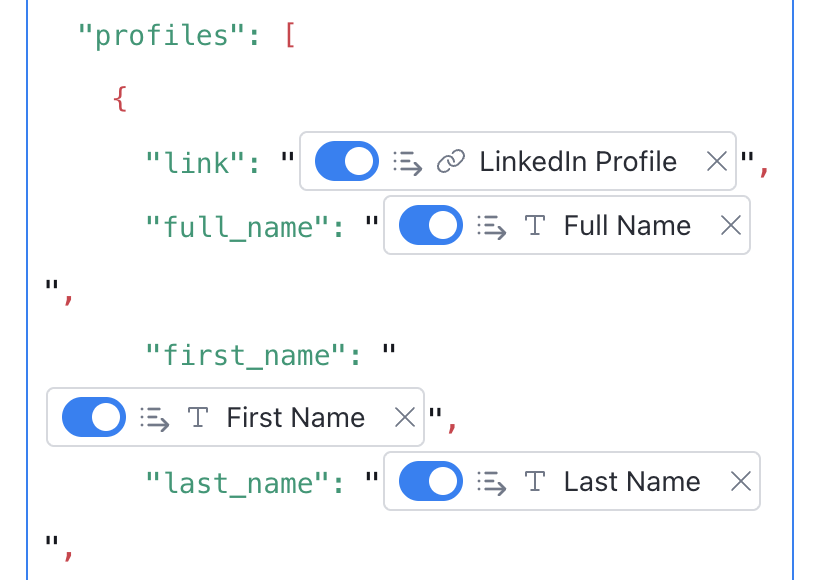
Repeat this process for all needed fields.
🔗 Note: Do not skip the link field — it’s essential for Buzz to identify and engage with your prospects.
Custom Fields
If your payload includes custom fields, either map them accordingly or remove them entirely.
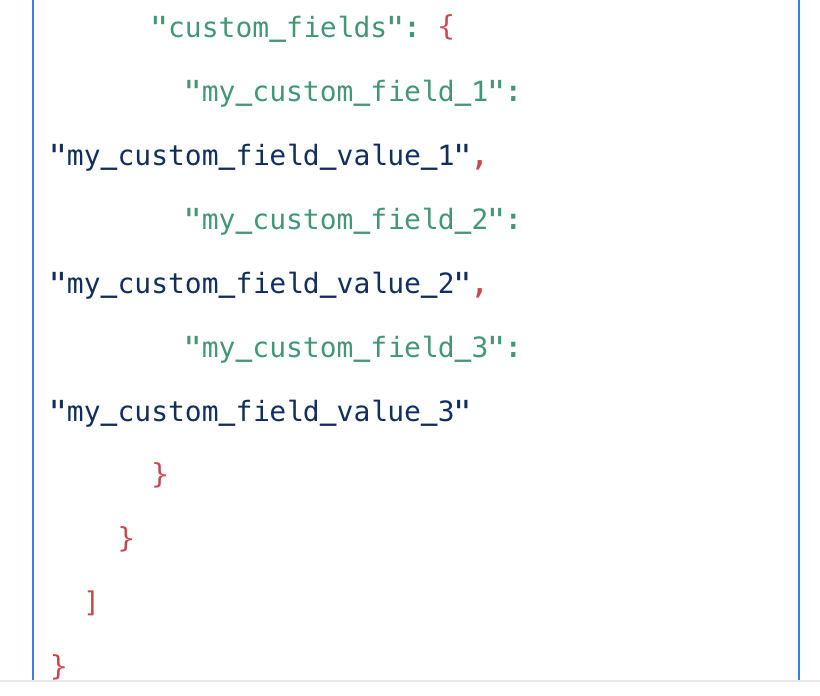
Make sure your JSON is clean — avoid trailing commas, which can break the data transmission.
For example, the end of the input may look like this:
Finalize and Send
Once all fields are mapped, click Save and Run in Clay.
Return to Buzz and open your campaign.
You’ll see your newly added prospects under the New section.
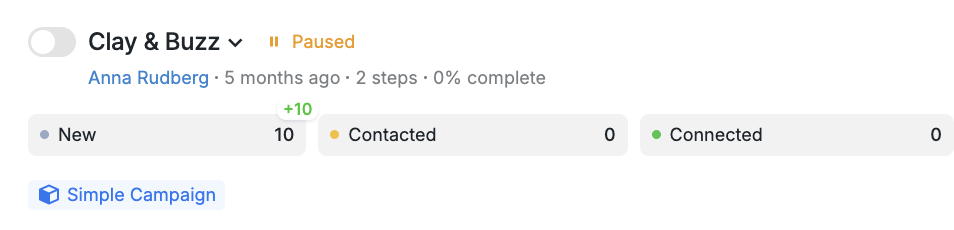
📌 Note: If you update any information in your Clay table and re-run the API transfer, the corresponding profiles in your Buzz campaign will not be duplicated. Instead, they’ll be updated with the latest data from Clay. This ensures your campaign always reflects the most current prospect information.
Updating Email Addresses for Existing Leads Using Clay Data
When you've enriched your prospect data in Clay with new email addresses, you can update existing leads in your Buzz campaigns without creating duplicates. This is particularly useful when you've discovered additional email addresses for prospects already in your campaigns.
CSV method: When uploading a CSV with email addresses for existing prospects, Buzz will update their information rather than creating duplicates. Include the prospect's LinkedIn profile URL or other identifying information to ensure proper matching.
Troubleshooting: Prospects Stuck in Pending Status
If prospects appear in your campaign with a Pending status and aren’t progressing through your workflow, this typically means a campaign step requires data that wasn’t included in your upload.
Common causes:
Campaign steps use placeholders like
{{First Name}}or custom fields, but the corresponding columns are missing from your CSV or API payload.The placeholder format doesn’t match the field name in your data, such as using
{{First Name}}instead of{first_name}.
To resolve:
Open the affected campaign step to see which placeholder is causing the issue. Buzz will indicate which field is missing data.
Either update your campaign steps to use the correct placeholder format that matches your Clay data, or re-upload your data with the missing fields included.
Save your changes. Prospects will automatically move out of Pending status once the data issue is resolved.
Note: Uploaded CSV files cannot be edited after import. If your data is missing required fields, you’ll need to upload a new file with the complete data or adjust your campaign steps to work with the available fields.
Need help with field mapping or troubleshooting your upload? Reach out to our support team — we’re here to help!