AskBuzz: Integrations & Credit Management
Last updated: July 13, 2026
This guide details how to link your favorite sales tools to AskBuzz, check your conversational credit balances, and download generated data tables to your computer.
🔌 Connecting Workspace Integrations
AskBuzz connects with CRM systems, mailboxes, and team chat environments to make your prospecting workflows programmatic.
Supported CRM & Workplace Apps
📊 Salesforce / HubSpot / Attio: Automatically push enriched leads and campaign statuses directly to your pipelines.
💬 Slack: Pair your Slack channel to receive real-time updates when campaigns finish, or query AskBuzz directly from Slack using a broker channel.
📧 Gmail / Microsoft Outlook: Auth with your mailbox to retrieve messages and support outreach.
How to Link an Integration
Open Composer Plus Menu: Click the
+(Plus) button next to the chat box.Navigate to Integrations: Hover over
Integrationsto see a flyout list of available connectors.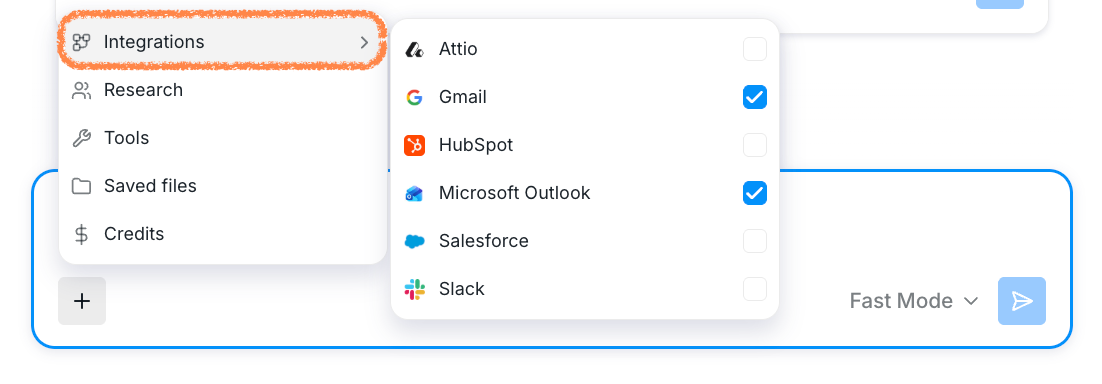
Choose Your App: Click on the tool you wish to link.
Complete Authentication: If the tool is disconnected, clicking it will trigger a secure popup window. Complete the authorization prompts, and return to AskBuzz.
Status Sync: The status indicator next to the integration in your flyout list will instantly toggle to "ON", confirming the link is successful and active!
💳 Checking Credits & Billing Policies
AskBuzz uses a unified credit pool synchronized in real-time with your Buzz.ai account.
How to Check Your Credits
Composer Shortcut: Open your Composer's
+Menu and clickCredits.Chat Prompt: Simply ask: “How many credits do I have left?”
AskBuzz will return your real-time unified balance alongside a detailed breakdowns table displaying the credit cost per category (such as Sourcing vs Company Intelligence).
💾 Downloading Datasets & File Lists
Whenever you ask AskBuzz to compile lookalikes, scrape map listings, or search prospects, your outputs are securely saved inside your workspace.
Finding Saved Files
Show File Lists: Ask: “Show my saved files.”
AskBuzz will output a clean, high-density table displaying your filename (as a clickable link), creation date, and size columns.
Standalone File Downloads
The Download Icon: To download any generated table (such as a list of 50 sourced prospects) as a local CSV file, look directly under the table inside your chat thread.
Click the
Download Iconlocated next to the Research icon. This will download the file directly to your desktop or downloads directory!
