AskBuzz: Sourced Lead Research & The Prospects Panel
Last updated: July 13, 2026
This guide explains how to research your collected leads, filter through different sourcing lists, and selectively import them into automated campaigns.
🔬 What is the "Research" Panel?
The Research/Prospects Panel is accessible via the Research menu item in your message composer or by typing "See all potential prospects I've collected".
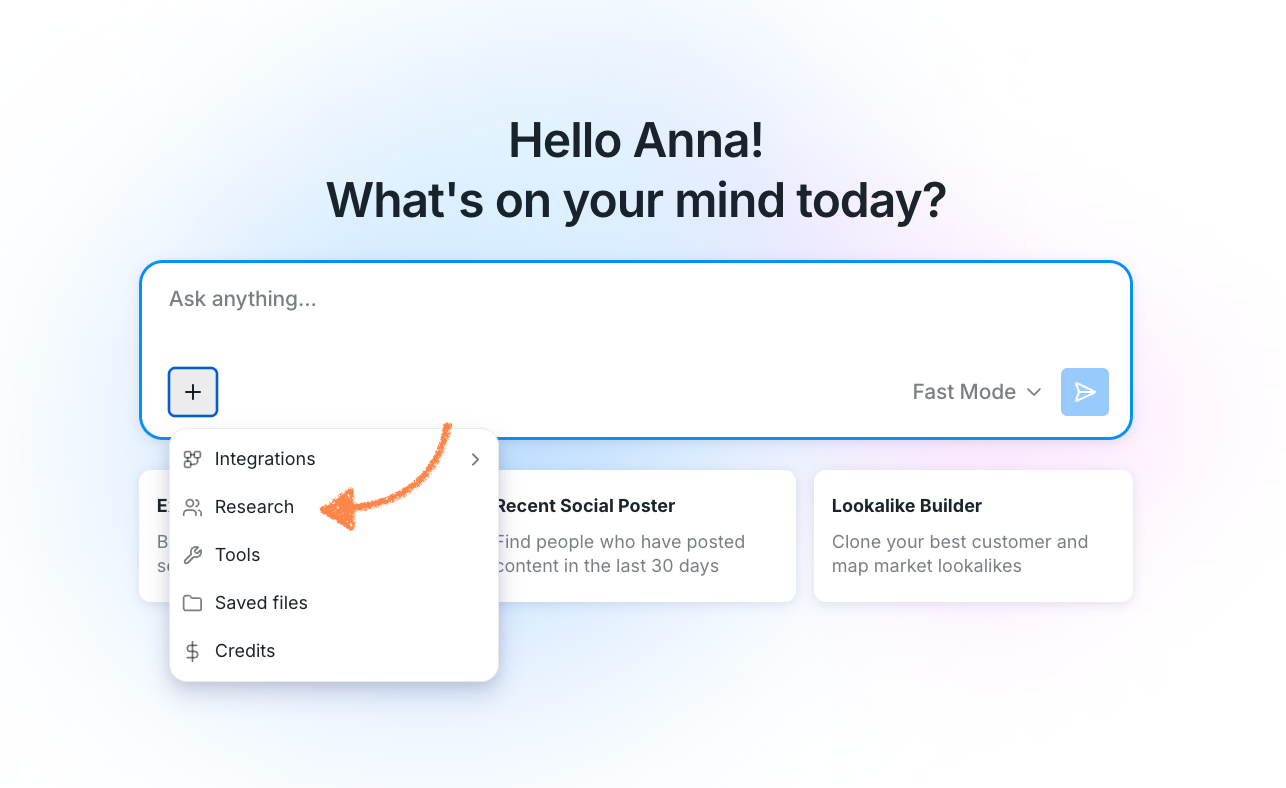
Rather than pulling static platform data, this panel dynamically scans your secure Google Cloud Storage (GCS) workspace to read and combine all lists of prospects you have previously sourced, scraped, or compiled with AskBuzz.
High-Density Clean Layout
Source Lists Filter: The dropdown menu at the top lists your file names (e.g. prospects-2026-07.csv) formatted as logical Source Lists.
No Clutter: Index columns, line numbers, and redundant status tags are omitted.
Nested Linked Names: The smaller Social hyperlink is nested directly below the prospect name so you can click to view profiles in a flash!
📍 Triggering Research Directly from Chat Tables
Whenever AskBuzz returns a leads table inside your chat window, you don't have to navigate menus to load them into the Prospects panel.
Locate the Action Footer: Scroll to the very bottom of any table in your chat.
Find the Research Button: Hovering your mouse next to the CSV Download button reveals a custom Research (Users Icon).
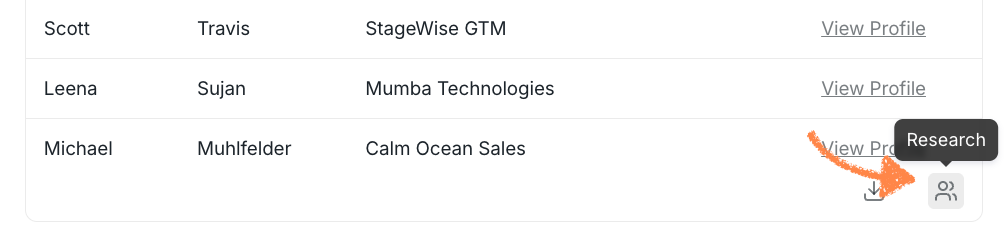
One-Click Load: Click that icon!
How it Works: Clicking the icon automatically sends a background command to open your dynamic sidebar, instantly displaying every prospect inside that table in your Prospects list.
🗃 Filtering and Selecting Prospects
Once the Prospects panel is open, you can manage your records:
Search Bar: Filter the current list in real-time by entering names, company websites, emails, or job titles.
Source List Dropdown: Toggle between all files to isolate specific batches you scraped in the past.
Checkboxes (Selection): Select specific candidates using the checkboxes on the left.
Load All vs Cap: For large datasets, AskBuzz loads 200 rows by default to maintain fast performance. If you want to load your entire list, simply click
Load allat the bottom of the list.
📬 Executing Actions (Campaign Sync & Outreach)
Once you select your target candidates in the Prospects Panel, you can trigger actions using the Action Menu at the bottom-right of the slideout:
Create Campaign / Send Outreach (Default):
Drafts an outreach sequence for the selected contacts and schedules imports.
Enrich: Multiple / Email / Phone / Company:
Triggers contact enrichment searches for the active selections (see our Contact Enrichment Guide).
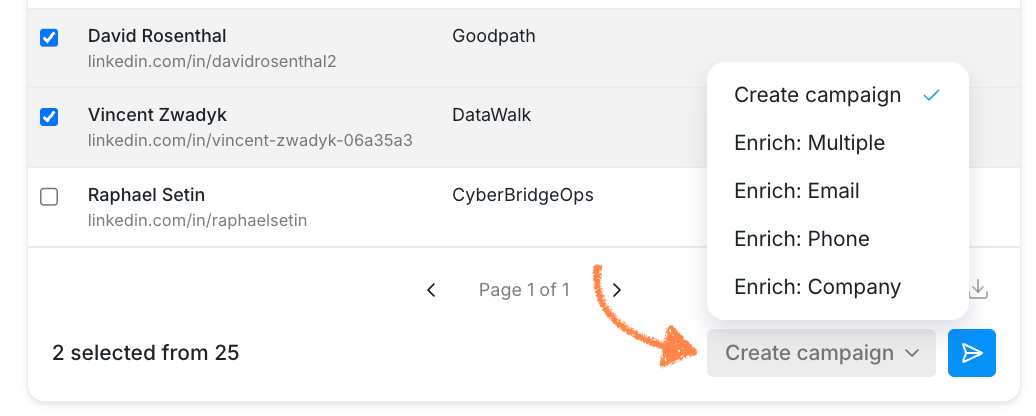
Run Actions:
Click the Send Arrow next to the dropdown to dispatch your approved selections to the active sequence.