Conversations are not synchronizing in the Inbox
Last updated: September 23, 2026
At times, you may notice discrepancies between the messages you have in the Buzz Inbox and those on your Social profile. When this occurs, you can attempt to manually synchronize the conversations.
Understanding the conditions that trigger conversation synchronization is essential. For instance, if your account is set to sync every 20 minutes, this does not guarantee that all conversations will update at this interval.
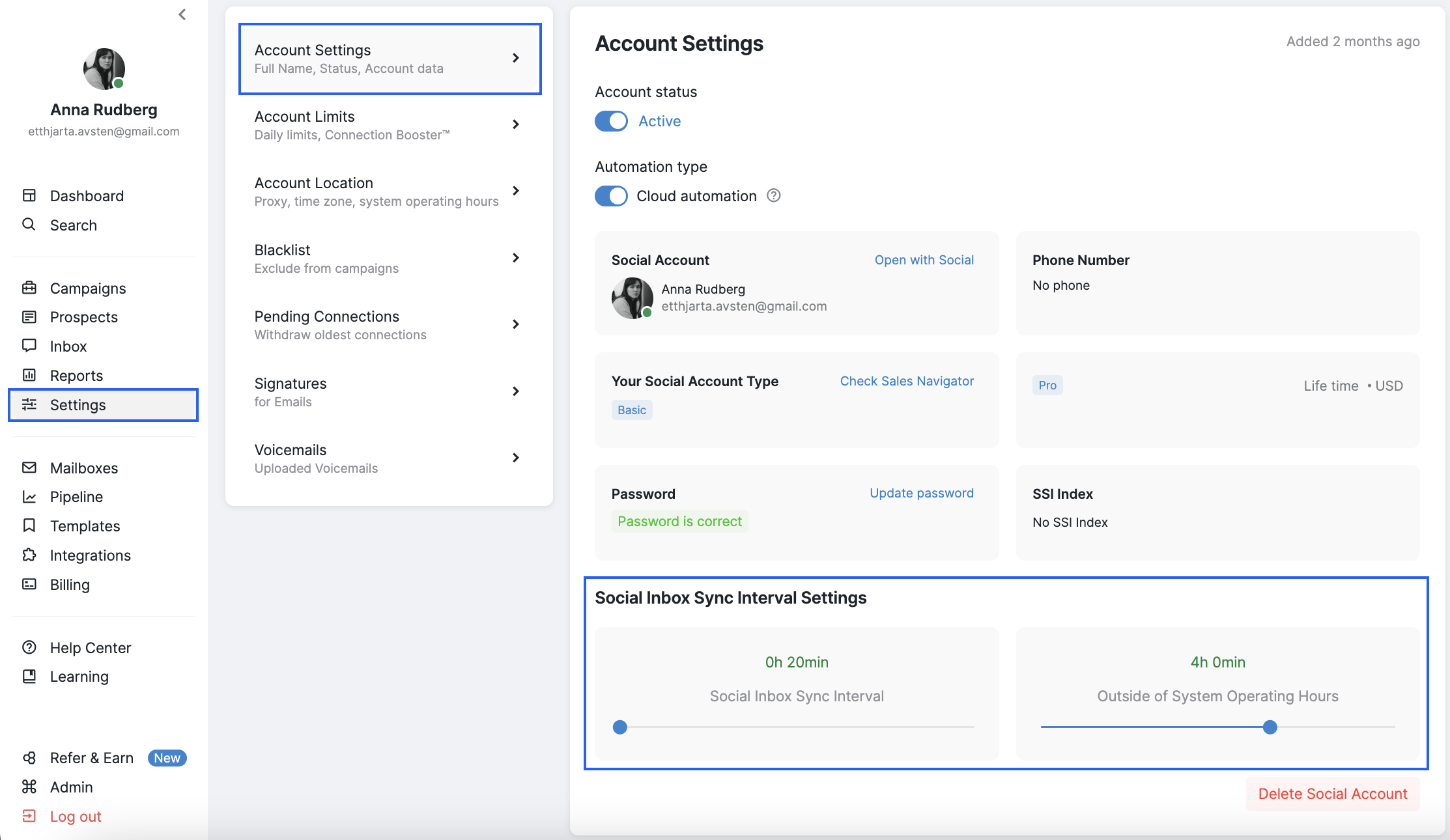
The Inbox synchronization period can be configured for two scenarios:
When the system is active, during System Operating hours.
When the system is inactive, outside of System Operating hours.
For instance, within System Operation hours, you have set the synchronization interval to 20 minutes.
The 20-minute interval represents the maximum synchronization time, meaning:
Message 1 arrives.
The system syncs.
After 5 minutes, Message 2 arrives.
The system waits an additional 15 minutes before syncing again.
If no notifications are received, synchronization will not occur.
Potential reasons for extended gaps between synchronizations include:
When there are no active campaigns, the system halts synchronization for security purposes. For LinkedIn specifically, paused or inactive campaigns interrupt the data flow between LinkedIn and Buzz, preventing messages from appearing in Buzz. Verify that your campaign is active to ensure automatic message retrieval.
Less frequent synchronization during non-operating hours.
Proxy-related issues may arise. For further assistance, please reach out to our Customer Support team.
To set up your Inbox synchronization time intervals, head to the Settings tab > Account Settings > Social Inbox Sync Interval Settings:
If you notice a new message on Social that does not appear on the platform after some time, you should attempt to manually synchronize the conversation from the Inbox.
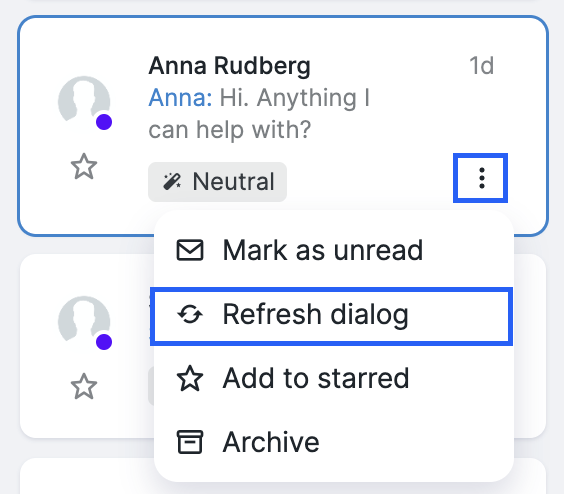
To do that, click on the three-dot button next to the conversation you want to refresh and choose Refresh dialog:
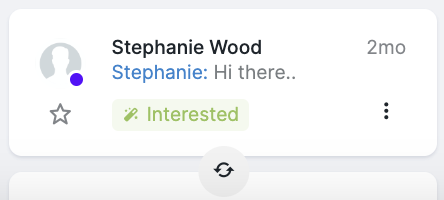
If you want to refresh all conversations at once, press the refresh at the bottom of the conversations' list:
If the issue persists, please contact our Customer Support team for further assistance.