Adding a Search to Your Campaign
Last updated: September 23, 2026
Before your campaign can start reaching prospects, you need to define who you're targeting. Adding a search is how you tell the system which profiles to include in your outreach.
How to Add a Search
Clicking + Add Search allows you to choose and add a specific search type to your campaign.
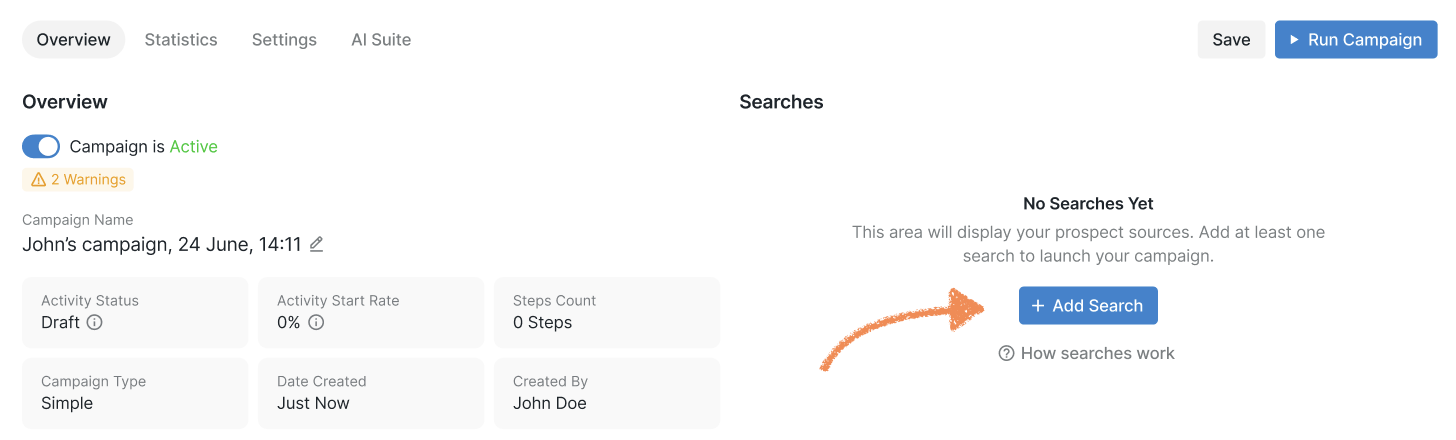
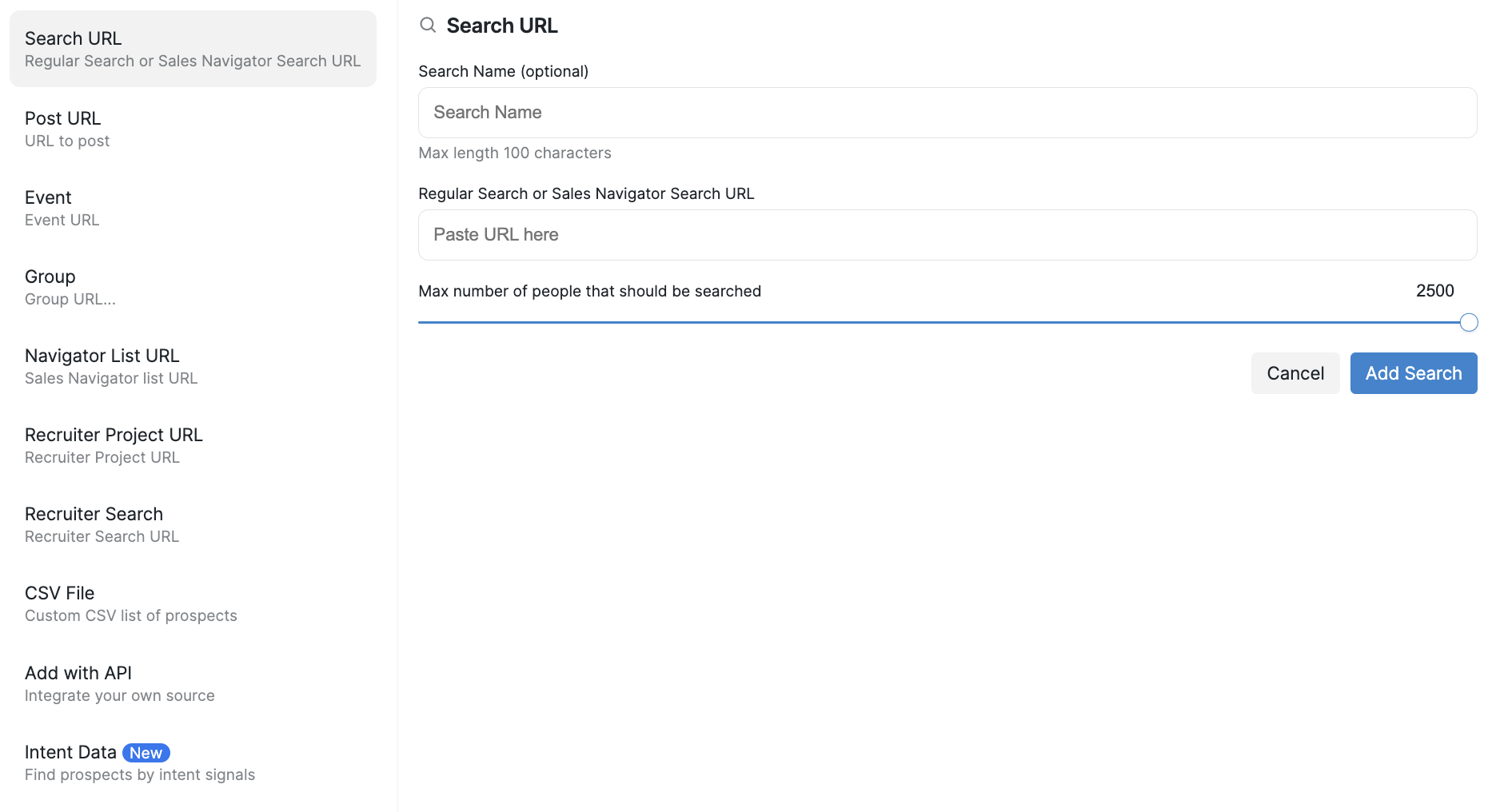
Currently, the following types of searches are available:
Search URL or Sales Navigator search on Social
Post URL: a link to a Social post
Event: a link to a Social event
Group: a link to a Social group
Navigator list: a link to a saved Sales Navigator search list on Social
Recruiter project URL or Recruiter search: a link to a Recruiter search
CSV file: a file containing prospects you would like to add to the campaign
With API
Intent Data: configure a set of unique signals you want to track to add prospects to your campaign
Replacing Sales Navigator searches: If you need to remove Sales Navigator dependencies from an existing campaign, you can replace Navigator searches with standard search types. Edit the step that adds prospects and change the search source to a regular Social search URL (e.g., social-platform.com/search/results/people) or another non-Navigator source like Post URL, Group URL, Event URL, or CSV.
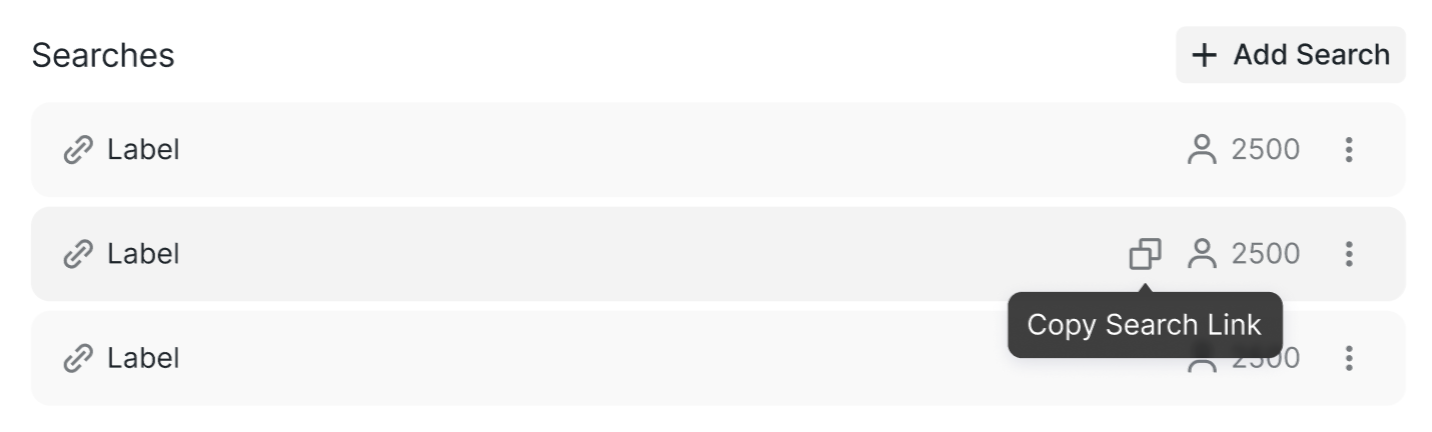
Once you've added a search link to your campaign, you can easily copy it by clicking the copy button.
❗ Please note that you can delete the search link only during campaign setup before the campaign is launched. Once the campaign is live, the search can only be paused and cannot be deleted.