How to Schedule a Pause for Your Campaign
Last updated: September 23, 2026
When setting up a new campaign in Buzz, you’ll find plenty of options to fine-tune it to your liking. One of them is the ability to schedule a pause, so your campaign automatically stops when you want it to. Perfect for when you’re taking time off or just want to pause outreach for a bit.
Setting Up a Scheduled Pause
To schedule a pause for your campaign:
Open your campaign Settings.
Find the option called Scheduled Pause in the list.
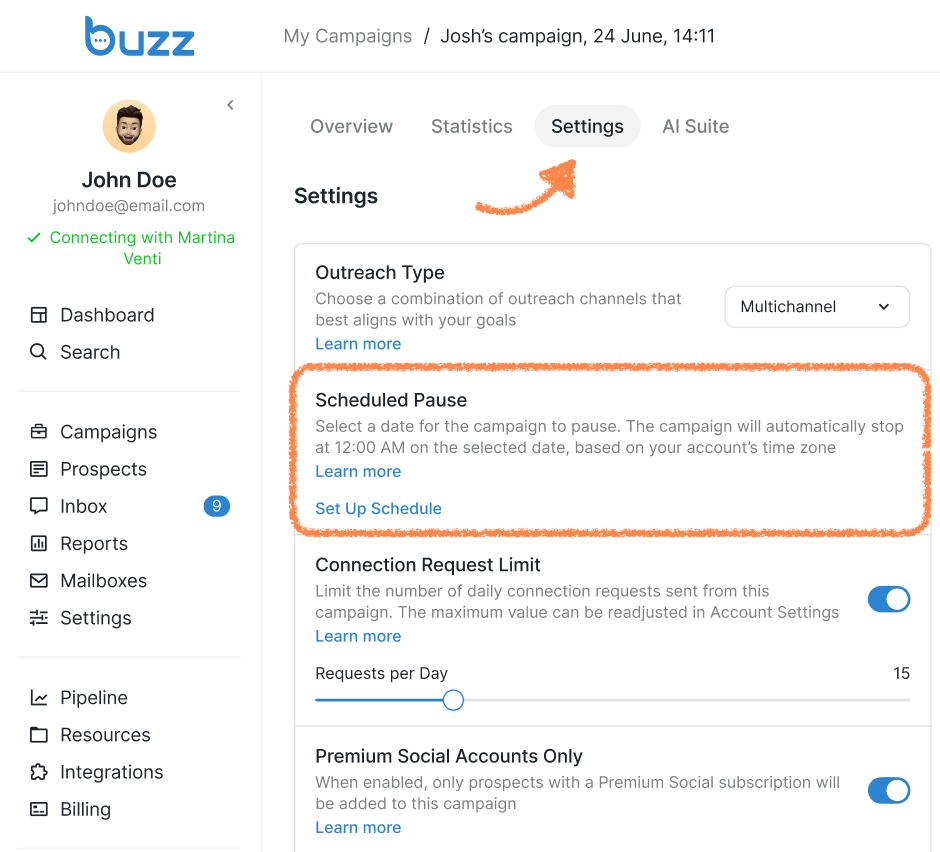
Click Set Up Schedule.
From the calendar, select the date you’d like your campaign to pause.
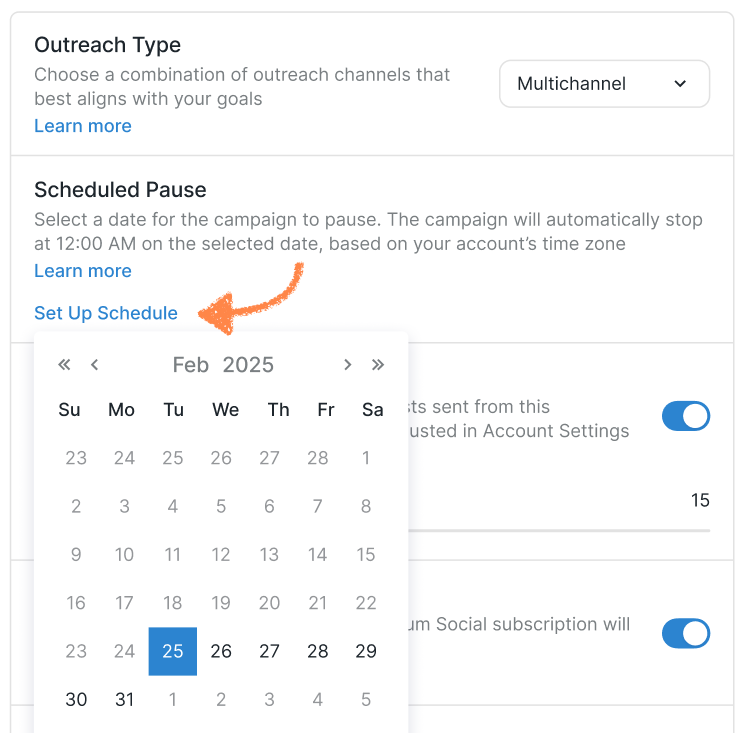
Your campaign will automatically pause at 12:00 AM on the selected date (based on your account’s time zone).
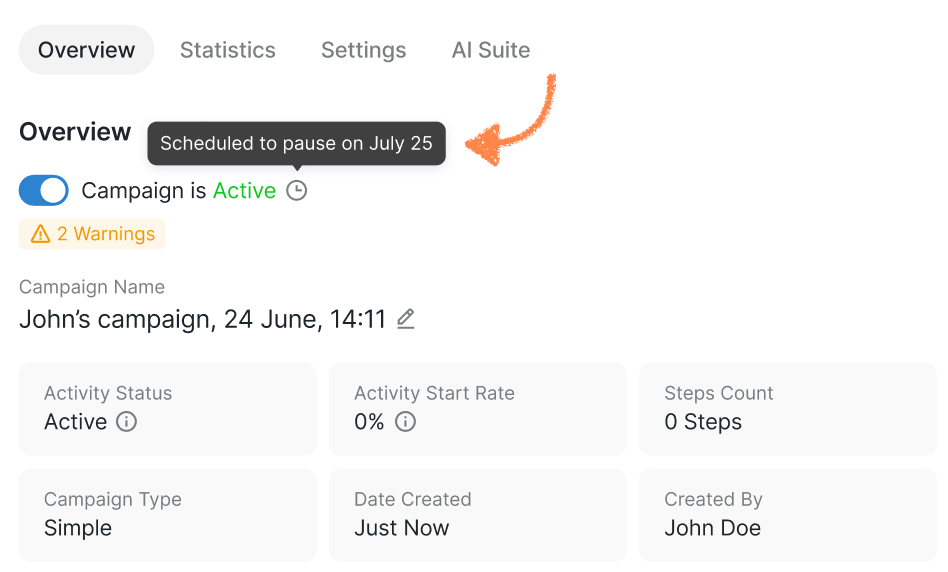
Once you’ve set it, you will see a clock symbol (tool tip) next to the campaign status. If you hover over it, it will reflect the scheduled pause:
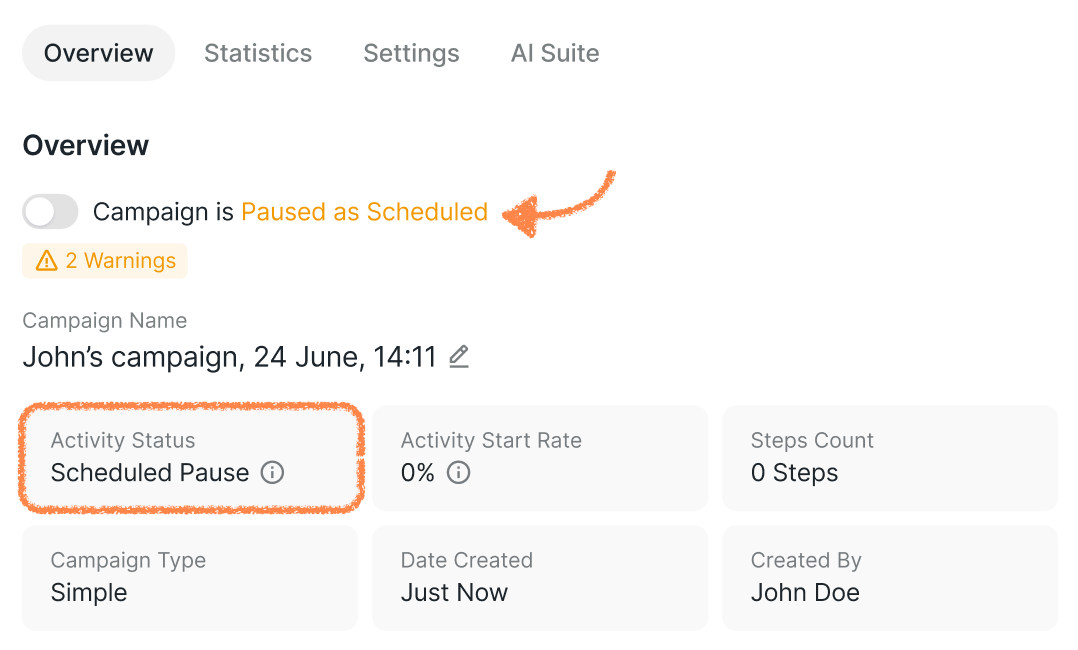
When the scheduled date arrives, your campaign will appear as Paused in the overview:
Can I Pause My Campaign in Any Other Way?
Yes! You can always pause your campaign manually.
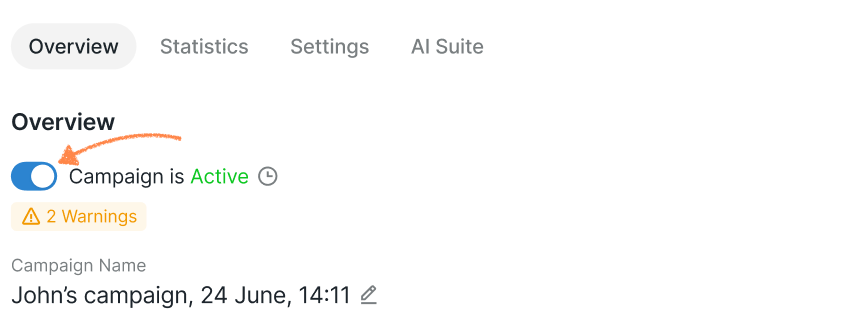
You can do this by toggling it off:
From the Campaigns tab
Or directly inside the Campaign Editor
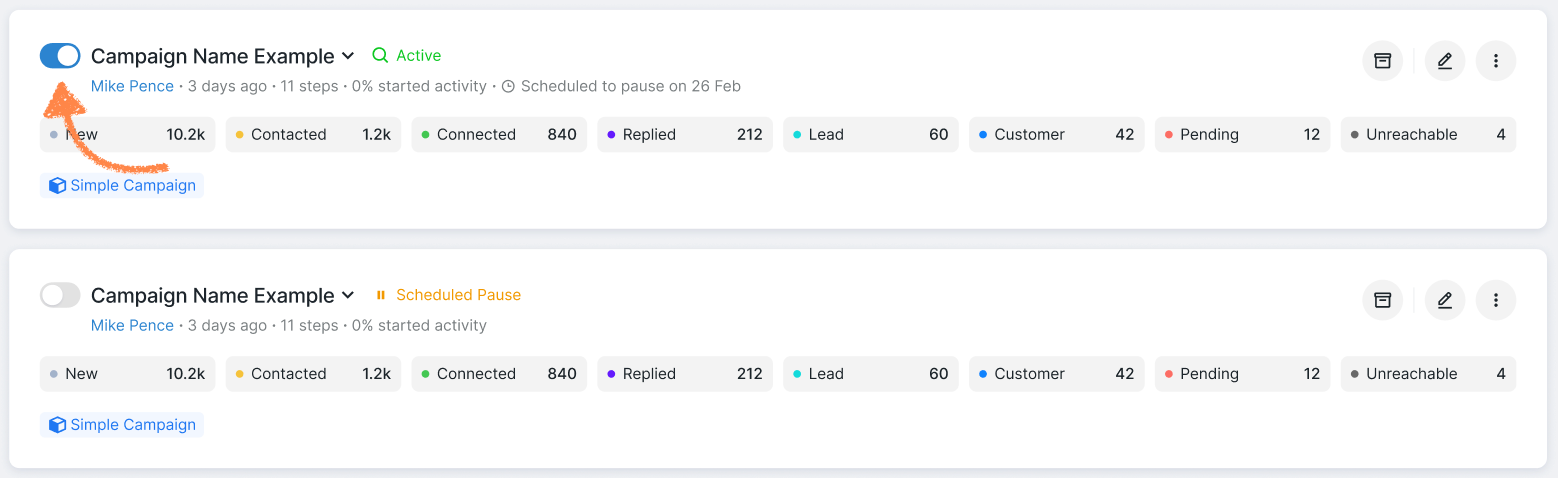
If you already have a scheduled pause set up, Buzz will ask you to confirm that you want to pause the campaign early.
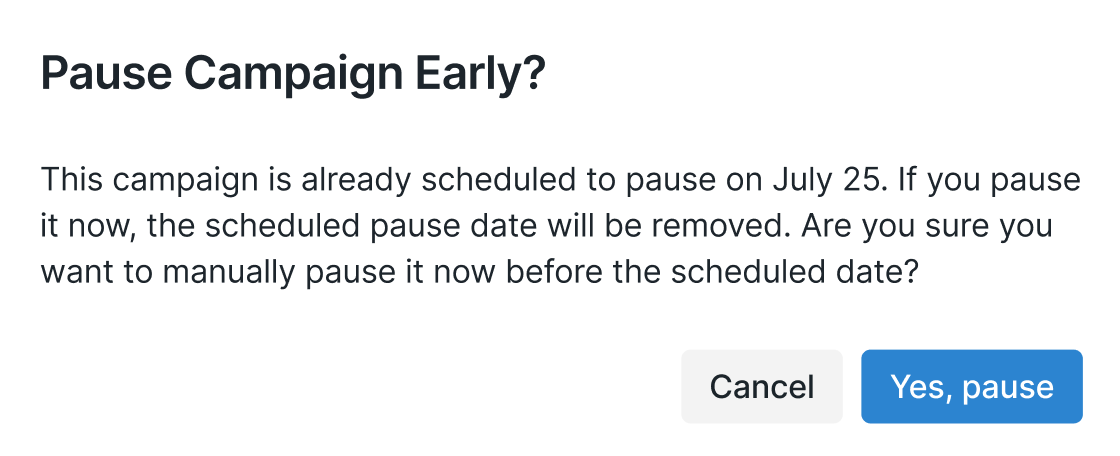
❗Keep in mind that if you confirm, your scheduled pause will be canceled.
What Happens When a Campaign Is Paused
When a campaign is paused — whether manually or scheduled — campaign outreach stops until you turn it back on.
Please note that the AI employee operates independently of the campaign pause status. If it is enabled for conversations in the campaign, it may continue sending follow-up messages while the campaign is paused.
Pause the campaign.
Separately turn off the AI employee feature to stop all activity, including AI employee responses.
To resume it after a scheduled pause, simply toggle it back on from the Campaigns tab or inside the Campaign editor:
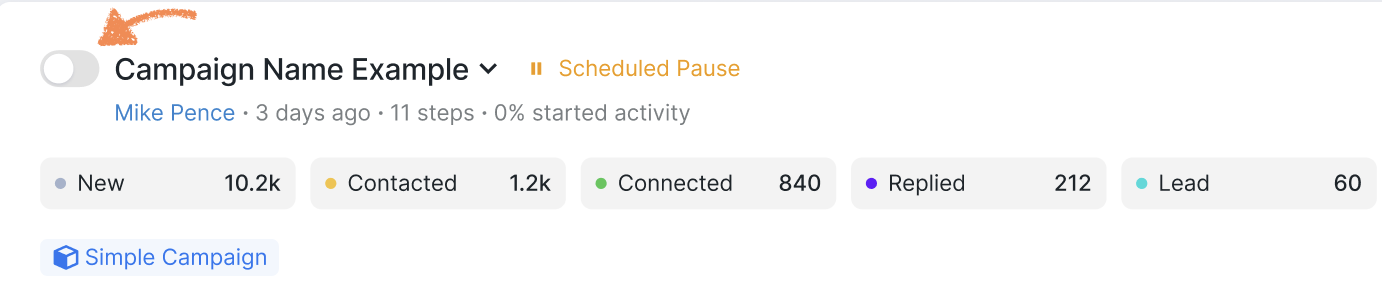
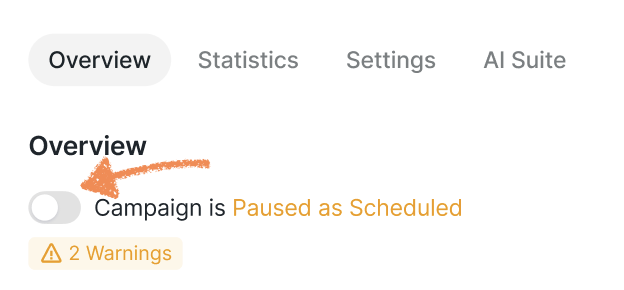
The scheduled pause date will be reset as soon as you resume the campaign.
If you have any questions about scheduling a pause for your campaign, please feel free to contact our Customer Support team for further assistance.