Common Reasons That Prevent Prospects from Joining Your Campaign
Last updated: September 23, 2026
If you have saved and launched a new campaign but notice no new profiles have been added, here are some common reasons and how to address them:
No search added to the campaign. Please check whether you have added a search source to your campaign. If you opt to use a CSV file as the source, don’t forget to upload it;
The search link or CSV file used is incorrect. Double-check and update them if necessary. When uploading a CSV file, ensure you map the columns correctly during the upload process (e.g., if you select Work Email as the field, make sure to select the corresponding Email column from your CSV as the source). Incorrect column mapping can cause prospects to remain in Pending status;
The search is still in progress and hasn't finished adding all prospects yet. Prospect addition happens gradually during your operating hours according to your account's daily task limits. If you've just launched the campaign or it shows fewer prospects than expected, the search may still be processing. Check your campaign settings to confirm it's within operating hours, and allow time for all prospects to be added automatically. To speed up the process, you can adjust the Pages Searched parameter in Settings > Account Limits.
The profiles are in the Blacklist, meaning they are excluded and cannot be added to the campaign. Find out more about excluded profiles in this article.
To check for excluded profiles, go to the Prospects tab and filter by Status > Excluded.
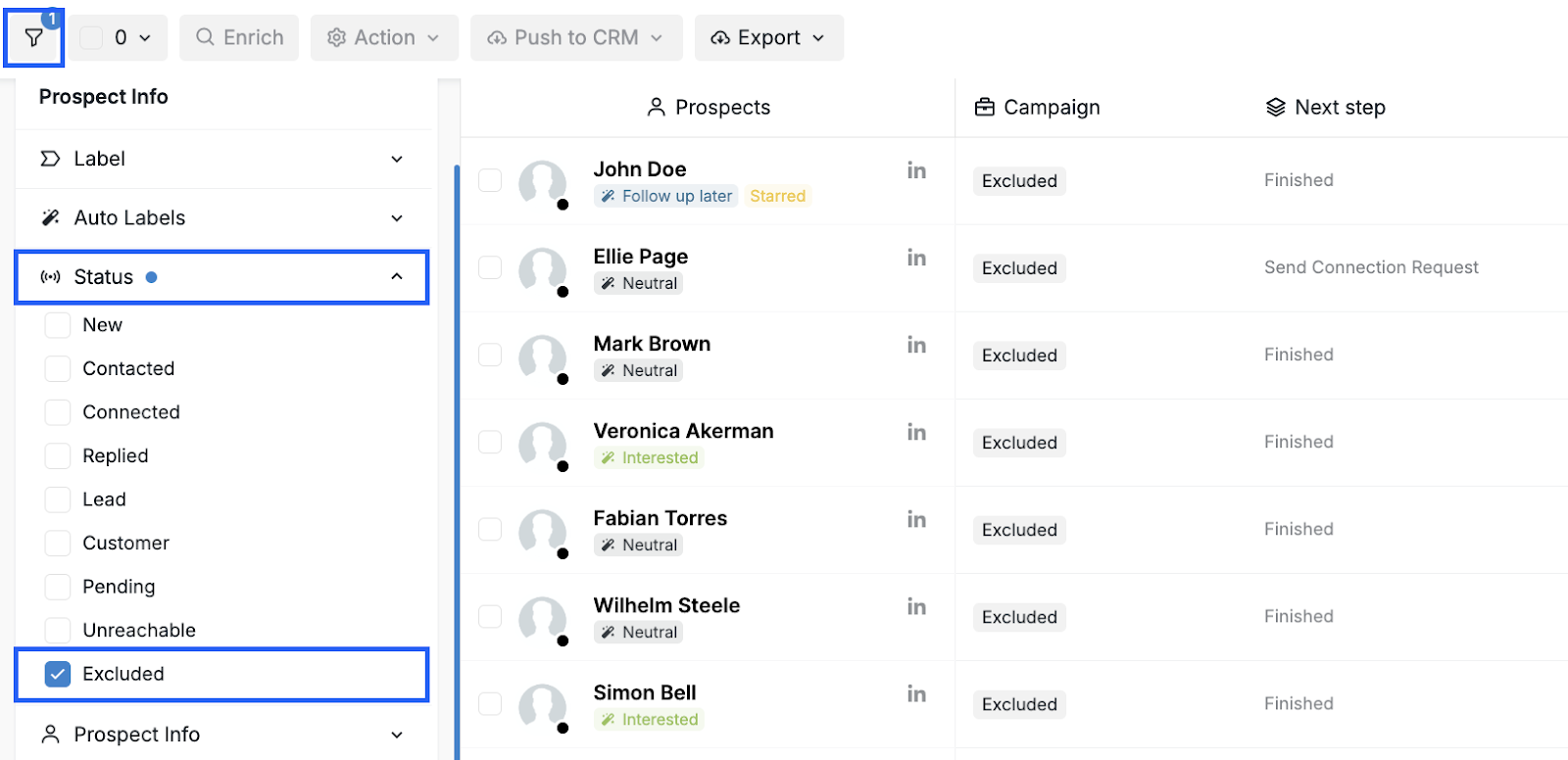
Troubleshooting excluded profiles. If you find excluded prospects but cannot locate a matching name or company in your blacklist settings, check the following possible causes:
The profile was directly excluded through the Exclude from Campaigns action in the Inbox or Prospects tab. This adds the profile to the blacklist without creating a visible name or company rule.
A blacklist rule matched the prospect's email address, website, job title, or LinkedIn profile URL rather than their name or company.
A CSV-uploaded blacklist entry matches the prospect's data.
A blacklist rule exists on a different social account in your workspace when workspace deduplication is enabled.
5. The profiles have already been added to another campaign. Note that prospects from search sources are added gradually, so you may initially see fewer prospects than your LinkedIn search results show. Wait for the search to complete before checking the final count.
Note: To add prospects that already exist in other campaigns, enable the Add Prospects from Existing Campaigns toggle when creating your campaign. This setting allows you to override the default behavior of excluding duplicate prospects.
Add your search source or upload your CSV file to the campaign, but do not save it yet.
Go to campaign settings by selecting Settings in the top menu.
Locate and enable the Add Prospects from Existing Campaigns option.
Save the campaign.
The prospects will be moved from other campaigns into this one. After the transfer, verify that the prospects are not paused:
Go to the Prospects tab and filter by your campaign name.
Select all prospects using the checkbox in the top-left corner.
Click Action → Resume campaign.
6. The profiles have already been added to a campaign for another Social Account in the same workspace; When the Deduplicate profiles within workspace feature is enabled, prospects that exist in campaigns of other social accounts in your workspace will be prevented from joining new campaigns. If you need to add these prospects to a campaign on a different social account, disable this feature in Workspace Settings > Basic Information, then rerun the campaign search.
💡 To prevent the same prospect from being assigned to two or more Social Accounts within your workspace, you can enable the Deduplicate profiles within workspace option (Workspace Settings > Basic Information). Learn more about this feature in this Help Center article.
7. The profiles have been added to an archived campaign. To check if this is the case, unarchive the campaign, deactivate it, try to add the profiles, and then archive the campaign again;
8. The profiles have the Outside of campaign status — they were removed from the campaigns manually or fetched as a result of syncing conversations in the Inbox.
To check if this is the case, navigate to the Prospects tab, choose Filters > Campaign > Show Prospects Outside of Campaigns.
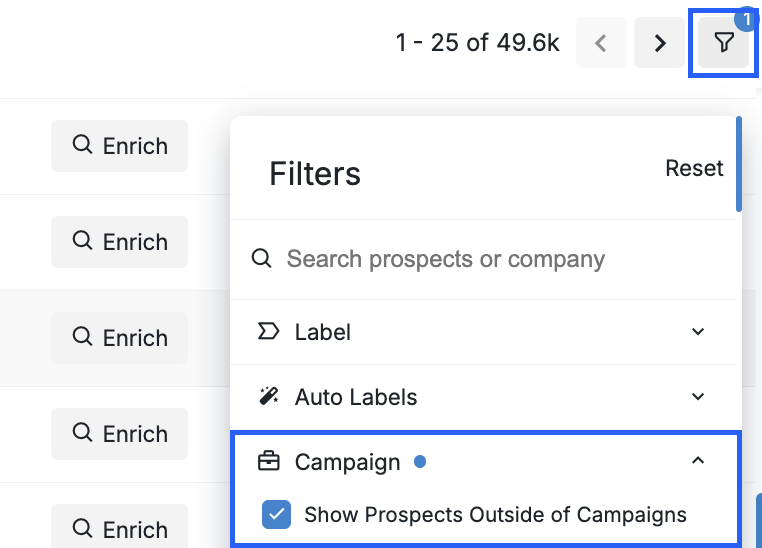
If this filter is not available in your workspace, reach out to our Customer Support team for assistance.
9. Proxy-related issues. If you’re using a custom proxy, a notification that says "Proxy failed" will appear in the left sidebar under your connected Social Account. We recommend reaching out to your proxy provider to check its status and update it if necessary.
If you’re using a proxy provided by Buzz, try refreshing it if you notice changes in your account’s activity. To do this, go to Settings > Account Location > Proxy > Refresh.
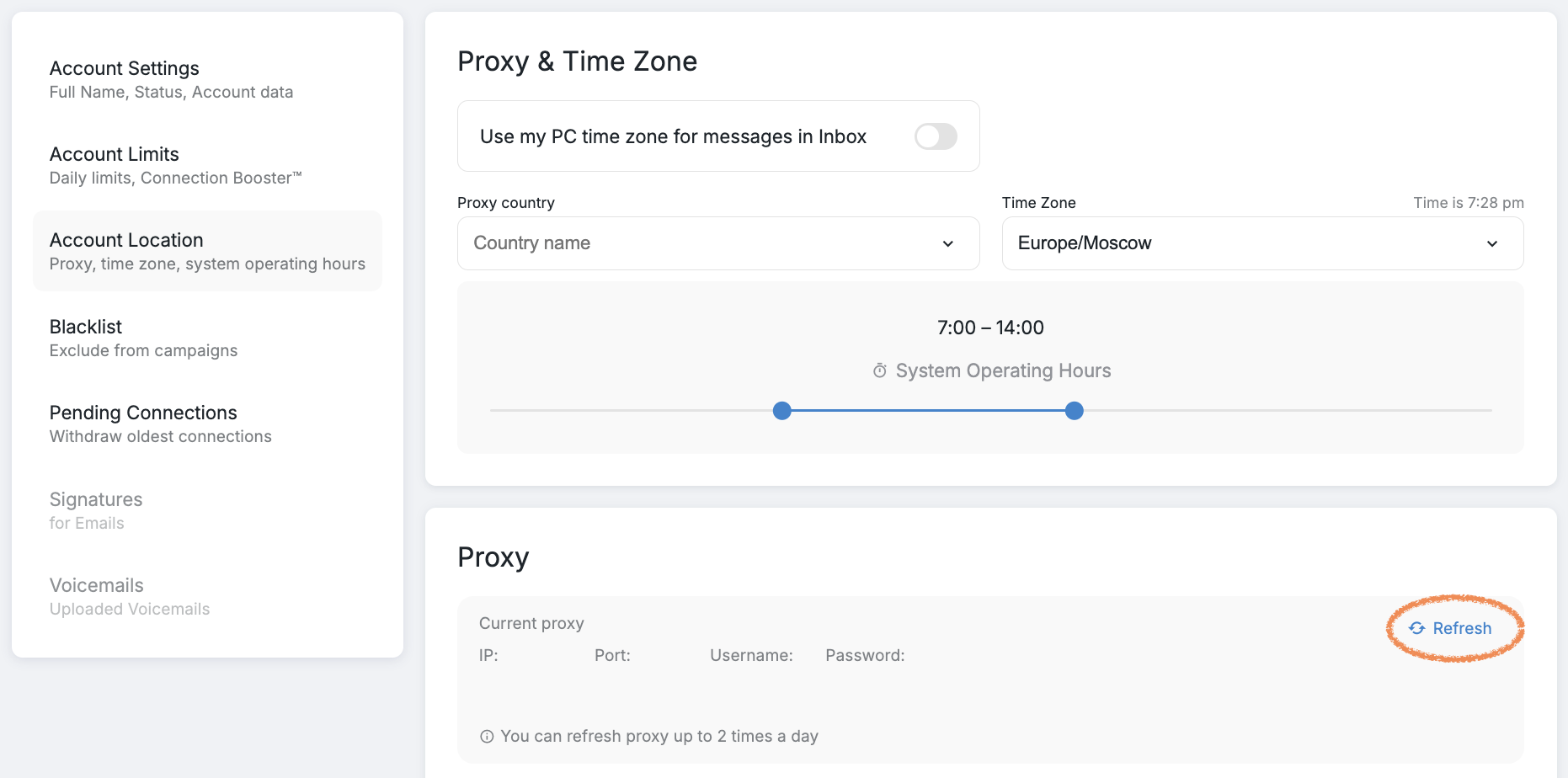
You can try refreshing a proxy two times a day.
If your account becomes active again, then the issue has been resolved. If refreshing doesn’t help, please contact our Customer Support team.
These steps should help identify and resolve the issue so you can continue building successful campaigns.