Controlling Outreach Volume with Account Limits and Warm-Up Settings
Last updated: September 23, 2026
Successful outreach all comes down to consistency and safety, not volume spikes. Buzz’s Account Limits and Warm-Up settings help you scale activity gradually while staying within platform best practices.
This article explains how to manage daily limits, boosters, and warm-up rules so your campaigns run smoothly.
Account Limits Overview
The Account Limits section acts as your control center for daily outreach activity. Here, you can decide whether to:
Run campaigns on weekends
Enable Connection Requests Booster™
Enable InMails Booster
Use Instant Searches – fetches all search results at once instead of gradually, but increases the risk of account restriction
Bypass personalization limits – When your LinkedIn account reaches its monthly limit for personalized connection requests, enable this feature to continue sending connection requests without personalized messages. The recommended approach is to keep your connection request steps with text enabled while this feature is also enabled. When active, Buzz will automatically send connection requests without messages until your monthly allocation refreshes, then automatically resume adding personalized messages once the limit is lifted.
Each feature can be turned on or off depending on your outreach strategy.
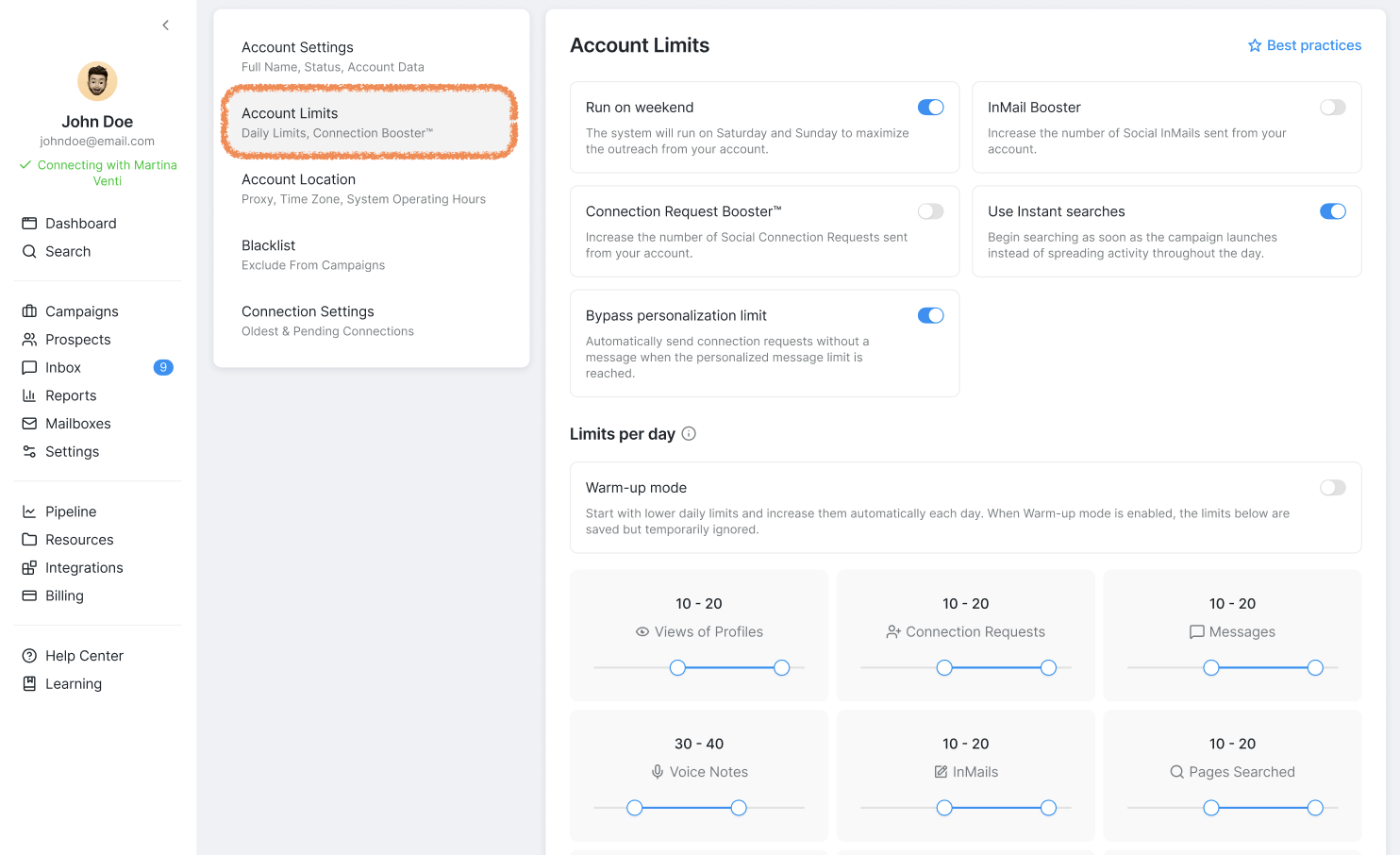
Note: LinkedIn limits the number of personalized connection request messages you can send per month. When this limit is reached, enabling Bypass Personalization Limit allows your campaigns to continue sending connection requests without messages until your monthly allocation refreshes.
⭐ Tip: Click Best Practices in this section to see recommendations for maximizing results safely.
Warm-Up Mode
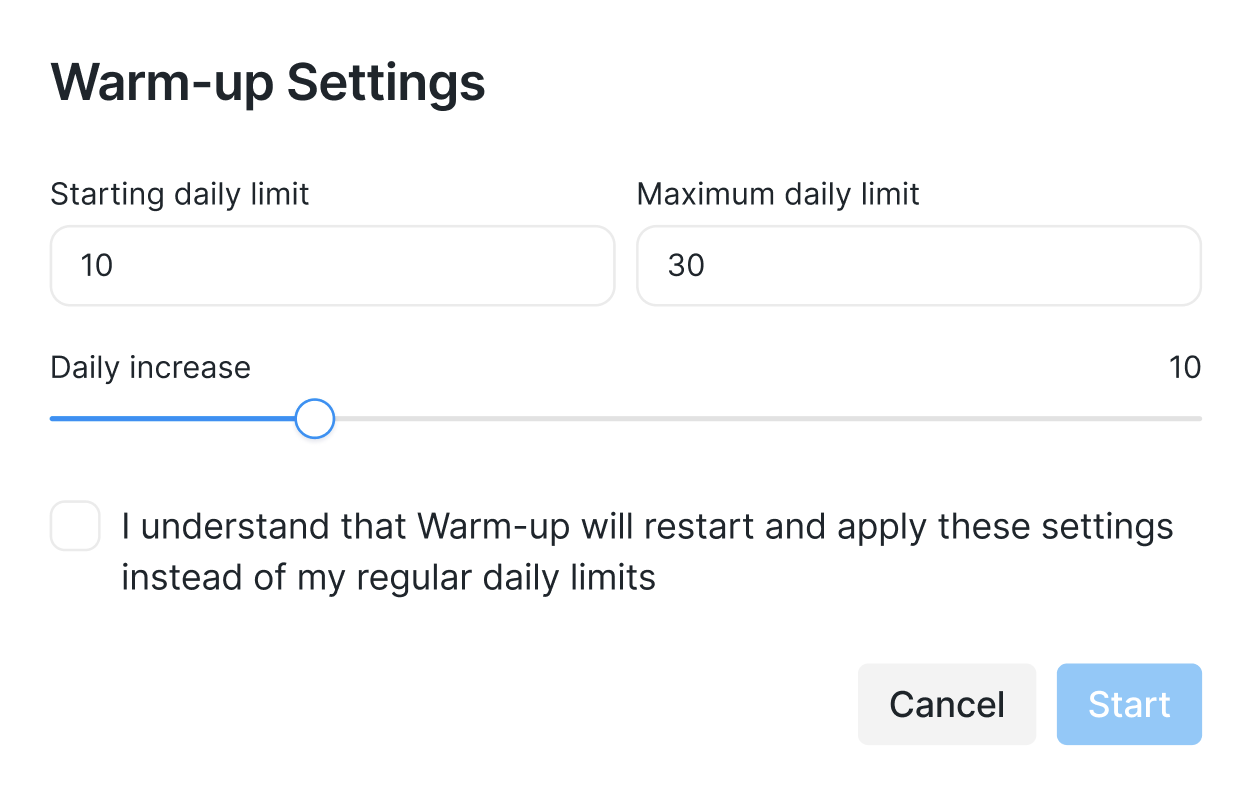
Moving down, you will see the Warm-up setting. By toggling it on, you can set the minimum and maximum number of steps and actions performed daily during the initial account setup phase, as well as the daily increment of their volume, allowing for a gradual ramp-up of activity. Once the maximum number is reached, the setting will no longer increase, and only the set maximum of actions and steps will be executed — for example, 30.
Limits Per Day
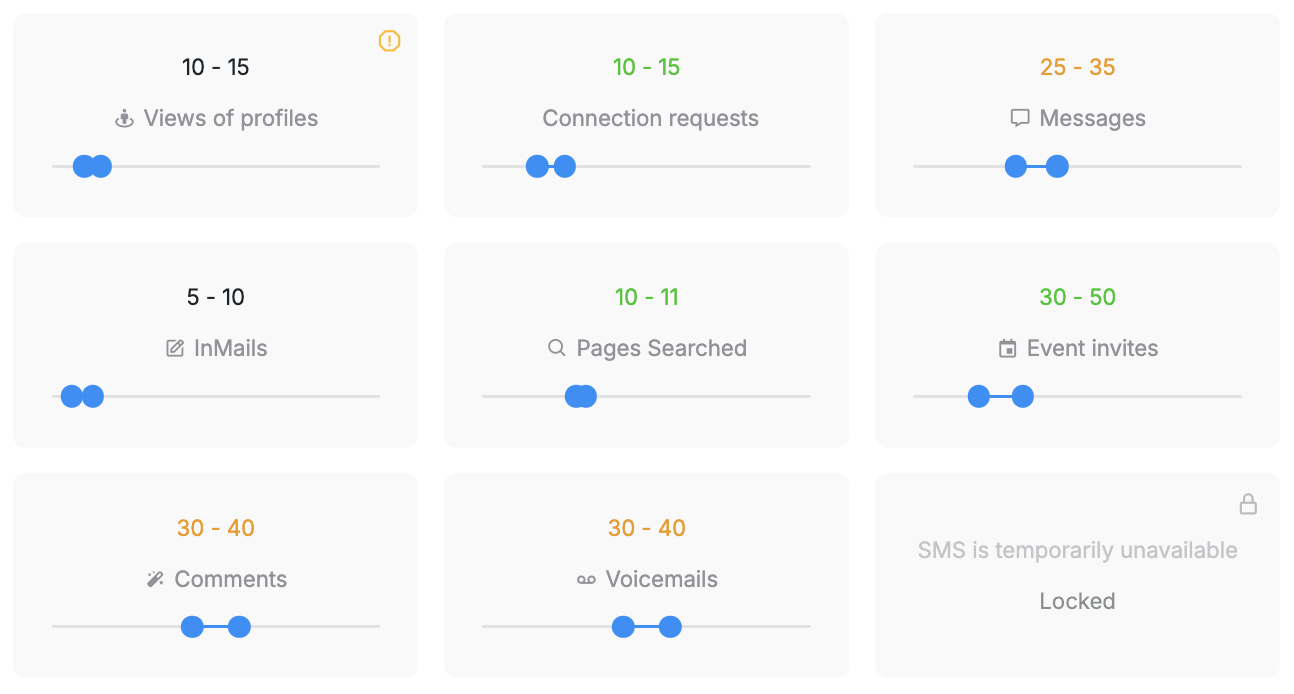
In the Limits per day section, you can set activity ranges for each action type. These limits are shared across all campaigns in you Social Account, not applied individually.
Note: Prospect addition from search sources happens gradually during your operating hours based on your Pages Searched limit. If you need prospects added faster, you can increase the Pages Searched value or temporarily enable Instant Searches (though this increases restriction risk).
Available Limits
Profile Views – number of profiles viewed per day
Connection Requests – number sent per day
Setting this limit to 0 will prevent connection requests from being sent
If a connection request is withdrawn, the system will automatically retry sending it after 2 weeks
If actual sends are lower than your limit, check that you have enough prospects ready for the Send connection request step, with prospects not paused, not in delay, and without withdrawn connections
Messages – messages sent per day
Messages after connection requests are only sent once the request is accepted
InMails – InMails sent per day. InMails can be sent to open profiles without using credits. To send InMails to closed profiles, enable Allow to use my InMail credits in your Send InMail campaign step and make sure you have available Sales Navigator credits. If this option is not enabled, prospects with closed profiles will receive a Pending status with the reason Profile is closed. LinkedIn imposes its own sending limits on Basic InMails that are separate from and independent of Buzz limits. These platform limits cannot be changed within Buzz. When this limit is reached, InMails will not be sent until the limit resets automatically. If you hit LinkedIn's Basic InMail limit, you'll need a Sales Navigator subscription to send additional InMails. Adjust your Buzz InMail limits to align with what LinkedIn currently allows for your account.
Pages Searched – pages searched per day
This limit controls how quickly prospects are added to campaigns from search sources. Increasing this value speeds up prospect addition.
When Instant Searches is enabled, this limit is ignored
Event Invites – invites sent per day
Comments – comments left per day
SMS – SMS messages sent per day (currently unavailable)
Voicemails – voicemails sent per day
Your daily limits only apply to automated steps. For example, if you decide to manually send a connection request or a message to your prospect, your daily limit won't be spent.
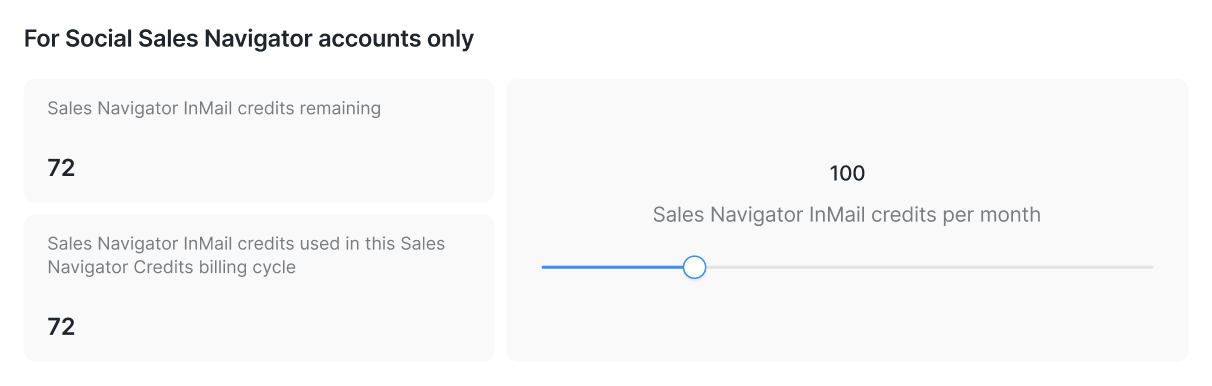
At the bottom of the section, you can also limit InMails sent via your Social Sales Navigator account.
Troubleshooting Low Outreach Despite Configured Limits
When you have lists loaded and limits configured but are experiencing unexpectedly low outreach volume, several critical factors beyond basic limit settings can be the cause. This guide addresses common edge cases and dependencies that can bottleneck your campaigns.
Operating Hours Enforcement
Critical: Accounts outside their configured operating hours will not perform any outreach actions, regardless of their limit settings or available prospects. This is a hard stop that overrides all other configurations. Ensure your operating hours align with when you expect campaigns to run, as this is often the cause of zero outreach when everything else appears configured correctly.
Warm-Up Lower Bounds Impact
During warm-up, setting a lower bound of 0 for any action type, such as Messages, means that action will not be performed until the warm-up daily increment raises it above 0. Your actual daily outreach will be constrained by the current warm-up range, not your maximum limits. If you need immediate message sending during warm-up, set the lower bound to at least 1.
Profile Views Dependency Without Boosters
Profile views are consumed before sending connection requests and InMails. If your profile view limit is exhausted, connection requests and InMails may be blocked unless you enable the Connection Request Booster or InMails Booster, which bypasses the profile view requirement. This dependency can create unexpected bottlenecks when profile view limits are set too low relative to connection request volumes.
Booster Settings for Maximum Throughput
Enable Connection Request Booster and InMails Booster to maximize throughput and bypass profile view requirements. Without these boosters, your connection request and InMail volume will be limited by your profile view allocation, which may be insufficient for your outreach goals.
Quick Diagnostic Checklist
When troubleshooting low outreach volume:
Verify operating hours — Check that accounts are within configured hours when sends should occur.
Review warm-up lower bounds — Ensure no critical actions have lower bounds set to 0.
Check profile view allocation — Verify sufficient profile views for connection requests and InMails if boosters are disabled.
Consider enabling boosters — Use Connection Request and InMails Boosters to remove profile view dependencies.
Confirm warm-up phase — Remember that warm-up limits override maximum daily limits until completion.
By setting clear limits and using warm-up controls, you protect your account while scaling outreach responsibly. These settings help Buzz work efficiently — even as your campaigns grow.