What is Domain Auto-Renewal and How to Set It Up?
Last updated: May 13, 2026
If you’re using the AI Email Service, enabling Domain Auto-Renewal helps prevent interruptions by renewing your domains automatically before they expire. Here’s how it works and what to keep in mind.
How to enable auto-renewal
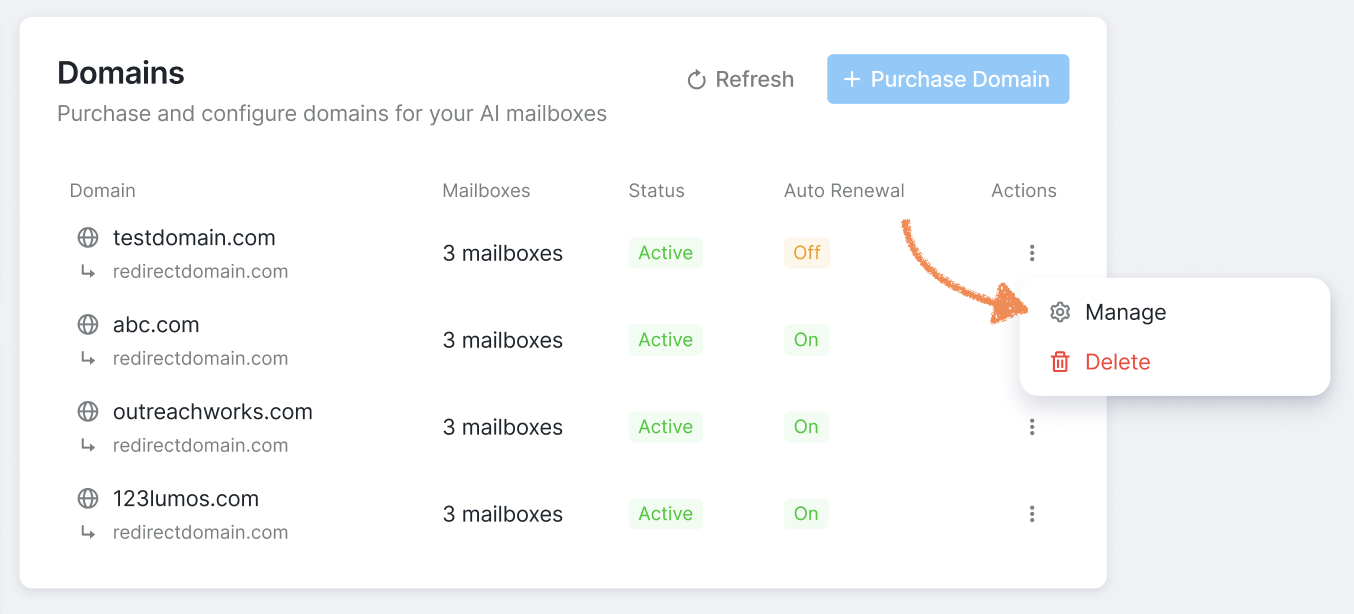
To turn on auto-renewal, go to Mailboxes → AI Email Service → Domains, find the domain you want, click the three-dot menu, and select Manage.
On the domain overview page, you’ll see useful details like when the domain was created, when it’s set to expire (especially if it’s within 45 days), and how many mailboxes are connected to it.
Further down, you'll see the Auto-Renewal toggle.
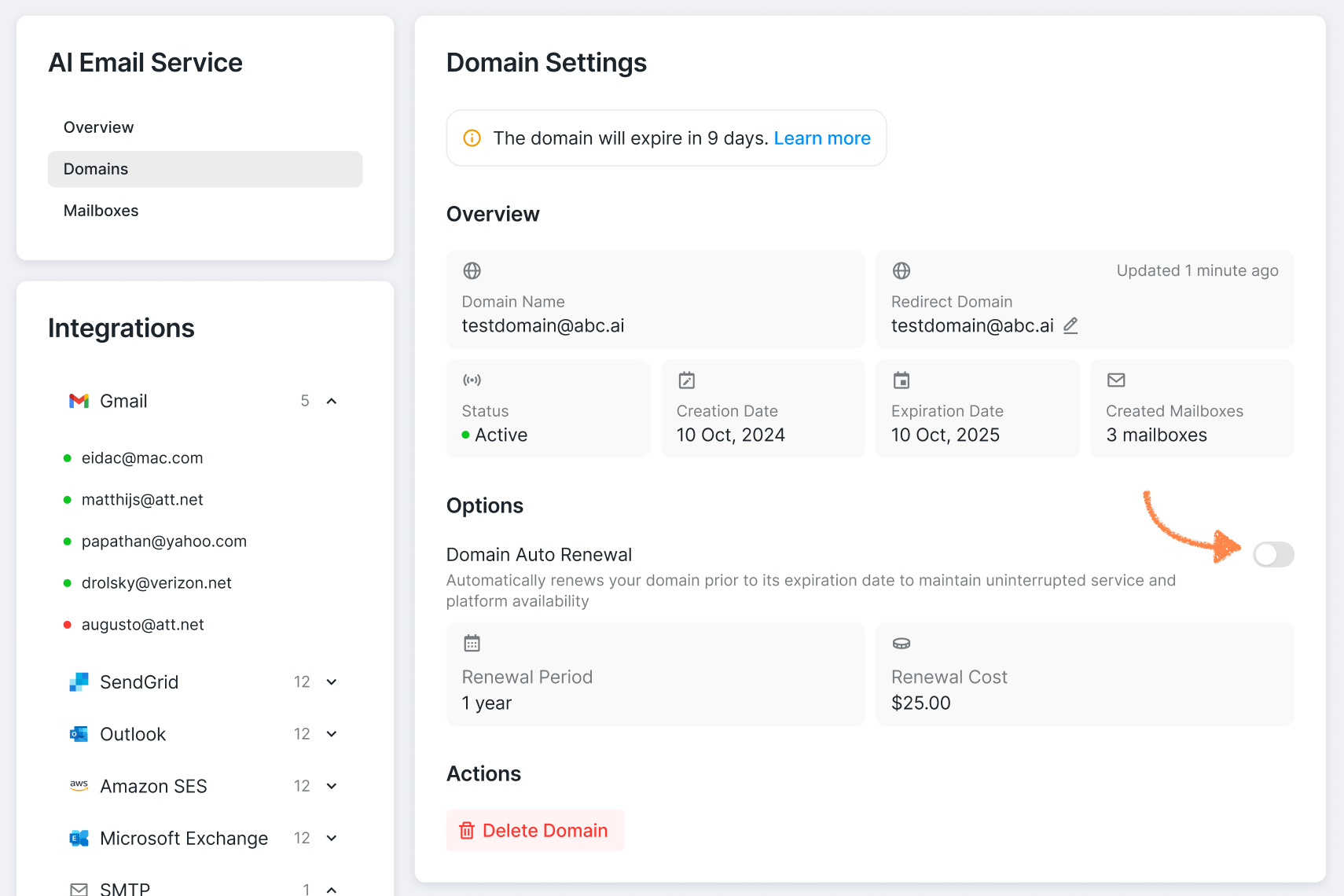
You’ll also see:
The renewal period
The renewal cost (in credits or currency, depending on your setup)
A few important things to know
Auto-renewal is straightforward, but there are a couple of key details worth paying attention to:
You’ll be charged automatically 45 days before the expiration date when it’s enabled
If you toggle the option on less than 45 days before the expiration date, you'll be charged right away
Renewal payments are non-refundable once processed
The system uses your default payment method:
Your credit balance (if paying with credits)
Your primary payment method (if paying in currency)
What if my domain has already expired?
If your domain expires, it enters a grace period.
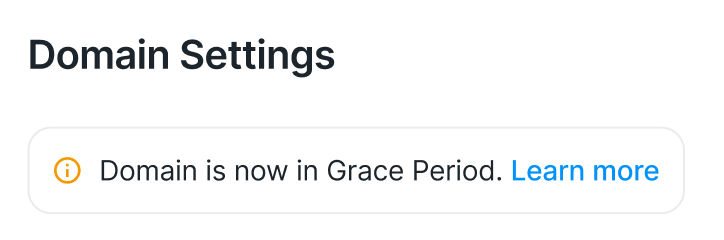
During this period:
The domain is temporarily inactive
You can still renew it and restore access
Reactivation may take up to 72 hours
You can also enable auto-renewal while the domain is in the grace period to reactivate it. Just note that the renewal cost will be charged immediately.
If the grace period ends and the domain hasn’t been renewed, it may become publicly available again. At that point, you might be able to purchase it again (depending on availability) by contacting our Customer Support team.
Why your domain status matters
Your mailboxes depend on their domain to function. If a domain becomes inactive, you might run into issues using those mailboxes in your campaigns — for example, you may not be able to add them to outreach steps.
If something isn’t working as expected, checking the domain status is a good first step.
How to delete a domain
Before deleting a domain, it’s important to understand what will happen:
The domain will be permanently deleted
All connected mailboxes will also be removed
Payments you’ve already made are non-refundable
The domain may only become available again around 70 days after its expiration date
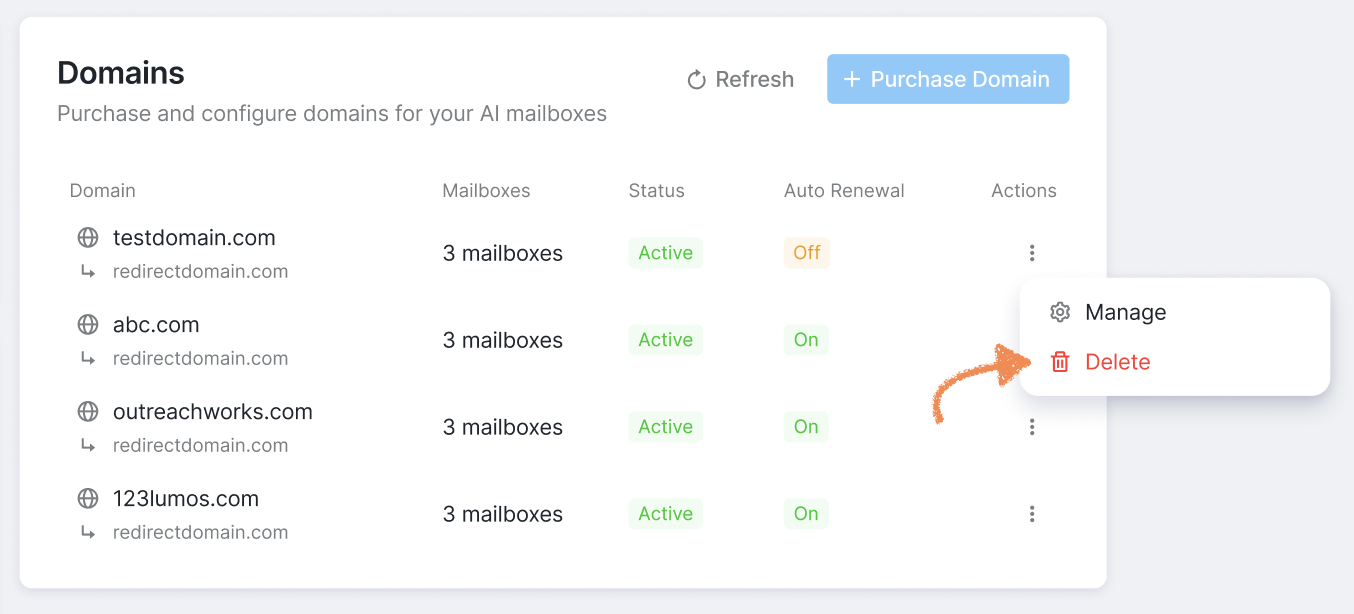
To delete a domain, go to Mailboxes → AI Email Service → Domains, select your domain, click the three-dot menu and choose Delete.
If you’re unsure whether to enable auto-renewal or need help recovering a domain, reviewing your expiration dates or reaching out to support can help you stay on track.