AI Email Service Overview & Domain Setup
Last updated: October 21, 2026
The AI Email Service is a powerful Buzz feature that allows you to create and manage multiple custom mailboxes using mirror domains, all directly within the platform. It’s designed to give your outreach emails a more personalized and professional appearance while removing the need to work with external domain providers.
With the AI Email Service, you can customize domains to match your company name, create mailboxes in just a few clicks, and rely on automatic Email Warming to protect your inbox reputation. This eliminates the need to manually purchase domains, configure mailboxes, or monitor warming performance outside of Buzz.
To access the AI Email Service, you must be on the Core plan or higher. You can get started by navigating to the Mailboxes tab in your Buzz workspace.
Purchasing Domains
Currently, only domains ending in .com are available for purchase.
In the AI Email Service section, you’ll see an overview of your active domains and mailboxes, along with guidance on setup and common use cases.
To purchase a domain:
Go to the Mailboxes tab > Domains > Purchase Domain
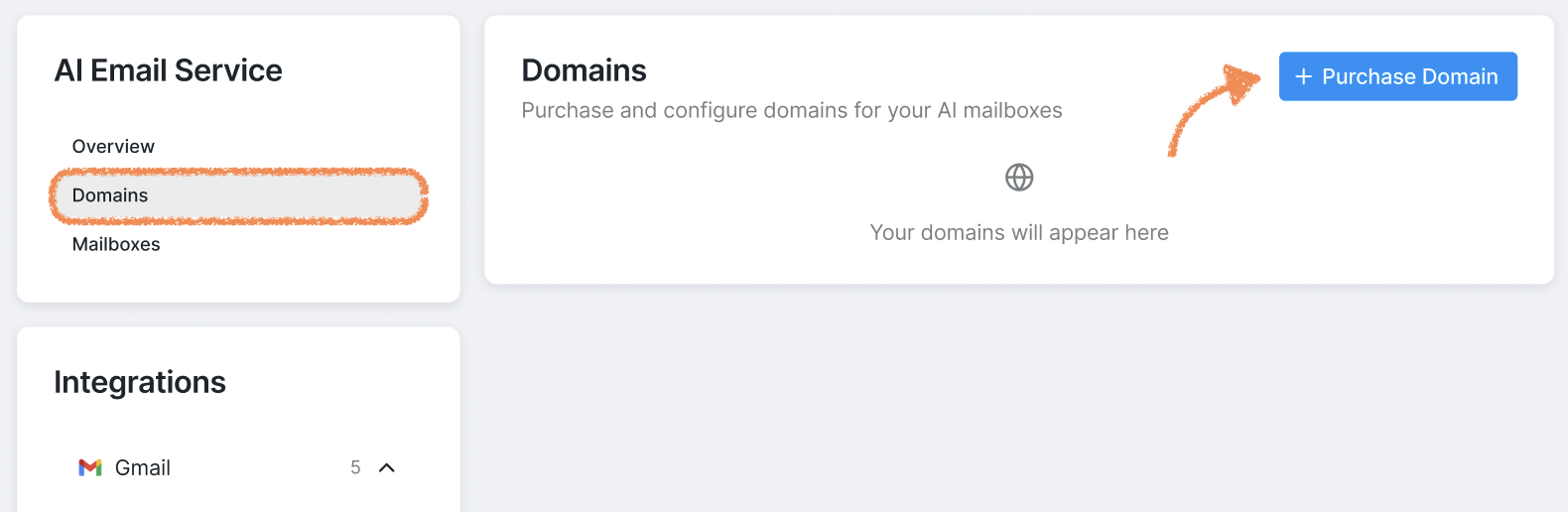
Enter the name of your primary domain.
The domain name can only include letters and digits. Special characters are not supported.
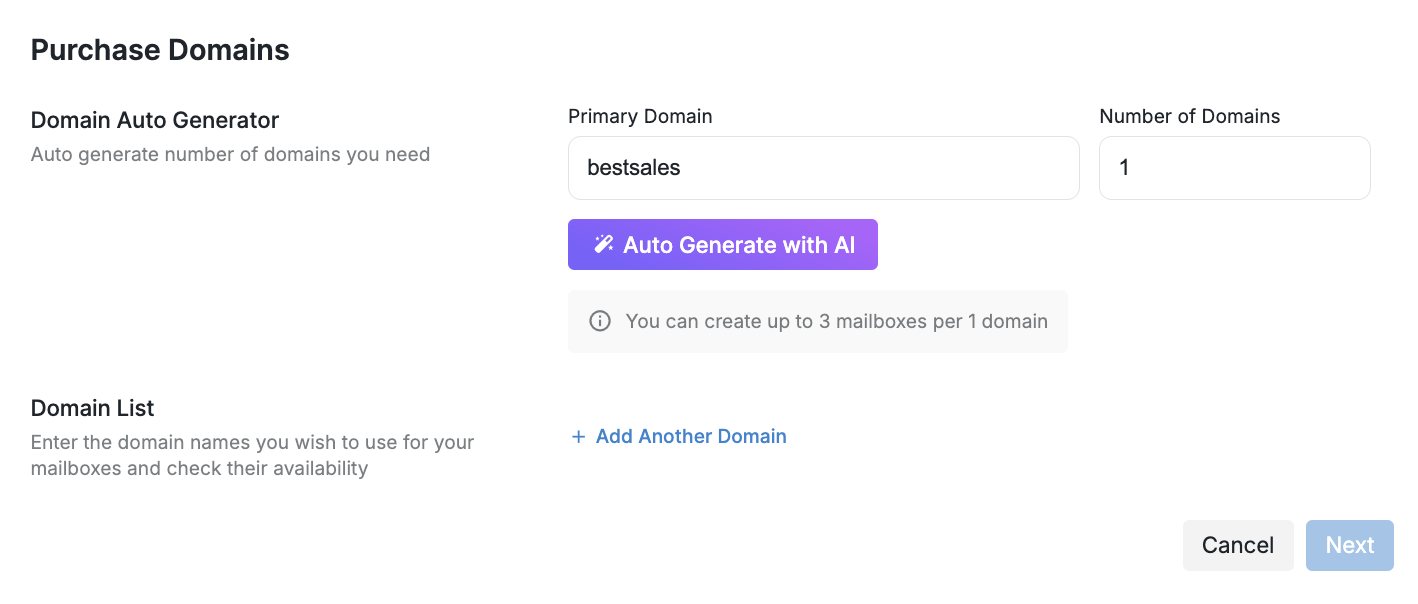
💡 (Optional) Click Auto Generate with AI to receive domain suggestions based on your entry.
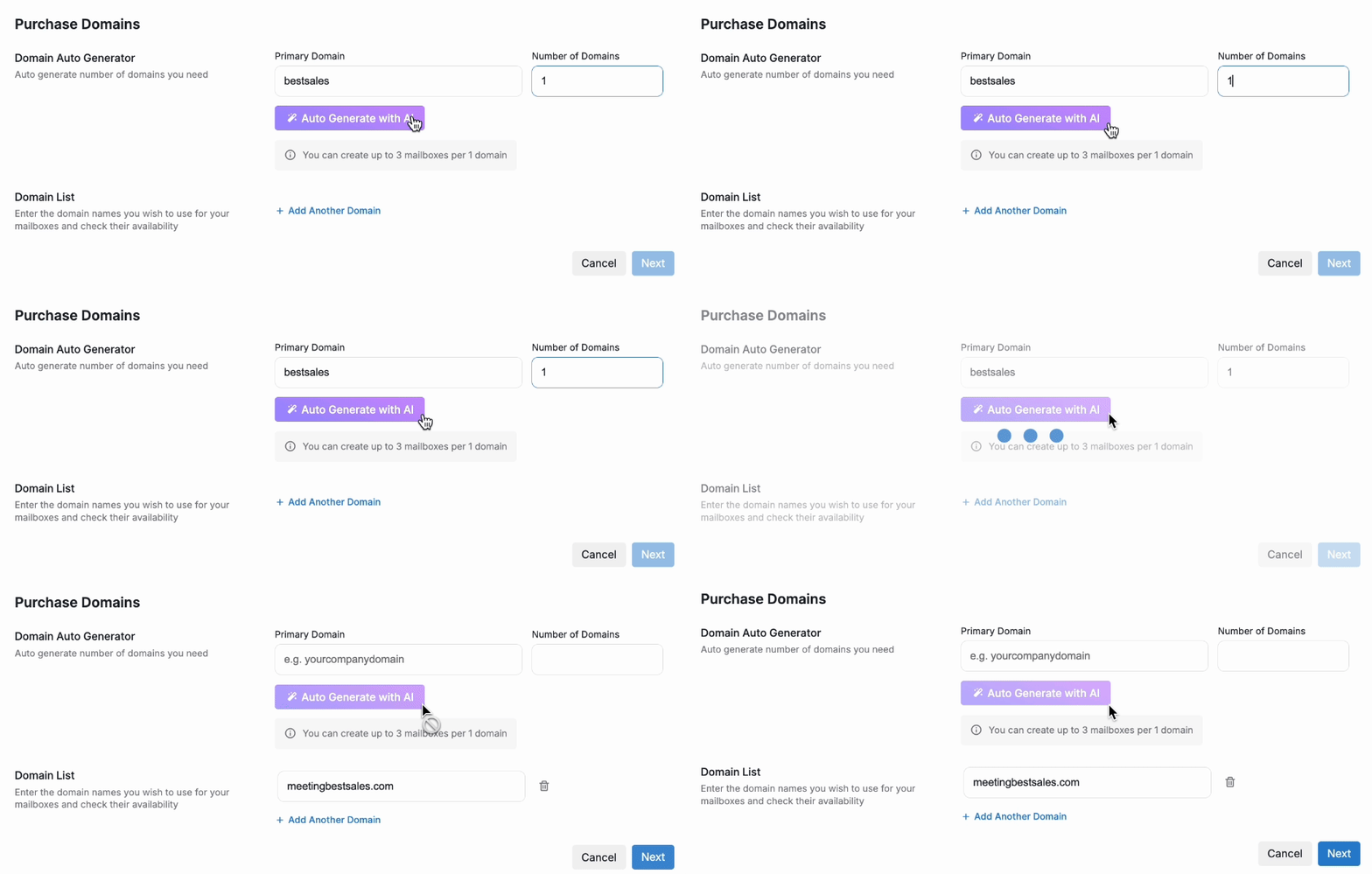
You can edit a generated option, select it as-is, delete it, or start over.
If you need mirror domains, enter the required number in the Number of Domains field before using AI, or add them manually using + Add Another Domain.
3. Click Next to review the domains and total purchase amount.
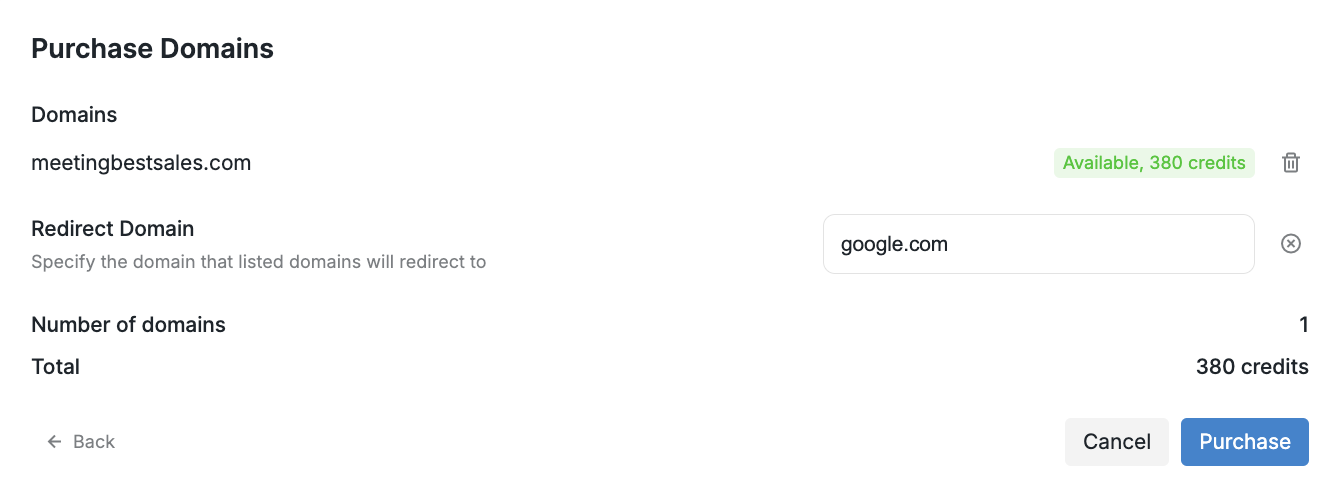
📍 If a domain appears as Unavailable, you’ll need to try a different name.
📍 Keep in mind that each domain can support up to three mailboxes. Mailboxes are linked to individual user accounts, while domains are shared across the entire workspace. If a domain already has three mailboxes assigned to other users in your workspace, you’ll need to purchase a different domain to create additional mailboxes.
4. Click Purchase to finalize.
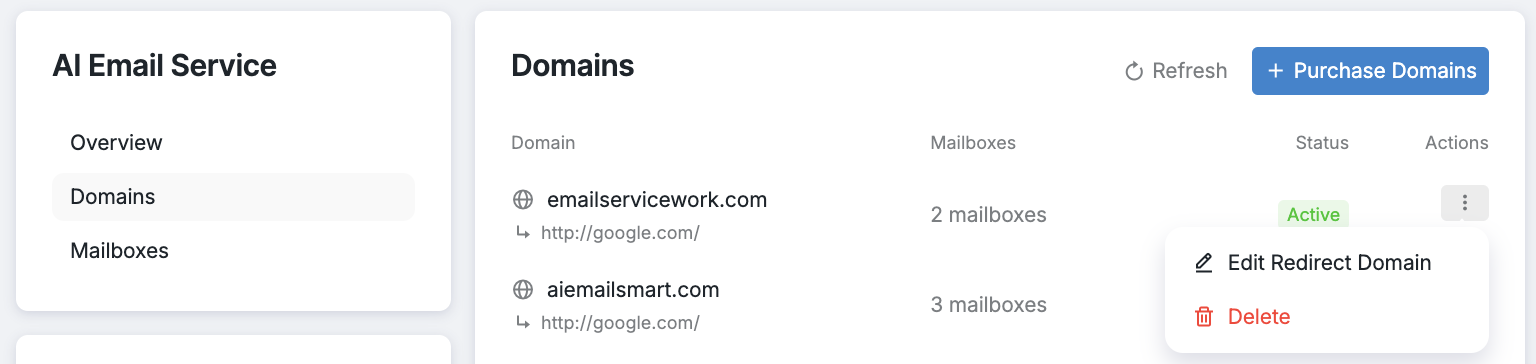
After purchase, all domains can be viewed under Mailboxes > AI Email Service > Domains. From here, you can edit the redirect URL, delete a domain, or enable auto-renewal using the three-dot menu next to it.
What Happens After Domain Purchase
Once you've purchased domains and created mailboxes through the AI Email Service, email warming starts automatically—no additional setup or lead lists are required.
Warm-up Timeline:
AI Email Service mailboxes complete a 12-day warm-up period.
After warm-up is complete, mailboxes can send up to 25 emails per day.
You can set your campaign sending range within this 25 email/day limit.
Domain Lifecycle Management
Monitor domain expiration dates in the Domains section.
Plan mailbox creation and campaigns around each domain’s active period.
Consider the timing of domain purchases in relation to your outreach calendar.
Cost Considerations
Plan multiple domain purchases strategically to spread costs across billing periods. This billing structure provides consistent domain availability for email campaigns and predictable annual costs for budgeting.