Configuring Contact Owners, Fallback Accounts, and Company Sync
Last updated: March 3, 2026
Once your Salesforce account is connected, you can configure which users and accounts in Salesforce are linked to Buzz prospect data. This ensures smooth data syncing and correct ownership in your CRM.
Setting a Preselected Contact Owner
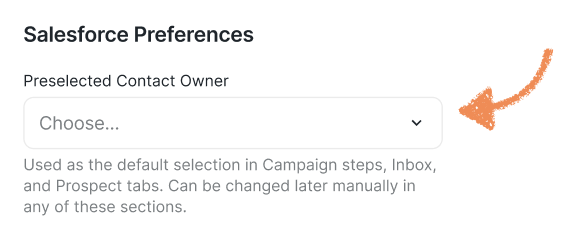
The integration allows you to preselect a Contact Owner in Salesforce. This owner will appear pre-selected when pushing prospects via campaign steps, the inbox, or the Prospects tab. You can change this at any time.
To configure:
Click on the Contact Owner field.
Select the owner from the dropdown list.
Use the search bar to quickly find a specific owner.
What's a Fallback Account and Why Do You Need It?
A Fallback Account is a specific account is your Salesforce workspace which any Salesforce Contact without Company data in Buzz is linked to when pushed from Buzz.
If you want to push a prospect’s company to Salesforce not only as a custom field, but also as an Account Object, you’ll need to set up a Fallback Account. Without one, you won’t be able to turn on company-to-account syncing — whether through manual push or activity sync.
If you don't plan pushing companies as Account Objects, you can leave this field empty.
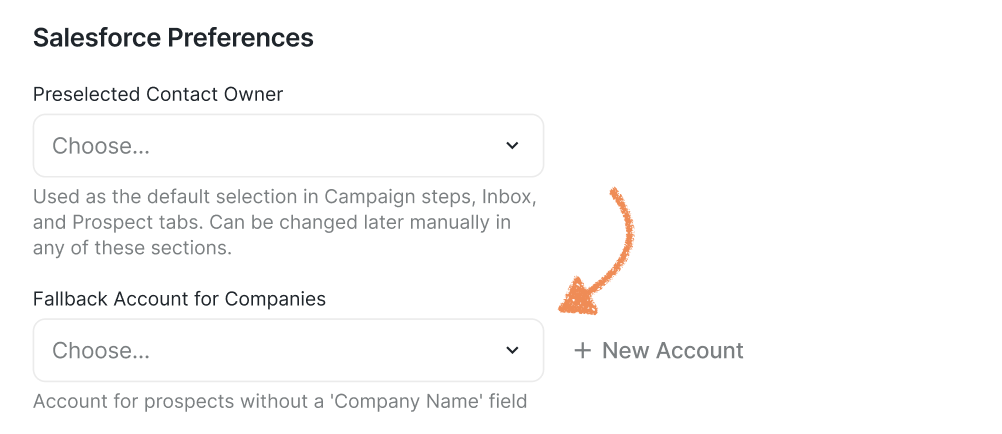
You can either choose an already existing account to send the data to or create a new one by clicking + New Account.
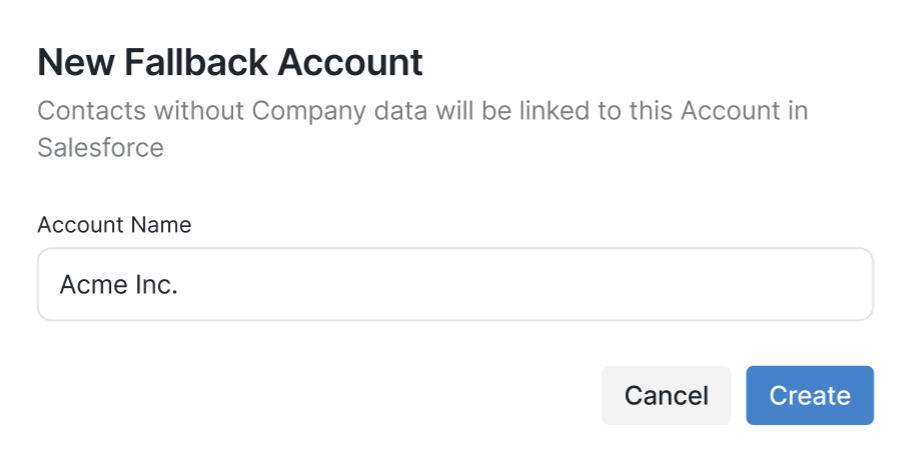
Just enter a name for your new Account and click Create. The new Account will be added to your Salesforce automatically. If you don't see it appear shortly after, click Sync Data at the top right corner of the screen and check back in a few minutes.
Link Contacts to Accounts by Company Name
❗ This feature requires a Fallback Account.
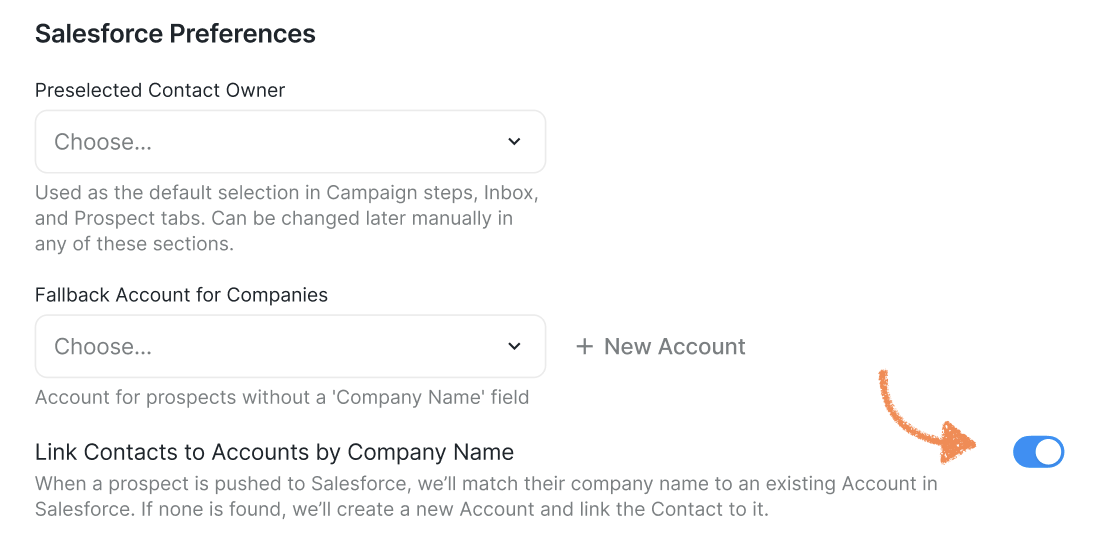
When enabled:
Prospects pushed via Activity Sync are linked to an existing Salesforce account matching their company name.
If no matching account exists, a new account is created automatically.

With default Contact Owners and Fallback Accounts configured, your prospects’ company and ownership data will sync seamlessly to Salesforce. Next, we’ll cover syncing activities to keep Salesforce up to date automatically.