How to Push Prospects from Buzz to Salesforce
Last updated: April 2, 2026
There are four ways to push a prospect from Buzz to Salesforce.
❗ Before you get started, make sure all your settings are properly configured for convenience.
From the Inbox Tab
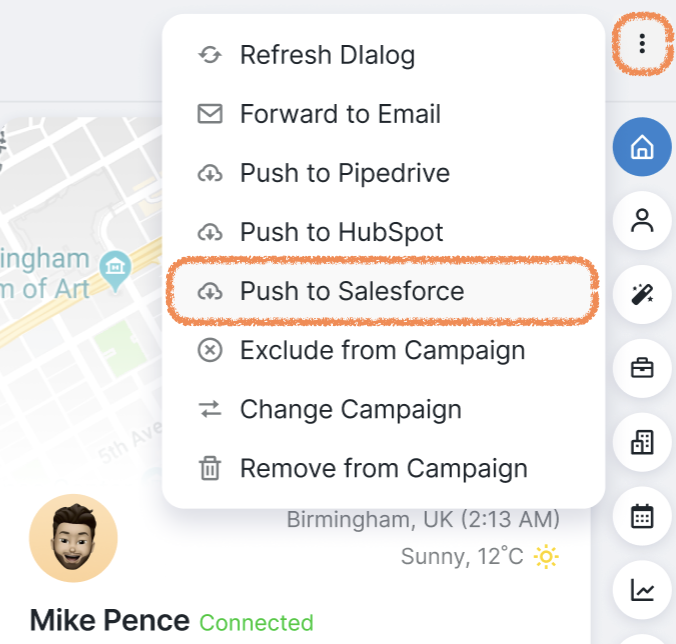
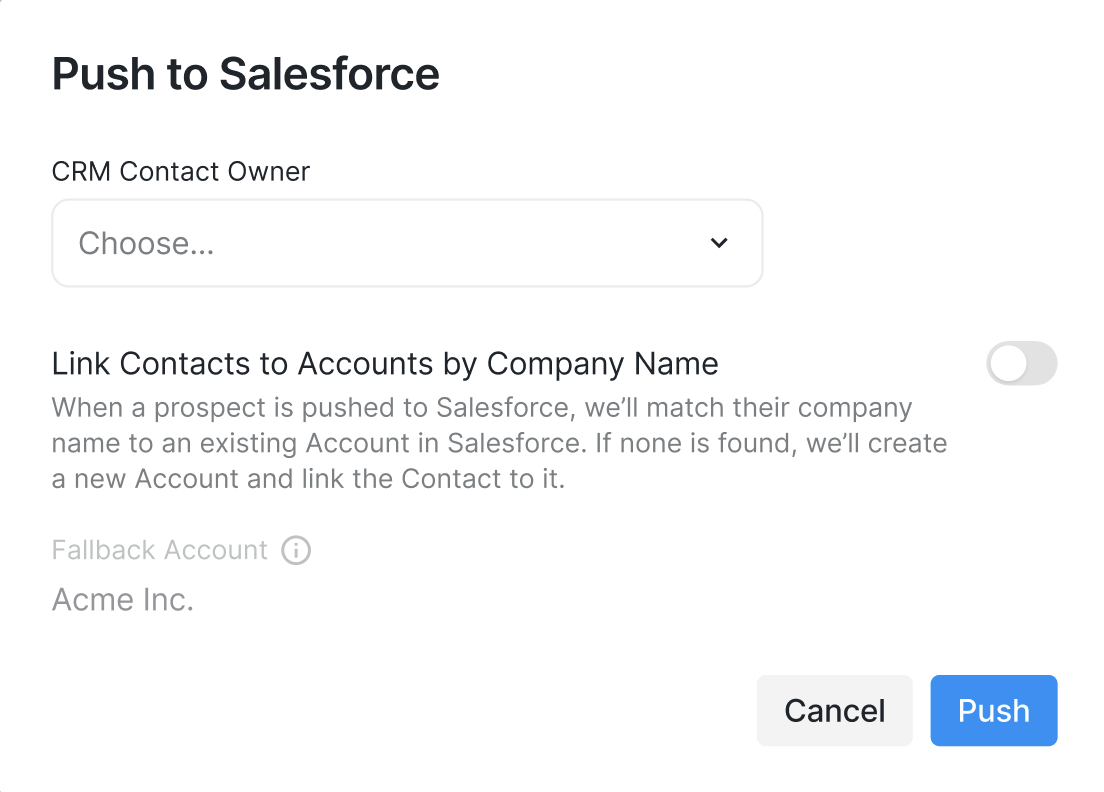
To push a prospect from the Inbox tab, open the conversation with them, then click the three-dot menu in the top right corner. Select Push to Salesforce from the dropdown.
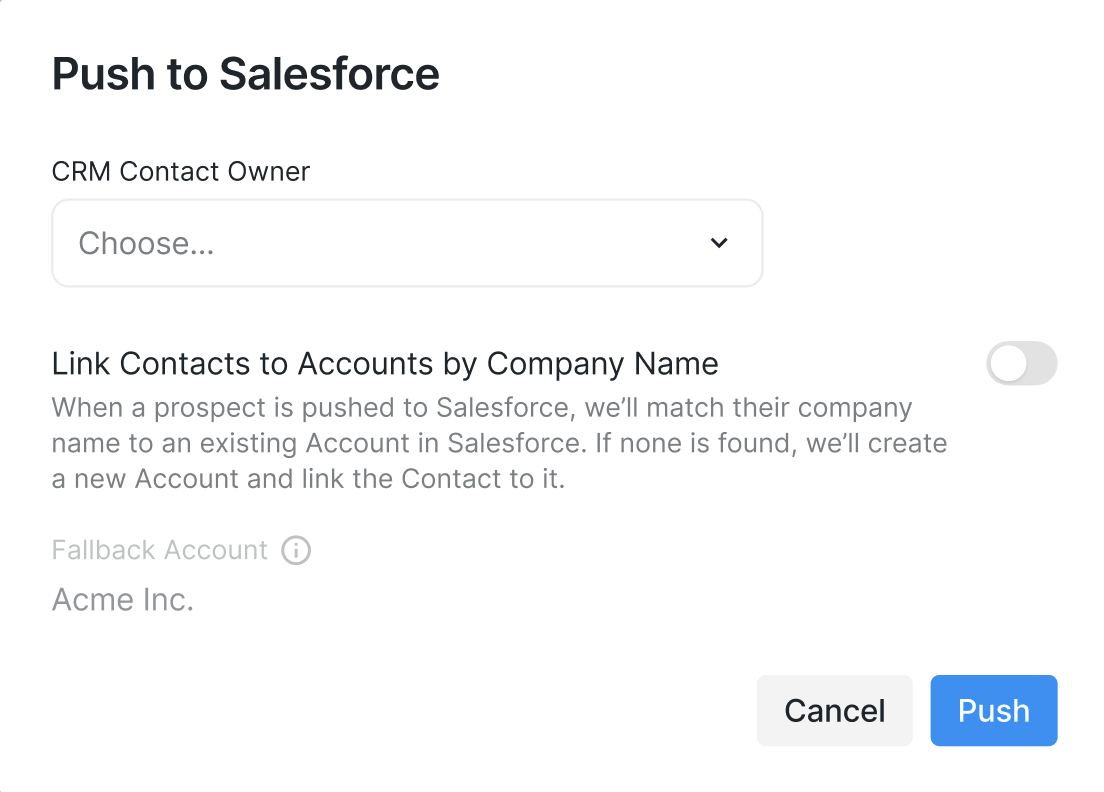
At this step, you can still change the CRM owner you want to link the prospect to. However, the owner shown as preselected is the one you set up in your Salesforce Integration Settings during the integration setup.
As a Campaign Step
Select the Push to CRM campaign step in Buzz to automatically sync every prospect from your campaign to Salesforce:
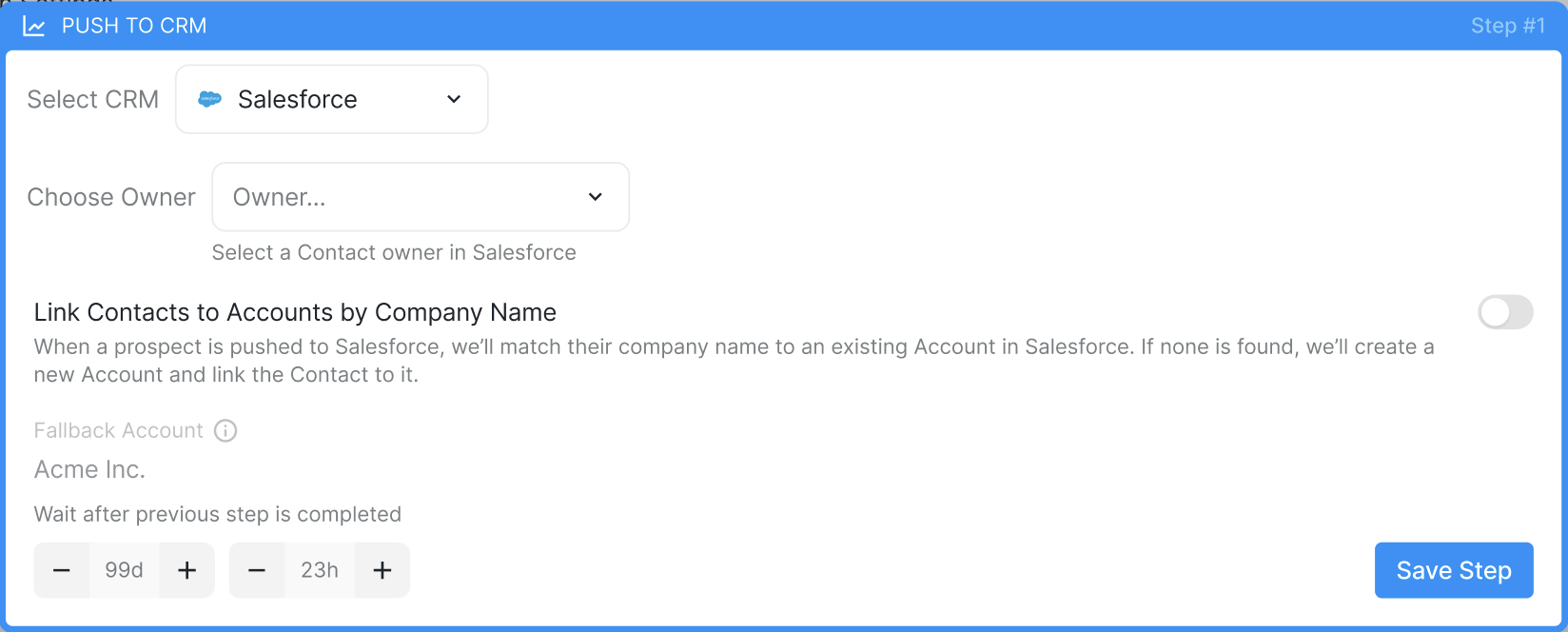
At this step, you can still change the CRM owner you want to link the prospect to. However, the owner shown by default is the one you set up in your Salesforce Integration Settings during the integration setup.
From the Prospects Tab
You can also push prospects directly from the Prospects page. Just select the prospects you want, choose Push to CRM, and then pick Salesforce from the dropdown menu:
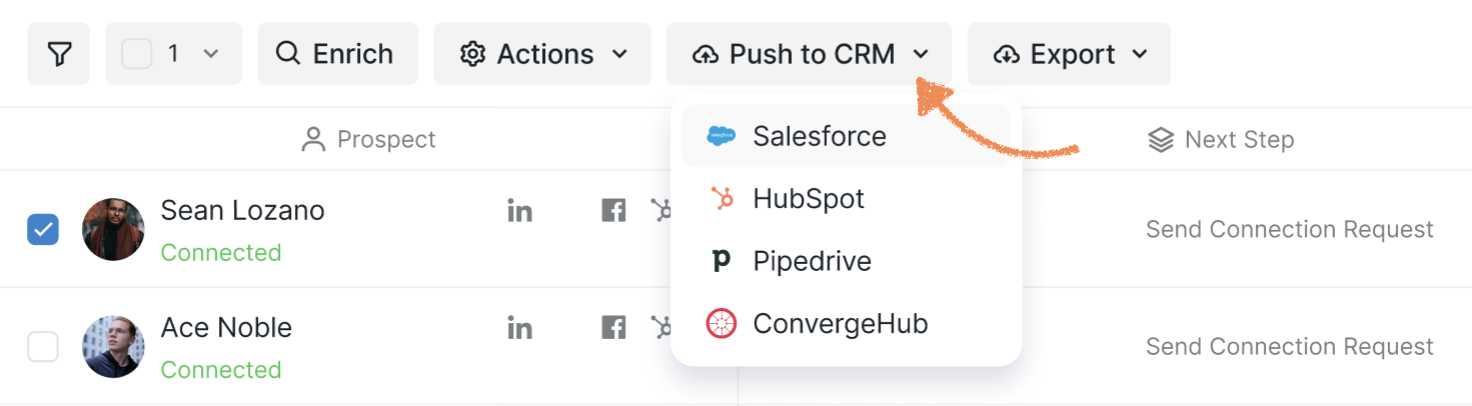
As with the other two options, the owner shown by default is the one you configured in your Salesforce Integration Settings during the integration setup. You can change it if you want.
As part of Activity Sync
If Activity Sync is enabled, a Buzz prospect who engages in an activity will be automatically pushed to Salesforce, even if they don’t yet exist in your Salesforce database.
If you run into any issues or have questions along the way, don’t hesitate to reach out to our Customer Support team.