Why Aren’t All Sales Navigator Prospects Added to My New Campaign?
Last updated: August 19, 2026
If you’ve just created a campaign using Sales Navigator search results and don’t see all prospects added right away, don’t worry — this is completely normal.
Buzz adds prospects gradually, not instantly. This helps keep your account safe and ensures your activity stays within daily limits.
How Prospects Are Added
Sales Navigator search results display 25 profiles per page. Let’s assume, for example, that based on your account’s limits (Pages Searched), the system can process 5–8 pages per day during your operating hours. In this case, approximately 125–200 prospects would be added to your campaign per day.
When a campaign is newly created, it may take some time before the first batch of prospects appears. The system then continues processing automatically during your configured operating hours until all search results have been added.
How to Add Prospects Faster
If you’d like to speed things up, you have two options.
Option 1: Increase Your Page Search Limits
You can raise your daily page search limits in your Account Settings:
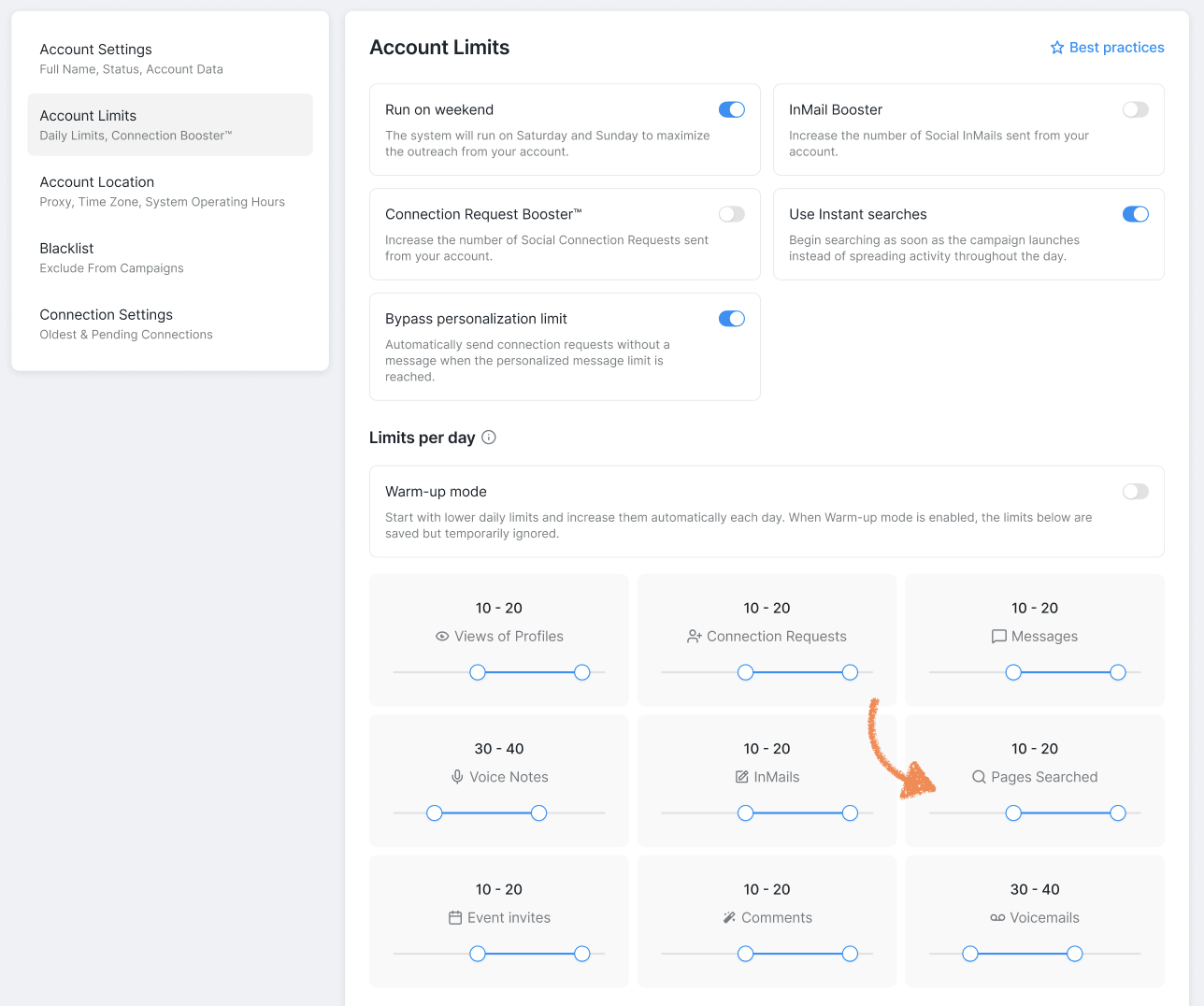
We recommend staying within the green safety zone to maintain healthy account activity.
Option 2: Use Instant Search
The Instant Search feature allows Buzz to add all search results at once, instead of spreading them out over multiple days.
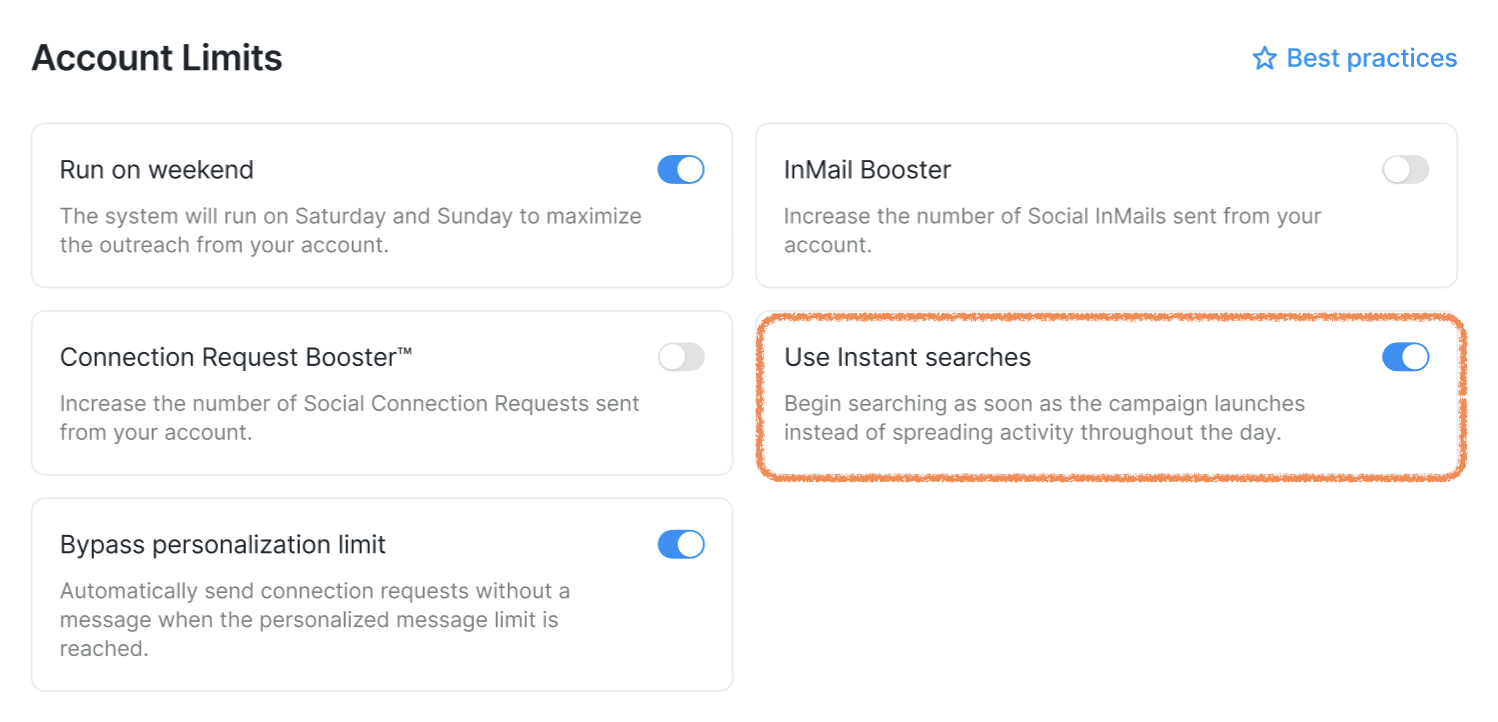
To use Instant Search:
Toggle Instant Search on
Wait 30–40 minutes while the system processes all results
Toggle Instant Search off once the process is complete
This is the fastest way to populate a campaign with Sales Navigator prospects.
A Quick Reminder About Operating Hours
Campaigns only run during your configured operating hours.
If your operating window has ended:
Prospect addition will pause
It will automatically resume when your next working period begins
Seeing only part of your Sales Navigator prospects added at first is normal. Buzz prioritizes safety and consistency by adding prospects gradually — unless you choose to speed things up with Instant Searches.
If you have questions or need help adjusting your settings, our Customer Support team is always happy to help.