How to Connect an Outlook Mailbox
Last updated: September 23, 2026
Connecting your Microsoft Outlook to Buzz is just a few clicks away. Follow the steps below to integrate your account and manage your emails directly from Buzz.
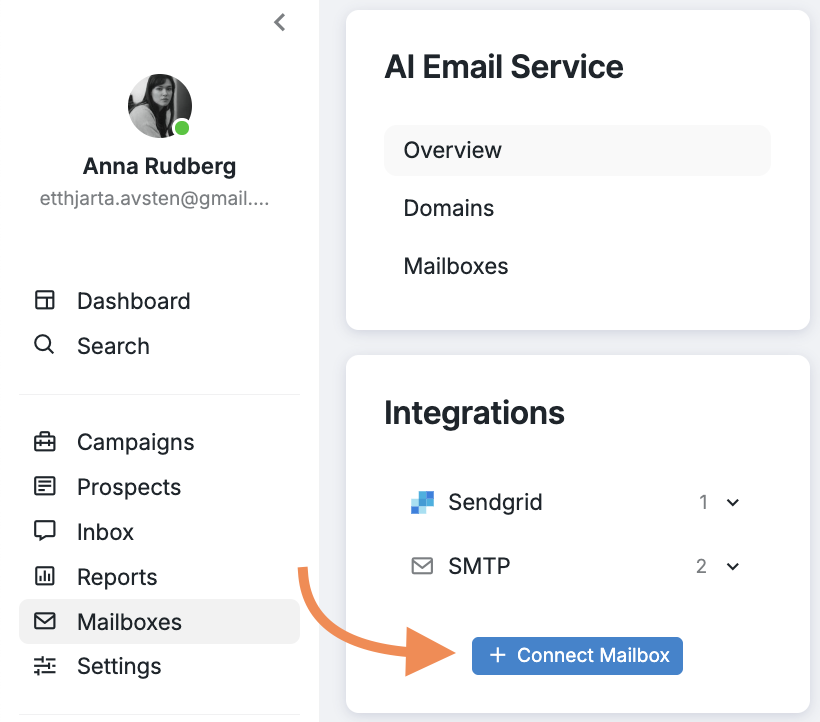
In your dashboard, click on the Mailboxes tab.
Select the Connect Mailbox button.
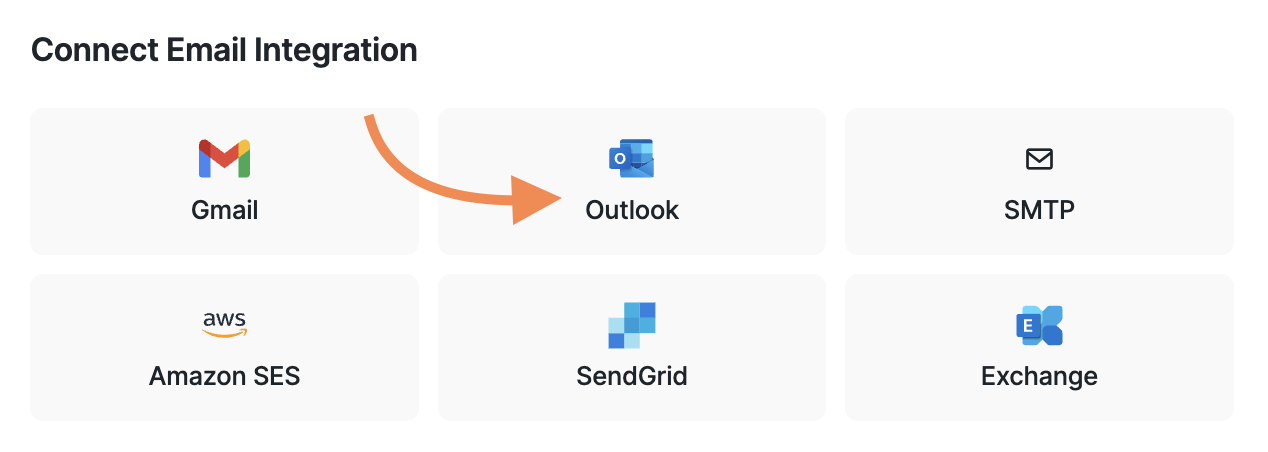
3. Choose Outlook from the list of available integrations.
4. You’ll be redirected to the Microsoft Outlook login page. If you're already logged in, simply grant Buzz permission to manage your email outreach.
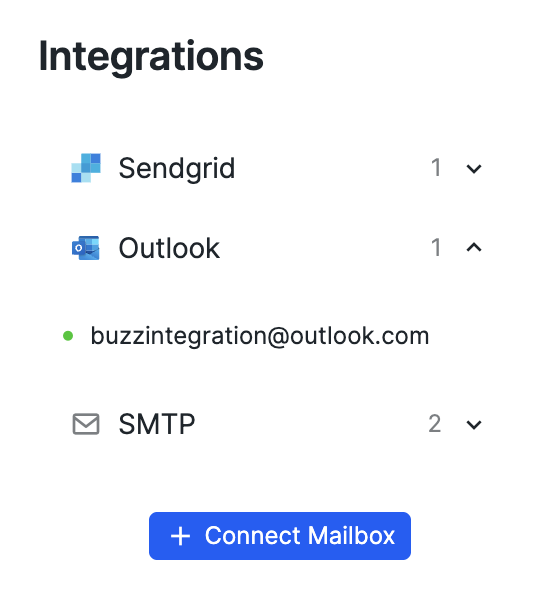
5. Once authorized, you'll be redirected back to your Buzz account, and your mailbox will appear with a green dot indicating it’s active.
Note:
Microsoft operates multiple email servers. If you’re not using Outlook, you may experience difficulties connecting through this integration.
You can connect multiple email addresses to a single Buzz account.
Once your Outlook account is connected, you’ll have a seamless experience sending and tracking emails.
Troubleshooting Multiple Outlook Account Connections
When connecting a second Outlook account to Buzz, the Microsoft login page may default to your primary account instead of allowing you to sign in with a different account.
Sign out of Microsoft in your current browser session before attempting to connect the second account.
Use an incognito or private browser window to complete the connection process for the additional account.
Configure Daily Sending Range
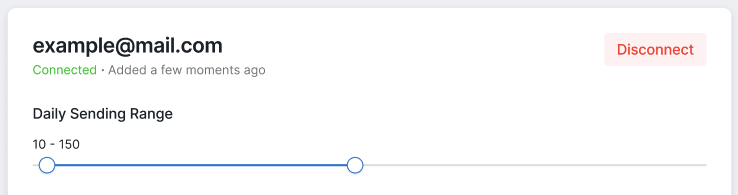
For each connected mailbox, you can set a unique daily sending range. To configure it, navigate to Mailboxes, select the desired mailbox, and adjust the range to your preference. This range will apply only to the selected mailbox.
📖 Read more about the new Daily Sending Range settings in this article.
If you encounter any issues or need further assistance, feel free to reach out to our Customer Support team.