Creating a Voice Note
Last updated: October 14, 2026
In Buzz, you can now send voice notes to your prospects as part of your outreach campaigns — a simple way to make your messaging feel more personal and considered. This article walks you through creating and managing your voice notes.
Please note that this feature is currently in beta.
What is a voice note?
A voice note is a voice message sent directly to your prospect's Social inbox as part of your outreach campaign.
Getting Started
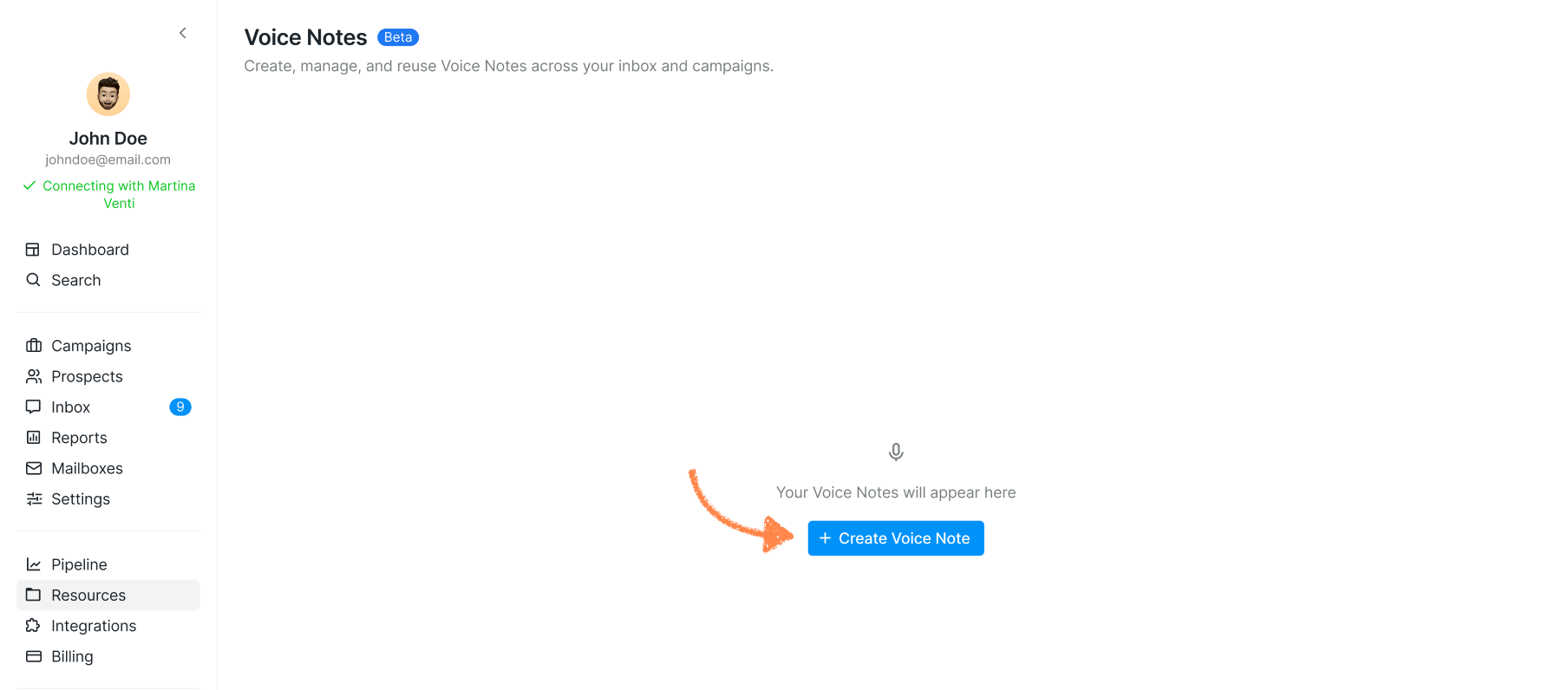
If this is your first time creating a voice note, head to the Resources tab and select Voice Notes — this is your central hub for all your voice notes. From there, click Create Voice Note.
You'll have two options:
Upload a recording from your device (up to 20 MB, in .m4a format)
Record a new one directly in Buzz.
Recording a voice note
If you choose to record, you'll see a set of guidelines to help you shape your message before you begin. Take a moment to read through them — they're there to help.
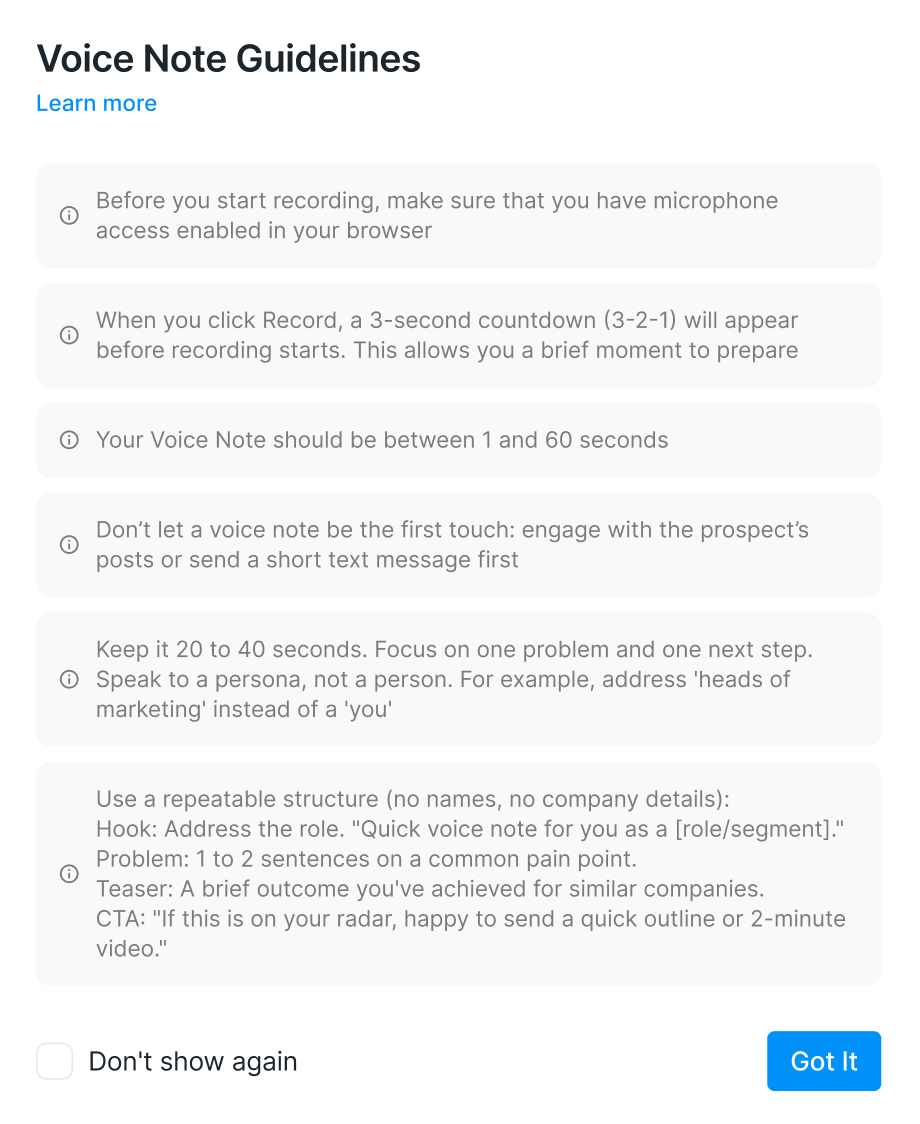
Your voice note should be between 1 and 60 seconds long.
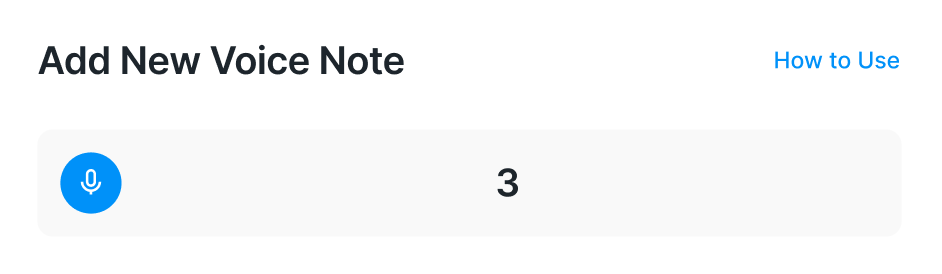
Once you press Start Recording, a short countdown will give you a moment to prepare.
If things don't go quite as planned, you can restart the recording at any point using the reset button.
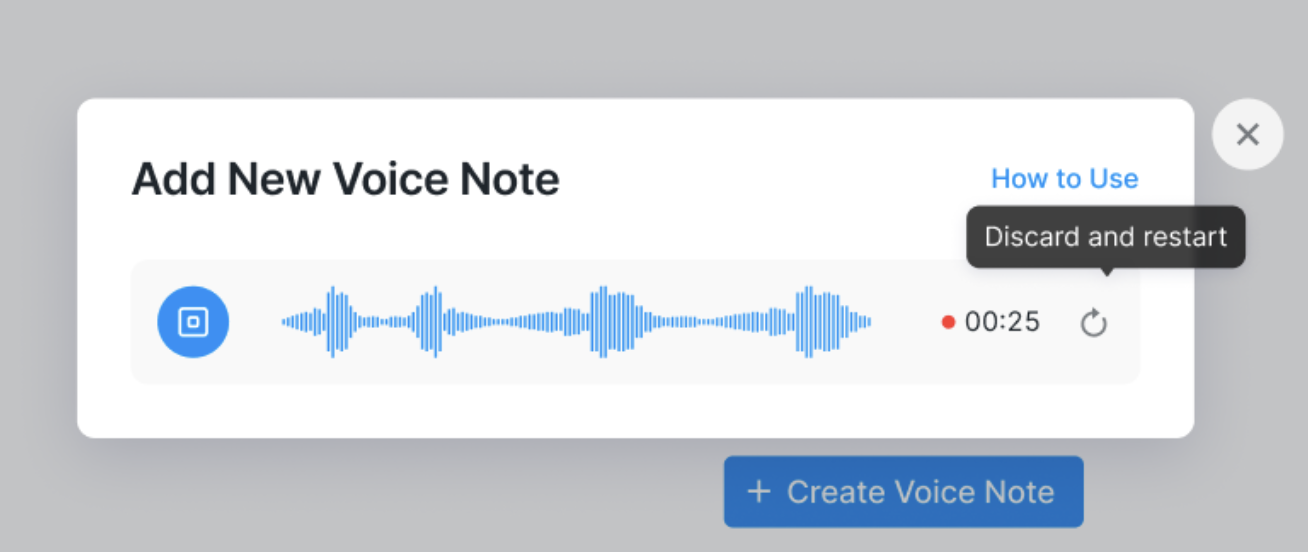
When you're happy with the result, click Add to save it.
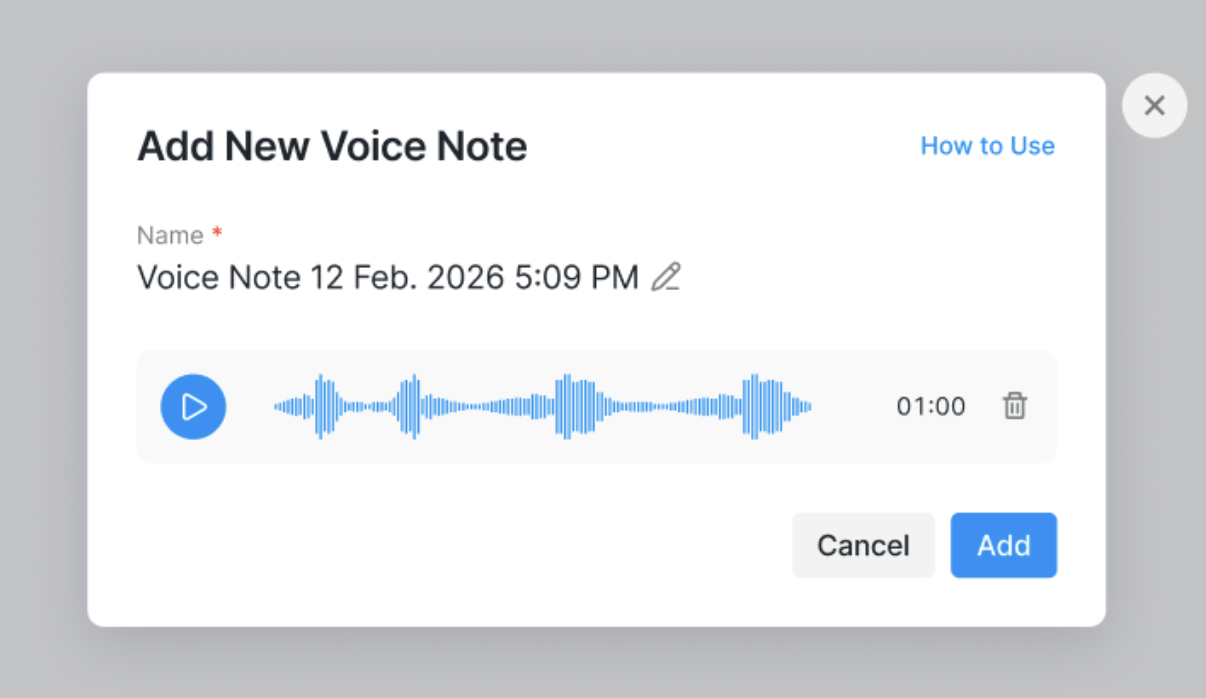
A couple of handy tips: hit the Play button to listen back before saving, and use the trashcan icon to discard it if you'd like to start fresh. You can also rename any recording by clicking the pencil icon.
Managing your voice notes
All your voice notes — both recorded and uploaded — are saved in the Resources tab, ready to use in any campaign.

You can store up to 100 voice notes in total. From there, you can relisten to them anytime and keep your library tidy by removing ones you no longer need.