How to Use Voice Notes in Your Campaigns
Last updated: October 14, 2026
Voice notes are a great way to add a personal touch to your campaign outreach. This article explains how to include them as a step in any campaign you're building.
Adding a voice note step
Please note that you can only send a voice note after sending at least one text message to the prospect. Voice notes cannot be used as the first message in a conversation.
When building your campaign, select the Send Voice Note step.
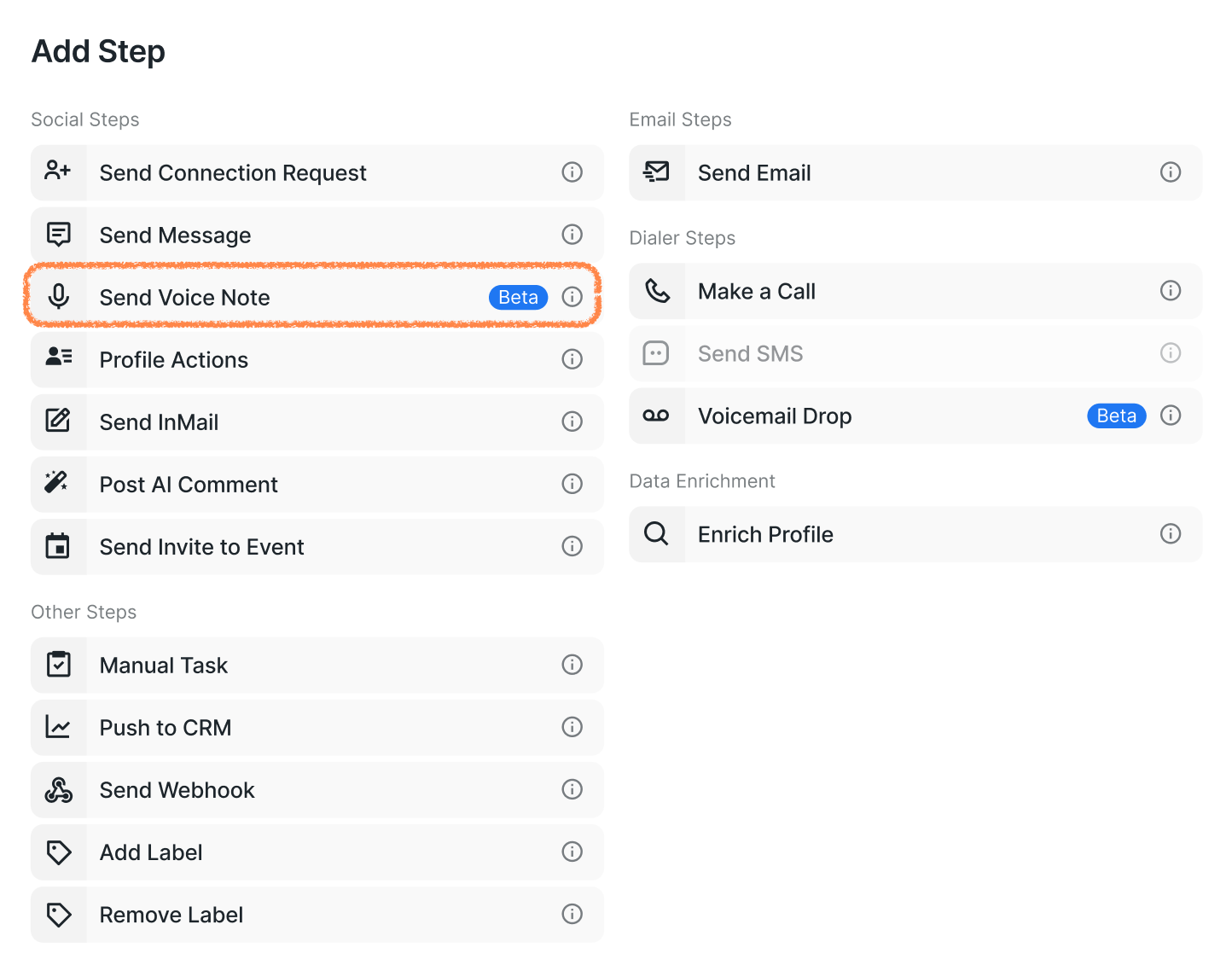
From there, you can:
Choose an existing voice note from your Resources, record a new one on the spot, or upload a recording directly from your device. Click + Add Voice Note to proceed.
To learn more about creating voice notes, visit this article.
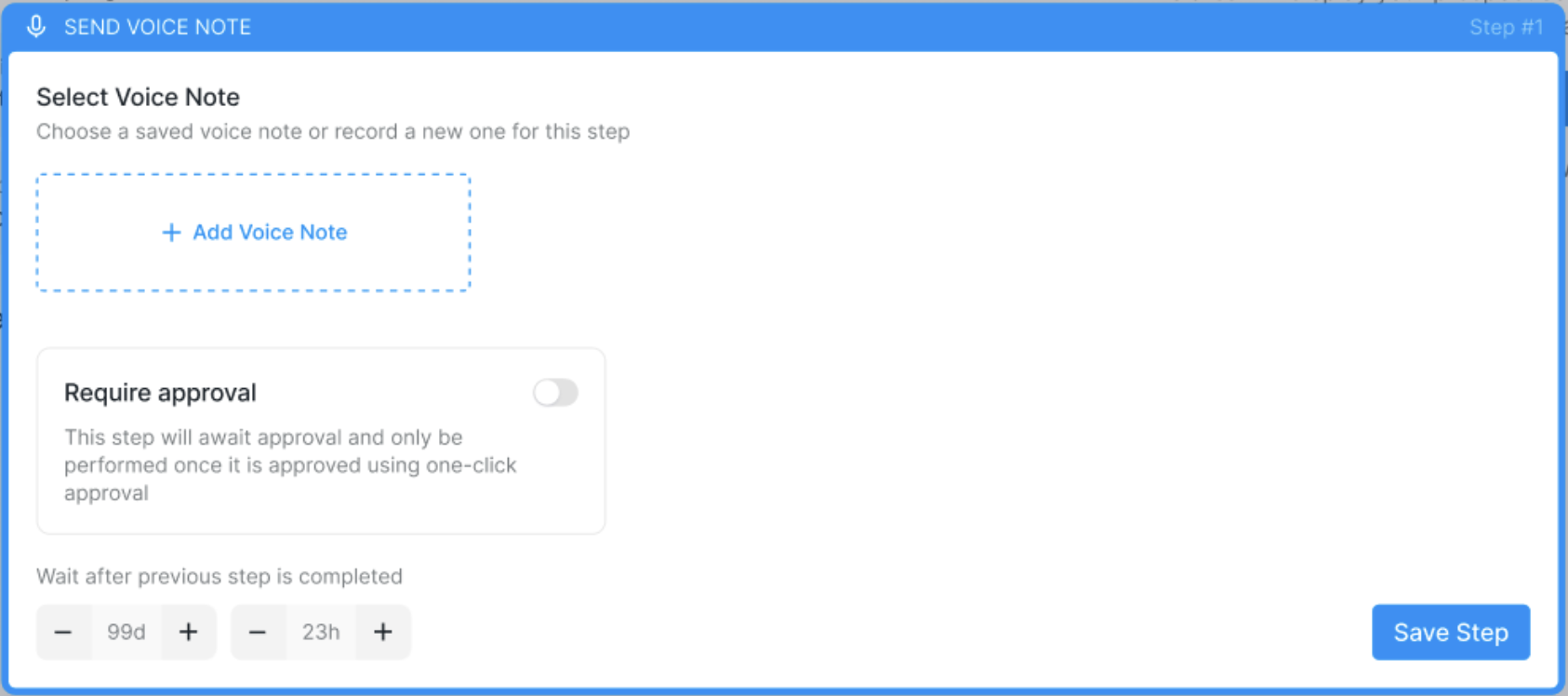
If you're using an existing voice note, you can rename it or delete it before sending. Just keep in mind that deleting a voice note removes it from all campaigns it's currently part of — if that happens, prospects in those campaigns may move to Pending status.
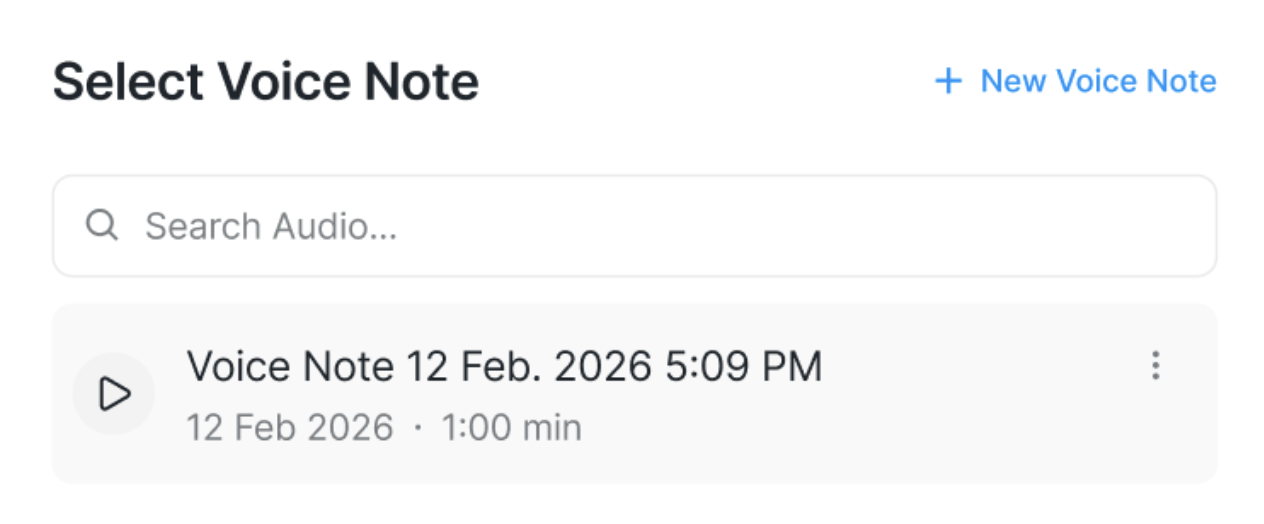
To add a new voice note at this stage (either by recording or uploading), click + New Voice Note in the top right corner.
Approval-based sending
This step can also be set to require approval before sending. Toggle the approval setting on if you'd like to review and confirm the action before it goes out.