Sending InMails to Open Profiles & Improving Results
Last updated: August 19, 2026
Let’s say you want to send 40 InMails to open profiles only, during operating hours, and the Allow to use my InMail credits setting is toggled off.
In this case:
Buzz can only send InMails to open profiles
We cannot guarantee that your campaign search will return 40 open profiles
You can check how many open profiles are available in an active InMail campaign.
How to Filter Open Profiles
To view open profiles in your campaign:
Go to the Prospects tab
Click the Filters icon (top left)
Select Profile options
Choose Open
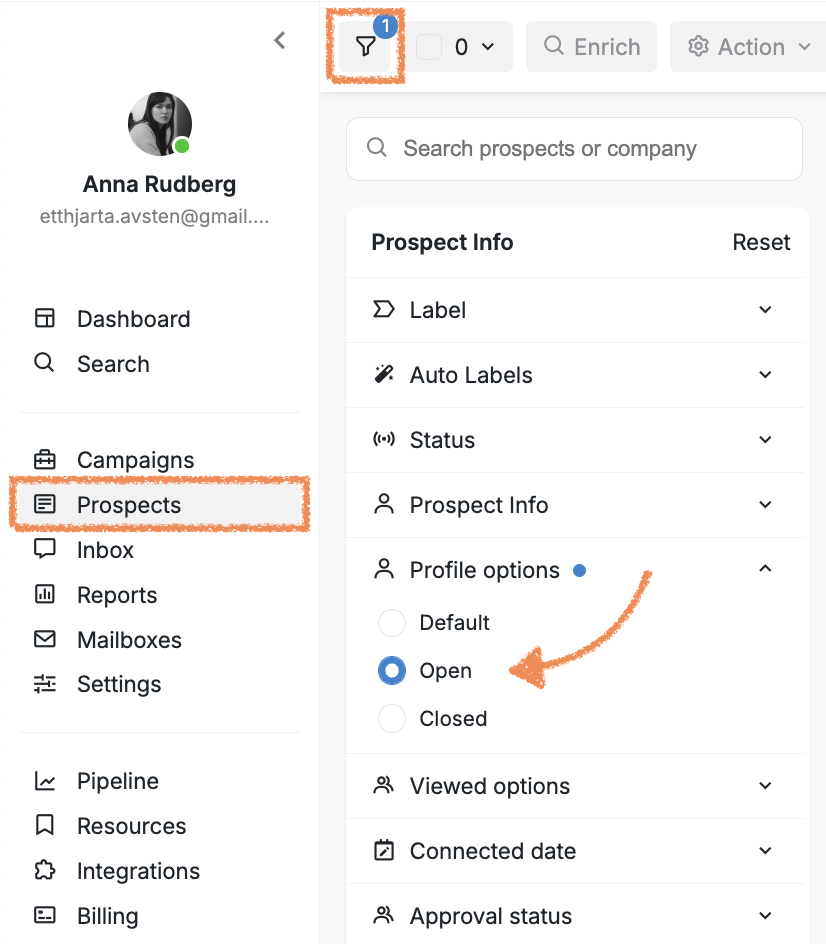
Only prospects added during operating hours will be displayed.
Why Fewer InMails May Be Sent
There are a few reasons why your campaign may send fewer InMails than expected:
Active InMail searches may include profiles already used in previous campaigns
Some profiles may already be assigned to other campaigns
As a result, those profiles won’t be added again, reducing the number of available prospects
Tips to Make Your InMail Outreach More Efficient
To increase your chances of sending more InMails and reaching open profiles:
Use a Sales Navigator search link. This helps Buzz avoid unnecessary steps and saves:
System operating time
Views of profiles limit (You can learn more about Views of profiles limits in the related Help Center article.)
Avoid overlapping campaign searches. For example:
Campaign №1 sends connection requests
Campaign №2 sends InMails
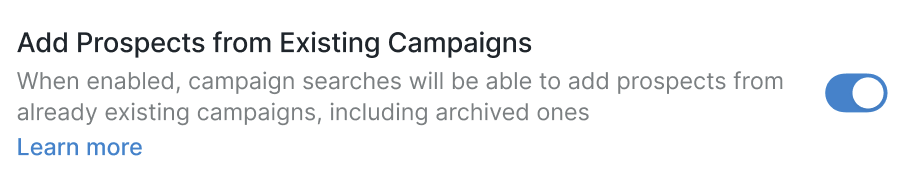
If both campaigns return the same profiles, prospects may be added to Campaign №1 first and never receive InMails. ✅ To prevent this, enable Add Prospects from Existing Campaigns in Campaign №2.
Activate Connection Requests Booster. This sends API-based connection requests and helps preserve the Views of profiles limit, which is also required for sending InMails to open profiles.
Increase Pages Searched (18–20). This adds more profiles daily, increasing the likelihood of finding more open profiles.
Enable InMails Booster and Instant Searches. Go to Settings > Account Limits to activate both.
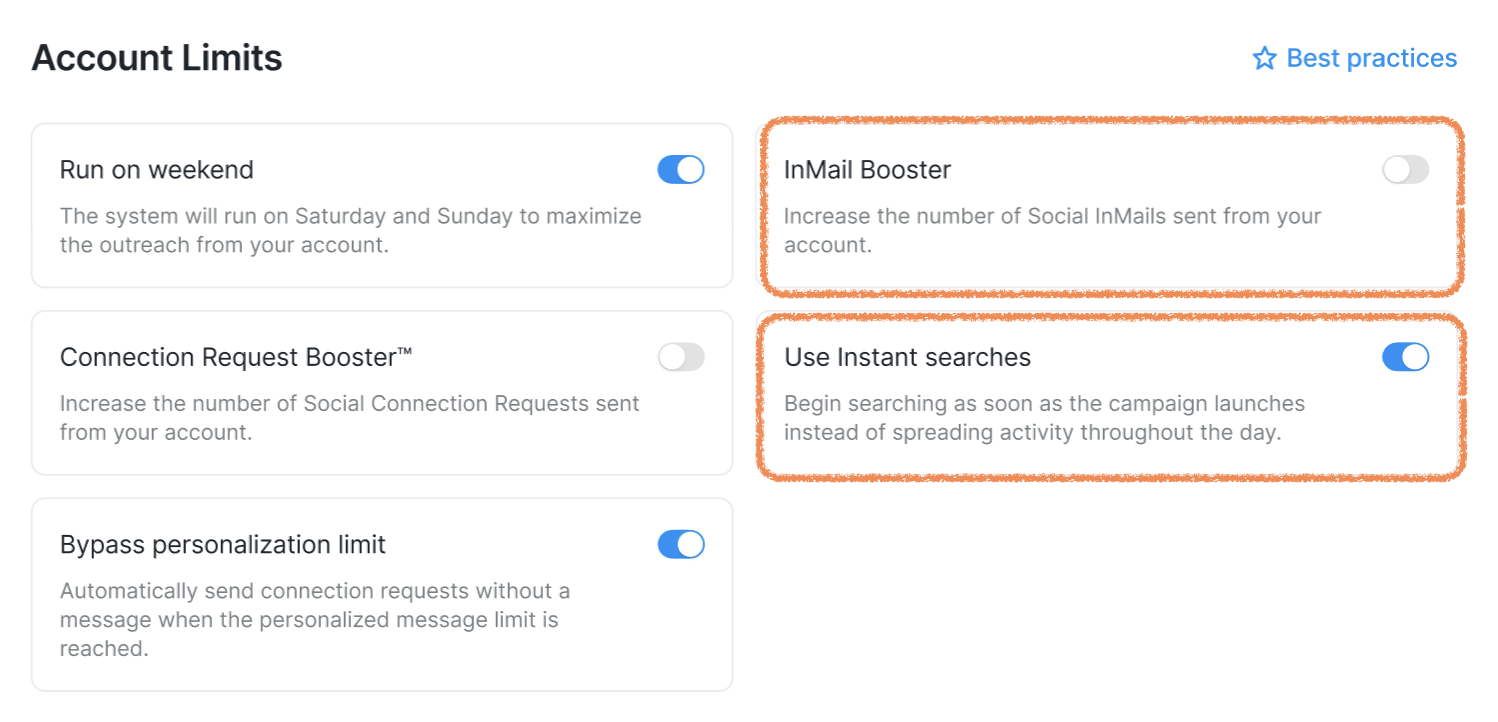
These features help you reach a larger audience faster and increase potential InMail volume.
A Proven Two-Campaign Strategy for Open Profiles
To ensure your InMail campaign contains only open profiles:
Enable InMails Booster and Instant Searches (Settings > Account Limits)
Create Campaign №1 for prospect search
Add the Add Label step (because there is must be at least one step in the campaign)
Wait for prospects to be added to Campaign №1
Create Campaign №2 strictly for InMail outreach
Manually move open prospects from Campaign №1:
Prospects tab > Action > Change campaign
In this setup, prospects in Campaign №2 are already confirmed as open and able to receive InMails.
Campaign Volume Considerations
Your campaign search should return at least X open profiles, where X equals your daily InMail limit.
Example:
Campaign search returns 10 profiles
Campaign limit is 15 InMails per day
Result: The InMail limit can’t be met because there aren’t enough open profiles.
If you’re not using a Sales Navigator search:
Increase the Views of profiles limit, or Enable InMails Booster