InMails in Buzz — Basics & Campaign Setup
Last updated: September 23, 2026
What Are InMails?
InMails are a powerful way to reach potential clients, partners, or candidates — even if you’re not connected with them yet. An InMail allows you to send a message directly to another Social profile you’re not connected to.
When running campaigns in Buzz, you can send InMails to:
Open profiles, but a Sales Navigator subscription is still required to send InMails through Buzz, or
Closed profiles, using Sales Navigator credits
Important: Buzz does not support sending InMails through LinkedIn Recruiter subscriptions. If both Recruiter and Sales Navigator are active, Recruiter takes priority and InMails may remain in Pending with a message that a Sales Navigator subscription is required. Wait for Recruiter to expire, cancel it, or use a LinkedIn account with only Sales Navigator.
Using InMails in Buzz Campaigns
When creating a campaign, you’ll find the Send InMail step in the sequence.
To allow Buzz to use the InMail credits available in your Sales Navigator account, you must toggle on Allow to use my InMail credits:
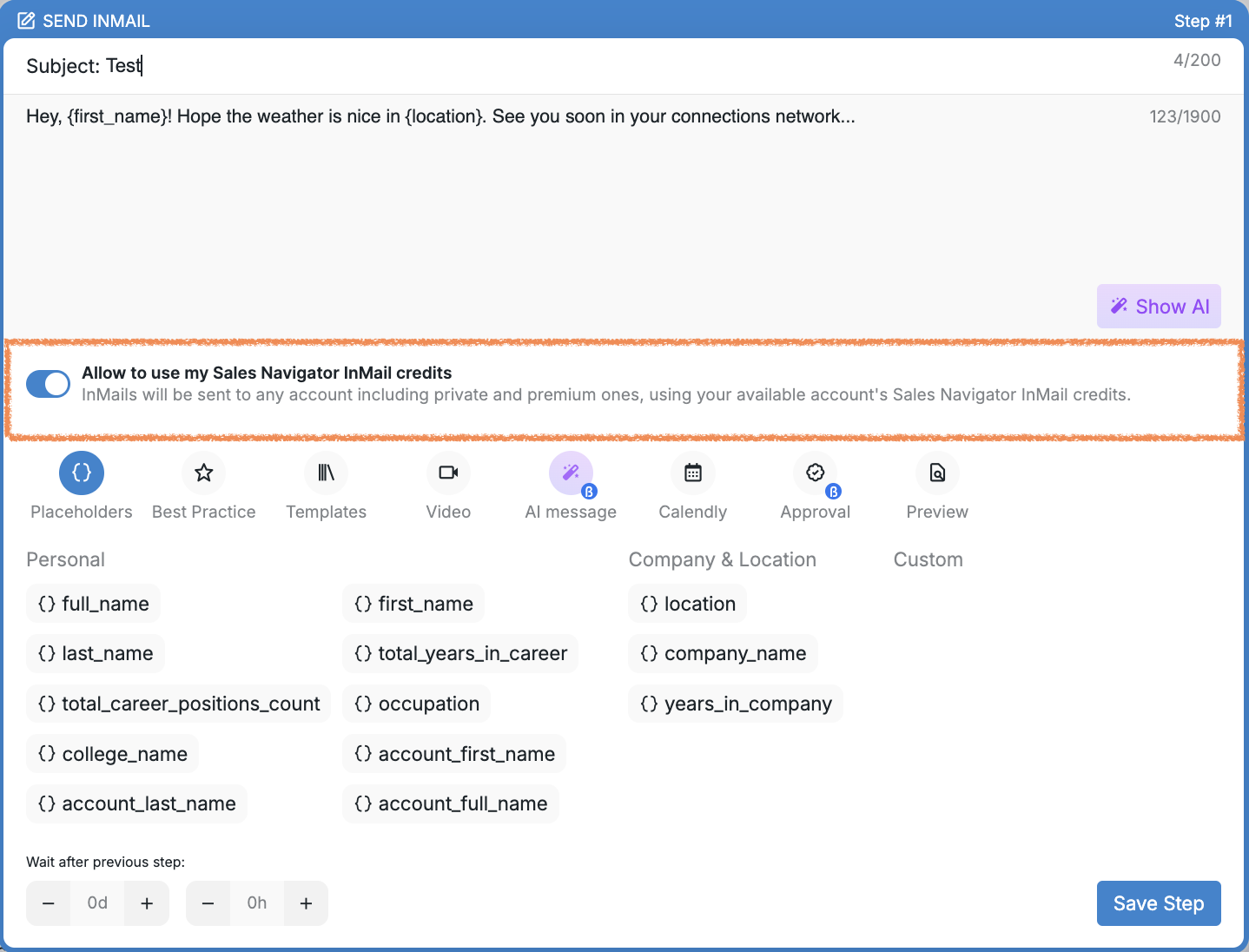
⚠ If this setting is turned off, InMails that require credits will not be sent, even if you have available credits in your Sales Navigator account. Contacts with closed profiles can remain in Pending with a profile is closed notification because Buzz does not have permission to use the credits.
Note: Buzz has InMail sending limits that apply even when sending to open profiles. If you've reached the limit, InMails will not be sent until the limit resets automatically.
Note: The platform only supports Sales Navigator InMail credits. LinkedIn Recruiter InMail credits cannot be used to send InMails through campaigns, though Recruiter searches can still be used as campaign sources.
One Important Rule to Know
Buzz allows sending only one InMail per prospect within a single campaign.
If an InMail has already been sent to a prospect, and there’s another Send InMail step later in the sequence, that step will be automatically skipped.
One common cause of InMails remaining in Pending is the InMail credits per month limit being set to 0 in Settings > Account Limits. This limit can prevent sending even when Sales Navigator credits are available, so set it above zero when InMails are needed.
Troubleshooting InMails Stuck in Pending
If InMails show Waiting for sales navigator credits to be available despite having visible credits, verify the subscription, account configuration, and campaign permissions.
Verify that your Sales Navigator subscription is active.
Check whether a Recruiter subscription is also active. Recruiter takes priority; cancel it, wait for it to expire, or use a different account with only Sales Navigator.
Go to Settings > Account Limits and ensure the InMail credits per month limit is above zero.
Confirm that Allow to use my InMail credits is enabled in the Send InMail step.
Click Check Sales Navigator in Settings > Account Settings to refresh the credit balance.
Campaign Behavior When Sales Navigator Is Unavailable
Buzz pauses InMail sending in active campaigns.
InMails remain in Pending until Sales Navigator access is restored.
Other campaign steps that do not require InMails can continue.
Managing Credit Allocation Across Campaigns
The monthly InMail limit is shared across all campaigns.
Set realistic limits based on your Sales Navigator plan.
Monitor usage across campaigns to avoid unexpected pauses.
Adjust limits during the month when campaign priorities change.
Important: The Sales Navigator search URL must be created under the same Sales Navigator contract as the Social account running the campaign. You cannot use a Sales Navigator URL from one account in a campaign running on a different account without Sales Navigator; this will result in an access error when the system attempts to access the prospect list.