How to Exclude Prospects Without Blacklisting by Name
Last updated: April 10, 2026
When you receive an auto-reply indicating someone is no longer at their company or encounter a bounced email, you may want to stop outreach to that specific email address without permanently blacklisting the person by name. This is important because blacklisting by name could affect other people with the same name or the same person if they move to a different company.
Understanding blacklist behavior
When you exclude a prospect from campaigns or add them to the blacklist, the system matches on multiple criteria including first name, last name, and email address. This means that if "John Smith" is blacklisted, any other prospect with the exact same first and last name will also be automatically excluded from campaigns, even if they work at different companies or have different email addresses.
Best practice: Remove from campaign instead of excluding
To avoid the name-matching issue, the best practice is to remove the prospect from the campaign rather than using "Exclude from Campaigns":
Go to the Prospects tab and find the prospect you want to remove
Select Remove from Campaign from the dropdown menu:
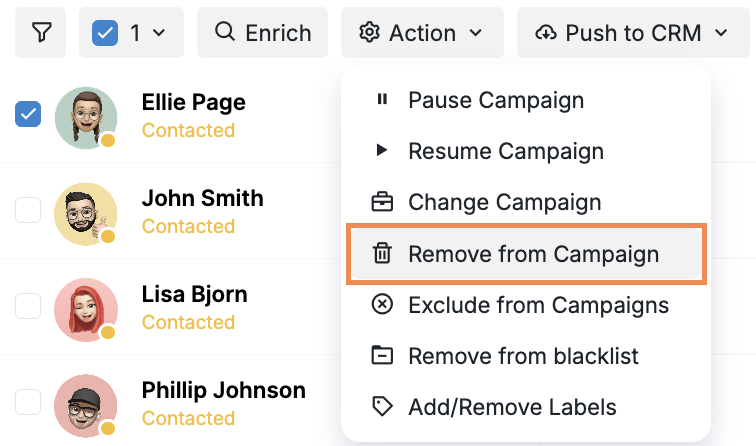
When you remove a prospect from a campaign:
They won't be contacted in that specific campaign
They won't be added to the blacklist
They remain available to be added to new campaigns if needed
Other people with the same name won't be affected
Alternative: Email-based unsubscribe
If you want to prevent emails to a specific email address across all campaigns, consider adding an unsubscribe button to your email steps. When someone unsubscribes, the system automatically prevents emails from being sent to that email address, even across different campaigns, without affecting the person's name-based matching.
When to use blacklisting
Only use the blacklist or "Exclude from Campaigns" when you want to permanently prevent outreach to a specific person regardless of their company or email address. Keep in mind that each Social Account has its own blacklist, so if you manage multiple accounts, you'll need to add entries to each account's blacklist separately.