Getting Started with Your Inbox
Last updated: February 13, 2026
Your Inbox is where all your prospect conversations live — neatly organized and seamlessly connected to your Social Inbox so you can access everything in one place. In this guide, we’ll walk you through the basics of working with your Inbox.
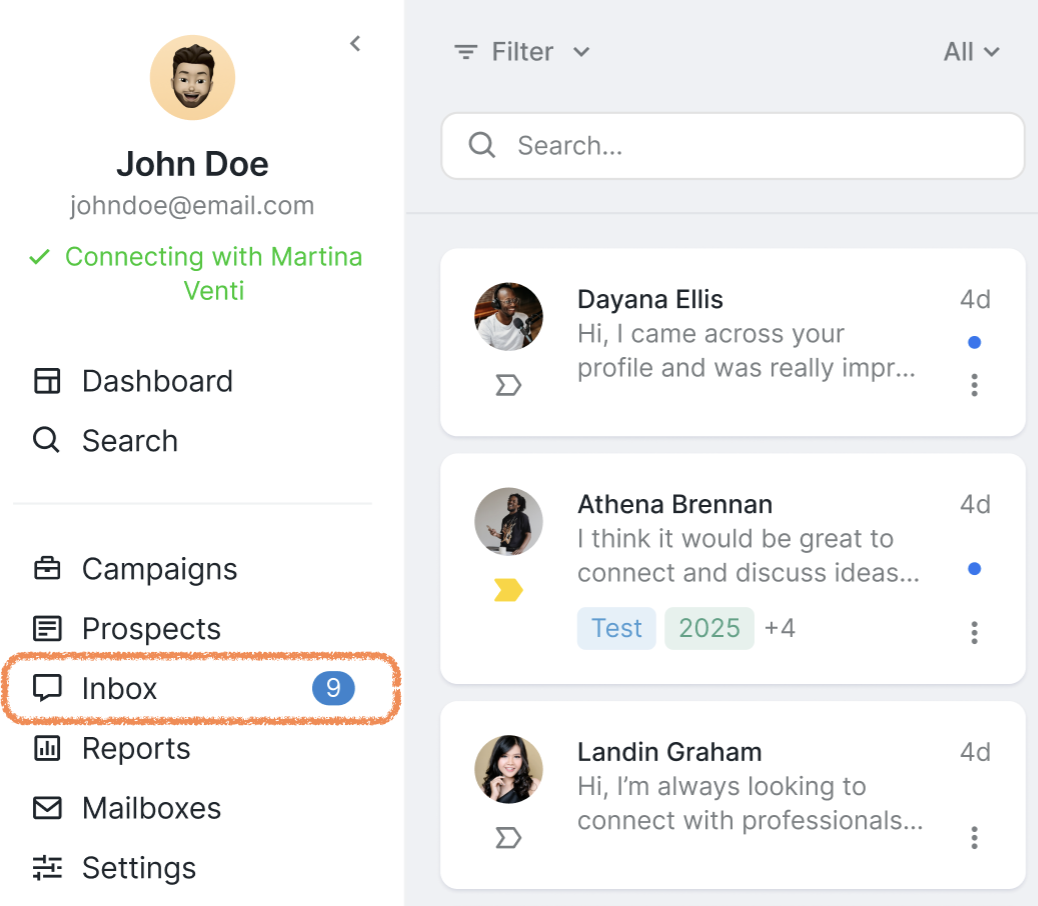
To open your Inbox, click on the Inbox tab on the left-hand side of the screen:
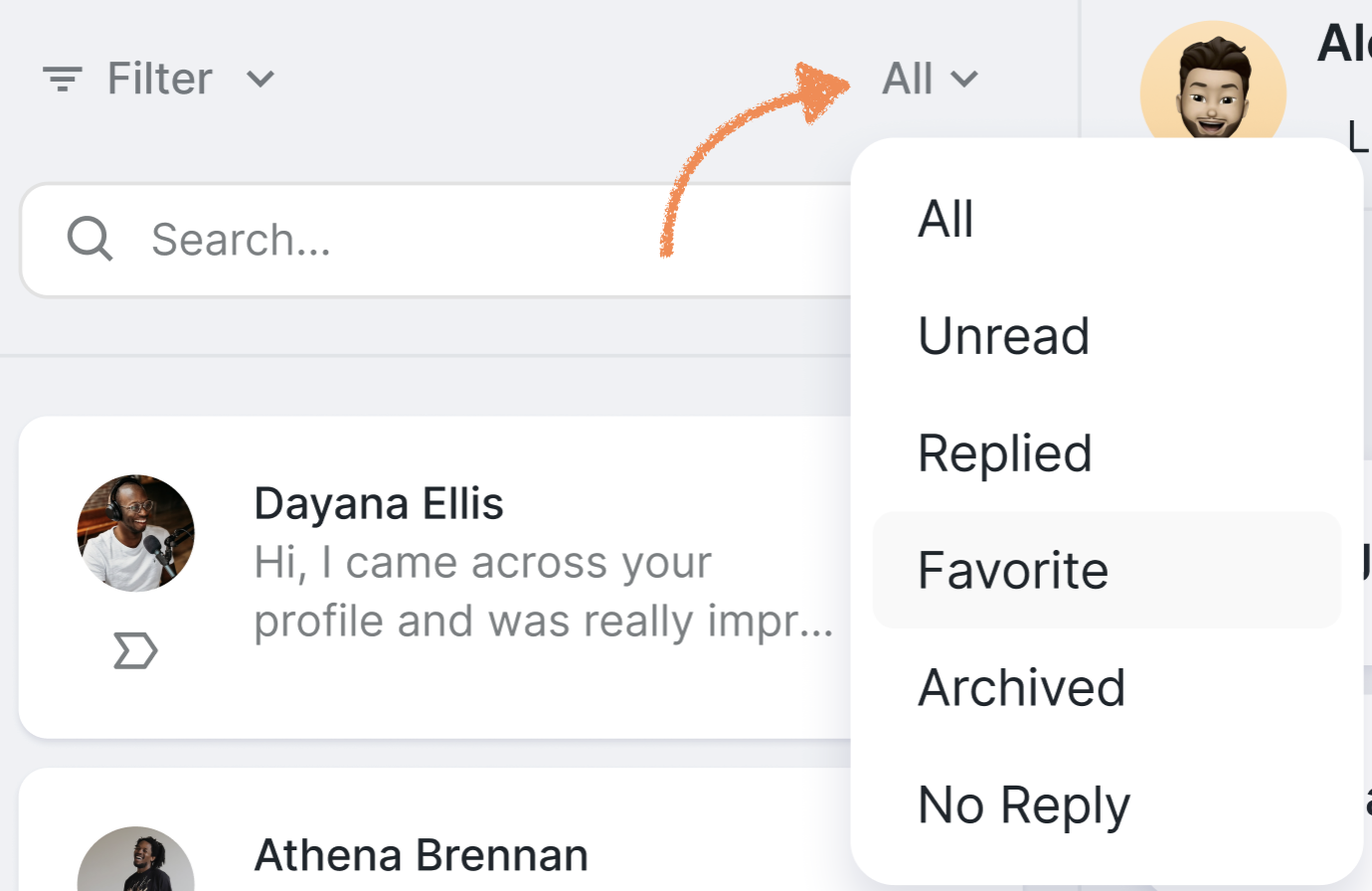
By default, you will see the conversations where the prospect has already replied to you. You can switch between All, Unread, Favorited, Archived or not replied to conversations by clicking the dropdown on the top right:
By default, the first conversations that appear in your inbox are from Social + Email campaigns, followed by Email-only campaigns. So, if you're expecting a message from an Email-only campaign and don't see it right away, it doesn’t mean it’s missing. You may just need to scroll down to find the Email-only conversations.
Alternatively, you can use Filters to view only specific types of messages. Go to Filters > Channel > Email Only, and the chat you're looking for should appear at the top.
When you add a prospect to a campaign, Buzz automatically pulls your existing social and/or email messages with that prospect into the Inbox.
Keep in mind:
Some older or deleted messages might not show up, depending on your email provider and how data is synced.
There's no set limit for how far back the message history goes — it can vary case by case.
If you have any questions or need further assistance, feel free to check other articles in our Inbox collection or reach out to our Customer Support team.