How to Add Prospects To a Campaign via API Using Postman
Last updated: September 23, 2026
In this article, we’re going to explore how to use the POST API endpoint to automatically add prospects to a Buzz campaign.
You can use this with tools like Postman, Zapier, n8n, or your own scripts. In this guide, we’ll walk through the setup using Postman, because it’s one of the easiest ways to manually test API requests.
Where to Find “Add with API” in Buzz
When you’re creating a new campaign in Buzz, you can choose Add with API as one of the search types:
Start creating a campaign.
Click Add Search.
Select Add with API from the list of search methods.
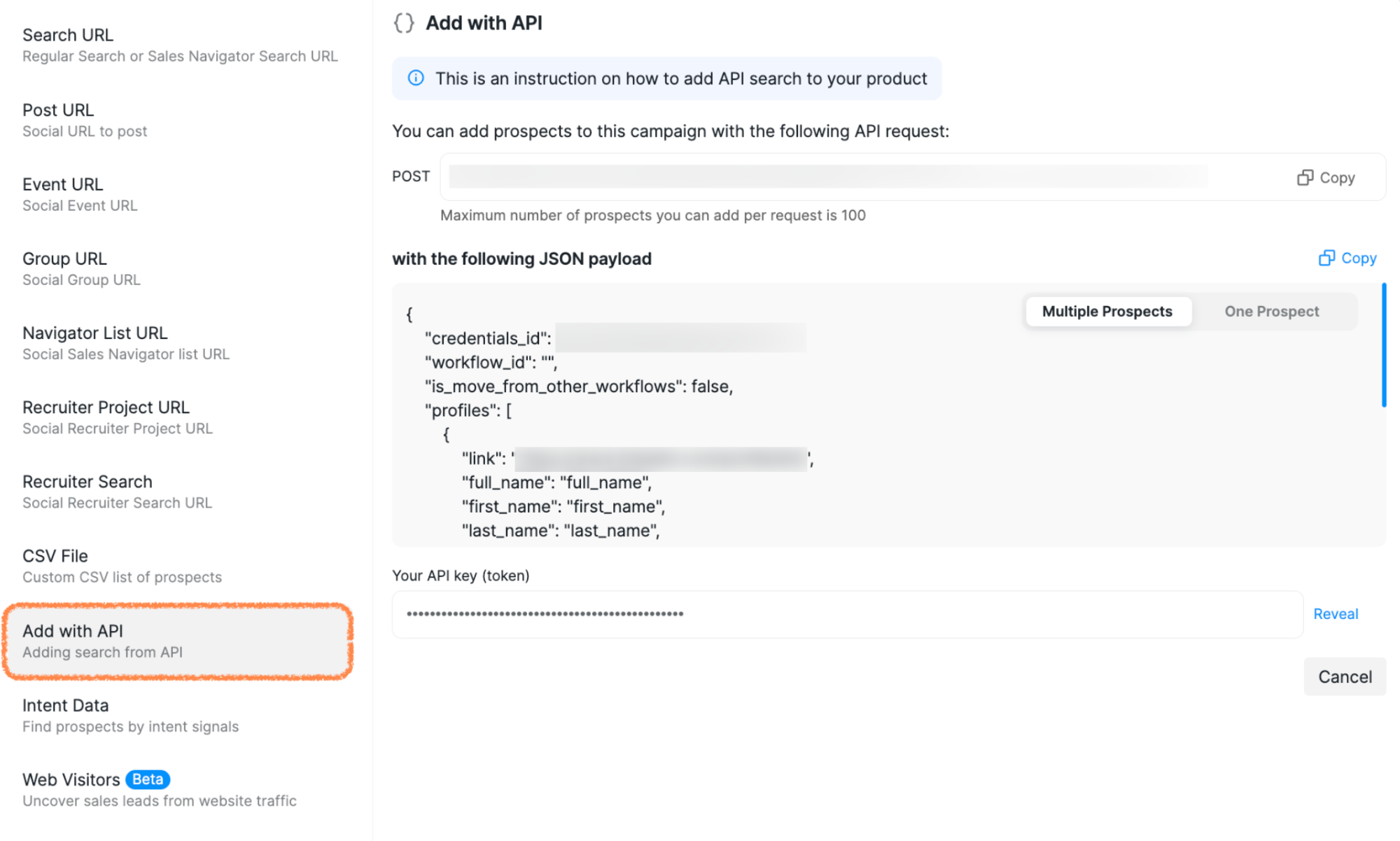
On this screen, Buzz shows you everything you need to make a successful API request:
The HTTP method
The Endpoint URL (where you’re sending your data)
The JSON payload (what you’re sending)
Understanding the API Request Components
The Add with API method uses three key pieces of information:
Component | What it means | In Buzz |
Method | The action you’re asking the server to perform. | POST (you are creating/adding new data). |
Endpoint URL | The address where your request is sent. | |
JSON Payload (Body) | The structured data describing the prospects and options. | The JSON shown in the large text box below the URL in the UI. |
Tip: Always copy the Endpoint URL and JSON payload directly from Buzz to avoid typos or missing fields.
Setting Up the Request in Postman (Step-by-Step)
If you don’t have Postman yet, you can download the desktop app, or use the web version at Postman’s website.
1. Create a New Request
Open Postman.
Click New → HTTP Request.
In the Method dropdown, select POST.
2. Add the Endpoint URL
Go back to your campaign’s Add with API section in Buzz.
Copy the full URL shown there (it starts with https://api.buzz.ai... and contains your unique token parameter).
Paste this URL into the request URL field in Postman.
Important: Your token in the URL is like a password. Do not share it publicly.
3. Configure the JSON Body
Now you’ll tell Buzz which prospects to add by sending a JSON body.
In Postman, click the Body tab (under the URL bar).
Select raw.
In the dropdown next to raw, choose JSON.
In Buzz, copy the entire JSON structure from the large text box below the URL.
Paste that JSON into the Body area in Postman.
This JSON already contains the correct structure (e.g., profiles array and any other needed fields). You’ll only need to replace the placeholder values with your real data.
Entering Your Prospect Data
In the JSON you pasted, you’ll see a profiles array. This is where each prospect is defined.
You should:
Keep the structure and field names exactly as provided by Buzz.
Replace the example values (like full_name, first_name etc.) with your actual prospect data.
Add more objects inside profiles if you want to add multiple prospects in one request.
Tip: If you’re unsure whether your JSON is valid, you can:
Use a JSON validator (online), or
Use Postman’s built-in JSON preview (it will highlight syntax errors like missing commas or quotes).
Very Important: How Buzz Handles Profile Fields
If Buzz finds new or updated information on the Social Platform for a prospect, the following fields can be overwritten:
first_name
last_name
full_name
company_name
university_name
position
location
email
website
❗In other words: If you send values for these fields via API, Buzz may later update/replace them if the Social data is different.
Note on initial position data: When prospects are first added, Buzz parses the LinkedIn headline to extract position and company information. This parsing specifically looks for the format “Title at Company”, using “at” as the delimiter. If a LinkedIn headline doesn’t include “at” (for example, “Marketing Strategist & Lead Generation Expert | Mint IQ”), the position and company fields may not populate initially, even if the prospect has a current role listed on their LinkedIn profile.
Recommended Best Practice: Use custom_fields + Fallbacks
To avoid losing your original data:
Store critical values in custom_fields instead of only in the standard fields above.
In your campaign templates/messages, use fallbacks so that:
Buzz first tries to use your custom_field value.
If it’s empty, it falls back to standard fields (like first_name) or default text.
Be aware that profile enrichment does not guarantee position and company retrieval, as it relies on external databases that may not contain current role information for all prospects. The Perform Action step syncs existing LinkedIn information and updates it in the system, but success depends on data availability.
This way:
Your manually curated or CRM data stays safe in custom_fields.
The Social data enrichment can still happen on the standard fields, without breaking your messaging.
❗For example, your custom field section may look like this:
"custom_fields": {
"cf_first_name": "John",
"cf_company": "Acme Inc.",
"cf_account_tier": "Enterprise"
}
Important Clarification: Buzz Only Excludes Prospects with Prior Buzz History
When adding prospects via API, Buzz excludes prospects from campaigns only when there is prior Buzz conversation history with them. Existing LinkedIn connections who have never been contacted through Buzz are treated as new prospects and will receive campaign messages.
To avoid accidentally messaging friends, colleagues, or existing contacts:
Review your prospect list before API submission to identify existing LinkedIn connections.
Remove any contacts you do not want to message through automated campaigns.
Consider maintaining a do not contact list in your CRM or data source to prevent future inclusion.
This is especially important when importing large prospect lists from CRMs or other sources that may contain existing business relationships.
Sending the Request & Checking the Response
1. Send the Request
In Postman, confirm:
Method = POST
URL = your Buzz endpoint URL with token
Body = valid JSON, set to raw + JSON type
Click Send.
2. Read the Response
Look at the Response section at the bottom of Postman:
Success – HTTP 200 OK
Your request was successful and the prospects have been added to your campaign.
Error – HTTP 4xx or 5xx
Something went wrong. Common issues:
Invalid or missing token.
Malformed JSON (missing commas, wrong quotes, etc.).
Required fields missing from one or more profiles.
The response body usually contains an error message explaining what went wrong. Use that message to adjust your request.
💡 Troubleshooting tips
Compare your JSON again with the template from Buzz’s UI.
Test with just one simple profile first before sending a large list.
If you change your token in Buzz, make sure you update it in Postman as well.