AIES Billing: Workspace Admin Guide
Last updated: May 13, 2026
This article covers everything you need to manage AI mailbox slots and domains within your workspace, including billing, access permissions, and what happens when payments fail.
What is AIES Billing?
AI Email Service in your workspace relies on two paid components:
AI Mailbox Slots — each slot enables one AI-powered mailbox. Slots are billed as a single subscription.
Domains — custom sending domains purchased through the platform.
Your workspace uses a billing method set by your Whitelabel Admin (either USD or credits). This determines how all charges for slots and domains are processed in your workspace.
Managing Member Access
By default, Workspace Members cannot buy or renew domains or slots. As a Workspace Admin, you decide who gets those rights.
Granting and Revoking Purchase Rights
You can grant or remove a member's ability to buy and renew domains and slots from Workspace Settings > Members.
You can see which members currently have purchase rights.
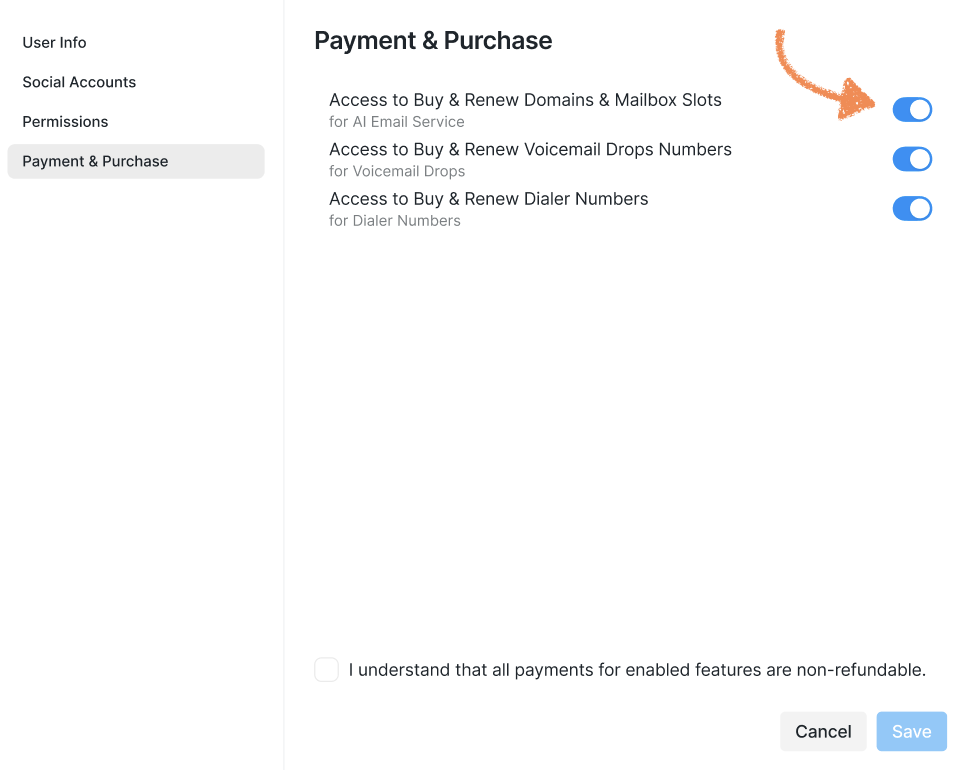
Note: Even members with purchase rights cannot delete domains or reduce the number of slots.
Only Workspace Admins (and above) can do that.
AI Mailbox Slots
How Slot Billing Works
Your workspace has a Mailbox Slot Billing Date, set to the date your workspace first purchased a slot. All slot renewals are tied to this date.
Slot billing follows the duration of your main subscription:
Monthly subscription: slots renew monthly
Annual subscription: slots renew annually
If you buy additional slots mid-cycle, you are only charged a prorated amount for the remaining days until your billing date. The full amount for all slots is then charged on each billing date.
Buying Slots
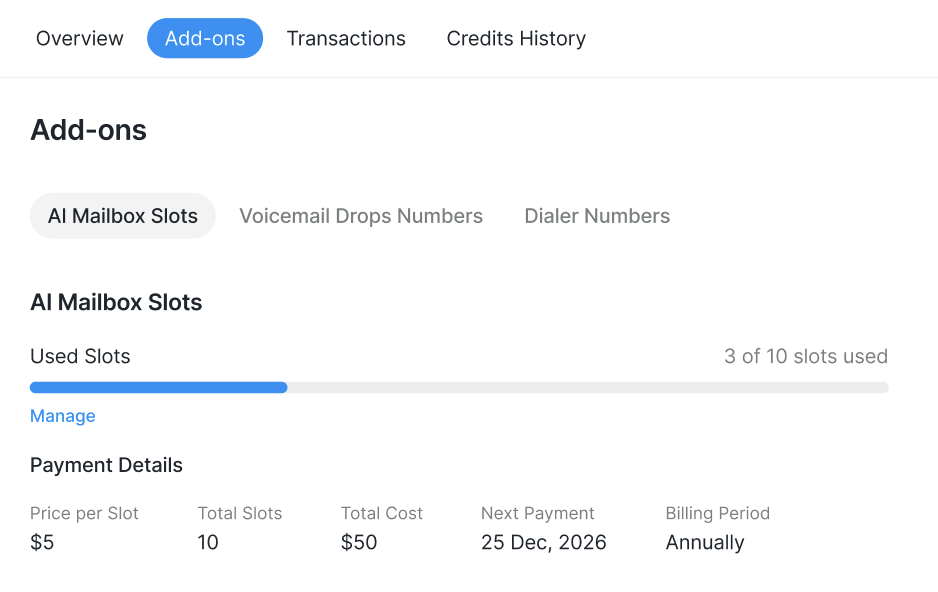
Slots cost $5 each (when paying in USD). Credit pricing is set by your WL Admin. You are charged only after a successful payment — slots appear in the interface once payment is confirmed.
When buying multiple slots at once, the total is the sum of all slot prices.
Note: Slot charges are non-refundable.
Reducing Slots
You can remove slots, but only down to the number of active mailboxes. If all your slots are in use, you need to remove mailboxes first.
What Happens If a Slot Renewal Fails
If the automatic slot renewal charge fails:
All workspace admins receive an email notification with a link to the payment page.
Email sending from all AIES mailboxes is paused.
Affected prospects move to Pending status with the reason: AI Mailbox Slots are unpaid.
Retrying a Failed Renewal
You can manually trigger a retry from the Billing page. Once payment goes through, all restrictions are lifted and slots are renewed automatically.
Domains
Buying a Domain
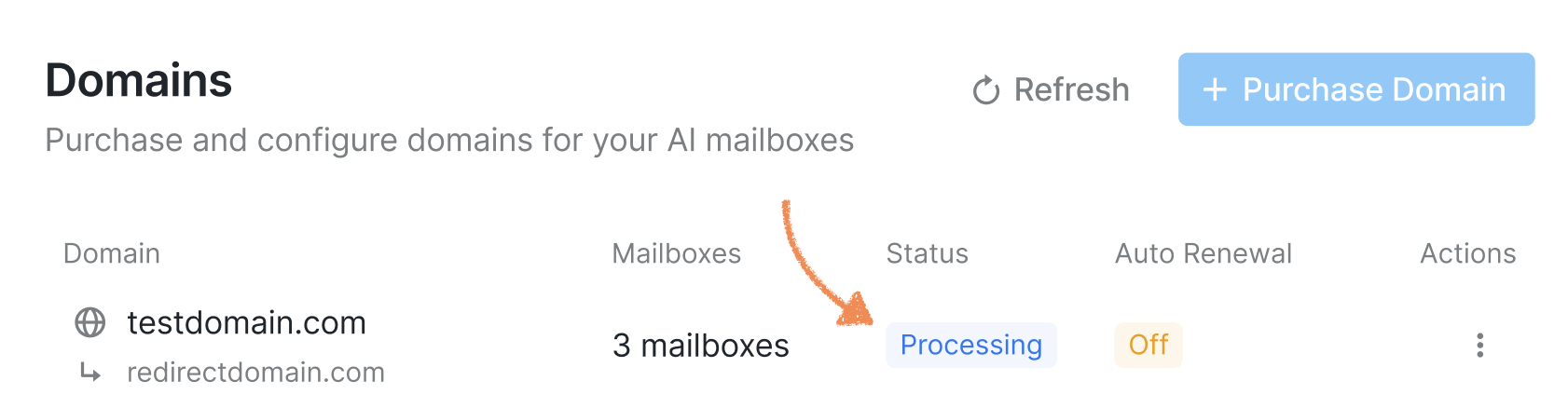
Domains are purchased for 1 year at a time. The charge only goes through after the domain is successfully registered. Once you see the domain in the interface with a Processing status, it is being set up.
Auto-Renewal
You can enable auto-renewal per domain:
Enabled more than 45 days before expiry: charge runs automatically 45 days before the expiration date. Failed charges are retried on a schedule. You can also retry manually from domain settings.
Enabled 45 days or fewer before expiry: you are charged immediately. No automatic retries if it fails — you must retry manually.
💡 Find out more about domain auto-renewal in this article.
If a Payment Fails
You will see an on-screen error with a reason. You can:
Remove specific domains from the order (if ordering more than one)
Retry the payment
Switch to a different payment method (if paying in USD)
Close the order
Viewing Billing Information
In Workspace Settings > Billing, you and all workspace members can see:
How many slots you are currently paying for
How much you are being charged (in USD or credits)
Your next billing date (Mailbox Slot Billing Date)
Payment Methods (USD Only)
For USD payments, the entire order is charged to one payment method. You cannot split an order across multiple cards.
You can manage saved payment methods in the Stripe Customer Portal.
For manual purchases: you choose the payment method. If it fails, switch to another saved method and retry.
For automatic renewals: the charge goes to your default method first, then tries others in the order they were added.
Payment Failure Error Reference
If a payment fails, the following error messages may appear: