HubSpot: Deals and Pipelines
Last updated: June 30, 2026
Beyond prospects and activity, Buzz also keeps your deals and pipelines in sync with HubSpot. This article explains how to create deals, manage pipelines, and covers important field-mapping and troubleshooting notes.
How to Add Deals
Adding deals to HubSpot is quick and intuitive:
Find your prospect in the Inbox.
Select the prospect you would like to add to your CRM.
Click on the + New deal from the Profile Card under CRM deals.
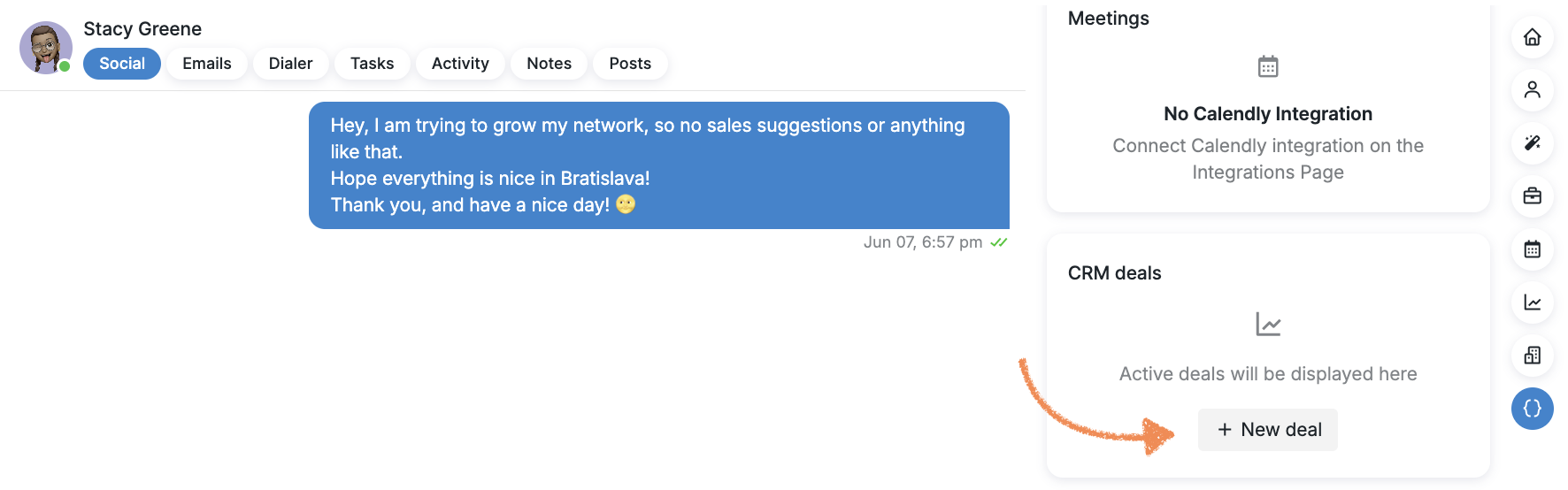
4. Choose HubSpot as the platform, configure the deal stage, then enter the deal name, value, and currency.
5. Click Create.
Another Way to Add Your HubSpot Deals
To add your deals using an alternative method, navigate to the Pipeline tab on your dashboard. Once there, select Hubspot from the dropdown menu found at the top of the page.

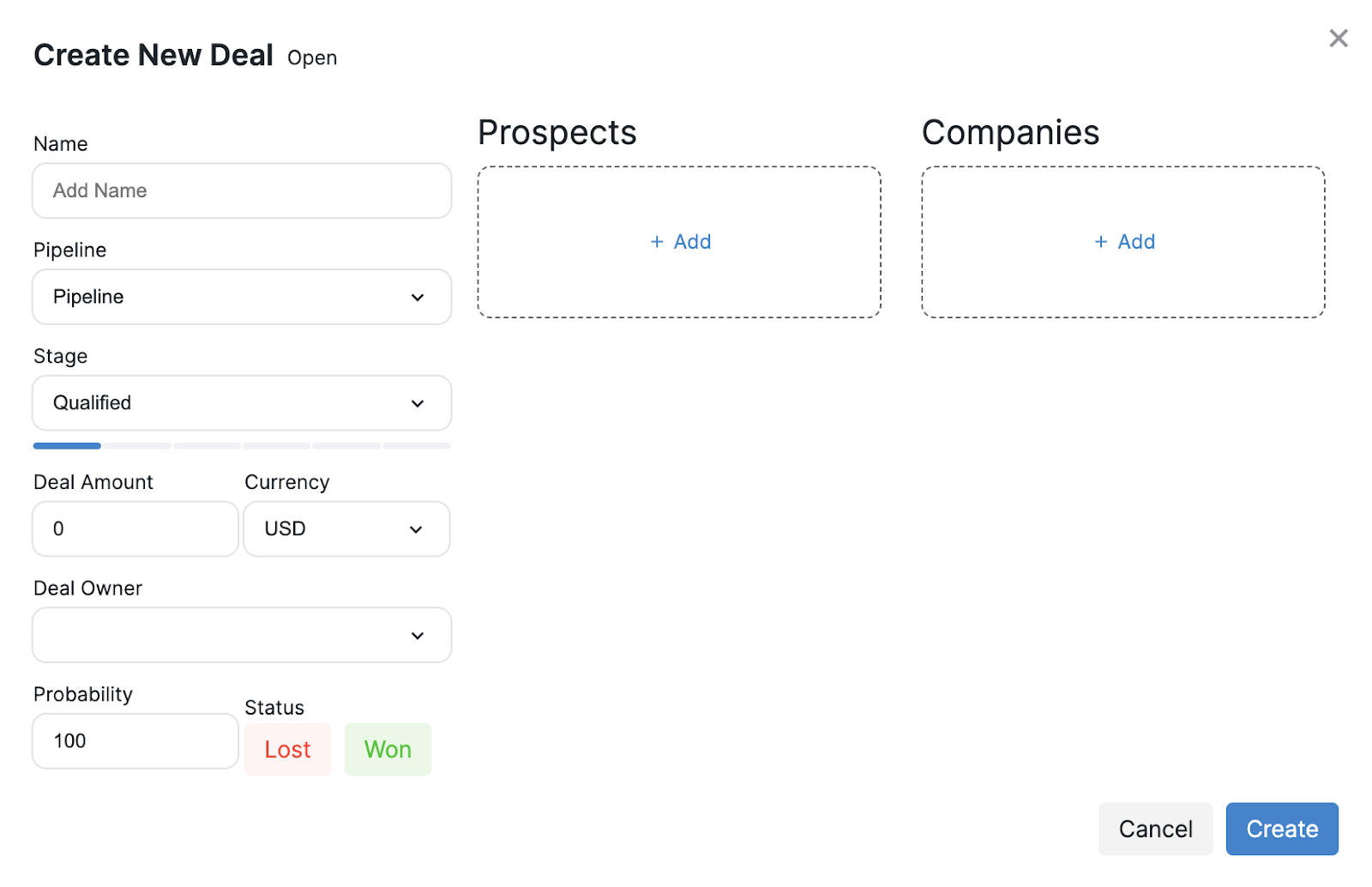
Next, hover over the screen and click on + Add Deal:

Complete all the required fields, including the deal name, pipeline, stage, amount, owner, probability, and status.
Be sure to also add the relevant prospects and companies. Once all the information is filled out, click Create to finalize the deal.
Your deal will be instantly synced between Buzz and HubSpot. Changes to deal status, stage, value, or other details will update automatically in both platforms.
If for some reason you do not see them reflected on Buzz Pipeline, try refreshing your deals by going to the Pipeline tab and clicking the synchronization button in the top right corner.

A Few More Things
You can link multiple CRMs to a single Buzz account.
If you manage several pipelines in HubSpot, each will sync with Buzz. You can assign deals to specific pipelines manually.
When a deal is created in HubSpot, data from the prospect’s contact info is transferred.
The list of the fields (prospect data) that are exported from Buzz to HubSpot:
For all profiles:
full_name:
last_name:
first_name:
email:
work_email:
phone:
enriched_phone:
company:
lead_source: (optional)
enriched_email:
position:
labels:
campaign_name:
campaign_status:
campaign_id:
For Social profiles, these fields are included in addition to the ones listed above:
social_url:
location:
IMPORTANT: When syncing prospects from Buzz to HubSpot, do not modify the property data, especially the field type. It must remain set to Single-line Text. Changing the field type may prevent prospects from syncing properly and cause data fetching issues.
If syncing has failed, correcting the field type will resolve the issue. To update it in HubSpot:
Go to Data Management > Properties;
Select the relevant property;
Under Manage, click Field Type;
Choose Single-line Text.
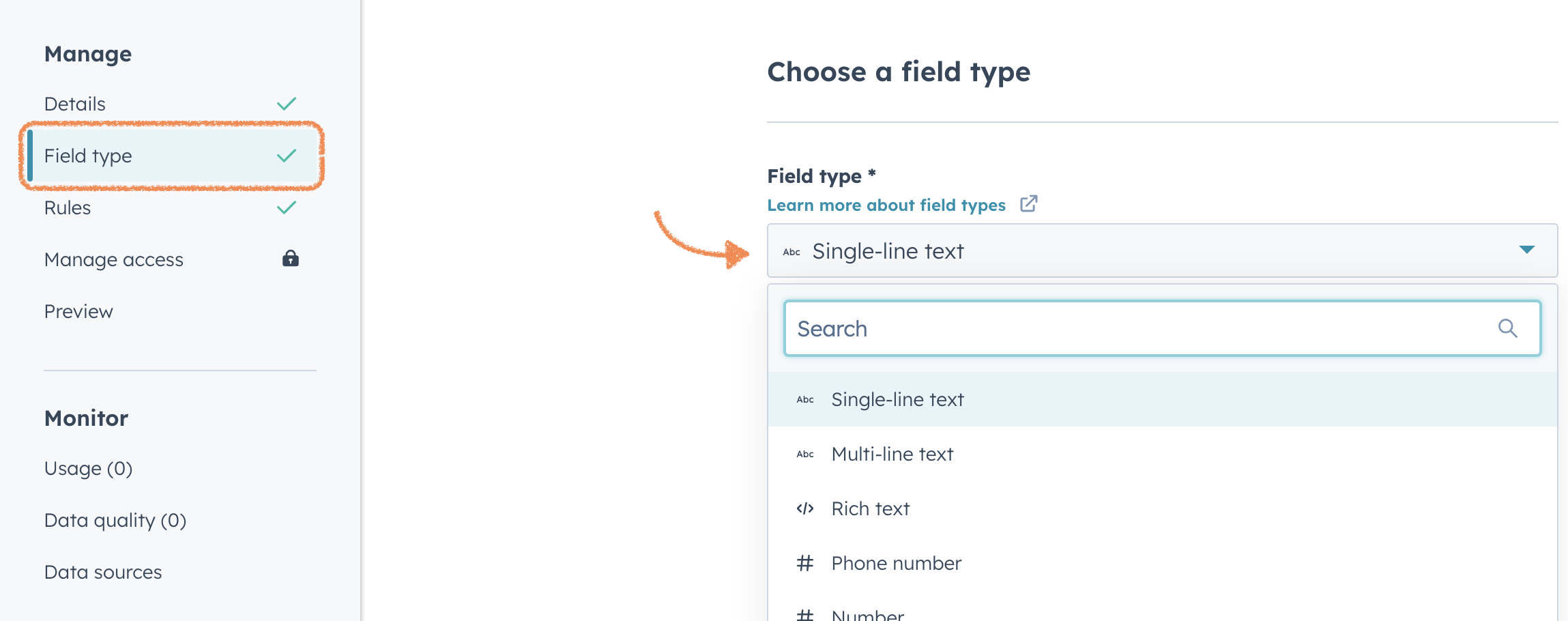
Once corrected, your prospects will begin syncing as expected.
With Buzz’s HubSpot integration, managing your deals has never been easier. Take full advantage of the two-way synchronization to ensure your pipeline is always up to date.
If you have any questions, please feel free to contact our Customer Support team.