How to Downgrade or Cancel Your Subscription
Last updated: October 8, 2026
With our recent Billing tab revamp, managing your subscription is now easier than ever.
If you’re looking to upgrade your subscription, check out this article for a step-by-step guide.
In this article, we’ll show you how to downgrade your plan or cancel your subscription.
Heads up: this update is for self-serve customers only. If you're on a contract with Buzz, your terms and available platform functionality stay exactly as they are, and you can review our full cancellation terms here.
How to downgrade your subscription
To downgrade your subscription, go to Billing → Overview → Change Plan.
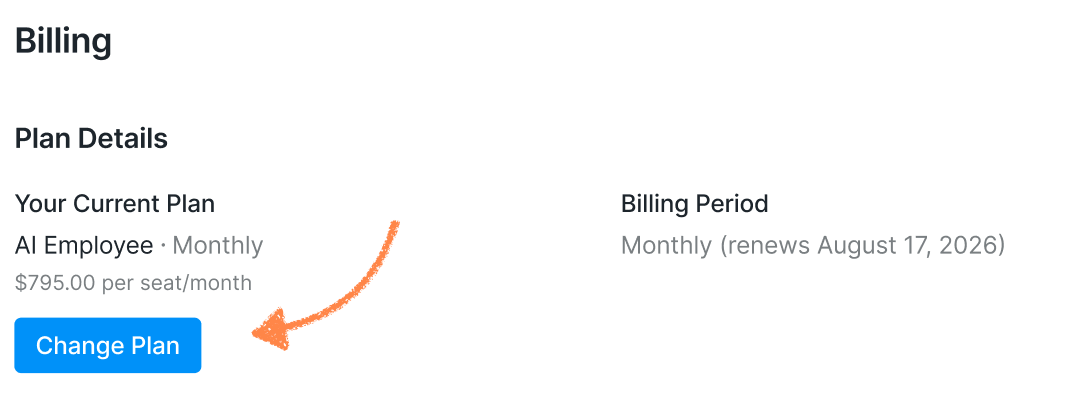
You’ll see all the plans available for downgrading. Choose the plan you’d like to switch to and click Choose to continue.
Before you confirm the change, we’ll ask you to tell us why you’re switching plans in a short poll. Your feedback helps us make Buzz better, so we really appreciate it!
Once you’re ready, click Change to confirm your downgrade.
Please note: Downgrading your plan may remove access to some features included in your current subscription.
Customize your new plan
Next, choose whether you’d like to be billed monthly or annually, adjust the number of seats, and add extra credits if needed.
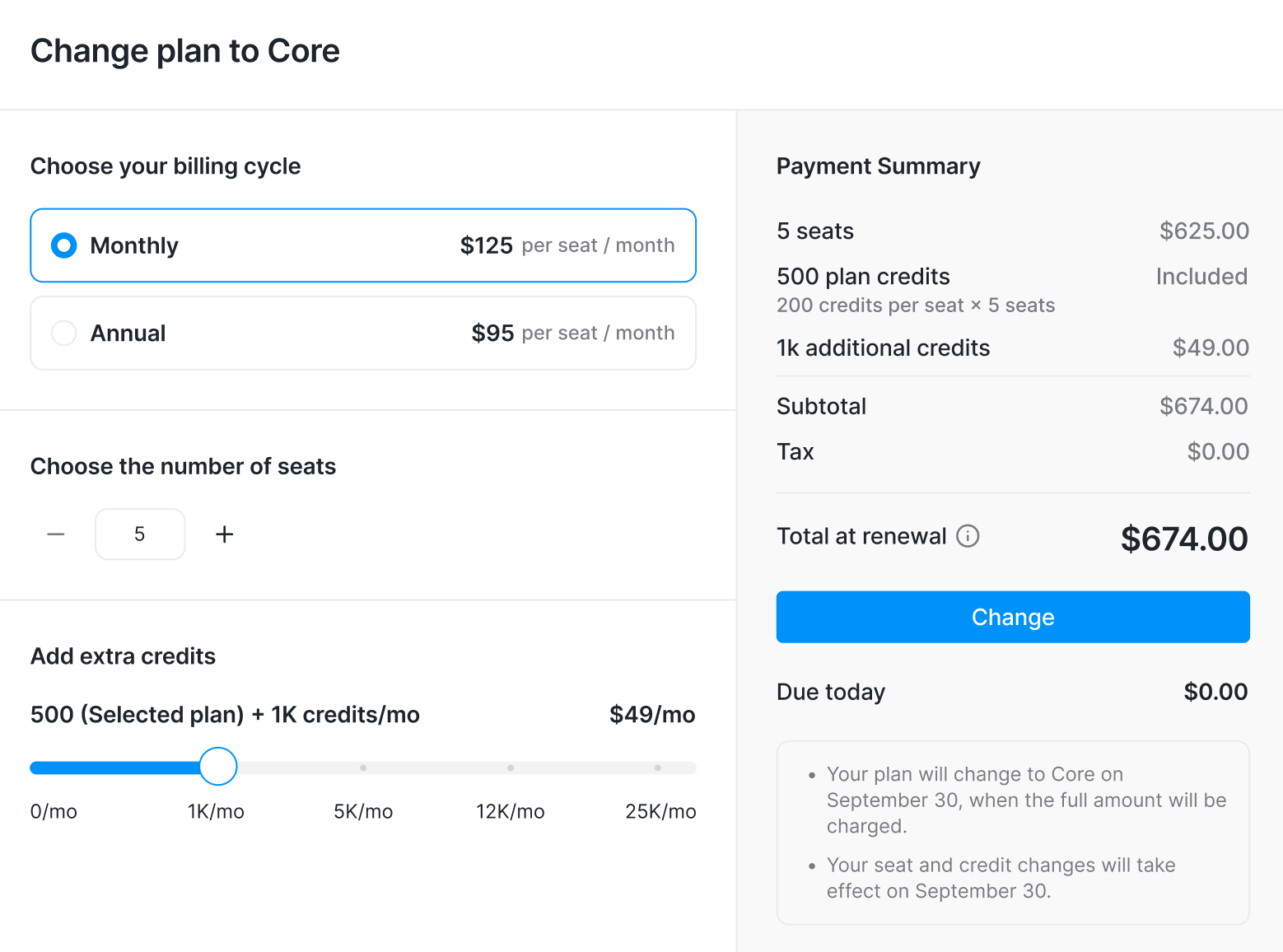
Your downgrade is scheduled rather than immediate. You won’t be charged when you click Change. Instead, the new plan will take effect on your next regular billing date.
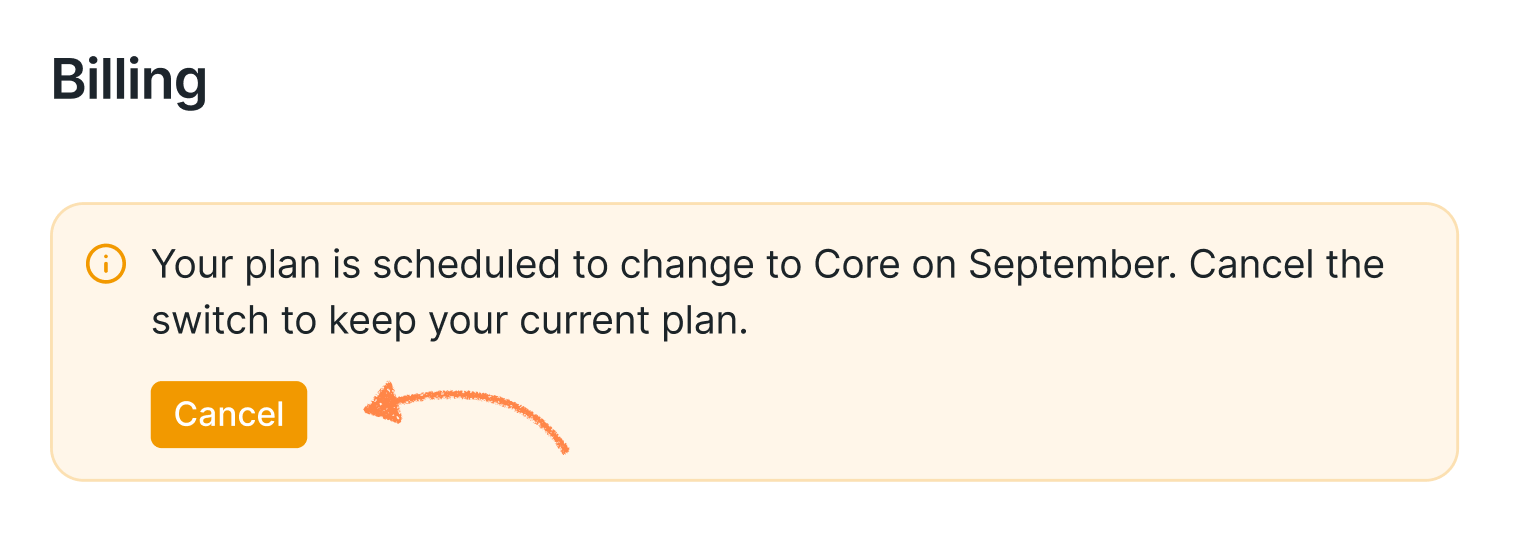
Changed your mind? You can cancel the scheduled downgrade at any time before it takes effect. Just go to Billing and click the cancellation button shown below.
How to cancel your subscription
To cancel your subscription, go to the Billing tab and click the red Cancel subscription button.
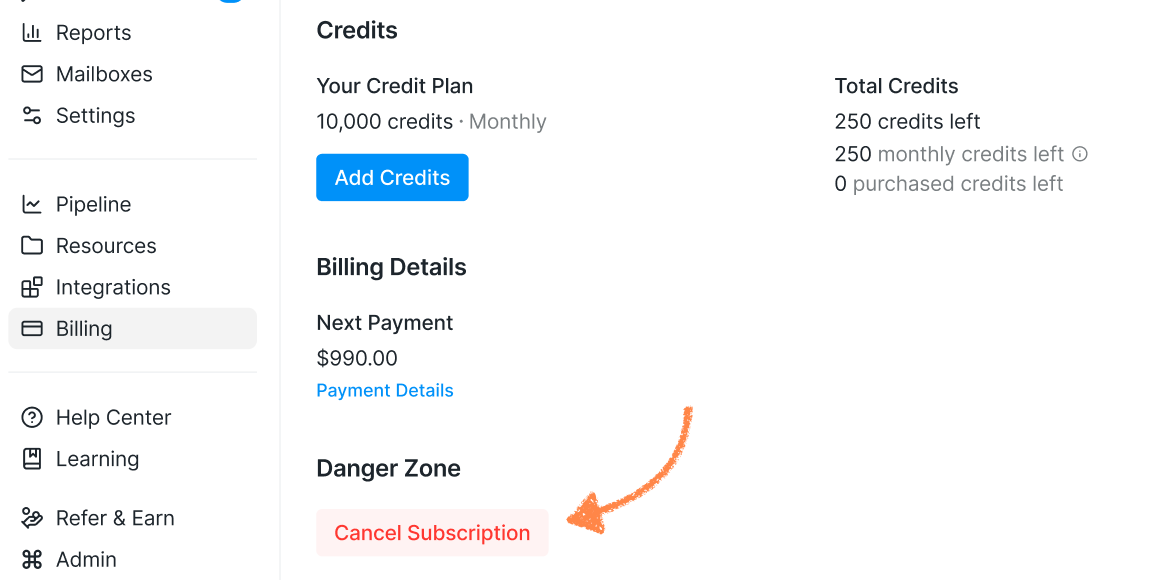
You’ll then be guided through the cancellation process.
As with downgrades, we’ll ask you to share the reason for cancelling in a short poll. Your feedback helps us understand what we can improve, so thank you for taking the time to tell us!
Please note: We don’t issue refunds for the current billing period, even if you cancel your subscription in the middle of a billing cycle.
What happens after you cancel?
Once you confirm your cancellation:
Your subscription is cancelled immediately.
You’ll have 30 days to export any data you need.
After 30 days, your account and workspace will be permanently deleted and can’t be recovered.
Want to come back?
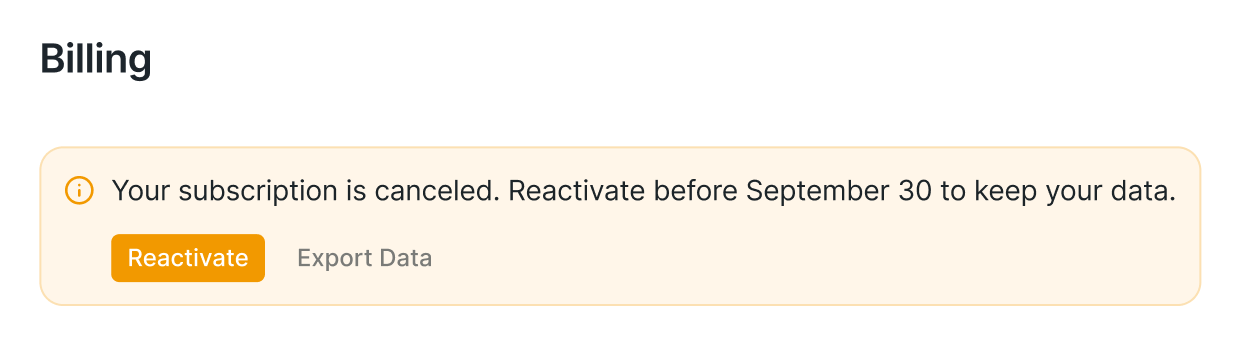
If you change your mind, you can reactivate your subscription or export your data during the 30-day period.
Just go to the Billing tab and select the relevant option in the orange box at the top of the page.
And that’s it! Whether you’re changing your plan or moving on from Buzz for now, you can manage everything directly from your Billing tab.