How to Connect Your Social Account
Last updated: September 23, 2026
❗Important: Beginning April 2025, two-step verification (2FA) is required to access Sales Navigator accounts on both desktop and mobile. To avoid any interruptions, please enable two-step verification on your Social Platform account.
Action Required:
Please follow these steps to enable 2FA on your Social Platform account:
Go to the Social Platform and sign in.
Click the profile icon at the top right and select Settings & Privacy.
In the left menu, select Sign-in & security.
Click Two-step verification and select Turn on.
Choose your preferred verification method.
Follow the prompts to complete setup, including entering your Social Platform password and the verification code from your chosen method (application or SMS).
After 2FA is enabled, you may be prompted to enter your 2FA code within the workspace. You will then need to enter a code when changing 2FA settings because this always requires re-authentication with a PIN. We have implemented a notice in the system to alert you whenever this is required.
To get started with Buzz, you'll need to connect a Social account. Don't worry, we've made the process quick and easy.
When you arrive at the dashboard as a new user, you will be prompted to follow a quick 5-step process. Check out this simple guide to set up and connect your Social account with Buzz:
When you first load up your dashboard, you will be prompted to connect your Social Account.
Click Connect Account Manually to proceed.
Select your geographical location from the dropdown menu.
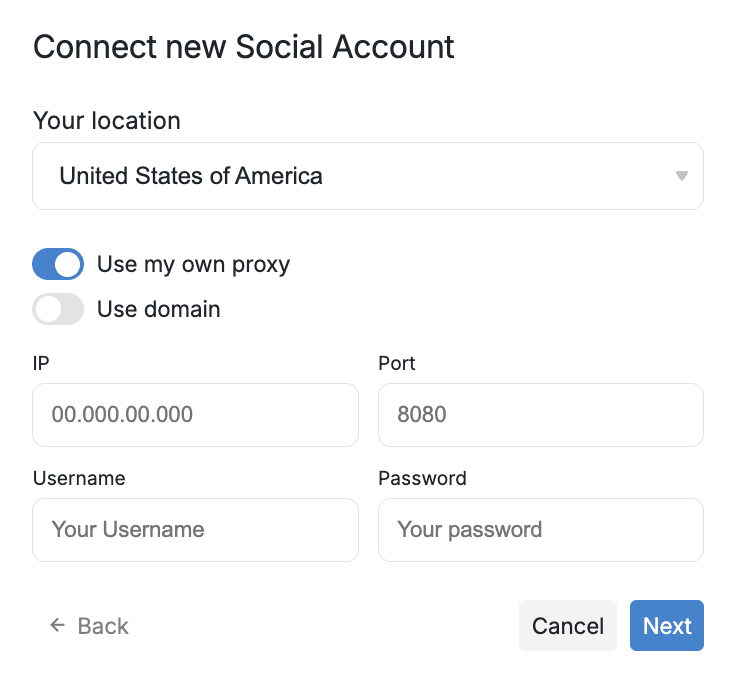
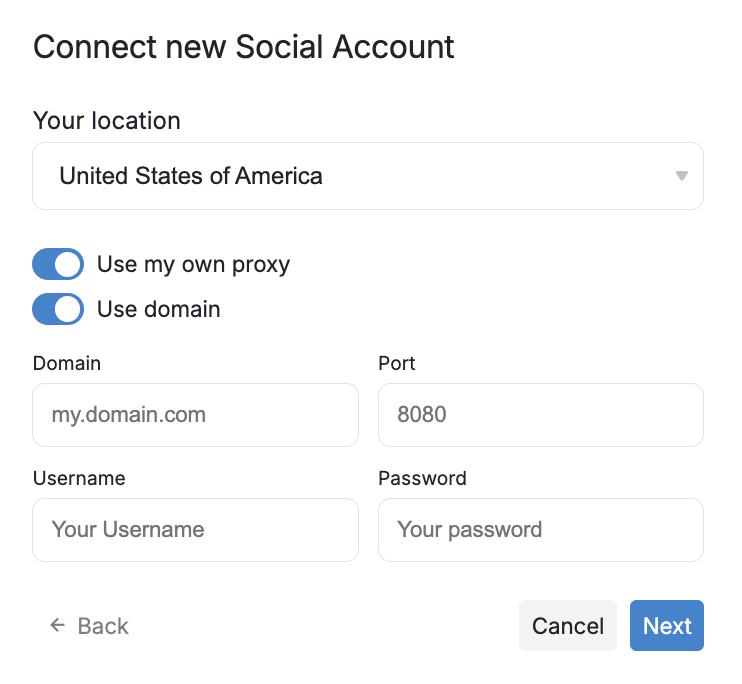
If you prefer to use a custom proxy, this is the point where you enter it and proceed to the following step.
When you select Use domain, the IP field will switch to a Domain field, allowing you to input your domain directly.
Add your time zone and accept or change your work hours:
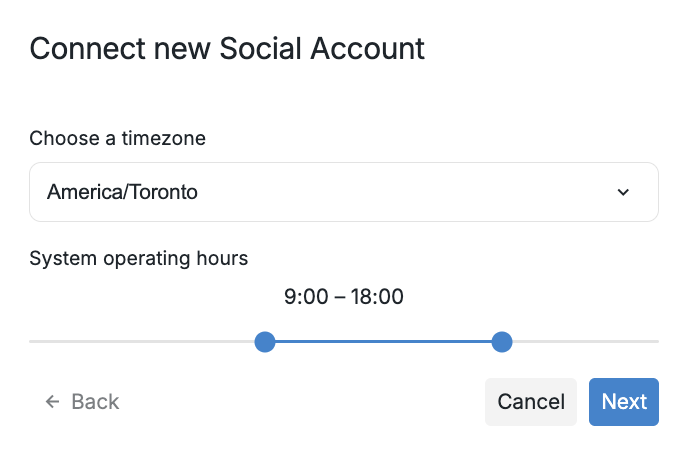
Note: Work hours run on a 24-hour clock. Any time past 11:00 is PM.
Add your Social Platform login credentials:
Enter the exact email address and password that you are currently using to log into your Social Platform account. Both credentials must match what is actively being used on your Social Platform account right now.
Note: If you encounter login errors or challenges after connecting, verify that you've entered the correct Social Platform password. You can update your login credentials anytime by going to Account Settings and entering the correct password for your Social Platform account.
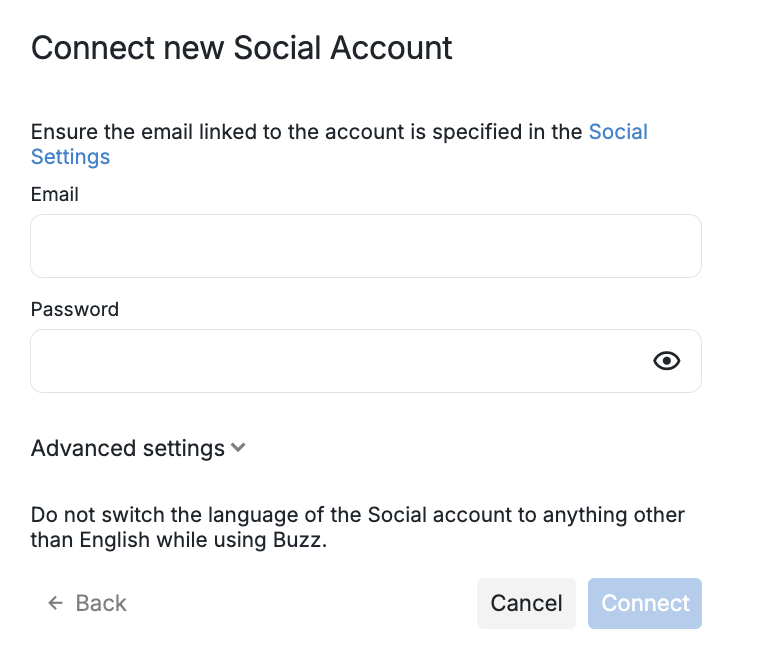
Click Connect to finish setup.
Successful Login
You will know that your account is successfully connected when you see the blank avatar on the left panel replaced with your Social Account information. You will also see the following notification:
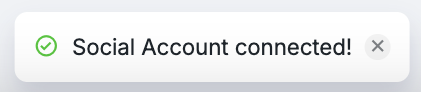
Buzz will start synchronizing data from your Social Profile. Notice that if your Social Account lacks a profile picture, your Buzz account will not have one either.
Troubleshooting Connection Issues
If your connection fails due to password issues:
Return to the connection form and verify that you're entering the same email address and password you are actively using to log into your Social Platform account. Update the credentials in the form to match your current Social Platform login details exactly.
Note: If you plan to use Sales Navigator features, such as saved searches for lead imports, your connected Social Platform account must have:
An active Sales Navigator subscription.
Two-step verification (2FA) enabled. Without 2FA, the system cannot detect your Sales Navigator license and will show a Basic status instead.
Additionally, searches must be performed within your own account. Search links sourced from other Sales Navigator accounts are not supported.
Note: If you have a Sales Navigator account and update your 2FA verification settings in the Social Platform (e.g., changing how you receive your 2FA code) while connected to the system, your Social Account will be logged out, followed by a login and PIN entry. You may see an "Auto authorization start request" notification during this process—this is expected system behavior.
The PIN expires within 15 minutes of being sent. If your code has expired, press 'Resend the code' from the account page on the platform to receive a new one.
Updating Your Password
If you change your LinkedIn password, you must update it in Buzz to maintain your account connection. Failing to do so will result in your account becoming disconnected.
To update your password in Buzz:
Go to Settings in your Buzz workspace.
Select Account Settings.
Click Update password.
Enter your current LinkedIn password, not your Buzz platform password.
Save the changes.
Important: Always update your password in Buzz immediately after changing it on LinkedIn to avoid disconnection.
If you do have a picture and it still fails to display, please do not hesitate to reach out to our Customer Support team.