How to Connect Buzz to ZoomInfo
Last updated: October 23, 2026
Want to send ZoomInfo contacts straight to your Buzz campaigns? You can connect the two platforms using ZoomInfo’s Custom Data Connectors and Workflows.
A ZoomInfo admin can complete the setup in about 15 minutes. Follow the steps below to configure the connection, test it, and start adding prospects to your Buzz campaigns.
Before you start
Make sure you have:
ZoomInfo Admin Portal access. You can switch to the Admin Portal from the product menu next to your avatar in the top-right corner.
ZoomInfo Workflows enabled. The integration uses ZoomInfo Workflows to run custom connector actions.
Your Buzz Client ID and Client Secret. The Buzz team will send these to you separately and securely. These credentials are the same for every Buzz customer, so never share them publicly.
A Buzz login for the workspace you want to connect.
Important: The Buzz account you sign in with during setup determines which workspace ZoomInfo connects to.
Here’s a quick video walkthrough covering the same steps as this article:
https://www.youtube.com/watch?v=sfl_ClSqc1s
Step 1: Create a data connector
Open the ZoomInfo Admin Portal.
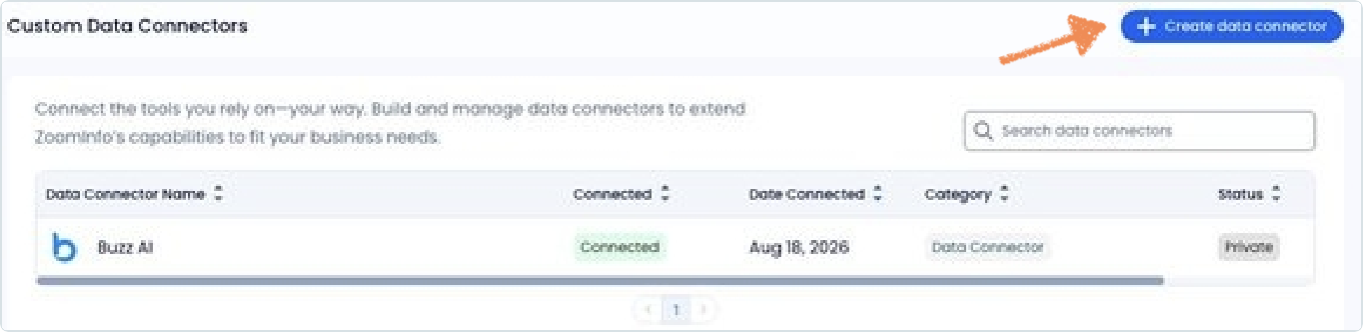
Go to Integrations > Custom Data Connectors.
Click Create Data Connector in the top-right corner.
Step 2: Configure the general settings
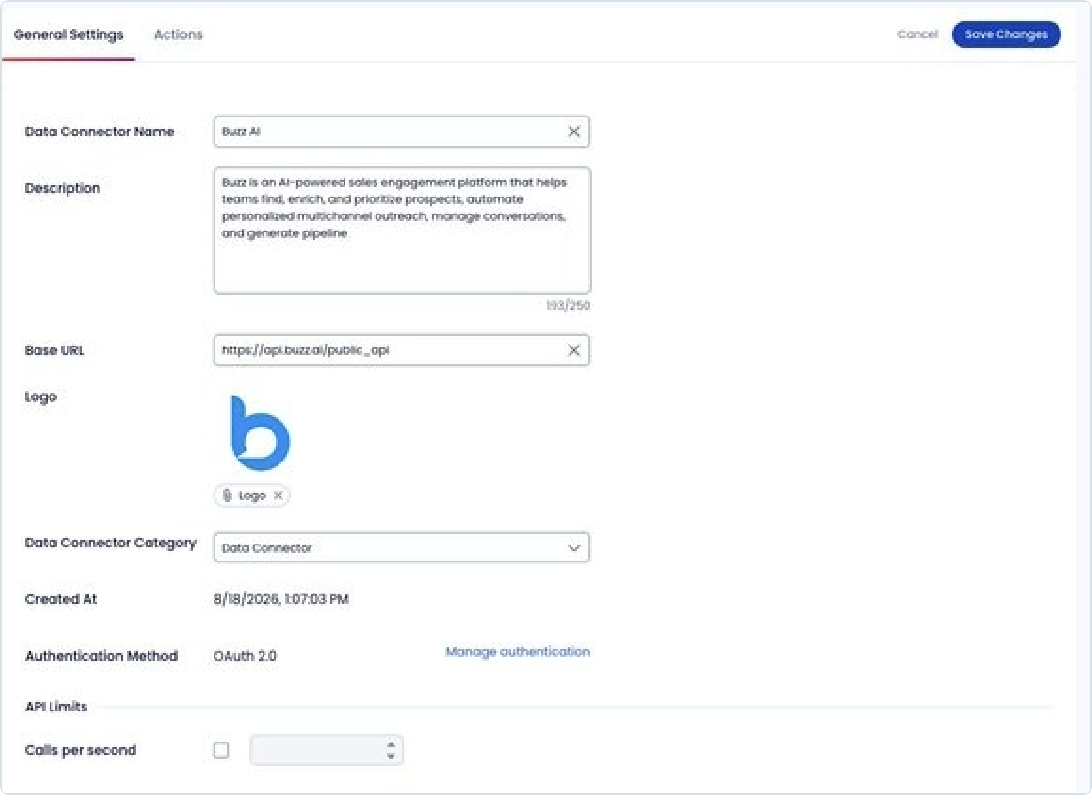
Fill in the connector settings as follows:
Field | Value |
Data Connector Name
|
|
Description | Buzz is an AI-powered sales engagement platform that helps teams find, enrich, and prioritize prospects, automate personalized multichannel outreach, manage conversations, and generate pipeline. |
Base URL | |
Logo | Upload the Buzz “b” logo. Contact your Buzz representative if you need it. |
Data Connector Category |
|
Authentication Method |
|
This is what it should look like filled out:
Step 3: Configure authentication
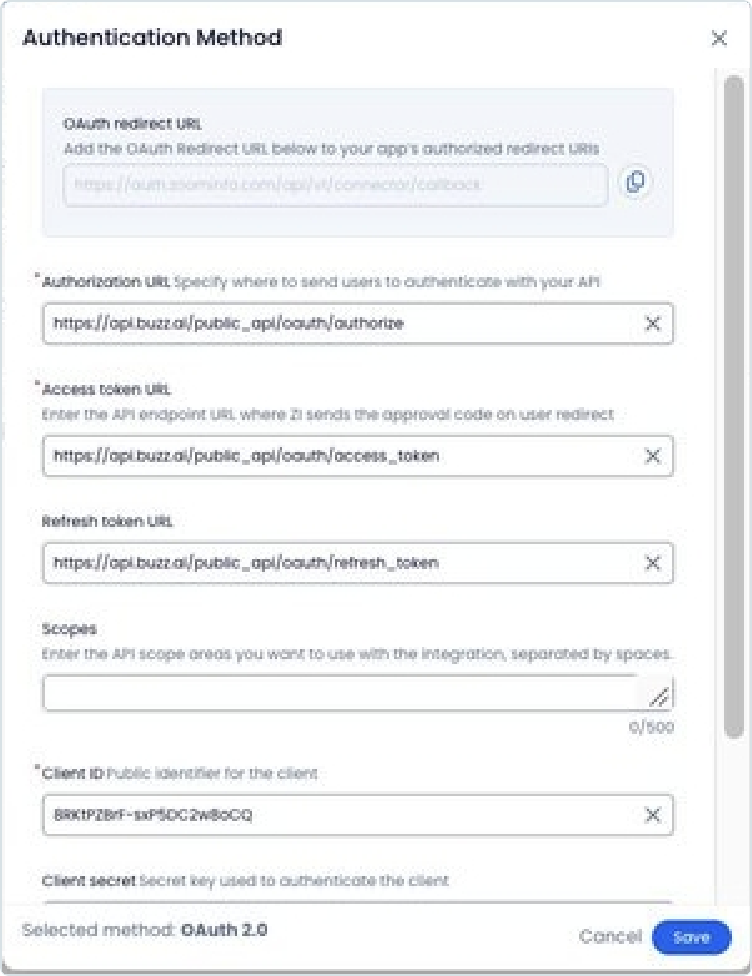
Click Manage Authentication and enter the following details.
Field | Value |
OAuth Redirect URL
| https://auth.zoominfo.com/api/v1/connector/callback . Buzz already allows it, so you don't need to change it. |
Authorization URL | |
Access Token URL | |
Refresh Token URL | |
Scopes | Leave blank |
Client ID | Enter the Client ID provided by Buzz |
Client Secret | Enter the Client Secret provided by Buzz |
Click Save, then Save Changes.
Tip: Copy the URLs exactly as shown above, including /public_api/oauth/. An incorrect URL can prevent the connection from working properly.
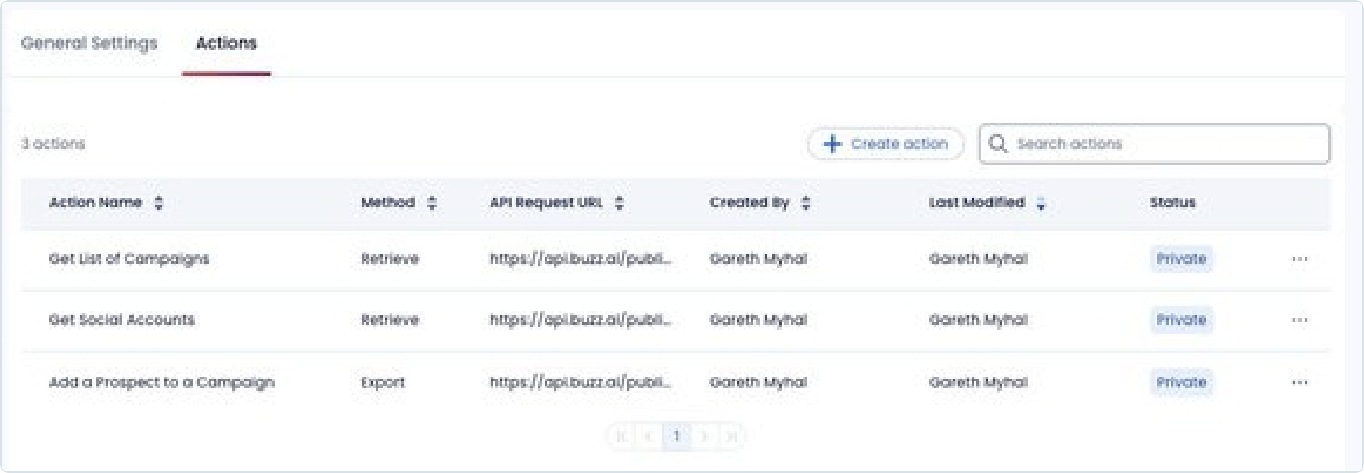
Step 4: Add the three required actions
Open the Actions tab and create the following three actions. For each action, go through the Details, API Call, Output, Form, and Review & Save sections. Set Authentication to OAuth for every action.
Action 1: Get Social Accounts
This action retrieves the active Social Accounts in your connected Buzz workspace. You'll need an account ID from this response to retrieve the campaigns associated with that account.
Setting | Value |
Description | Returns a list of active social accounts |
Category |
|
Method |
|
Endpoint |
|
Inputs | None |
Outputs |
|
Action 2: Get List of Campaigns
This action retrieves the campaigns associated with a specified Social Account.
Setting | Value |
Description | Returns a list of campaigns for the specified ID |
Category |
|
Method |
|
Endpoint |
|
Input |
|
Outputs |
|
The credential_id is the ID of a Buzz Social Account returned by the first action.
Action 3: Add a Prospect to a Campaign
This action adds a prospect to a selected Buzz campaign.
Setting
| Value |
Category |
|
Method |
|
Endpoint |
|
Configure the following inputs. All fields are strings.
Input | Required? |
| Yes |
| Yes |
| Yes |
| Yes |
| Yes |
| Yes |
| Yes |
| Yes |
| No |
The optional moveProspect input accepts true or false and determines whether a prospect should be moved from another campaign if they're already in one.
Use the following JSON as the request body:
{
  "credentials_id": "{{credentialsId}}",
  "workflow_id": "{{campaignId}}",
  "is_move_from_other_workflows": "{{moveProspect}}",
  "profiles": [
    {
      "link": "{{linkedinprofile}}",
      "first_name": "{{first_name}}",
      "last_name": "{{last_name}}",
      "last_job_title": "{{jobTitle}}",
      "company": "{{companyName}}",
      "phone": "{{phone}}"
    }
  ]
}
Make sure the input names and request body match the configuration above. Save the action once you've completed all the required sections.
Step 5: Connect your Buzz workspace
Now that the connector and actions are configured, connect your Buzz workspace.
Return to Integrations > Custom Data Connectors.
Find the Buzz AI row.
Click the three-dot menu under Actions, then select Connect.
Sign in with the Buzz account associated with the workspace you want to link.
Click Authorize.
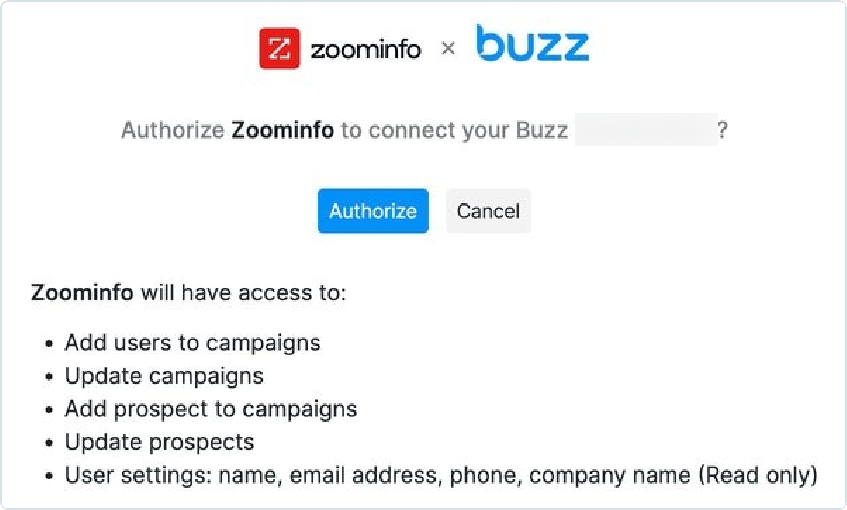
Once the connection is successful, the connector's status will show Connected.
Connecting a different workspace later? Open the same three-dot menu, select Disconnect, then select Connect and sign in with the Buzz login for the other workspace.
Step 6: Test the connection
Before building your workflow, check that the connector can retrieve your Buzz accounts and campaigns.
Test 1: Retrieve your Social Accounts
Open the Get Social Accounts action.
Go to API Call.
Click Test API next to the endpoint.
Check that the response includes your Buzz sending accounts.
Test 2: Retrieve your campaigns
Copy an account ID from the Social Accounts response.
Open the Get List of Campaigns action.
Enter the copied ID as the
credential_idtest value.Click Test API.
Check that your Buzz campaigns appear in the response.
Step 7: Create a ZoomInfo workflow
You're all set to start sending prospects to Buzz!
Create a workflow in ZoomInfo that calls the Add a Prospect to a Campaign action. Configure it to pass the prospect details and the IDs of the Social Account and campaign you want to use.
Once the workflow is configured and activated, it can push contacts into your selected Buzz campaign.
That's it! 🎉 Your Buzz–ZoomInfo integration is ready to help you move prospects from ZoomInfo into your Buzz campaigns.
Troubleshooting
Having trouble connecting or retrieving your campaigns? Here are a few common issues to check.
Issue | What to do |
“Unknown client” error or connection fails
| Re-enter the Client ID and Client Secret exactly as provided by Buzz. |
The connection drops after a while | Check that the Refresh Token URL is https://api.buzz.ai/public_api/oauth/refresh_token |
The wrong campaigns appear
| You may have connected the wrong Buzz workspace. Disconnect the integration and reconnect using the correct Buzz login. |
Buzz actions don't appear in ZoomInfo Workflows | Ask your ZoomInfo representative to confirm that Workflows and Custom Data Connectors are enabled for your account. |
Need a hand?
Your Buzz contact can securely provide your Client ID and Client Secret and walk your ZoomInfo admin through the setup process.