Intent Data: How to Use It to Reach the Right Prospects
Last updated: September 23, 2026
Intent data shows you who’s already warming up — the prospects actively researching, engaging or showing buying signals. In this guide, we’ll walk through practical ways to use intent data to prioritize the right leads, personalize your outreach and improve campaign performance.
Useful Tips
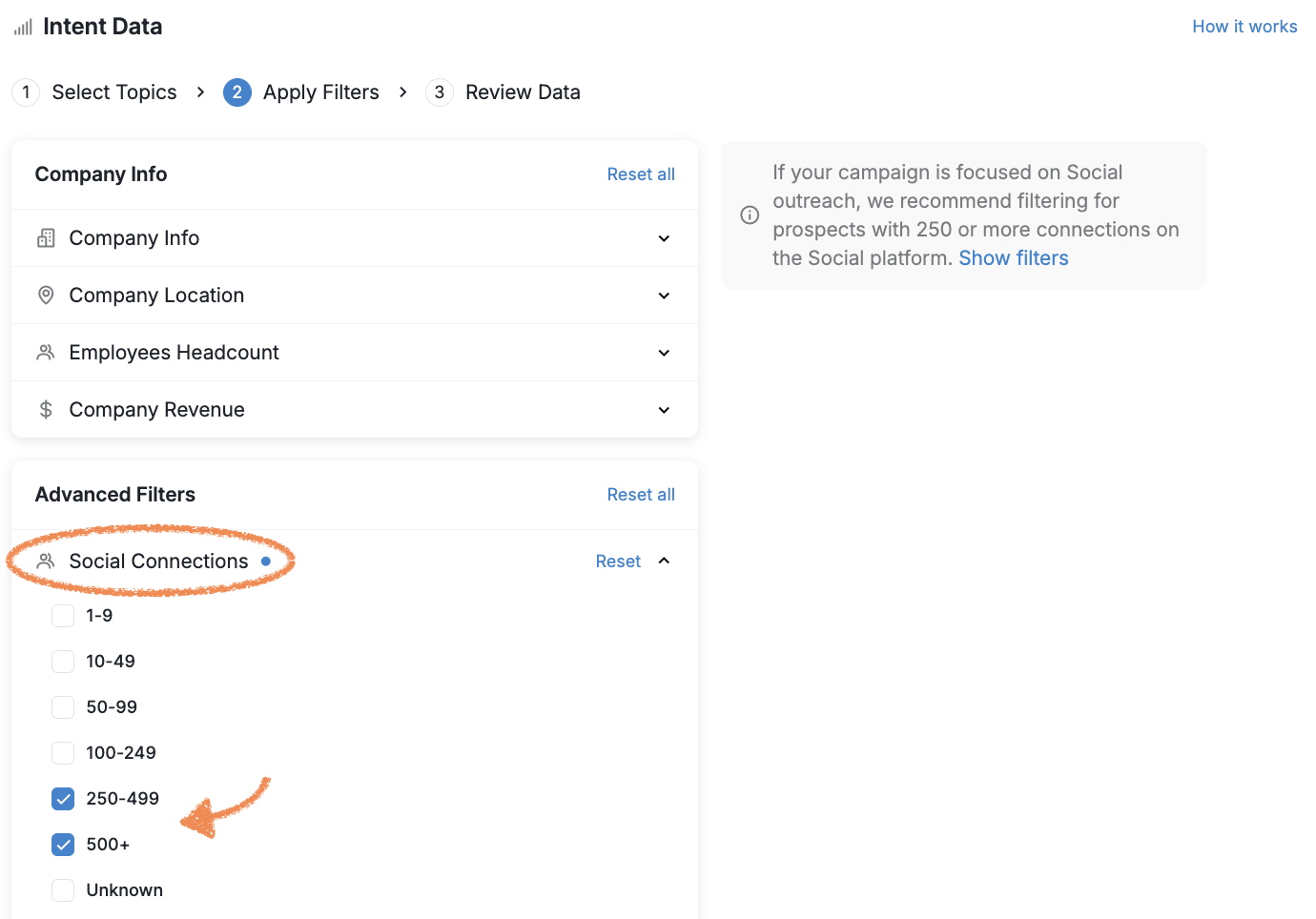
Planning to reach out via the Social Platform? Add a filter to target prospects who have 250+ connections — they’re more likely to engage.
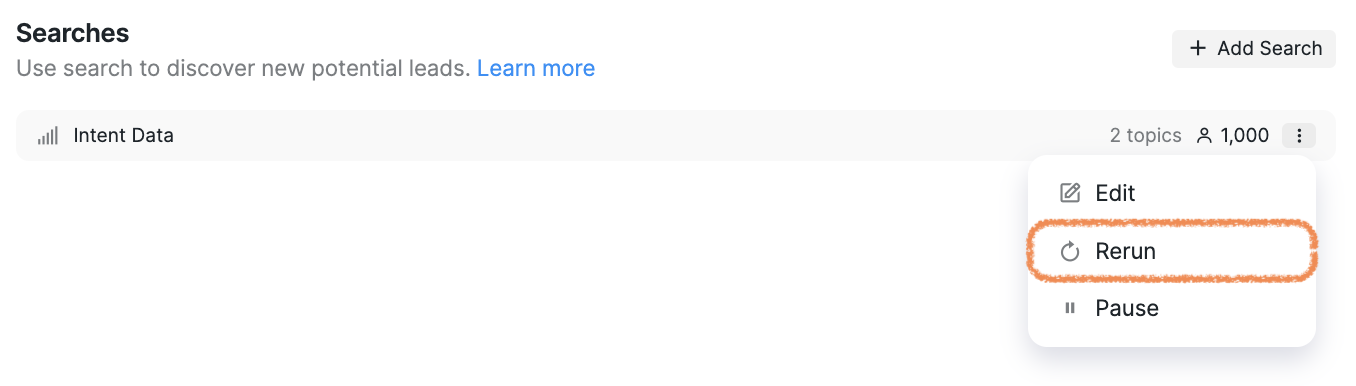
If your initial search doesn't pull in thousands of prospects, don't worry: you can always rerun the search. In fact, we recommend rerunning it several times a day to maximize the results.
Use your enrichment credits — enriching these prospects will help identify additional connection methods like email and phone numbers. You can add those steps into one campaign to ensure you are attempting to connect with your ideal prospects through multiple channels. This can also help keep your CRM information up to date.
Play with the filters to hone in on the client type you win the most with. Note that if we do not have the information on the prospect, it can exclude them from the search. However, becoming familiar with these can help supercharge these campaigns and give you the power to hypercustomize your messaging.
Important: Campaign behavior differs for already-connected prospects depending on campaign type:
Simple Campaigns: The connection request step will be skipped for already-connected prospects, but follow-up messages will still be sent unless you manually remove them. The platform only automatically pauses outreach to prospects with prior conversation history in your Buzz account. Existing LinkedIn connections without prior conversation history will still be contacted by the campaign.
Smart Campaigns: Use conditional logic, available only in Smart Campaigns, to automatically prevent messaging already-connected prospects without manual removal.
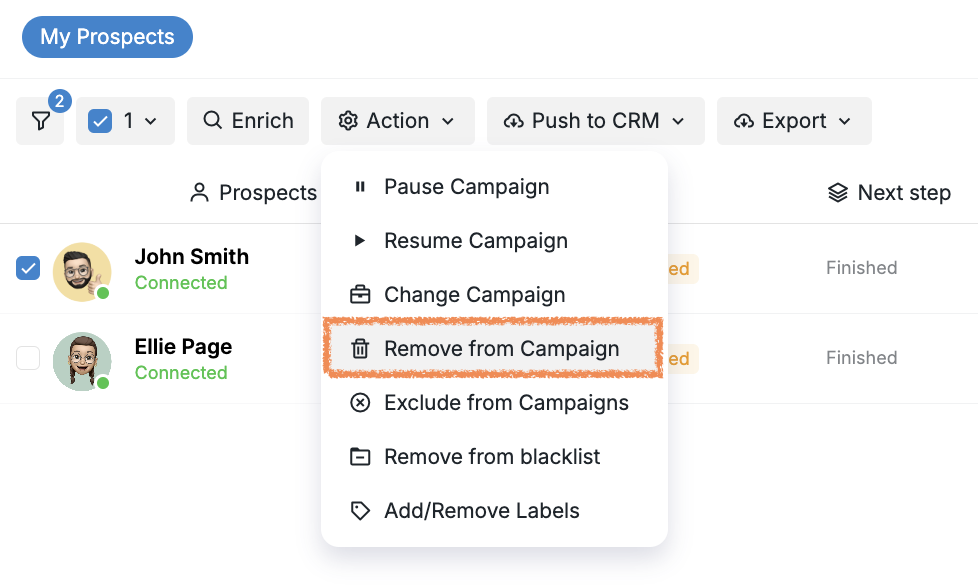
When first running the campaign, check to see if anyone is automatically showing in the Connected area. If so, these people are already your first-degree connections. To prevent messaging existing connections in Simple Campaigns, click the Connected tag on the campaign, select the prospects you want to remove, click Action at the top of the screen, and choose Remove from the campaign. For campaigns where protecting existing relationships is critical, use Smart Campaigns with connection status conditions rather than relying on manual removal.
When used thoughtfully, Intent Data helps you stop guessing and start focusing on prospects who are already in the market. By combining these signals with your campaigns, you can time your outreach better and drive higher reply rates.