Understanding Users, Brands, and Workspaces
Last updated: September 23, 2026
In this article, we’ll walk you through how Buzz is structured behind the scenes — or in other words, the hierarchy of layers that powers your experience. Knowing this setup will help you avoid confusion and better understand how your brand operates within Buzz.
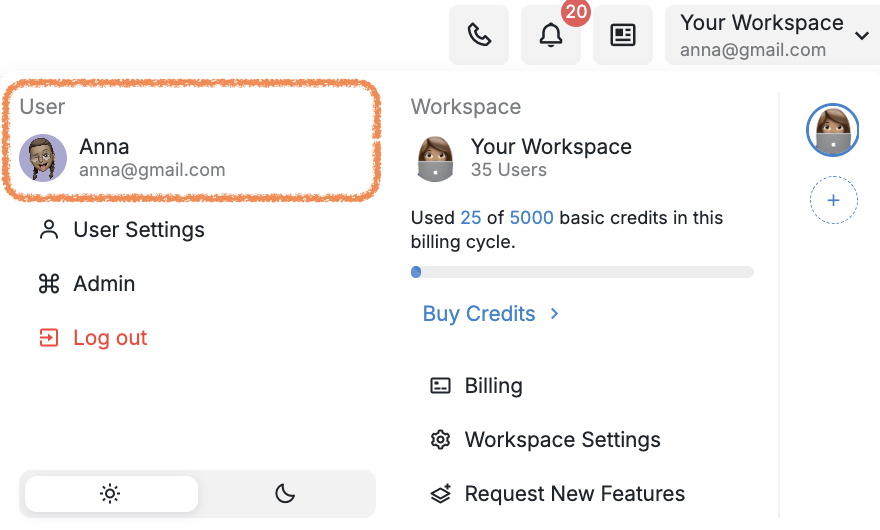
You might already be familiar with basic terms like user and workspace. Here's a screenshot of how your user profile is represented in the Buzz interface:
What Is a Brand?
In Buzz, every user is tied to a brand. A brand refers to a specific version of the Buzz platform — with its own color scheme, settings, and configurations. When you first sign up through Buzz, your user will be attached to that brand and carry its settings with you wherever you go.
That’s why, if a user has access to a different domain but was originally created under another brand, they’ll still see the design and settings of their original brand when logging in — not those of the new domain. If you encounter a "user already registered" error when onboarding a new client, the user may have an existing account from another white label — contact Customer Support to restore and transfer their account to your workspace.
How Workspaces Fit In
Every user can create workspaces — and each workspace inherits the brand of the user who created it.
Buzz also gives you the ability to move workspaces between white labels. To do this, go to the Admin Panel, find the workspace you'd like to transfer, click Manage, and select Move to Another Whitelabel.
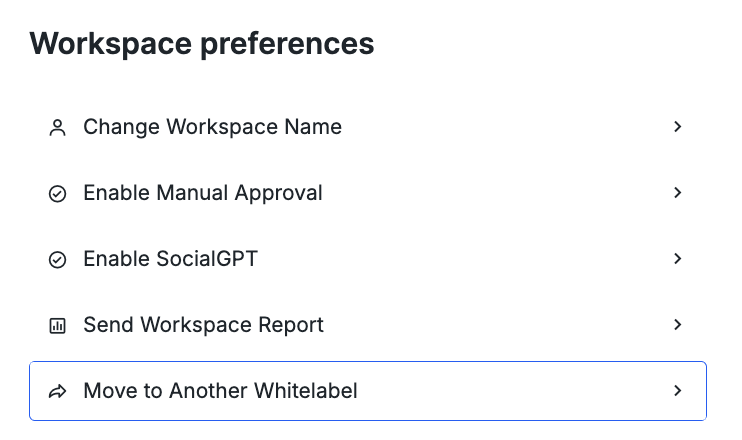
Important: When a workspace is transferred to another white label (i.e., brand), the change affects not only the workspace brand but also the brand of the user who created it.
If you want to move a workspace without changing your own user brand, please reach out to our Customer Support team. We can update the workspace creator’s email so the transfer doesn’t affect your user account.
Note: Users who exist in the system but are not currently assigned to any workspace cannot be transferred using the workspace transfer process. If you encounter users that cannot be moved, you can instead invite them directly through the target workspace's settings under the Members section using their email addresses.