Using Placeholders in Campaigns
Last updated: September 23, 2026
In Buzz, you have powerful tools to personalize your outreach. Placeholders make it easy to tailor messages for each contact in your campaign.
What Are Placeholders?
Placeholders are dynamic tags that automatically insert personalized details (like a contact’s first name, company name, or job title) into your messages.
Instead of writing:
Hi John, I noticed you’ve been at Acme Corp for 5 years!
You can simply write:
Hi {first_name}, I noticed you’ve been with {company_name} for {years_in_company} years!
Buzz will fill in the correct details for each person when the message is sent, using either their data or yours (for sender-related fields).
Where Can You Use Placeholders?
You can use placeholders in any campaign step that includes text:
Send Connection Request
Send Email (both subject and body)
Send InMail
Send Message
Send SMS (currently unavailable)
How to Use Them
You can use placeholders in any campaign step that includes text. When you're creating or editing a step (like a message, email, or connection request), just look for the placeholder icon on the left side of the text panel.
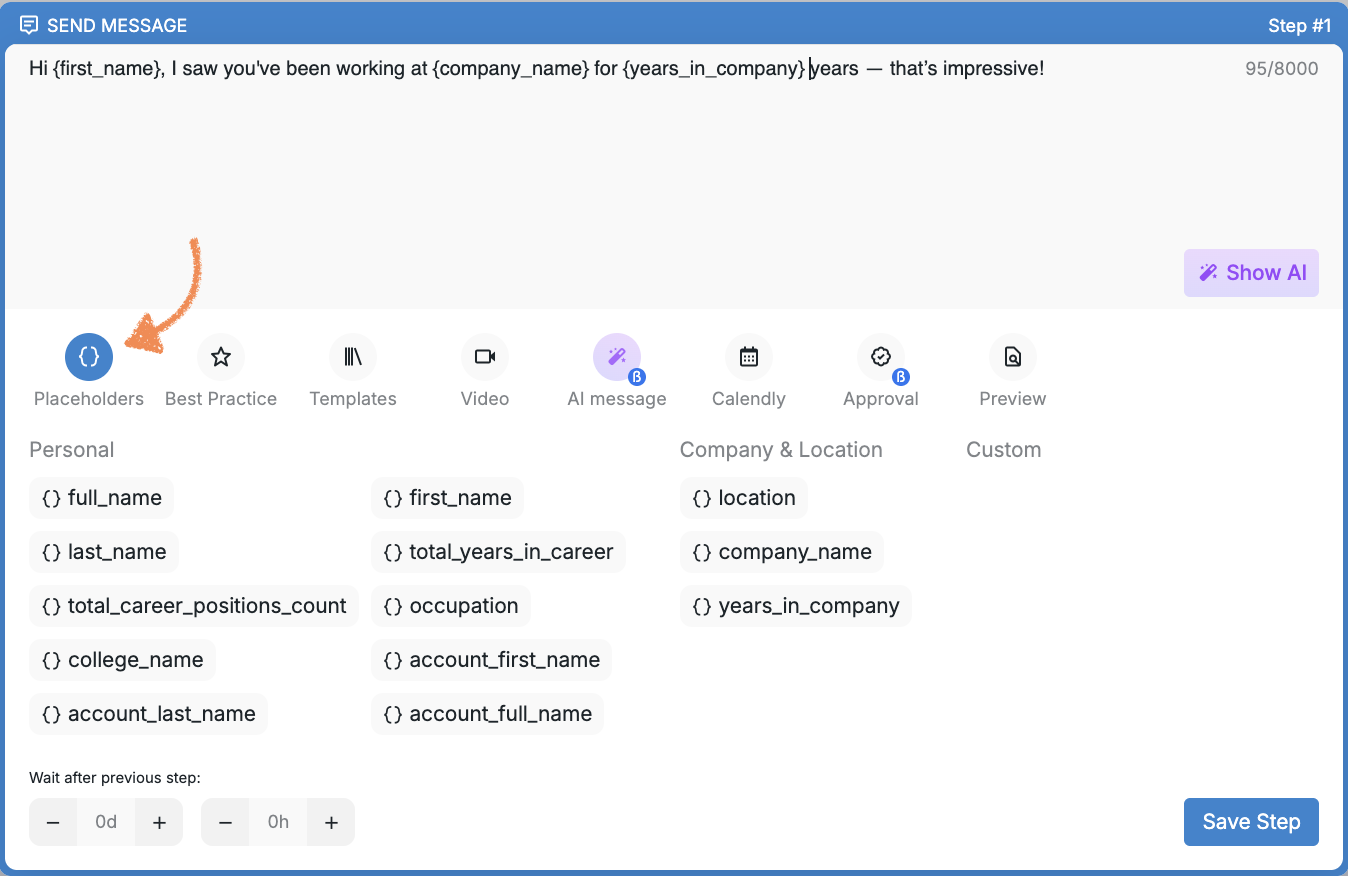
Simply click on any placeholder from the list while typing your message — it’ll be inserted automatically right where your cursor is.
Important: Always use the placeholder picker to insert placeholders. If you manually type placeholder text (like typing “First name” or “{first_name}”), your messages will display the literal text instead of the personalized values. If your campaign messages are showing placeholder text instead of actual contact details, check that you used the picker to insert placeholders rather than typing them manually. You can correct this by replacing the manually typed text with properly formatted placeholders from the picker, saving your changes, and resuming the campaign.
Full List of Available Placeholders
Personal
Placeholder | Description |
| Prospect’s full name |
| Prospect’s first name |
| Prospect’s last name |
| Total number of years in their career |
| Total number of career positions held |
| Current job title |
| Name of the educational institution they studied at |
| First name of the connected Social Account (your profile) |
| Last name of the connected Social Account |
| Full name of the connected Social Account |
Company & Location
Placeholder | Description |
| Prospect's location (e.g., city or country) |
| Name of the current company the prospect works at |
| Years spent at the current company |
Note: For LinkedIn+Email campaigns, the company_name value is automatically fetched from LinkedIn and cannot be manually changed on the platform. For email-only campaigns, the value comes from your uploaded CSV file. If you need to preserve a specific company name value that won't be overwritten, consider using a custom field (for example, cf_company) and reference that field in your templates instead.
Tips for Using Placeholders
Some fields might be empty, so it’s a good idea to include a fallback. A fallback is a default word or phrase that shows up when the data for a placeholder is missing. It helps your message stay natural and prevents awkward blanks.
For example:
Hi {first_name:there}! → If the first name is missing, it’ll say: Hi there!
You can use fallback with any placeholder in Buzz as long as you make sure that your sentence still reads naturally, even if a placeholder doesn’t get filled.
If you're unsure which placeholder to use in your case or want to test your message, feel free to contact our Customer Support team — we're always happy to help!